
How to Wash Mousepad: Expert Guide
How to Wash Mousepad: Expert Guide to Keeping Your Desk Essential Clean
Your mousepad is one of those overlooked desk companions that silently absorbs dust, oils, and grime day after day. Whether you’re a remote worker, gaming enthusiast, or casual computer user, a clean mousepad isn’t just about aesthetics—it’s about maintaining optimal mouse performance and extending the life of your equipment. The good news? Washing your mousepad is straightforward, and we’re here to walk you through every method.
Most people don’t realize that a dirty mousepad can actually affect your mouse’s tracking accuracy. Dust particles and oil buildup create friction that interferes with your mouse sensor, leading to sluggish movement and frustrating cursor lag. Beyond functionality, a grimy mousepad is simply unpleasant to rest your wrist on for hours at a time. The process of cleaning it properly doesn’t require expensive products or complicated techniques—just a little knowledge and the right approach for your specific mousepad material.
In this comprehensive guide, we’ll explore every aspect of mousepad maintenance, from identifying your mousepad type to choosing the best cleaning method. We’ll also show you how to prevent future buildup so your mousepad stays fresher longer.
Identifying Your Mousepad Type
Before you start washing, you need to understand what you’re working with. Mousepads come in several varieties, and each requires slightly different care approaches. The most common type is the fabric or cloth mousepad, which features a soft textile surface over a rubber or foam base. These are popular because they provide excellent mouse control and comfort, but they’re also prone to collecting dust and stains.
Then there are hard mousepads, typically made from plastic, acrylic, or aluminum. These rigid surfaces are easier to clean in many ways because they don’t absorb liquids, but they can scratch more easily and may develop static issues. Some gaming-focused mousepads fall into this category and offer speed-focused surfaces.
The third category includes RGB or illuminated mousepads with electronic components. These require extra caution during cleaning to avoid water damage. Finally, there are specialized mousepads like gel-filled ones or ultra-thin travel versions, each with unique cleaning considerations.
Check your mousepad’s documentation or manufacturer website to confirm the material composition. If you’ve lost the original packaging, a quick visual inspection usually reveals the type. Fabric mousepads feel soft and flexible, while hard mousepads have a rigid, smooth surface that may have a glossy finish.
Preparation and Safety
Proper preparation prevents damage and ensures effective cleaning. Start by disconnecting your mouse from your computer entirely. This prevents accidental clicks and ensures safety while you work. If your mousepad is wired to your system (some RGB versions are), unplug it as well.
Gather your supplies before beginning. For basic cleaning, you’ll need warm water, mild dish soap, and soft cloths or sponges. Have paper towels ready for drying. If tackling tougher stains, gather white vinegar, baking soda, and a soft brush—the same approach you’d use when cleaning stainless steel pans with stubborn residue.
Set up your cleaning area in a well-ventilated space, preferably near a sink. Lay out clean towels where you’ll dry the mousepad afterward. Check the room temperature—ideally between 65-75°F for optimal drying. Avoid areas with direct sunlight, which can fade colors on fabric mousepads.
For hard mousepads with electronic components, keep water away from any ports or connection points. If your mousepad has RGB lighting, consult the manufacturer’s guidelines about moisture exposure. Some modern gaming mousepads have sealed components that handle moisture better than older models.
Cleaning Cloth Mousepads
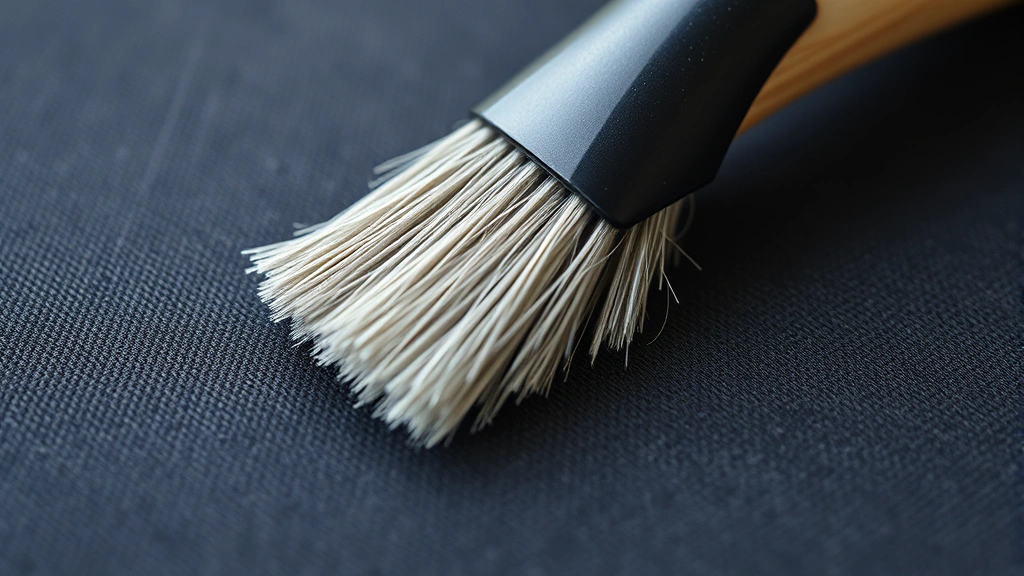
Fabric mousepads require a gentle touch to maintain their texture and performance. Start with a dry cleaning phase. Use a soft-bristled brush or old toothbrush to gently brush the surface in one direction. This removes loose dust, hair, and debris without introducing moisture. Brush from the center outward to avoid grinding particles into the fibers.
For light daily dust, this dry brushing might be sufficient. However, for deeper cleaning, move to the wet phase. Fill a basin with lukewarm water—never hot, as excessive heat can damage the adhesive binding the fabric to the base. Add a small amount of mild dish soap, creating a slightly soapy solution.
Submerge a soft cloth or sponge in the soapy water and wring it out thoroughly so it’s damp, not dripping. Gently wipe the mousepad’s surface using circular motions. Pay special attention to areas where your wrist rests, as these accumulate the most oils. For stubborn stains, let the damp cloth sit on the affected area for 2-3 minutes to allow the soap to break down the grime, then gently rub.
If you’re dealing with persistent discoloration, create a paste with baking soda and water. Apply it to the stain, let it sit for 5 minutes, then gently scrub with a soft brush. This method works similarly to how you might treat delicate fabrics elsewhere in your home. For odor issues, add a tablespoon of white vinegar to your rinse water—the smell dissipates as it dries.
After washing, rinse by wiping with a cloth dampened in plain water. Repeat this 2-3 times to remove all soap residue. Soap left on the surface can attract more dust and create a sticky feeling that interferes with mouse tracking.
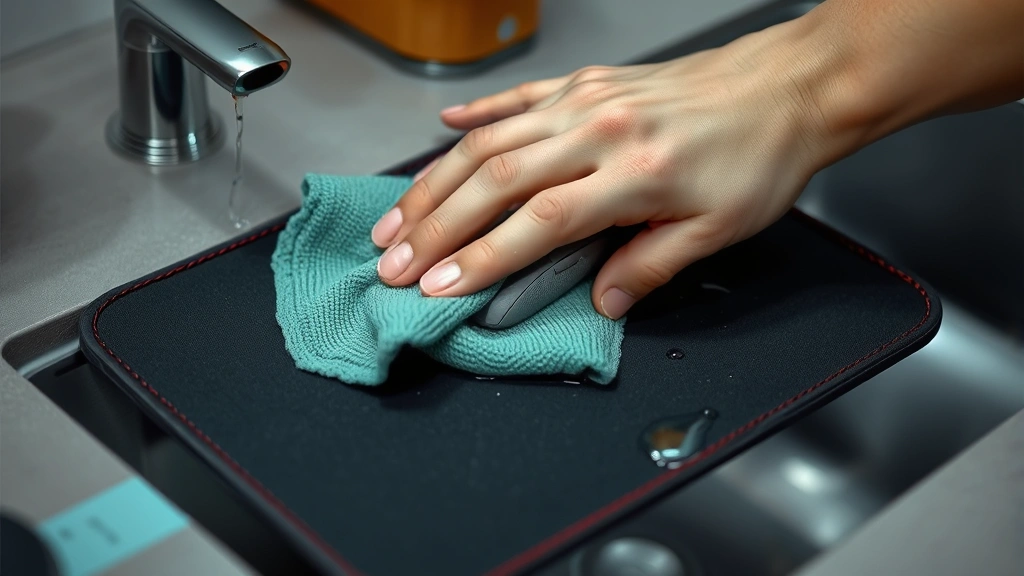
Pro tip: If your mousepad is machine washable (check the tag first), you can place it in a mesh laundry bag and run it on a gentle cycle with cold water. Skip the dryer entirely—air drying is always safer for mousepads.
Cleaning Hard Mousepads
Hard mousepads offer straightforward cleaning advantages, though they present their own challenges. These rigid surfaces won’t absorb moisture, making them forgiving to clean, but they can show water spots and fingerprints more easily than fabric versions.
Start by wiping the surface with a dry microfiber cloth to remove dust and loose debris. For a quick refresh, this might be all you need. For deeper cleaning, dampen a soft cloth with a solution of equal parts water and white vinegar. This combination cuts through oils and grime while disinfecting the surface.
Wipe the entire surface with your dampened cloth, paying attention to edges and corners where dust accumulates. Hard mousepads often have beveled edges that collect debris, so use a slightly stiffer brush to get into these crevices. A soft-bristled toothbrush works perfectly for this task, similar to how you’d clean the intricate details when cleaning your keyboard.
For stubborn stains on plastic or acrylic mousepads, create a paste with baking soda and water. Apply it to the stain and let it sit for 5 minutes. Gently rub with a soft cloth—avoid abrasive scrubbing, which can scratch the surface. Rinse with a damp cloth and dry immediately to prevent water spots.
Aluminum mousepads require extra care to prevent oxidation. Use only a damp cloth with mild soap; avoid vinegar solutions that can react with the metal. Dry immediately after cleaning. If your aluminum mousepad has developed a dull finish, you can restore shine with a microfiber cloth and a tiny amount of mineral oil, buffed gently until dry.
For gaming mousepads with speed-focused surfaces, avoid aggressive scrubbing that might alter the texture. These surfaces are engineered for specific mouse sensor performance, and rough cleaning can compromise that. Gentle wiping is always the safest approach.
Cleaning RGB and Electronic Mousepads
RGB mousepads introduce electronic complexity to the cleaning equation. These typically feature USB connections and LED components that require protection from moisture. Never submerge an RGB mousepad, and avoid allowing liquid to pool on the surface or near any connection points.
Before cleaning, disconnect the USB cable from both the mousepad and your computer. Inspect the connection port for any visible corrosion or debris. Use a dry toothpick or compressed air to gently clear any dust from the port itself—never insert anything into the port that could damage the connectors.
For surface cleaning, use a barely damp cloth—we’re talking almost dry. Wring out your cloth multiple times to ensure minimal moisture. Wipe the surface gently, avoiding any ports, cable connections, or button areas. If your RGB mousepad has a textured gaming surface, brush it gently with a soft-bristled brush first to remove dust before any moisture contact.
Pay special attention to the underside if it’s exposed. Dust accumulates there and can affect mouse tracking. Use compressed air or a soft brush to clean the underside, keeping it completely dry. Never use a damp cloth on the underside, as moisture could seep into electronic components.
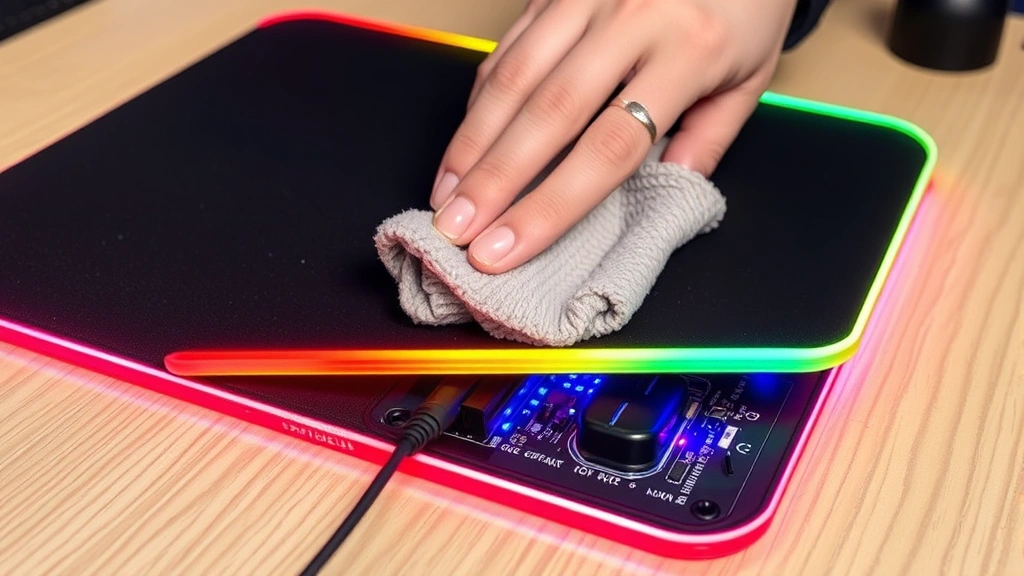
For persistent stains on RGB mousepads, resist the urge to apply liquid directly. Instead, dampen a cloth separately, then apply it to the stain from above, allowing gravity to help rather than rubbing. This minimizes moisture exposure to the surface. Let the area air dry completely—at least 30 minutes—before reconnecting the cable.
Some premium gaming mousepads include waterproof certifications. Check your product documentation to see if yours qualifies. Even with waterproofing, err on the side of caution and keep moisture minimal. The connections and internal circuitry are still vulnerable even if the surface is treated.
Drying and Maintenance
Proper drying is critical regardless of your mousepad type. Never use heat sources like hair dryers or radiators, as these can warp materials, damage adhesives, or cause discoloration. Air drying is always the safest option. Lay your mousepad flat on a clean, dry towel in a well-ventilated area.
For fabric mousepads, lay them with the textile side up. This allows air to circulate on both sides. In humid environments, drying might take 4-6 hours. In dry conditions with good air circulation, expect 2-3 hours. You’ll know it’s fully dry when the entire surface feels uniform and no moisture remains in the base.
For hard mousepads, drying is quicker—usually 30-60 minutes. However, if you used vinegar solution, allow extra time for the smell to dissipate. Stand hard mousepads upright or prop them at an angle to ensure air circulation around all edges.
Don’t reconnect your mouse or mousepad to your computer until you’re absolutely certain it’s completely dry. Moisture and electronics don’t mix, and premature reconnection could cause damage. When in doubt, wait an extra hour.
Once dry, perform a quick inspection. Check that the surface texture feels normal and the colors appear consistent. For fabric mousepads, brush the surface lightly with your hand to restore the nap and texture. For hard mousepads, buff with a clean microfiber cloth to remove any water spots or fingerprints.
Prevention Tips
The best cleaning is the one you don’t have to do. Preventing excessive dirt accumulation saves time and extends your mousepad’s lifespan. Start with regular dry cleaning. Brush your mousepad with a soft-bristled brush once weekly. This removes dust before it can settle into fabric fibers or accumulate on hard surfaces.
Keep your desk organized and minimize clutter around your workspace. Clutter traps dust that eventually migrates to your mousepad. Similarly, keep food and drinks away from your desk. Spills are the primary cause of stains and damage to mousepads.
Wash your hands before using your computer. Oils, food residue, and dirt from your hands transfer directly to your mousepad, especially in the wrist rest area. This simple habit dramatically reduces the frequency of deep cleaning needed. If you have particularly oily skin or work in a dusty environment, consider wearing a wrist support or hand cream that minimizes residue transfer.
Rotate your mousepad if possible. If one side experiences more wear, flipping it occasionally distributes the damage. This works best with hard mousepads; fabric mousepads have a designated texture side, so rotation isn’t applicable.
Consider using a mousepad cover or protective mat if your mousepad is expensive or sees heavy use. These thin covers protect against spills and dust while remaining transparent enough to not interfere with mouse tracking. They’re particularly useful in shared workspaces or homes with pets and children.
For gaming enthusiasts, the concept of mousepad maintenance is similar to maintaining other gaming peripherals. Just as you’d keep your keyboard in top condition, regular mousepad care ensures consistent performance. This is especially important if you’re competing or engaging in precision-demanding gaming where tracking accuracy matters.
If you find yourself constantly dealing with dust accumulation, evaluate your workspace environment. Air purifiers reduce overall dust levels, benefiting not just your mousepad but your entire desk setup. Similarly, improving ventilation or using a humidifier if your environment is particularly dry can help prevent dust attraction.
Frequently Asked Questions
Can I put my mousepad in the dishwasher?
We strongly advise against it. Dishwashers use high heat and intense water pressure that can damage adhesives, warp materials, and ruin electronic components. The harsh detergents can also degrade fabric surfaces and discolor hard mousepads. Hand washing with gentle methods is always safer and more effective.
What if my mousepad smells bad after cleaning?
Odors typically result from moisture not fully drying or bacterial growth. If your mousepad smells after cleaning, allow it to air dry in sunlight for a few hours—UV rays naturally kill odor-causing bacteria. If the smell persists, sprinkle baking soda on the surface, let it sit for 24 hours, then brush it off. For future prevention, ensure complete drying before storing or using the mousepad.
How often should I wash my mousepad?
This depends on usage and environment. Light users in clean environments can wash monthly. Heavy users or those in dusty spaces should wash every 2-3 weeks. Perform dry brushing weekly regardless of usage level. If you notice visible stains or decreased mouse tracking, clean immediately rather than waiting for a scheduled cleaning.
Can I use bleach to clean my mousepad?
Avoid bleach entirely. It damages most mousepad materials, discolors fabrics, and can weaken adhesives. For white mousepads with stubborn stains, use baking soda and water instead. For disinfection, white vinegar is a safe alternative to bleach and works effectively against bacteria and germs.
My mousepad has a stain that won’t come out. What do I do?
Persistent stains require patience and proper technique. Create a baking soda paste, apply it to the stain, and let it sit for 15-30 minutes. Gently scrub with a soft brush, then rinse thoroughly. Repeat if necessary. If the stain is oil-based, apply a tiny amount of rubbing alcohol to a cloth and dab the stain gently. For fabric mousepads, you might also try the oxygen-based stain removers designed for delicate fabrics.
Is it safe to clean a wireless mousepad?
Yes, but with extra caution. Disconnect it completely from power before cleaning. Keep moisture away from the battery compartment and any electronic connections. Use a barely damp cloth rather than wet cleaning. Allow extra drying time—at least 1-2 hours—before reconnecting batteries or powering on.
Can I use the same cleaning products I use for my keyboard?
Mostly yes, with considerations. If you’re using the same mild soap and water solution, that’s perfectly fine. If your keyboard cleaning routine involves specialized electronics cleaners, test them on an inconspicuous mousepad area first. Some products designed for keyboards might be too harsh for delicate mousepad surfaces or could damage RGB components.
What’s the difference between cleaning a mousepad and cleaning retainers?
While both require gentle handling, the approaches differ. When cleaning retainers, you’re primarily concerned with removing mineral buildup and bacteria. Mousepads focus on removing dust and oils while preserving surface texture and electronic components. That said, both benefit from gentle brushing and mild soap solutions rather than harsh chemicals.
Should I clean the mousepad base or just the top surface?
Clean both, but use different approaches. The top surface gets the full treatment with appropriate moisture for your mousepad type. The base and rubber feet accumulate dust and can affect tracking if too dirty. Use a dry brush or compressed air on the base to avoid moisture damage to any adhesives. Keep rubber feet clean but dry.
Can static electricity damage my mousepad during cleaning?
Moisture actually reduces static concerns since static thrives in dry environments. However, if you’re concerned about static buildup (particularly relevant if you’re also managing static issues in other areas, like when you remove static from clothes), touch a grounded object before and after cleaning your mousepad. For RGB mousepads, static discharge could theoretically damage components, so this precaution is worth taking.

Related Posts

How Long to Boil Lobster Tails: Cooking Guide

How Long to Fly from New York to London? Travel Times
