
How to Unhide an App on iPhone: Step-by-Step Guide
How to Unhide an App on iPhone: Step-by-Step Guide
We’ve all been there—you hide an app thinking you’ll remember exactly where it went, and then weeks later you’re frantically searching your iPhone wondering if the app still exists. The good news? Your hidden apps aren’t gone forever. Whether you intentionally tucked away a productivity tool, a fitness app, or something more personal, unhiding apps on your iPhone is surprisingly straightforward once you know where to look.
The process varies slightly depending on which iOS version you’re running and how you originally hid the app, but don’t worry—we’ll walk you through every possible scenario. By the end of this guide, you’ll not only know how to unhide apps but also understand the different ways apps can be hidden and why you might want to use these features in the first place.
Think of your iPhone’s app management system like organizing a closet. Sometimes you need to declutter your visible space, but that doesn’t mean you want to throw everything away. Hidden apps are still there, ready to be retrieved whenever you need them again.
Why Hide Apps on Your iPhone?
Before diving into the technical steps, it’s worth understanding why you might want to hide apps in the first place. Apple introduced the ability to hide apps as a privacy and organization feature, not just for hiding things you’re embarrassed about (though that’s certainly one use case).
Parents often hide apps to prevent children from accidentally launching expensive in-app purchases. Professionals might hide social media apps during work hours to minimize distractions. Some people hide duplicate apps or beta versions they’re testing. Others use this feature to keep their home screen clean and focused on essential tools while maintaining access to less-frequently-used apps through the App Library.
The beauty of Apple’s system is that hidden apps remain fully functional—they’re just out of sight. You can still receive notifications, they’ll still update automatically, and you can still access them through search or the App Library. It’s purely a visual organization tool.
Understanding the App Library
The App Library is your iPhone’s built-in organizational system that automatically categorizes all your apps into folders. It appeared with iOS 14 and fundamentally changed how users manage their applications. If you’re wondering how to unhide an app on iPhone, the App Library is typically where those hidden apps end up.
The App Library organizes apps into categories like Productivity, Entertainment, Health & Fitness, and Utilities. When you hide an app, it doesn’t disappear entirely—it gets moved to the App Library but removed from your home screen pages. This means you still have complete access; you just need to know where to find it.
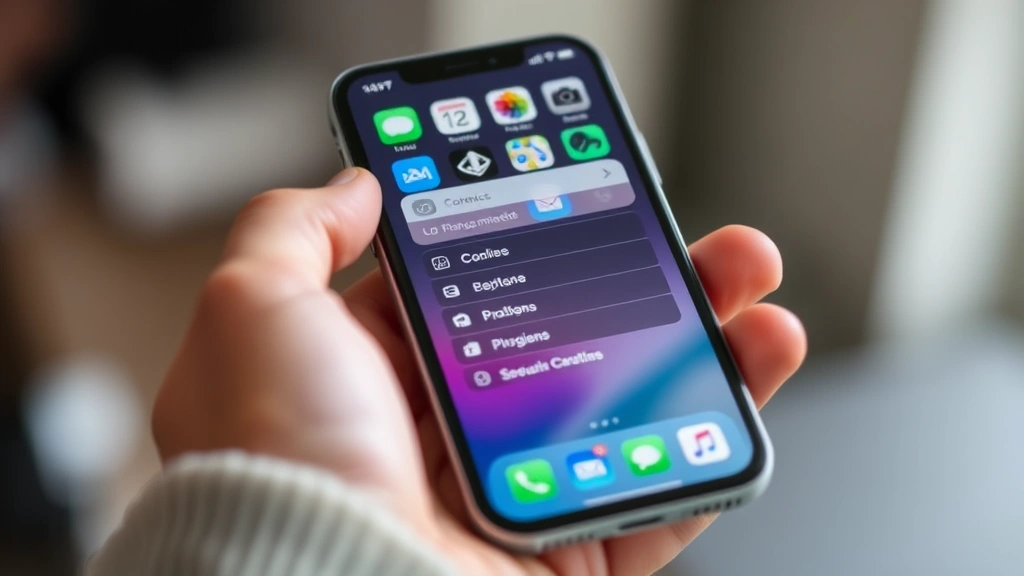
You can access your App Library by swiping all the way to the right on your home screen, past all your custom app pages. The App Library shows all your apps in a clean, organized view. You’ll notice the categories are expandable—tap the folder icon to see all apps within that category.
Method 1: Unhiding Apps from App Library
This is the most common method and works for the majority of hidden apps. Here’s exactly what to do:
- Open the App Library: From your home screen, swipe left to right repeatedly until you reach the App Library (the rightmost screen showing all your apps in categorized folders).
- Find the app category: Look through the different category folders to locate your hidden app. You might need to tap on folders like Productivity, Entertainment, or Utilities to expand them and see individual apps.
- Long-press the app: Once you find the app you want to unhide, press and hold it until a menu appears with several options.
- Select “Add to Home Screen”: From the popup menu, tap this option. The app will instantly reappear on one of your home screen pages.
- Confirm placement: You may see another screen asking where you want the app to be placed. Choose your preferred location or let iOS place it on the next available screen.
That’s it! Your app is now visible again on your home screen. You can organize it however you like—move it between screens, place it in folders with other apps, or leave it exactly where iOS put it.
If you’re having trouble finding the specific app category, remember that Apple’s categorization system sometimes places apps in unexpected places. For example, a weather app might be in Utilities rather than a dedicated Weather category.
Method 2: Using Siri Suggestions
Siri is incredibly helpful for locating hidden apps. This method works even if you’re not entirely sure where your app ended up in the App Library categorization system.
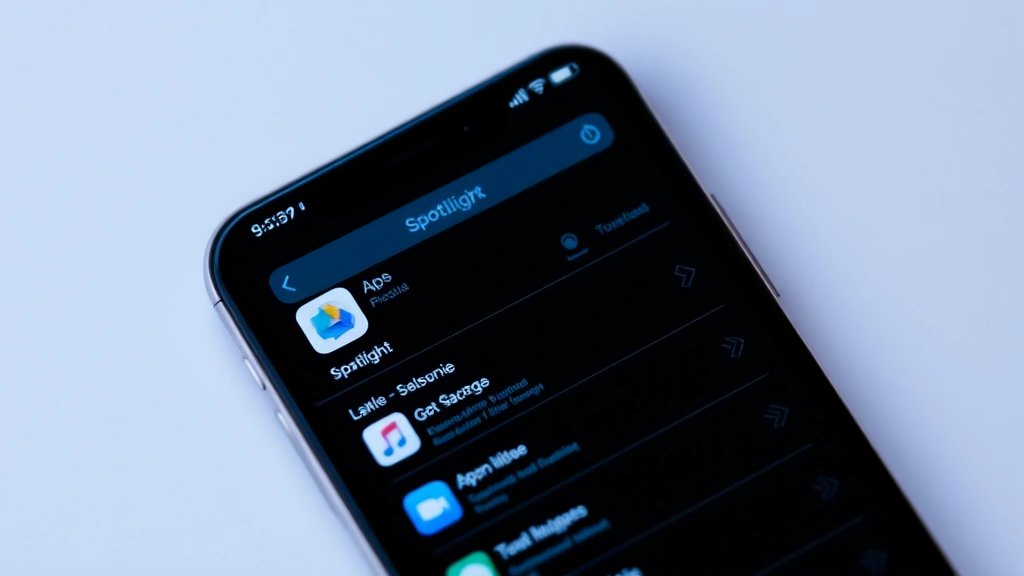
- Open Spotlight Search: Swipe down from the center of your home screen to open Spotlight Search. On older iPhone models, swipe down from the top of the screen.
- Type the app name: Start typing the name of the app you want to unhide. iOS will search through all your apps, including hidden ones.
- Tap the app result: When you see the app appear in the search results, tap it to open it.
- Add to home screen: After opening the app, you can long-press it from the App Library later and select “Add to Home Screen” to make it permanently visible again.
This method is particularly useful if you’ve completely forgotten which category your app is in or if you just want quick access without the organizational step. It’s also the fastest way to temporarily access a hidden app when you need it immediately.
Method 3: Restoring from iCloud
If you’ve upgraded to a new iPhone or restored your device, and you’re missing apps that were previously hidden, you might need to restore them from your iCloud backup.
- Go to Settings: Open the Settings app on your iPhone.
- Navigate to your profile: Tap your name at the top of the Settings menu.
- Select iCloud: Tap the iCloud option.
- Find App Library data: Look for “iCloud Backup” and ensure it’s enabled. Your hidden app preferences are stored in your iCloud backup.
- Restore if needed: If you’ve recently restored your device, the hidden apps should already be present in the App Library. If not, you may need to go to Settings > General > iPhone Storage and check for app-related issues.
This method is more about ensuring your hidden app data syncs properly across devices rather than actively unhiding apps. However, it’s important to understand because many people don’t realize their hidden app settings are part of their iCloud backup.
When you’re setting up a new iPhone and choosing to restore from an iCloud backup, your hidden apps will automatically be hidden on the new device in the same way they were on your old phone. This is actually quite convenient if you want to maintain your exact app organization across multiple devices.
Troubleshooting Common Issues
Sometimes the process isn’t quite as smooth as described. Here are some common issues and how to resolve them:
Can’t find the app in App Library: If you’ve hidden an app and now can’t locate it anywhere in the App Library, try using Spotlight Search (swipe down and type the app name). If it doesn’t appear in search either, the app may have been deleted rather than hidden. You can reinstall it from the App Store.
If you’re looking to find hidden apps on iPhone more systematically, consider going through each App Library category methodically. Sometimes apps are placed in categories you wouldn’t expect.
App won’t unhide: This can happen if there’s a glitch with your app data. Try force-closing the App Library and reopening it. If the problem persists, restart your iPhone completely by holding the power button and following the prompts.
Hidden app doesn’t appear after restore: If you restored your iPhone from backup and an app you previously hid isn’t showing up, it may have been deleted from the backup. Reinstall it from the App Store, and it will be treated as a new app on your device.
Accidental app hiding: If you’ve accidentally hidden multiple apps and want to unhide them all at once, you’ll need to go through the unhiding process for each one individually. There isn’t a bulk unhide feature in iOS.
For more detailed troubleshooting on app visibility issues, you might want to check Apple’s official support documentation on app management.
Prevention Tips for the Future
Now that you understand how to unhide apps, here are some strategies to prevent accidentally hiding apps you actually want to keep visible:
Be intentional about hiding: When you’re about to hide an app, pause and confirm you really want to do it. It only takes a moment to accidentally trigger the hide action when you meant to do something else.
Keep a mental note: If you’re hiding multiple apps, jot down a quick list on your Notes app so you remember what you’ve hidden and why. This is especially helpful if you’re hiding apps temporarily.
Use folders instead: Before resorting to hiding, consider whether organizing apps into folders on your home screen might work better for your needs. This way, the apps are still accessible without being as prominent.
Organize your App Library: Take time to understand how iOS categorizes your apps. Knowing this structure makes it much easier to locate hidden apps when you need them.
If you’re also interested in other iPhone customization options, you might want to explore how to delete stickers on iPhone or how to make stickers on iPhone to fully personalize your device. These customization features complement your app management strategy.
Another helpful tip is to regularly review your home screen setup. Every few months, assess which apps you’re actually using and which ones are just taking up space. This proactive approach prevents the “forgotten hidden app” problem from occurring in the first place.
Consider also checking iPhone Life’s comprehensive guide on app management for additional organizational strategies beyond hiding and unhiding.
Frequently Asked Questions
What’s the difference between hiding an app and deleting it?
When you hide an app, it remains installed on your iPhone and continues to receive updates and send notifications. You’re simply removing it from your home screen view. When you delete an app, it’s completely removed from your device, and you’ll need to reinstall it from the App Store if you want it back. Hiding is reversible in seconds; reinstalling a deleted app takes longer and requires downloading it again.
Can I hide apps on specific home screen pages but keep them on others?
Not exactly. When you hide an app, it’s completely removed from all home screen pages and moved to the App Library. However, you can have the same app appear multiple times on your home screen by creating shortcuts or using the Shortcuts app to create custom launchers. But the traditional hiding feature affects the entire device, not specific pages.
Will my hidden apps still send me notifications?
Yes, absolutely. Hidden apps function exactly like visible apps in every way except for their visibility on the home screen. They’ll send you notifications, update automatically in the background, and work normally. Hiding an app is purely cosmetic and doesn’t affect its functionality.
Can I hide system apps like Mail or Calendar?
Most Apple system apps can be hidden, but some cannot. Apps like Phone and Messages are essential to iOS functionality and can’t be hidden. However, you can hide many other built-in apps like Mail, Calendar, Reminders, Stocks, and others. If you try to hide a system app and the option doesn’t appear, that’s why.
If I unhide an app, will it return to its original home screen location?
No. When you unhide an app, iOS will place it on the next available space on your home screen pages. It won’t return to wherever it was before you hid it. You’ll need to manually rearrange it to your preferred location if you want it in a specific spot.
How do I know if an app is hidden versus just not installed?
If you think you might have hidden an app, search for it using Spotlight Search. If it appears in search results but not on your home screen, it’s hidden. If it doesn’t appear in search at all, it’s not installed on your device. You can also browse through your App Library categories to see all installed apps, hidden or not.
Can I hide multiple apps at once?
You can hide apps one at a time through the standard process, but there’s no bulk hide feature in iOS. However, you can make the process faster by using the App Library and quickly long-pressing each app you want to hide, then selecting the hide option from the menu.
If I check if my iPhone is unlocked, does that affect hidden apps?
No, checking your iPhone unlock status has no relationship to hidden apps. Unlocked status refers to whether your iPhone is carrier-locked or unlocked for use with different carriers. Hidden apps remain hidden regardless of your device’s unlock status.
Do hidden apps take up storage space?
Yes, hidden apps take up exactly the same amount of storage as visible apps. Hiding an app doesn’t compress it or reduce its file size in any way. It’s only a visibility change. If you need to free up storage space, you’d need to actually delete apps rather than hide them.
Can I hide an app directly from the home screen without going to App Library?
Yes! You can long-press any app on your home screen and select “Remove App” from the menu. Then choose “Remove from Home Screen” to hide it (as opposed to “Delete App” which removes it entirely). This is often faster than navigating to the App Library to hide apps.

Related Posts

How Long to Boil Lobster Tails: Cooking Guide

How Long to Fly from New York to London? Travel Times
