
How to Share WiFi Password on iPhone: Simple Steps
How to Share WiFi Password on iPhone: Simple Steps
There’s nothing quite like the moment when a guest arrives and asks for your WiFi password. You scramble to remember the 32-character string you set up three years ago, fumble through your phone settings, and end up spelling it out letter by letter while they type it in wrong twice. Sound familiar? Well, those days are behind you.
Apple has made sharing WiFi passwords incredibly seamless on iPhones, and it’s one of those features that feels like magic once you know about it. Instead of reciting a cryptic combination of uppercase, lowercase, numbers, and symbols, you can literally share your WiFi credentials with a tap. This feature has been a game-changer for anyone who hosts people regularly, whether it’s family, friends, or colleagues working from home.
The beauty of this system is that it works across Apple devices and doesn’t require you to manually type anything. Your guest simply needs to be nearby with an iPhone, iPad, or Mac, and they can connect instantly. Let’s walk through exactly how to make this happen.
What You Need to Know First
Before diving into the steps, there are a few prerequisites that make WiFi sharing possible. Both your iPhone and your guest’s device need to be running compatible software versions. Specifically, you’ll need iOS 11 or later on both devices, though the experience is much smoother on iOS 13 and beyond. If you’re using older devices or different operating systems, don’t worry—we’ll cover alternative methods later.
Your contact information needs to be saved on both devices for the automatic sharing to work seamlessly. This means the person you’re sharing with should be in your Contacts app, and you should be in theirs. It sounds more complicated than it is, but it’s essentially Apple’s way of ensuring you’re sharing with people you actually know and trust.
Additionally, both devices need to have Bluetooth enabled and be within reasonable proximity—typically within 30 feet. WiFi doesn’t need to be enabled on the guest device, but Bluetooth absolutely does. If either device has Bluetooth turned off, the automatic sharing prompt won’t appear, and you’ll need to fall back on manual entry or other methods.
The Basic Method: Sharing WiFi with Nearby Devices
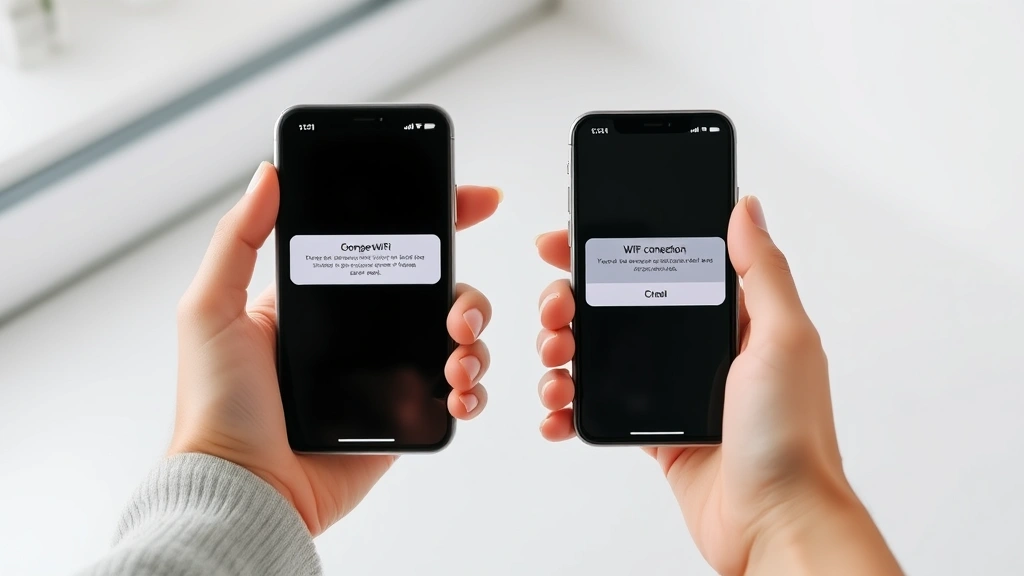
This is the magic moment. When a friend or family member tries to connect to your WiFi network, they’ll see your network name in their available networks list. They’ll tap on it and then simply wait a moment. If everything is set up correctly, your iPhone will display a notification asking if you want to share your WiFi password.
Here’s the step-by-step process:
- Have your guest select your WiFi network from their available networks list
- When they tap on it, your iPhone will receive a notification asking to share the password
- You’ll see a prompt that says something like “Share WiFi Password?” with your guest’s name displayed
- Tap “Share Password” or the equivalent button on your screen
- Your guest’s device will automatically connect to the network
That’s genuinely it. No typing, no confusion, no accidentally saying the letter O when you meant zero. The entire process takes about five seconds once you confirm the share request. It’s one of those features that makes you appreciate Apple’s attention to detail in user experience design.
The system is intelligent enough to remember your WiFi network details, so subsequent connections are even faster. If your guest needs to reconnect later, they won’t need your permission again—their device will automatically join the network.
Manual Method: When Automatic Sharing Isn’t Available
Not every situation is ideal, and sometimes the automatic method doesn’t work. Maybe your guest is using an Android device, or their Bluetooth is off, or they’re running older iOS software. In these cases, you’ll need to share your password manually, but Apple has made this easier than you might expect.
First, you need to find your WiFi password. Navigate to Settings on your iPhone, then tap WiFi. Find your network name in the list and tap the information icon (the small “i” in a circle next to your network name). Here’s where it gets interesting: you can’t actually see the password displayed in plain text through this method on newer iOS versions.
Instead, you’ll need to access your WiFi password through your router’s admin panel or check your router’s documentation. Alternatively, if you’ve ever scheduled important reminders on your iPhone, you can do the same with your WiFi password—save it somewhere secure that you can easily reference.
Once you have the password, simply tell your guest the network name and password. They can then manually enter it in their WiFi settings. It’s not as elegant as the automatic method, but it works reliably across all devices and operating systems.
Another helpful approach is to write down your WiFi credentials on a small card or note and keep it somewhere accessible for guests. Many people keep this near their router or in a drawer by the front door. It’s practical, low-tech, and always available.
Sharing via QR Code
Here’s a feature that’s gained traction recently: sharing your WiFi password through a QR code. While iPhones don’t have a built-in QR code generator specifically for WiFi passwords in the Settings app, you can generate one through various online tools or apps.
Several websites and apps allow you to input your network name and password, and they’ll generate a QR code that anyone can scan with their iPhone camera. When someone scans the code, their device will recognize it as WiFi credentials and offer to connect automatically.
To use this method, you’ll need to generate the QR code through a third-party service. Search for “WiFi QR code generator” and you’ll find several reliable options. Once generated, you can print it out, display it on your phone, or save it as an image. This method is particularly useful if you host people frequently—you can print the QR code and frame it or post it on your fridge.
The QR code method is surprisingly effective for businesses, Airbnb hosts, or anyone who regularly shares their WiFi with different people. It eliminates the need for reciting passwords and reduces the chance of transcription errors.
Troubleshooting Common Issues
Sometimes the automatic sharing doesn’t work as expected, and that’s okay. There are several common reasons why, and most are easy to fix. If you’re wondering how to troubleshoot tech issues on your iPhone more broadly, understanding how to find hidden apps on iPhone can help you diagnose various problems.
Bluetooth is disabled: This is the most common culprit. Make sure both devices have Bluetooth turned on. Go to Settings, tap Bluetooth, and toggle it on if it’s not already active. The feature won’t work without it, even if both devices are connected to WiFi.
Contact information missing: If the person you’re sharing with isn’t in your Contacts, the automatic prompt might not appear. Add them to your Contacts first, and make sure they have you saved in theirs as well. This creates the trust relationship that Apple uses to facilitate automatic sharing.
Outdated iOS: If either device is running iOS 10 or earlier, the feature simply won’t work. Check your iOS version in Settings > General > About. If you’re significantly behind, consider updating to the latest version.
Network name or password changed recently: If you’ve recently updated your WiFi network name or password, make sure both devices are using the new credentials. Sometimes devices cache old information, and a manual reconnection is necessary.
Airplane Mode is on: This disables both WiFi and Bluetooth, so the sharing feature won’t function. Swipe down from the top-right corner of your screen to access Control Center and make sure Airplane Mode is off.
If you’ve checked all these items and still experience issues, try the nuclear option: restart both devices. It sounds simple, but it resolves many connectivity issues. Turn off your iPhone completely, wait 10 seconds, and power it back on. Have your guest do the same. Often, this clears up any temporary glitches.
Security and Privacy Considerations
While sharing your WiFi password is convenient, it’s worth thinking about security implications. Your WiFi network is essentially a gateway to your internet connection, so you want to be thoughtful about who has access.
First, make sure your router is secured with a strong password. The default passwords that routers come with are often weak and publicly known. If you haven’t changed yours, now is a good time. Access your router’s admin panel (usually by typing 192.168.1.1 into a web browser) and update the password to something complex.
Consider creating a separate guest network if your router supports it. This keeps guests separate from your main network and any devices connected to it. Most modern routers have this feature, and it takes just a few minutes to set up. It’s particularly useful if you’re concerned about security or want to control bandwidth usage.
You can also monitor which devices are connected to your WiFi through your router’s admin panel. This helps you spot any unauthorized connections. If you notice a device you don’t recognize, you can block it or change your password.
Think about the sensitivity of the information on your network. If you have smart home devices, security cameras, or other connected systems, you might want to be more selective about who gets access. There’s nothing wrong with being cautious—it’s your network, after all.
If you want to learn more about iPhone security broadly, understanding how to check if your iPhone is unlocked and ensuring your device itself is secure is a good starting point. Device security and network security go hand in hand.
Frequently Asked Questions
Can I share my WiFi password with non-Apple devices?
The automatic sharing feature only works with Apple devices (iPhone, iPad, Mac, Apple Watch). For Android devices or other non-Apple phones, you’ll need to manually share the password or use the QR code method. The manual method works just as well—it just requires a bit more effort on your part.
What if my guest doesn’t have me saved in their contacts?
The automatic sharing feature works best when you’re saved in each other’s contacts. If they don’t have you saved, the prompt might not appear automatically. You can still use the manual method or QR code approach. Alternatively, ask them to add you to their contacts first, then try connecting to the WiFi again.
Does sharing my WiFi password compromise my security?
Not inherently, but it does give someone access to your network. The risk depends on what’s connected to your network and how much you trust the person. Using a guest network minimizes risk significantly, as it isolates the guest from your primary devices and data.
Can I unshare my WiFi password after sharing it?
Once you’ve shared your password with someone, they have it and can use it to reconnect. The only way to truly prevent access is to change your WiFi password. If you need to revoke access for a specific person, changing your password and then resharing it with other trusted individuals is the most straightforward approach.
Why isn’t the share password prompt appearing?
The most common reasons are: Bluetooth is off, the contact isn’t saved in both phones, the person is running outdated iOS, or Airplane Mode is enabled. Check these items first, and the prompt should appear. If it still doesn’t, try the manual method or QR code approach.
Can I share my WiFi password with multiple people at once?
The automatic sharing feature handles one person at a time. If multiple people want to connect, each person will need to attempt to join the network individually, and you’ll need to confirm each share request. For larger groups, the QR code method is more efficient.
Does my guest need WiFi enabled on their phone to receive the share prompt?
No, their device doesn’t need to be connected to WiFi already. They just need to attempt to connect to your network, and the prompt will appear on both devices. Bluetooth does need to be on, but WiFi can be off or on—it doesn’t matter for the sharing mechanism to work.
What iOS version do I need for WiFi sharing?
iOS 11 or later supports WiFi password sharing. However, the experience is smoother on iOS 13 and beyond. If you’re running iOS 10 or earlier, you’ll need to update your device to access this feature. Check Settings > General > About to see your current version.

Related Posts

How Long to Boil Lobster Tails: Cooking Guide

How Long to Fly from New York to London? Travel Times
