
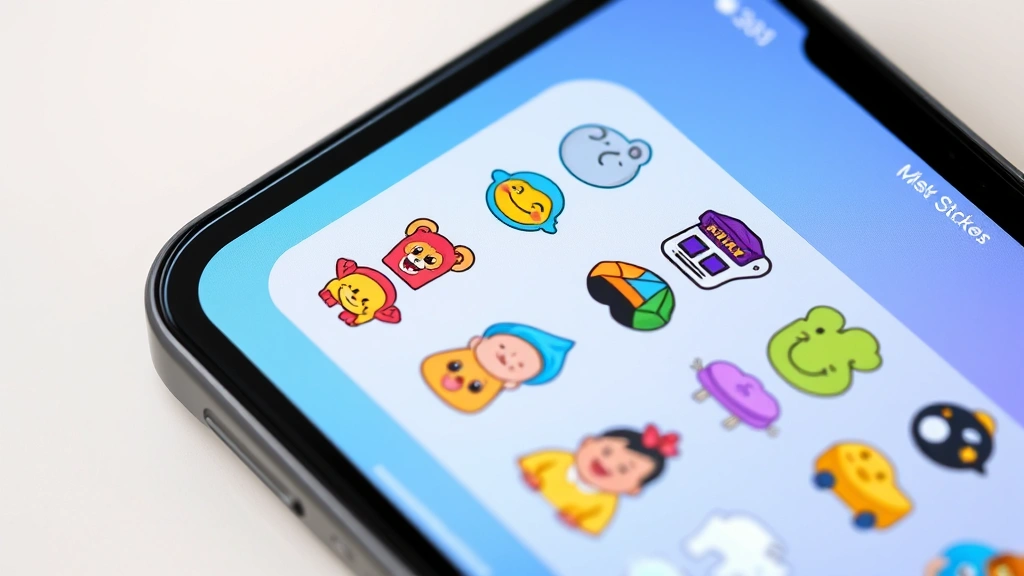
How to Make Stickers on iPhone: A Simple Guide
How to Make Stickers on iPhone: A Simple Guide
Your iPhone is packed with creative features that most people never discover. One of the most fun and underutilized capabilities? Making custom stickers right from your device. Whether you want to turn your favorite photos into stickers, create personalized designs for messages, or just have fun expressing yourself digitally, iPhone sticker creation is easier than you’d think.
Gone are the days when stickers were limited to what Apple offered in the App Store. Now you can craft your own unique stickers that reflect your personality, inside jokes, or creative vision. The best part? You don’t need to be a design wizard or download complicated software. Your iPhone has built-in tools that make this process surprisingly straightforward.
In this guide, we’ll walk you through every method for creating stickers on your iPhone, from using the Photos app to leveraging third-party apps. We’ll also cover how to organize, use, and manage your sticker collection. By the end, you’ll be creating custom stickers like a pro.
What You Need to Know About iPhone Stickers
Before diving into creation, let’s establish what iPhone stickers actually are and why they’re worth making. Stickers on iPhone are digital images with transparent backgrounds that you can add to messages, notes, and even photos. They’re different from regular emojis because they’re customizable and can feature anything you want—your pet, your face, artwork, or abstract designs.
The sticker feature became a major focus for Apple starting with iOS 13, and it’s only gotten better with each update. Modern iPhones make it incredibly simple to create stickers that work seamlessly across Messages, Notes, and other Apple apps. The key advantage is personalization: these aren’t generic stickers that everyone has; they’re yours alone.
To create stickers, you’ll need an iPhone running iOS 13 or later. If you’re unsure about your iOS version, you can check by going to Settings > General > About and looking at the iOS version listed. Most modern iPhones are compatible, but if you’re working with an older device, you might want to consider updating first.
Method 1: Creating Stickers from Photos
The most straightforward way to make stickers on your iPhone is directly from your photo library. This method requires zero additional apps and takes just a few minutes.
Step 1: Open a Photo Navigate to your Photos app and select any image you want to convert into a sticker. It could be a selfie, a picture of your dog, artwork, or anything else that sparks joy. The image quality doesn’t need to be professional—even casual snapshots work beautifully.
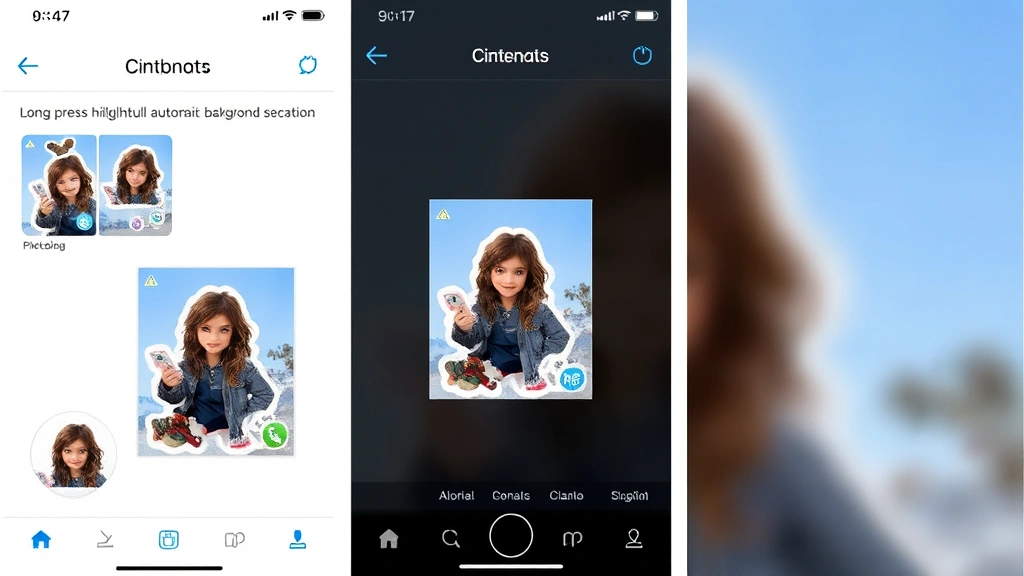
Step 2: Long-Press the Subject Once you’ve opened your chosen photo, long-press on the main subject of the image. Your iPhone will automatically detect the primary object and highlight it with a selection outline. This intelligent recognition is one of Apple’s coolest features—it works on people, animals, objects, and even illustrations.
Step 3: Select “Copy” From the menu that appears, tap “Copy.” Your iPhone has now isolated the subject with a transparent background, ready for sticker duty. This process typically takes just a second or two, depending on image complexity.
Step 4: Paste into Messages Open the Messages app and start a conversation. Tap the plus icon next to the text field, then select “Stickers.” Tap the plus icon again in the stickers panel, and paste your copied image. Your iPhone will automatically convert it into a sticker format.
Step 5: Save as a Sticker Pack After pasting, you’ll see options to add the sticker to existing packs or create a new one. Choose “Add Sticker” and give your pack a name. You can create themed packs—one for funny faces, one for your pets, one for motivational quotes, whatever makes sense to you.
This method works remarkably well because Apple’s subject recognition has become genuinely sophisticated. Even complex backgrounds often get cleanly separated from your main subject, though you might occasionally need to manually edit the selection for perfect results.
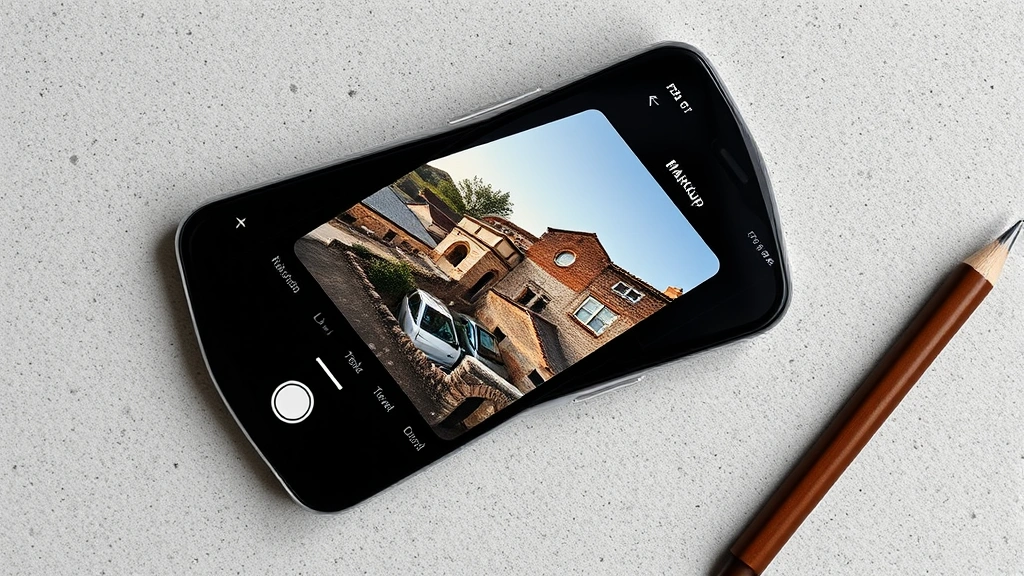
Method 2: Using the Markup Tool
If you want more control over your sticker creation process, the Markup tool offers additional editing capabilities. This method gives you the freedom to annotate, draw, and customize before converting to a sticker.
Step 1: Open a Photo and Select Markup In your Photos app, select an image and tap “Edit.” Look for the three dots menu (or swipe left if on older iOS versions) and select “Markup.” This opens a drawing interface where you can add text, shapes, signatures, and freehand drawings.
Step 2: Customize Your Image Use the various Markup tools to personalize your sticker. You can add text with different fonts, draw shapes like circles or arrows, or use the sketch tool for freehand drawing. The magnifying glass tool helps you zoom in for precise work. Choose colors that pop and make your sticker visually distinctive.
Step 3: Save Your Edited Image Once satisfied with your edits, tap “Done” and save the image. Your marked-up photo is now ready for sticker conversion using the long-press method described in Method 1.
The Markup approach is perfect when you want to add context to your stickers. Imagine converting a photo of your friend into a sticker and then adding a funny caption or speech bubble. Suddenly, it’s not just a sticker—it’s a statement.
Method 3: Third-Party Sticker Apps
While iPhone’s built-in tools are impressive, third-party apps offer even more creative possibilities. These apps provide templates, drawing tools, and advanced editing features that go beyond what’s available natively.
Popular Sticker Creation Apps The App Store hosts numerous sticker makers. Some top options include Sticker Studio, Adobe Express, and Canva. Each offers unique features: Sticker Studio excels at batch processing multiple photos, Adobe Express provides professional design templates, and Canva offers thousands of design elements to mix and match.
How to Use Third-Party Apps Most sticker apps follow a similar workflow: import an image, edit it using available tools, then export it as a sticker pack. Many apps let you create sticker packs with multiple images, giving you themed collections ready to deploy across your messaging.
One significant advantage of third-party apps is access to design elements. You can add backgrounds, filters, text effects, and decorative elements that make your stickers truly unique. Some apps even include AI-powered features that automatically remove backgrounds or enhance colors.
If you’re serious about sticker creation and want professional-looking results, investing time in one of these apps is worthwhile. They’re typically affordable, often free with optional premium features, and can transform casual photos into genuinely impressive stickers.
How to Use Your Custom Stickers
Creating stickers is satisfying, but using them is where the real fun begins. Once you’ve built your sticker collection, you’ll want to know how to deploy them effectively across your iPhone.
Sending Stickers in Messages This is the primary use case. Open any conversation in Messages, tap the sticker icon (usually next to the emoji button), and scroll through your custom sticker packs. Tap any sticker to add it to your message. You can combine multiple stickers in a single message, layer them over photos, or send them solo for maximum impact.
Using Stickers in Notes Long-press a sticker in your Notes app to add it to your notes. This is perfect for visual note-taking or creating decorated reminders. Imagine a reminder about your vet appointment with your pet’s sticker attached—it’s both functional and adorable.
Adding Stickers to Photos In the Photos app, you can edit images and add stickers directly to them. Select a photo, tap Edit, then tap the sticker icon. This lets you decorate photos before sharing them on social media or sending them to friends. It’s a creative way to personalize your visual content without needing Photoshop skills.
If you’re wondering about managing your sticker library, you might also want to learn how to delete stickers on iPhone to keep your collection organized and relevant. As you create more stickers, you’ll appreciate having a clean, curated set rather than hundreds of unused options.
Managing Your Sticker Collection
As your sticker library grows, organization becomes important. Here’s how to keep everything neat and accessible.
Organizing into Packs Group related stickers together in thematic packs. You might have a “Pets” pack, “Motivational Quotes” pack, “Inside Jokes” pack, and “Seasonal” pack. This organization makes finding the right sticker faster and keeps your sticker menu from becoming overwhelming.
Removing Old or Unused Stickers Just as you’d declutter a physical drawer, periodically review your digital sticker collection. If you created stickers months ago that don’t represent your current style or interests, delete stickers on iPhone to streamline your options. A focused collection is more useful than a bloated one.
Updating Your Stickers Feel free to recreate stickers as your photography or artistic skills improve. Your iPhone sticker ecosystem should evolve with you. What felt perfect six months ago might need refreshing now.
Beyond stickers, your iPhone has many organizational features worth exploring. If you’re interested in other customization options, you might explore how to unhide apps on iPhone or find hidden apps on iPhone to fully customize your device’s interface. You could also check out how to schedule a text on iPhone for more messaging customization options.
For those concerned about device security and management, learning how to check if iPhone is unlocked ensures you understand your device’s status. A fully customized, well-organized iPhone that you understand completely is a joy to use.
Backing Up Your Sticker Packs Your custom stickers are stored locally on your device. If you’re particularly proud of your collection, consider taking screenshots of your favorite stickers or saving the original images in your Photos app. While stickers typically sync across your Apple devices via iCloud, having backups ensures you never lose your creative work.
For more advanced sticker creation guidance, check out Apple’s official sticker documentation for detailed technical information. If you’re interested in exploring design principles for your stickers, Canva’s design resources offer free tutorials on creating visually appealing graphics. For those wanting to understand iPhone’s subject recognition technology better, The Verge’s explainer on Visual Lookup provides excellent context. Additionally, iPhone Life’s comprehensive sticker guide offers alternative perspectives and advanced techniques for enthusiasts.
Frequently Asked Questions
Can I make stickers from videos on my iPhone?
Not directly from video files, but you can extract a still frame from a video and convert that to a sticker. Open the video in Photos, pause it at your desired moment, take a screenshot, and follow the sticker creation process with that screenshot.
Do my custom stickers sync across my Apple devices?
Yes, sticker packs you create sync across your iPhone, iPad, and Mac if you’re signed into the same Apple ID and have iCloud enabled. This means you can create stickers on your iPhone and use them immediately on your iPad.
Can I share my custom sticker packs with friends?
Unfortunately, Apple doesn’t have a built-in sharing feature for personal sticker packs. However, you can share individual stickers through Messages, or send your original photos to friends so they can create their own stickers from them.
What’s the best image format for creating iPhone stickers?
JPG and PNG formats work equally well. PNG files preserve transparency better if you’re editing images before converting to stickers, but iPhone handles both formats seamlessly during the sticker creation process.
Are there file size limits for custom stickers?
iPhone handles most reasonable file sizes without issue. However, very large image files might process slowly. For best performance, keep source images under 5MB, though most smartphone photos are well within this range.
Can I edit stickers after creating them?
You can recreate stickers by editing the original image and converting it again, but you can’t directly edit a sticker once it’s been saved. This is why keeping your original photos organized is helpful—you can always regenerate stickers if you want to make adjustments.
Do I need internet connection to create stickers?
No, the built-in sticker creation process works entirely offline. Third-party apps might require internet for certain features like cloud storage or AI-powered editing, but basic sticker creation doesn’t need connectivity.

Related Posts

How Long to Boil Lobster Tails: Cooking Guide

How Long to Fly from New York to London? Travel Times
