
How to Make a Copy of a Word Document: Easy Steps
How to Make a Copy of a Word Document: Easy Steps
We’ve all been there—you’ve got a Word document that’s perfect, and you need to create a variation of it without messing with the original. Whether you’re drafting multiple versions of a proposal, creating templates for recurring reports, or simply backing up important work, knowing how to make a copy of a Word document is a fundamental skill that saves time and prevents accidental mishaps.
The beauty of creating document copies is that you have several approaches at your disposal, each with its own advantages depending on your situation. From the straightforward File menu method to cloud-based solutions, we’ll walk you through every option so you can choose what works best for your workflow.
Before diving into the technical nitty-gritty, it’s worth noting that understanding basic document management is just as important as mastering individual features. If you’re new to working with text, you might also benefit from learning about how to copy and paste on laptop to enhance your overall productivity with documents.
Method 1: Using Save As—The Most Reliable Approach
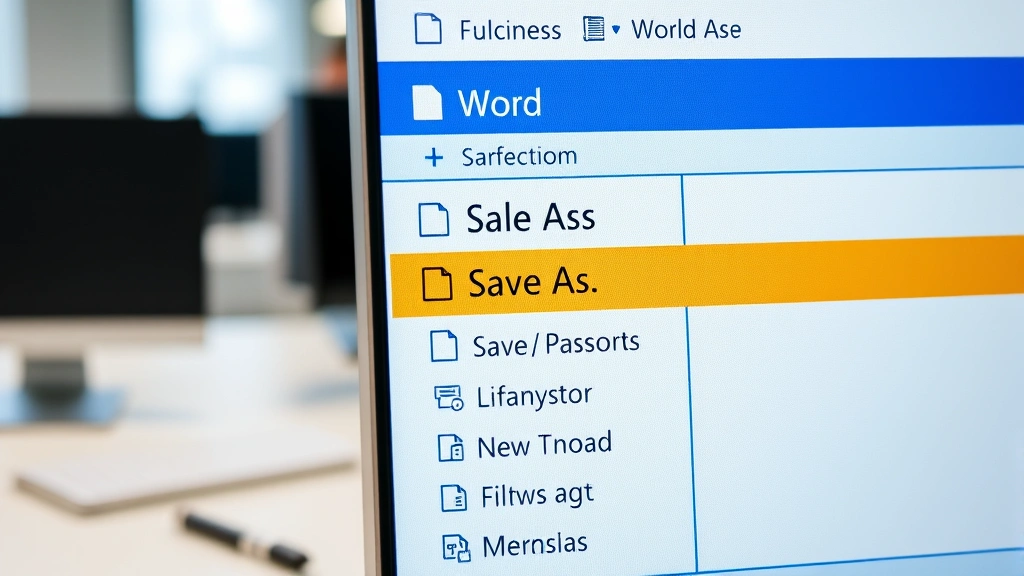
The Save As function is arguably the most straightforward way to create a copy of your Word document. This method is built directly into Microsoft Word and works consistently across all versions. Here’s how to execute it perfectly:
Open your Word document that you want to duplicate. Once it’s open and ready, navigate to the File menu located in the top-left corner of your screen. Click on it to reveal the dropdown menu with various options. Look for Save As among the choices presented.
When you click Save As, a dialog box will appear asking you to specify where you want to save the new copy. This is your opportunity to choose a location—whether that’s your Documents folder, Desktop, or any other directory on your computer. Give your new document a distinctive name that clearly indicates it’s a copy. For example, if your original file is “Q4_Budget_Report,” you might name the copy “Q4_Budget_Report_Draft” or “Q4_Budget_Report_v2.”
The file format dropdown is another important consideration. Word typically defaults to .docx format, which is the modern standard and works with virtually all versions of Microsoft Word. However, if you need compatibility with older systems, you can select .doc format instead. Once you’ve made your selections, click the Save button, and you’ll have an independent copy of your document.

Method 2: File Explorer Copy—Direct and Simple
If you prefer working outside of Word itself, using File Explorer (or Finder on Mac) is an equally effective method. This approach is particularly useful if you’re managing multiple documents or organizing your file system.
Navigate to the folder where your Word document is stored using File Explorer. Once you locate your document, right-click on it with your mouse. A context menu will appear with several options. Select Copy from this menu. Now, right-click in an empty area of the same folder (or any folder where you’d like the copy to appear) and select Paste.
Windows will automatically create a copy with the name format “[Original Name] – Copy.docx.” If you want to rename it to something more descriptive, right-click on the newly created file and select Rename, then type your preferred name. This method is quick and doesn’t require opening Word at all, making it ideal when you’re working with multiple document types or prefer a file-management approach. Mac users can follow similar steps, though if you want to learn the broader picture of copying mechanics on Apple devices, check out our guide on how to copy and paste on Macbook.
Method 3: Cloud Storage Duplication—The Modern Solution
If you’re using Microsoft 365 or storing your documents in OneDrive, SharePoint, or Google Drive, you have access to cloud-based duplication methods that offer additional benefits like automatic syncing and version history.
For OneDrive users, open your document in Word Online or the desktop application. If you’re in Word Online, look for the File menu and select Save a Copy. This creates a duplicate that’s saved to your OneDrive immediately. If you’re using the desktop application with OneDrive integration, you can still use the Save As method, but your copies will automatically sync to the cloud.
Google Drive users have similar capabilities. If your document is a Google Docs file, click the File menu and select Make a copy. A dialog box appears allowing you to name your copy and choose which folder to save it in. The beauty of this approach is that both the original and copy remain in your cloud storage, accessible from any device with internet access.
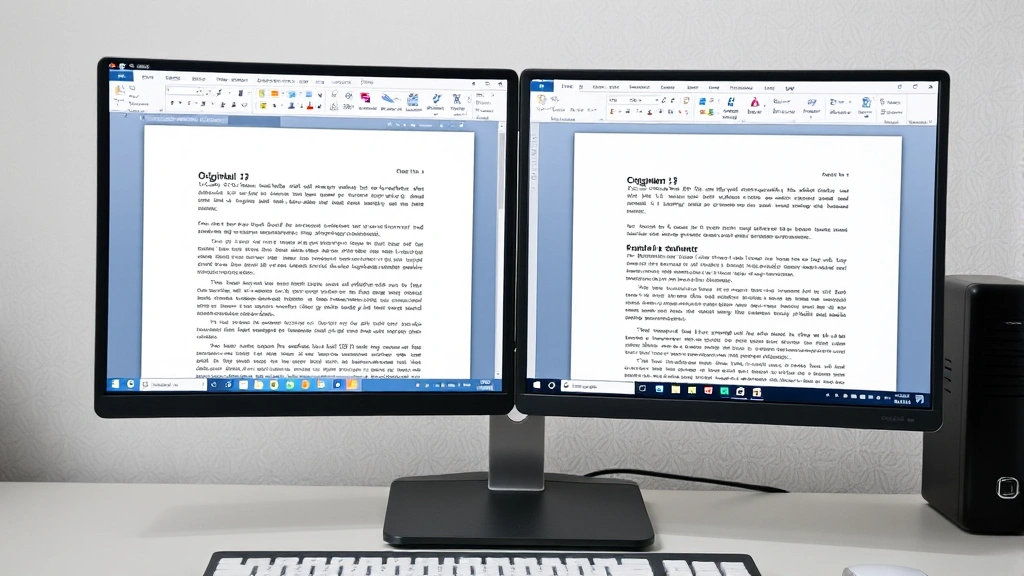
Cloud-based duplication is particularly valuable for collaborative work. If you’re creating a copy to share with team members or to serve as a template for others, having it in shared cloud storage means everyone can access the most current version without email attachments or confusion about which version is the latest.
Method 4: Quick Copy Within Word—For Templates and Variations
Sometimes you need to create a copy without necessarily saving it as a separate file immediately. This method is useful when you’re working on variations or testing changes. Open your document in Word, then use the keyboard shortcut Ctrl+A (or Cmd+A on Mac) to select all content. Now use Ctrl+C (or Cmd+C on Mac) to copy everything.
Create a new blank document by going to File > New and selecting Blank Document. In this new document, paste all the copied content using Ctrl+V (or Cmd+V on Mac). You now have an identical copy of your original document in a new file. Save this new file with your chosen name using File > Save As.
This method gives you more control over the process and is excellent for creating document templates. If you’re also working with formatting and want to understand how to optimize your document layout, learning how to double space in Word can help you create professional-looking copies with consistent formatting.
Special Instructions for Mac Users
Mac users have a slightly different experience, though the underlying principles remain the same. The Save As function works identically—go to File > Save As, name your document, and choose your location. Mac’s Finder, however, operates a bit differently from Windows Explorer.
To duplicate a document in Finder, locate your Word file, right-click (or Control+click) on it, and select Duplicate from the context menu. Mac will automatically create a copy with “copy” appended to the filename. You can then rename it as desired. This is actually more straightforward than the Windows method and is often faster for Mac users who are familiar with Finder’s interface.
If you’re using iCloud Drive to store your documents, you can access cloud duplication features similarly to OneDrive. The process of copying and pasting on Macbook is fundamental to all these methods, so mastering that skill enhances your overall efficiency with document management.
Best Practices for Document Management
Creating copies of documents is just the beginning—managing them effectively is what separates organized professionals from those drowning in file chaos. Develop a consistent naming convention for your copies. Instead of vague names like “Document1” or “Final_FINAL_v3,” use descriptive names that include dates or version numbers: “2024_Budget_Proposal_v1” or “Client_Contract_20240115.”
Organize your copies into logical folders. If you’re working on a project with multiple document versions, create a dedicated folder for that project. Within it, you might have subfolders for “Drafts,” “Final,” and “Archive.” This structure makes finding specific documents exponentially easier.
Consider implementing a version control system if you’re working in a team environment. Instead of creating endless copies, use cloud storage with version history enabled. Both OneDrive and Google Drive maintain previous versions automatically, allowing you to revert to earlier iterations without cluttering your file system with multiple saved copies.
When dealing with sensitive documents, be mindful of where your copies are stored. If you’re creating copies for backup purposes, ensure they’re stored securely. If you’re creating copies for distribution, make sure to remove any sensitive information or track changes that might contain confidential details.
Additionally, if you’re working with complex documents that involve spreadsheet data or multiple file types, understanding how to wrap text in Excel and other formatting techniques can help you maintain consistency across document copies. Similarly, if your documents reference locked cells or protected data, knowing how to lock cells in Excel ensures your copies maintain the same security and integrity as your originals.
Frequently Asked Questions
What’s the difference between Save As and Make a Copy?
Save As closes your current document and opens the newly saved copy, making it your active document. Make a Copy (available in cloud services) creates a duplicate while keeping your original document open. Save As is better for creating a new working version, while Make a Copy is better for keeping both versions accessible simultaneously.
Can I copy a Word document to a different file format?
Absolutely. When using Save As, the file format dropdown menu offers numerous options including .pdf, .txt, .rtf, and older .doc formats. This is useful when you need to share your document with people using different software or when you want to create a read-only PDF version.
Will copying a Word document also copy all formatting and styles?
Yes, all formatting, styles, headers, footers, and embedded objects are preserved when you create a copy using any of these methods. The copy is an exact replica of the original, including all visual formatting and document properties.
How do I copy a document that’s currently open and being edited?
Simply use File > Save As and give it a new name. Your current edits remain in the original document, and the copy is saved as a separate file. Alternatively, if you’re using cloud storage, you can create a copy without saving your current edits first.
Is there a way to copy just specific pages from a Word document?
While the methods described create full document copies, you can create a new document and copy only the pages you need by selecting specific content with Ctrl+A or manual selection, then pasting into a new document. This gives you a partial copy containing only your chosen content.
What should I do if I accidentally create too many copies?
Implement a regular file cleanup routine. Review your documents monthly, archive old versions to an external drive or cloud archive folder, and delete unnecessary copies. Most modern operating systems allow you to search by date modified, making it easy to identify and organize older files.
Can I create a template from a copied document?
Yes. After creating your copy, remove any specific content that shouldn’t be in the template, leaving only the structure, formatting, and placeholder text. Save it as a Word Template (.dotx) file by using File > Save As and selecting “Word Template” from the file format dropdown. This template can then be used to create new documents with the same structure.

Related Posts

How Long to Boil Lobster Tails: Cooking Guide

How Long to Fly from New York to London? Travel Times
