
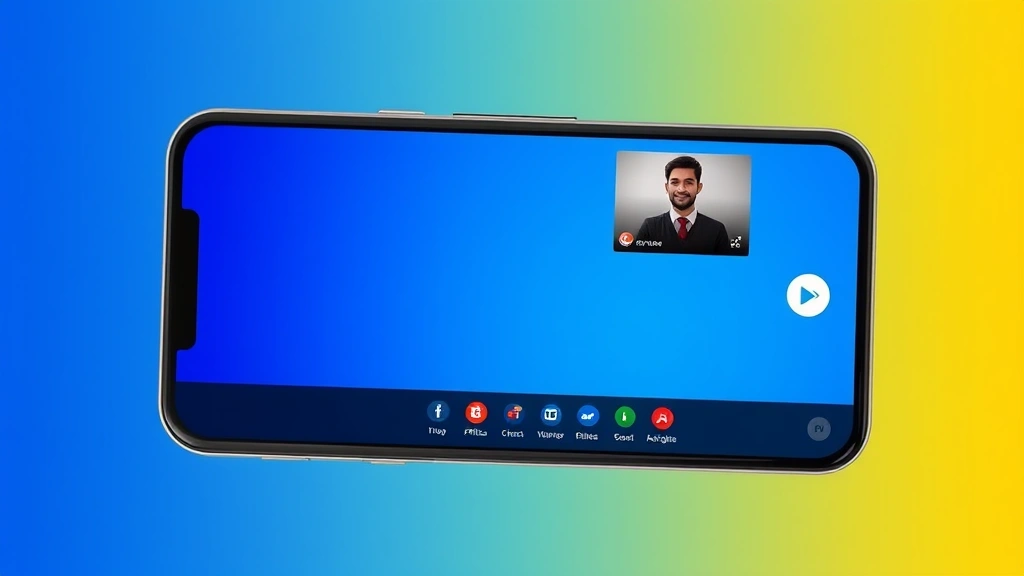
How to Get Effects on Google Duo: Simple Guide
How to Get Effects on Google Duo: Simple Guide
Google Duo has become a go-to video calling platform for millions of users worldwide, offering a straightforward way to connect with friends and family. But here’s the thing—most people don’t realize that Google Duo comes packed with fun, interactive features that can transform your ordinary video calls into something genuinely entertaining. Whether you’re looking to add a little personality to your conversations or just want to explore what the app can do, understanding how to access and use effects is easier than you might think.
The beauty of Google Duo’s effects feature is that it doesn’t require any technical wizardry. These aren’t complicated filters or filters that slow down your device; they’re built right into the app and designed to work smoothly across different devices and connection speeds. From subtle beautification options to wildly creative masks and backgrounds, there’s something for everyone. Let’s dive into exactly how to unlock these features and make your video calls more engaging.
Understanding Google Duo Effects
Google Duo effects represent a thoughtful addition to the app’s core functionality. Rather than being an afterthought, these features are integrated into the calling experience, allowing users to enhance their appearance or add creative elements to their video feed in real-time. Think of them as the digital equivalent of putting on a fun hat or adjusting the lighting in your room—they’re there if you want them, but they won’t interfere with your conversation if you don’t.
The effects ecosystem in Google Duo is surprisingly robust. You’ll find everything from subtle enhancements that make you look your best to playful masks that turn your face into something completely different. The platform updates these regularly, so there’s always something new to discover. What makes this particularly useful is that effects work across both Android and iOS devices, meaning your friends can see your creative side regardless of what phone they’re using.
One important thing to understand is that effects are applied locally on your device. This means you’re not uploading your video to any external servers or third-party services. The processing happens on your phone, which is why the experience feels so seamless and responsive. When you apply an effect, the other person on the call sees your modified video feed, but your actual camera input remains unchanged on your device.
Accessing Effects During a Call
Getting to the effects during an active Google Duo call is straightforward. Once you’re connected with someone, look at the bottom of your screen where you’ll see several icons. You should spot an icon that looks like a smiley face or contains sparkles—that’s your gateway to effects. Tap it, and a menu will appear showing all the available effects you can apply.
The interface is designed to be intuitive. When you tap the effects icon, you’ll see a horizontal scrolling menu of different options. Simply swipe left or right to browse through the available effects, and tap on one to apply it instantly. Your video feed will update immediately, and the person on the other end of the call will see the change right away. If you want to remove an effect, just tap the effects icon again and select the first option, which typically shows your unmodified face.
It’s worth noting that you need an active call to access effects. You can’t preview effects before starting a call, though Google has been known to show effect previews in their promotional materials. This design choice makes sense from a privacy standpoint—the effects are designed as in-call features rather than standalone tools.

Types of Effects Available
Google Duo offers several categories of effects, each serving a different purpose. Understanding what’s available will help you choose the right effect for the right moment. The collection typically includes beauty filters, fun masks, environmental effects, and sometimes seasonal or themed options.
Beauty filters are subtle enhancements designed to improve your appearance without making you look drastically different. These might include options to smooth your skin, brighten your complexion, or enhance specific features. They’re particularly useful when you’re taking a call in less-than-ideal lighting or when you simply want to present your best self.
Fun masks transform your face into creative characters or objects. These range from silly animal faces to artistic designs. They’re perfect for lightening the mood during calls with friends or adding entertainment value to group conversations. The masks are well-designed and responsive, moving naturally with your facial expressions.
Environmental effects modify your background or the space around you. These can blur your background, replace it with a solid color, or even swap it for a completely different scene. This is particularly useful when you’re calling from a messy room or want to maintain privacy about your surroundings.

Using Beauty Filters
Beauty filters in Google Duo are designed with subtlety in mind. They’re not meant to make you look like a completely different person; rather, they enhance your natural features and improve your appearance under various lighting conditions. If you’re calling early in the morning or after a long day, a subtle beauty filter can help you feel more confident on camera.
To use beauty filters, access the effects menu during your call and look for the filter options. These are typically among the first effects shown in the menu. Tap on the one you prefer, and you’ll see the adjustment applied to your video feed immediately. Most beauty filters are adjustable, meaning you can control the intensity of the effect. Some versions of Google Duo allow you to fine-tune how much enhancement you want applied.
The key to using beauty filters effectively is moderation. A light application looks natural and enhances your appearance without raising eyebrows. Going overboard with filters can make you look unnatural and might actually detract from your video call experience. Start with a subtle option and adjust from there if needed.
If you’re concerned about device performance, rest assured that beauty filters are optimized to run smoothly even on older or less powerful devices. Google has designed these effects to be lightweight, so they won’t drain your battery or cause your call to lag. If you want to learn more about optimizing your device’s performance, you might consider how to clear app cache on iPhone or similar maintenance tasks on Android devices to keep everything running smoothly.
Applying Masks and Virtual Backgrounds
Masks are where Google Duo’s effects get playful. These virtual disguises can transform your face into animals, characters, or abstract designs. They’re responsive to your facial movements, so when you smile, the mask smiles with you. When you move your head, the mask follows naturally. This responsiveness is what makes them feel less gimmicky and more like genuine fun additions to your video calls.
To apply a mask, access the effects menu and scroll through until you find one you like. Tap it, and it will instantly appear on your face. You can switch between different masks quickly, so if you want to try a few options, just keep tapping different ones until you find the perfect one for the moment. Most people find that masks work best when used sparingly—perhaps during a quick moment of fun with friends rather than for an entire call.
Virtual backgrounds work similarly to masks but affect your surroundings rather than your face. When you apply a virtual background, your actual background gets replaced with a different image or solid color. This is incredibly useful if you’re calling from a location you’d prefer to keep private or if your background is cluttered. The technology uses edge detection to keep you in focus while replacing everything behind you.
One thing to keep in mind is that virtual backgrounds work best when you have good lighting and when there’s clear separation between you and your background. If you’re sitting against a wall of the same color as your clothing, the background replacement might have trouble distinguishing where you end and the background begins. Position yourself a few feet away from your background for the best results. If you’re interested in improving your setup, understanding how to allow pop ups on Safari might help you access setup guides and tutorials online.
Troubleshooting Common Issues
Despite Google Duo’s generally smooth operation, you might occasionally encounter issues with effects. The most common problem is effects not appearing or appearing but not updating smoothly. If this happens, try closing and reopening the app. Sometimes a simple restart clears up any glitches.
If effects are lagging or causing your call to stutter, it’s likely a device performance issue. Closing other apps running in the background can help free up processing power. Your device needs adequate resources to both manage the video call and apply real-time effects simultaneously. If you have multiple apps open, closing them can immediately improve performance.
Another common issue is effects not being available on your device. This could be due to your app version being outdated. Make sure you have the latest version of Google Duo installed from your device’s app store. New effects are often rolled out gradually, so even if your app is updated, you might not have access to the newest effects yet if you’re in a region that hasn’t received the update.
If you’re using an older device, you might find that certain effects simply aren’t available or don’t perform well. Google typically optimizes effects to work on devices a few years old, but very old phones might struggle. In this case, using simpler effects like solid color backgrounds instead of complex masks might provide a better experience.
Occasionally, effects might not sync properly if you’re on a poor internet connection. Video effects require real-time processing and transmission, so they’re more demanding than a regular video call. If your connection is unstable, you might notice effects becoming choppy or unresponsive. Switching to a stronger WiFi connection or moving closer to your router can help.
Tips for Best Results
Getting the most out of Google Duo effects comes down to understanding when and how to use them effectively. First, ensure you have adequate lighting. Effects work best when your face is well-lit and clearly visible to the camera. Natural light from a window is ideal, but any bright light source works. Poor lighting can make effects look distorted or cause them to fail altogether.
Second, maintain an appropriate distance from your camera. Effects like masks and beauty filters work best when your face takes up a reasonable portion of the screen. If you’re too far away, the effects might not track properly. If you’re too close, you might appear distorted. Roughly 12-18 inches from your device is typically ideal.
Third, keep your device stable. If you’re holding your phone, try to keep it as steady as possible. Movement can interfere with effect tracking, making masks appear jittery or beauty filters look uneven. If you’re on a video call for an extended period, consider using a phone stand or propping your device up on something stable.
Fourth, remember that less is often more. Using effects sparingly and appropriately makes them more impactful and enjoyable. Constantly switching between different masks during a serious conversation might come across as distracting. Save the fun effects for moments when they enhance the experience rather than detract from it.
Finally, experiment with different effects to find your favorites. Google Duo’s effect library is regularly updated with new options. Taking time to explore what’s available helps you discover effects that match your personality and communication style. You might also enjoy exploring how technology works in other areas—for instance, if you’re interested in device connectivity, you could learn about how to pair FireStick remote or how to reset FireStick remote for your home entertainment setup.
For more comprehensive guidance on video calling features, check out Google Duo’s official support documentation, which provides detailed instructions for all app features. Additionally, How-To Geek offers excellent tutorials on maximizing video calling applications, and MakeUseOf provides practical tech guides for getting the most out of communication apps.
Understanding how to connect Roku to WiFi without remote might seem unrelated, but having a strong internet connection throughout your home ensures smooth video calling experiences. A reliable network is the foundation for using effects effectively without lag or interruption.
Frequently Asked Questions
Can I use effects on group video calls?
Yes, effects work on both one-on-one and group calls in Google Duo. When you apply an effect during a group call, all participants will see your modified video feed. This makes group calls even more fun and engaging, though it’s worth considering whether everyone on the call will appreciate your chosen effect.
Do effects work on all devices?
Google Duo effects are available on both Android and iOS devices, but older devices might have limited effect options or performance issues. The app requires a relatively recent version of Android or iOS to access the full range of effects. If you’re using an older device, updating your operating system might unlock more effects.
Will using effects drain my battery faster?
Effects do consume additional processing power compared to a regular call without effects, which can increase battery drain slightly. However, the difference is typically minimal on modern devices. If you’re concerned about battery life during long calls, using simpler effects or avoiding effects altogether can help extend your battery life.
Can I create custom effects?
Currently, Google Duo doesn’t allow users to create custom effects. The effects available are those provided by Google. However, Google regularly adds new effects, so checking the app periodically ensures you’re aware of new options as they become available.
What if effects aren’t working during my call?
First, try closing and reopening the app. If that doesn’t work, ensure you have the latest version of Google Duo installed and that your device has sufficient free storage and processing power. If other apps are running in the background, close them to free up resources. If problems persist, restarting your device often resolves the issue.
Are effects available offline?
No, effects require an active internet connection to function. The processing happens on your device, but the effects menu and available options are managed through your connection to Google’s servers. You can’t use effects without an active internet connection.
Can the person I’m calling disable seeing my effects?
No, if you apply an effect, the other person will see it. However, they can ask you to remove it, and you can always turn off effects by accessing the effects menu and selecting the no-effect option. Respect for your call partner’s preferences is always the best approach.

Related Posts

How Long to Boil Lobster Tails: Cooking Guide

How Long to Fly from New York to London? Travel Times
