
Is Your iPhone Unlocked? Easy Check Guide
Is Your iPhone Unlocked? Easy Check Guide
You’ve just picked up a used iPhone, inherited one from a family member, or maybe you’re simply curious about your device’s carrier status. Whatever the reason, knowing whether your iPhone is unlocked is crucial information that affects how you use your phone and which carriers you can switch to. The good news? Figuring this out takes just a few minutes and requires zero technical expertise.
An unlocked iPhone is one that works with any carrier’s SIM card, giving you the freedom to switch between providers whenever you please. A locked iPhone, on the other hand, is restricted to a specific carrier and won’t accept SIM cards from competing networks. This distinction matters whether you’re traveling internationally, switching carriers, or planning your device’s future. Let’s walk through the straightforward methods to determine your iPhone’s unlock status.
Before diving into the technical checks, understand that Apple doesn’t display a blinking neon sign saying “unlocked” or “locked” on your home screen. Instead, you’ll need to perform a few simple tests or check your carrier account. The methods range from the incredibly simple (inserting a different SIM card) to checking your account settings online. We’ll cover all of them so you can pick whichever works best for your situation.
The SIM Card Swap Test
The most straightforward way to check if your iPhone is unlocked is the SIM card swap test, and it requires nothing more than a SIM card from a different carrier. This is the gold standard method because it provides definitive proof of your device’s unlock status.
Here’s how to perform the test:
- Obtain a SIM card from a different carrier than your current one. If you have a friend or family member with a different carrier, ask to borrow their SIM card temporarily. Alternatively, visit a carrier store and ask for a test SIM card.
- Power off your iPhone completely. Press and hold either volume button plus the side button until the power-off slider appears, then slide to power off.
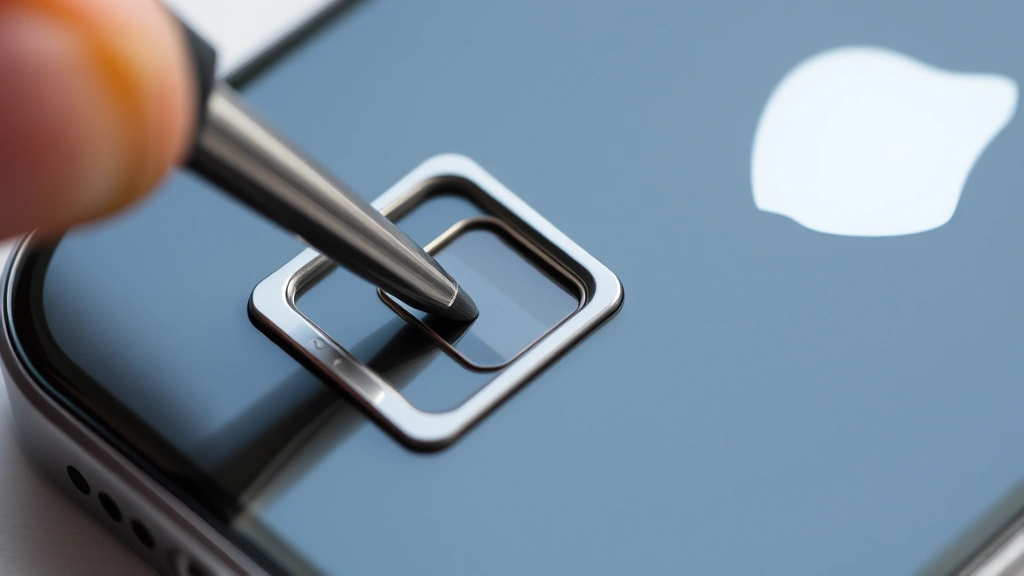
- Locate the SIM card tray on the side of your iPhone (the exact location varies by model, but it’s typically on the right side).
- Use a SIM card ejection tool (the tiny metal pin that came with your iPhone) or a straightened paperclip to gently press the small hole next to the tray until it pops out.
- Remove your current SIM card and replace it with the test SIM card from the different carrier.
- Reinsert the tray and power your iPhone back on.
- Wait for the device to fully boot up and search for signal.
If your iPhone displays signal bars and recognizes the new carrier’s network, congratulations—your iPhone is unlocked. You’ll see the new carrier’s name appear in the status bar at the top of your screen. If you see “No Service” or an error message, your iPhone is still locked to your original carrier.
One important note: if you’re concerned about other security aspects of your device, you might also want to learn how to turn off Find My iPhone if you’re selling or transferring the device, as this prevents activation lock issues.
Checking Your Carrier Account Online
If you don’t have access to another SIM card, your carrier’s website provides another reliable verification method. Most major carriers allow you to check your device’s unlock status through their online account portal.
For AT&T users: Log into your AT&T account, navigate to your mobile device information, and look for unlock status details. AT&T typically displays this information clearly in your account dashboard.
For Verizon users: Verizon’s system is a bit different because they’ve historically been more relaxed with unlocking policies. You can check through My Verizon by looking at your device information, though Verizon devices are often unlocked by default after a certain period.
For T-Mobile users: Log into your T-Mobile account, find your device information, and T-Mobile will display the unlock eligibility status. T-Mobile generally has straightforward unlock policies and makes this information readily available.
For other carriers: Whether you’re with a regional carrier or an MVNO (Mobile Virtual Network Operator), visit their website, log into your account, and search for device unlock status or device management sections.
The advantage of this method is that you get official documentation of your device’s status directly from the source. You can also typically see when your device became eligible for unlocking if it was previously locked.
Using Settings to Verify Unlock Status
Your iPhone’s Settings app contains clues about your device’s carrier status, though it’s not quite as straightforward as a simple “unlocked” label. However, checking these settings gives you additional confirmation.
Follow these steps:
- Open the Settings app on your iPhone.
- Tap “General” and then scroll down to “About.”
- Look for “Carrier Lock” information. If your device shows “No SIM restrictions,” it’s unlocked. If it displays a carrier name with a lock icon, it’s locked to that carrier.
Not all iPhones display this information prominently, so don’t worry if you don’t see a specific “Carrier Lock” entry. This is where the SIM swap test becomes your best friend as a backup verification method.
Additionally, if you’re managing multiple aspects of your device’s security and functionality, you might want to explore how to find hidden apps on iPhone to ensure your device is exactly as you expect it to be.
Contact Your Carrier Directly
When in doubt, the most reliable source of information is your carrier’s customer service team. They have access to your account and device information and can provide definitive answers about your iPhone’s unlock status.
Here’s what to do:
- Call your carrier’s customer service number (usually found on your bill or their website).
- Have your phone number and account information ready.
- Ask directly about your device’s unlock status.
- Request written confirmation if you need documentation for any reason.
Customer service representatives deal with unlock questions daily and can answer follow-up questions about the unlock process if your device is currently locked. They can also explain any eligibility requirements or timelines for unlocking if applicable.
This method is particularly useful if you’ve just purchased a used device and want confirmation before relying on the phone for important tasks. You’ll get peace of mind knowing the device’s exact status from an authoritative source.
What to Do If Your iPhone Is Locked
If you’ve discovered your iPhone is locked and you want to use it with a different carrier, you have options. The specific process depends on your situation and your carrier’s policies.
If you’re the original account holder: Contact your carrier and request an unlock. Most carriers will unlock your device if it meets their eligibility requirements, which typically include having an active account in good standing or having completed a certain period of service. The unlock process usually takes 24-48 hours.
If you purchased a used device: The original owner needs to contact their carrier and request the unlock. The device cannot be unlocked without authorization from the account holder. If the previous owner is unavailable or unwilling to unlock it, you may have limited options. Always verify unlock status before purchasing used iPhones to avoid this situation.
If you’re concerned about other access issues with your device, you might also want to check how to find blocked numbers on iPhone to understand what communications you might be missing.
For international devices: If you’ve purchased an iPhone from outside your country, it may be locked to a carrier in that region. Contact that carrier (if you can identify them) or work with the seller to unlock it. Some international carriers have different unlock policies than US carriers.
International Travel Considerations
An unlocked iPhone becomes invaluable when traveling internationally. With an unlocked device, you can purchase a local SIM card in any country and use local carrier rates instead of paying expensive international roaming charges from your home carrier.
Before traveling, confirm your iPhone’s unlock status using the methods described above. If it’s locked, request an unlock from your carrier before your trip. Most carriers process unlock requests quickly, and having confirmation before you leave ensures you won’t face connectivity issues abroad.
When traveling, simply purchase a prepaid SIM card from a local carrier at the airport or a mobile shop. The process is straightforward: insert the SIM, wait for the network to register, and you’ll have local phone service at a fraction of what international roaming would cost. This is one of the most practical benefits of device unlocking.
For additional security while traveling, you might want to review how to block No Caller ID on iPhone to prevent unwanted international spam calls.
If you’re also traveling with other Apple devices, checking how to check AirPod battery ensures your audio accessories stay charged during your journey. Similarly, if you’re using Apple’s tracking technology, understanding how to reset AirTag before traveling prevents location tracking issues.
Frequently Asked Questions
How long does it take for an iPhone to unlock after I request it from my carrier?
Most carriers process unlock requests within 24-48 hours. Some carriers, like T-Mobile, may unlock immediately or within a few hours. After the carrier processes the unlock, you may need to restart your iPhone for the change to take effect. If you don’t see the unlock reflected after 48 hours, contact your carrier for an update.
Can I unlock my iPhone myself without contacting my carrier?
No, you cannot unlock your iPhone yourself through any legitimate means. The unlock is controlled by your carrier’s servers and Apple’s systems. Any website or service claiming to unlock your iPhone without carrier authorization is either fraudulent or uses methods that violate Apple’s terms of service. Always work directly with your carrier for legitimate unlocking.
Will unlocking my iPhone void my warranty?
No, unlocking your iPhone through your carrier does not void your Apple warranty. Carrier unlocking is a legitimate service that carriers provide, and Apple recognizes this. Your warranty remains valid regardless of whether your device is locked or unlocked.
What’s the difference between carrier unlock and iCloud unlock?
These are completely different things. Carrier unlock (what we’ve discussed) refers to using different SIM cards and carriers. iCloud unlock (also called Activation Lock removal) is about accessing an iPhone that’s been locked to someone’s Apple ID. If you forget your Apple ID password, you need to go through Apple’s account recovery process, not your carrier.
If I buy a used iPhone, can I tell if it’s stolen by checking the unlock status?
Not directly from unlock status alone. However, a locked iPhone with an unknown previous owner is a red flag. More importantly, check if the device has Activation Lock enabled by trying to sign in with your Apple ID during setup. If it asks for the previous owner’s credentials, the device is locked to their account. Never purchase an iPhone with Activation Lock enabled unless the seller can remove it in front of you.
Do all iPhone models check for unlock status the same way?
The methods are essentially the same across all iPhone models. The SIM card swap test works on any iPhone with a SIM card slot. Settings navigation is virtually identical across all models. The only variation is the physical location of the SIM tray, which differs slightly between older and newer models, but Apple’s design makes it obvious where to look.

Related Posts

How Long to Boil Lobster Tails: Cooking Guide

How Long to Fly from New York to London? Travel Times
