

How to Turn Off Sticky Keys: Simple Steps
How to Turn Off Sticky Keys: Simple Steps to Regain Control of Your Keyboard
There’s nothing quite as frustrating as accidentally triggering Sticky Keys and suddenly finding your keyboard behaving like it’s stuck in molasses. You press Shift, and nothing happens. You hold it down, and your computer seems to think you’re performing some kind of elaborate keyboard combination. If you’ve ever experienced this peculiar feature activating at the worst possible moment, you’re not alone. Sticky Keys is a Windows accessibility feature designed to help users with mobility impairments, but for those who don’t need it, it can feel like an unwanted guest at your keyboard.
The good news? Turning off Sticky Keys is straightforward once you know where to look. Whether you accidentally enabled it by pressing Shift five times in rapid succession or you’re simply ready to bid this feature goodbye, we’ve got you covered with clear, step-by-step instructions that work across different Windows versions and scenarios.
In this guide, we’ll walk you through multiple methods to disable Sticky Keys, explain why it might be activating unexpectedly, and provide troubleshooting tips to ensure it stays off. We’ll also cover some related keyboard accessibility features that you might want to explore while you’re optimizing your system.
What Is Sticky Keys?
Sticky Keys is an accessibility feature built into Windows that allows users to perform keyboard shortcuts without pressing multiple keys simultaneously. Instead of holding down Shift while pressing another key, a user can press Shift once, release it, and then press the second key. The operating system registers this as a combined keystroke.
While this feature is incredibly helpful for individuals with limited hand mobility, arthritis, or other physical conditions that make simultaneous key pressing difficult, it can be accidentally triggered by rapid key presses. Understanding what Sticky Keys does is the first step toward managing it effectively on your system.
The feature typically activates with an audible notification and displays a notification icon on your screen. Some users find this helpful as a reminder, while others find it intrusive. The good news is that you have complete control over whether this feature is active and how it behaves.
Why Does Sticky Keys Keep Activating?
The most common reason Sticky Keys activates is pressing the Shift key five times rapidly. This is the default keyboard shortcut that toggles Sticky Keys on and off. You might accidentally trigger this when typing quickly, especially if you’re reaching for capital letters or using Shift for other purposes.
Other reasons your Sticky Keys might be activating include:
- Accidental keyboard shortcuts: Gaming or typing quickly can sometimes result in unintended key combinations.
- Accessibility settings turned on during setup: Sometimes these features are enabled by default during Windows installation or updates.
- Other users on your computer: If multiple people use your system, someone else might have enabled it.
- System updates: Occasionally, Windows updates can reset accessibility preferences.
Once you understand the trigger, you can take steps to prevent it from happening again. If you’re a gamer or someone who uses keyboard shortcuts frequently, knowing how to quickly disable this feature is essential.
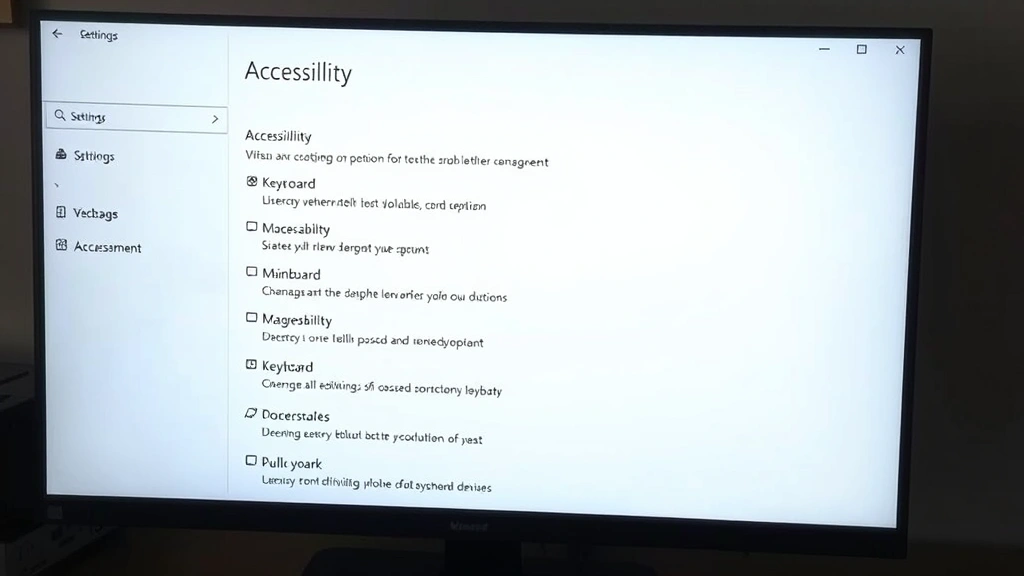
Method 1: Settings App (Windows 10/11)
The Settings app is the most straightforward way to manage Sticky Keys in modern Windows versions. This method gives you granular control over the feature and allows you to customize its behavior.
Step-by-step instructions:
- Press the Windows key + I to open the Settings app.
- Click on Accessibility in the left sidebar.
- Select Keyboard from the accessibility options.
- Find the Sticky Keys toggle and click it to turn it off.
- You’ll see the option switch from On to Off.
That’s it! The feature is now disabled. If you want to prevent accidental activation in the future, you can also toggle off the option that says “Allow the shortcut key to start this setting.” This prevents the five-press Shift key combination from accidentally triggering Sticky Keys again.
While you’re in the Accessibility menu, you might notice other helpful features. For instance, if you’re interested in how to copy and paste on laptop more efficiently, some of these accessibility features can actually enhance your workflow.
Method 2: Control Panel
If you prefer the traditional Control Panel interface or are using an older Windows version, this method works reliably across multiple Windows editions.
Step-by-step instructions:
- Press Windows key + R to open the Run dialog.
- Type control and press Enter.
- Go to Ease of Access or Accessibility Options (depending on your Windows version).
- Click on Keyboard or Make the keyboard easier to use.
- Look for the Sticky Keys section and uncheck the box that says “Turn on Sticky Keys.”
- Click Apply and then OK.
This method is particularly useful if you’re troubleshooting on a system where the Settings app might not be working properly. The Control Panel provides a more traditional interface that’s been reliable across Windows versions for years.
Method 3: Keyboard Shortcut
Once you know the trick, this is the fastest way to toggle Sticky Keys on and off. The keyboard shortcut is elegant in its simplicity, though admittedly easy to trigger accidentally.
The shortcut: Press Shift five times rapidly.
This will immediately toggle Sticky Keys. You’ll hear a notification sound and see a popup confirming the change. However, if you’ve already disabled Sticky Keys, this shortcut won’t work anymore, which is actually a benefit—it prevents accidental activation.
If you’re concerned about accidentally triggering this shortcut again, we recommend using Method 1 to not only disable Sticky Keys but also disable the keyboard shortcut that activates it. This is especially important if you frequently use rapid Shift key presses while gaming or working.

Method 4: Sound Notifications
Sometimes Sticky Keys activates but you might not immediately notice. Configuring sound notifications can help you catch when it’s turned on. Additionally, understanding notification settings can help you troubleshoot whether the feature is actually active or if you’re experiencing a different issue.
To configure notifications:
- Open Settings and go to Accessibility > Keyboard.
- Under Sticky Keys, find the option for “Show a notification when Sticky Keys turns on or off.”
- Toggle this on to receive visual notifications.
- Look for the “Play a sound when Sticky Keys turns on or off” option and toggle it on as well.
These notifications serve as helpful reminders that the feature is active. Many users find that once they’re aware of the audible cue, they can quickly disable Sticky Keys before it causes problems. It’s worth noting that if you’re also interested in how to check PC temps and optimize system performance, understanding your accessibility settings is part of overall system maintenance.
Troubleshooting Persistent Issues
In rare cases, Sticky Keys might not turn off using the standard methods, or it might keep reactivating. Here’s how to handle these situations.
If Sticky Keys won’t turn off:
- Try restarting your computer. Sometimes a simple reboot clears lingering settings issues.
- Check if you’re logged in with administrator privileges. You may need admin rights to change accessibility settings.
- Use the Control Panel method if the Settings app isn’t responding properly.
- Consider running Windows Update to ensure you have the latest system patches.
If Sticky Keys keeps reactivating:
- Disable the keyboard shortcut as mentioned in Method 1. This is the most common cause of repeated activation.
- Check your keyboard for stuck keys. A stuck Shift key might be triggering the feature repeatedly.
- If you have a gaming keyboard with macro functionality, ensure none of your macros are set to press Shift five times.
- Look at your keyboard driver settings if you have custom software installed for your peripheral.
If you’re still experiencing issues after trying these steps, the problem might be related to your keyboard hardware itself. Try a different keyboard to determine if the issue is software-based or hardware-based.
Related Accessibility Features Worth Knowing
While you’re managing Sticky Keys, you might want to familiarize yourself with other accessibility features that could enhance your computing experience. These features are designed to make your system more accessible and can actually improve productivity for everyone, not just those with accessibility needs.
Filter Keys: This feature ignores brief or repeated keystrokes, which can help if you have hand tremors or difficulty with precise key presses.
Toggle Keys: Plays a sound when you press Caps Lock, Num Lock, or Scroll Lock. This prevents accidentally typing in all capitals.
Mouse Keys: Allows you to control the mouse cursor using your keyboard’s numeric keypad.
If you’re using a Mac and wondering about keyboard accessibility, you might want to explore how to right click on a Mac and other Mac-specific shortcuts. Similarly, if you’re working with Chromebooks, understanding how to powerwash a Chromebook and reset your system can be helpful for troubleshooting accessibility settings.
For more detailed information on accessibility features, Microsoft’s official Ease of Access documentation provides comprehensive guides on all available features.
Many users find that exploring these accessibility features, even if they don’t have accessibility needs, can actually improve their workflow. For instance, learning more about disabling sticky keys often leads to discovering other helpful system settings.
Frequently Asked Questions
What happens if I accidentally turn on Sticky Keys again?
You can immediately turn it off using any of the methods mentioned in this guide. The quickest option is to press Shift five times again if you haven’t disabled that shortcut. Otherwise, simply head to Settings > Accessibility > Keyboard and toggle it off.
Can Sticky Keys cause my keyboard to malfunction?
Sticky Keys itself doesn’t cause hardware malfunction, but it can make your keyboard behave unexpectedly. If your keyboard continues to behave strangely after disabling Sticky Keys, you might have a hardware issue. Try a different keyboard to test.
Why does Sticky Keys activate when I’m gaming?
Rapid key presses while gaming can trigger the five-press Shift shortcut. Disabling the keyboard shortcut for Sticky Keys (as described in Method 1) is highly recommended if you’re a frequent gamer.
Is Sticky Keys important for accessibility?
Yes, Sticky Keys is incredibly valuable for users with mobility impairments or conditions like arthritis. If you’re a caregiver or IT professional managing systems for multiple users, be mindful that some users might benefit from this feature being enabled.
Can I customize Sticky Keys instead of disabling it?
Absolutely! In the Accessibility settings, you can customize how Sticky Keys behaves, including changing notification sounds and disabling the keyboard shortcut while keeping the feature available through the Settings menu.
Does disabling Sticky Keys affect other accessibility features?
No, disabling Sticky Keys won’t affect other accessibility features. Each feature operates independently, so you can customize your accessibility settings exactly how you need them.
What if I need to turn Sticky Keys back on later?
You can easily re-enable it by following the same steps, simply toggling the setting back on. If you disabled the keyboard shortcut, you’ll need to go through the Settings menu to turn it back on.

Related Posts

How Long to Boil Lobster Tails: Cooking Guide

How Long to Fly from New York to London? Travel Times
