
How to Recall an Email in Outlook: Step-by-Step Guide
How to Recall an Email in Outlook: Step-by-Step Guide
We’ve all been there—that heart-stopping moment when you hit send and immediately realize you made a mistake. Maybe you included the wrong attachment, sent it to the wrong recipient, or accidentally hit reply-all in a company-wide email. The panic sets in, and you wonder if there’s any way to undo what you’ve just done. The good news? Outlook has a built-in feature that might just save you from that awkward conversation with your boss.
Email recall isn’t a magic wand that erases your message from existence, but it’s surprisingly effective when conditions are right. Understanding how to use this feature—and more importantly, knowing its limitations—can help you recover from those inevitable email mishaps. Let’s walk through everything you need to know about recalling emails in Outlook, from the basic steps to troubleshooting common issues.
Whether you’re using Outlook on your desktop, web browser, or mobile device, we’ll cover the methods that work best for each platform. You’ll also learn when recall actually works and when you might need to follow up with a quick clarification email instead.
What is Email Recall and How Does It Work?
Email recall is a feature that allows you to attempt to retrieve or delete an email message after you’ve sent it. Outlook’s recall feature works by sending a special message to the recipient’s mailbox that requests the deletion of the original email. However—and this is crucial—it’s not a guaranteed solution. The success of email recall depends on several factors, including the recipient’s email client, their mail server configuration, and whether they’ve already read the message.
Think of email recall as a polite request rather than a forceful deletion command. When you recall an email, Outlook essentially tells the recipient’s mail server: “Please delete this message if the recipient hasn’t opened it yet.” If the recipient has already read your email, most mail servers will deny the recall request and notify the recipient that you tried to recall the message. This notification can actually make the situation more embarrassing than just sending a follow-up correction.
The recall feature works best in corporate environments where everyone uses Outlook on the same Exchange server. If you’re sending emails to Gmail, Yahoo, or other third-party email providers, recall is far less likely to succeed. Additionally, if the recipient is using a mobile email client or has forwarded your message to someone else, recall becomes nearly impossible.
Understanding these limitations upfront helps set realistic expectations. Rather than viewing recall as a guaranteed undo button, think of it as a helpful tool that might work in specific situations, but shouldn’t be your only line of defense against email mistakes.
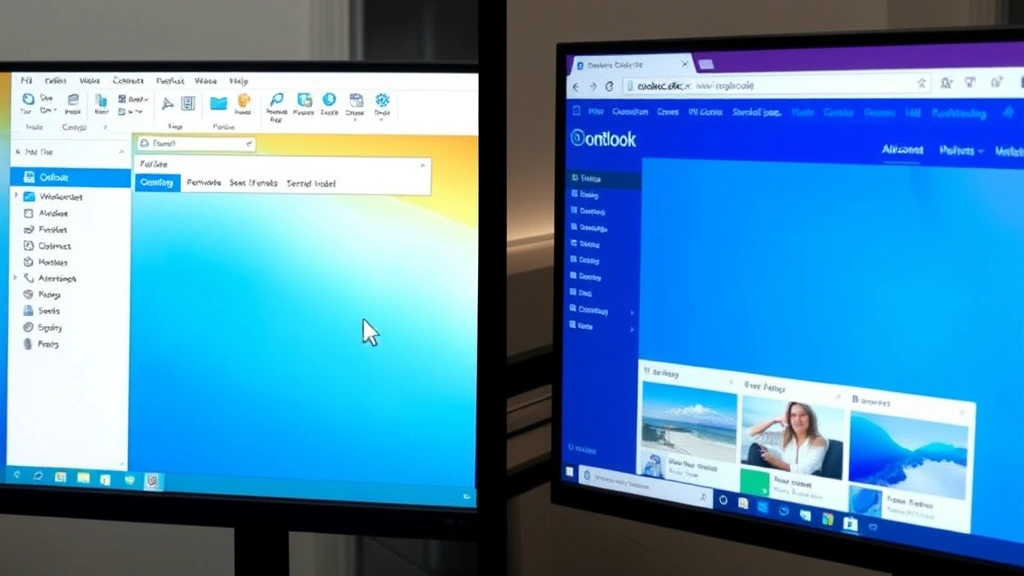
Recalling an Email in Outlook Desktop
The desktop version of Outlook provides the most straightforward way to recall an email. Here’s exactly how to do it:
- Open your Sent folder: Navigate to the folder where your sent emails are stored. This is typically labeled “Sent Items” in your folder list on the left side of the screen.
- Find the email you want to recall: Locate the specific message you need to retrieve. Double-click on it to open the full email view. You can also select it in the list view, but opening it fully gives you more control.
- Access the recall option: Once the email is open, click on the “File” menu at the top of the window. Look for an option that says “Info” or “Message” depending on your Outlook version. From there, you should see a “Resend or Recall” button or similar option.
- Select Recall This Message: Click on the recall option. A dialog box will appear asking whether you want to “Delete unread copies of this message” or “Delete unread copies and replace with a new message.” Choose the option that best fits your situation.
- Compose your replacement message (optional): If you choose to replace the original message, you’ll have the opportunity to write a corrected version. This is helpful if you want to provide context about why you’re recalling the original email.
- Click Send: Confirm your recall request. Outlook will attempt to retrieve the message from recipient mailboxes.
One important note: after you initiate a recall, Outlook will send you a read receipt (if the recipient has enabled read receipts) showing whether the recall was successful. If the recipient had already read your email before the recall request arrived, you’ll typically receive a notification that the recall failed. In these cases, you might want to retract your email using alternative methods like sending a follow-up message with corrections or clarifications.
For users in corporate Exchange environments, this process is generally more reliable. However, if your organization uses Outlook in a hybrid setup or with third-party email domains, success rates drop significantly. Always verify that your recall was successful before assuming the original email has been removed from circulation.
Recalling an Email in Outlook Web
If you’re using Outlook through a web browser (Outlook.com or Outlook Web Access through your organization), the recall process is slightly different but equally straightforward:
- Log into your Outlook web account: Navigate to outlook.com or your organization’s Outlook Web Access portal and sign in with your credentials.
- Navigate to Sent Items: Click on the “Sent” folder in the left sidebar. This displays all emails you’ve sent from your account.
- Select the email to recall: Find and click on the email message you want to recall. The message will open in the reading pane or in a new view.
- Click the More Actions menu: Look for three dots (•••) or a “More” button near the top of the email. This opens a dropdown menu with additional options.
- Select Recall Message: From the dropdown menu, choose the recall option. Outlook will present you with choices similar to the desktop version.
- Choose your recall preference: Decide whether you want to simply delete the message or delete and replace it with a new version. If replacing, you’ll be prompted to write your replacement email.
- Confirm the recall: Click the button to confirm and send your recall request.
The web version of Outlook is particularly useful when you’re away from your desk or working on a different computer. However, web-based recall can be slightly slower to process than the desktop version, so give it a few moments to complete before checking the status.
One advantage of using Outlook web for recall is that you can access it from any device with an internet connection. This is especially helpful if you realize your mistake while traveling or working from a location where you don’t have access to your main desktop computer. Just remember that successful recall still depends on the same factors: the recipient’s email client, whether they’ve read the message, and your organization’s email infrastructure.
Recalling an Email on Mobile Devices
Mobile email apps present a challenge when it comes to recalling messages. Most mobile versions of Outlook don’t include a built-in recall feature directly in the app interface. Here’s what you should know:
iPhone and iPad Users: The Outlook app for iOS doesn’t currently offer a direct recall feature. Your best option is to use the web version of Outlook through Safari or another browser. Open outlook.com, navigate to Sent Items, and follow the web-based recall steps outlined above. If you need to schedule communications on your iPhone, you might want to consider scheduling emails in advance to avoid sending mistakes altogether.
Android Users: Similarly, the Outlook app for Android doesn’t include a native recall option. However, you can access the web version through your mobile browser and follow the same web-based recall process. The interface might be a bit cramped on a phone screen, so consider using a tablet or desktop for easier navigation.
Pro Tip: If you frequently send emails from mobile devices and worry about mistakes, consider enabling the “Undo Send” feature available in some email clients. This gives you a brief window (usually 5-10 seconds) to cancel sending before the email actually leaves your device. While not the same as recall, it prevents mistakes at the source.
The lack of mobile recall functionality underscores why many professionals prefer to handle important or sensitive emails from their desktop computers. You maintain more control over the process and have access to all of Outlook’s advanced features, including the ability to encrypt your emails for additional security and privacy.
When Email Recall Fails and What to Do Instead
Despite your best efforts, email recall doesn’t always work. Understanding when and why it fails helps you develop a backup plan. Here are the most common scenarios where recall is unsuccessful:
The recipient has already read the email: This is the most common reason recall fails. Once someone opens your email, the recall request is typically rejected. The recipient might even receive a notification that you tried to recall the message, which can draw unwanted attention to your mistake.
The recipient uses a non-Outlook email client: If you sent an email to someone using Gmail, Yahoo, Apple Mail, or another email service, recall often doesn’t work. These email systems don’t recognize Outlook’s recall protocol, so your request gets lost in translation.
Your organization’s email infrastructure doesn’t support recall: Some corporate environments have disabled the recall feature for security or policy reasons. Check with your IT department if recall isn’t working within your organization.
The recipient has forwarded the email: Once your email has been forwarded to someone else, recall becomes impossible. You can’t retrieve something that’s already left the original recipient’s inbox.
Too much time has passed: Email recall has a time limit. Generally, you have about two minutes after sending to successfully recall a message. After that window closes, recall is unlikely to work.
What to do when recall fails: Your best bet is to send a quick follow-up email addressing the issue. Be direct and professional about it. If you sent incorrect information, send a corrected version. If you sent it to the wrong person, send a brief apology and clarification. If you sent something sensitive by accident, you might want to set an out of office message while you work with your IT department to address the breach, or contact the recipient directly to discuss the situation.
Many professionals find that a well-crafted follow-up email actually handles the situation better than a failed recall attempt would. It shows accountability and gives you the opportunity to provide context that might soften the impact of your mistake.
Best Practices to Prevent Sending Mistakes
The best approach to email mistakes is prevention. Here are practical strategies to reduce the likelihood of sending errors:
Use the Delay Send feature: Most email clients, including Outlook, offer a delay send option. This holds your email for a specified number of seconds or minutes before actually sending it, giving you time to review one last time. To enable this in Outlook, look for “Delay Delivery” under the File menu or in the message options.
Double-check recipients before sending: This seems obvious, but it’s worth emphasizing. Before hitting send, verify that you’ve entered the correct email address or selected the right contact from your list. Pay special attention to similarly named contacts or distribution lists.
Review your message content: Take 10 seconds to read through your email before sending. Check for typos, incorrect information, and ensure you’re maintaining an appropriate tone for your audience.
Verify attachments: If your email includes attachments, confirm that you’ve attached the correct files and that they’re the right version. Many email mistakes involve sending outdated or incorrect documents.
Use templates for common messages: For emails you send frequently, create templates in Outlook. This reduces the chance of copy-paste errors and ensures consistency across similar messages.
Be cautious with reply-all: Before using reply-all, consider whether everyone on the thread actually needs to see your response. When in doubt, reply to just the sender instead.
Enable read receipts strategically: For important emails, request read receipts so you know when recipients have seen your message. This helps you gauge whether a recall attempt is likely to succeed.
Separate drafting from sending: Write your email, then take a break before sending it. Coming back with fresh eyes often catches mistakes you’d otherwise miss. This is especially important for formal communications or when you’re crafting professional responses that require careful wording.
These preventative measures, combined with knowledge of how recall works, create a comprehensive email safety system. While no approach is foolproof, these practices significantly reduce the frequency and severity of email mishaps.
Frequently Asked Questions
Can I recall an email if the recipient is using Gmail?
Unfortunately, recall rarely works with Gmail or other non-Outlook email services. Outlook’s recall protocol isn’t recognized by Gmail’s servers. Your best option is to send a follow-up email to the Gmail user explaining the situation or providing corrected information.
How long do I have to recall an email after sending it?
You typically have about 2-3 minutes after sending to successfully recall an email. However, this window can be shorter if the recipient’s mail server processes messages quickly. The sooner you attempt recall after realizing your mistake, the better your chances of success.
Will the recipient know if I recall an email?
If the recipient hasn’t read your email yet, they likely won’t know you attempted a recall. However, if they’ve already opened it, they’ll typically receive a notification that you tried to recall the message. This notification can sometimes be more embarrassing than the original mistake.
Does recall work in Outlook for Mac?
Yes, Outlook for Mac includes the recall feature, though the process is slightly different from the Windows version. Open your Sent Items folder, select the message, and look for the recall option in the Message menu. The same limitations apply—recall is most effective in corporate Exchange environments.
What’s the difference between recall and undo send?
Undo send is a feature available in some email clients that prevents an email from leaving your device for a few seconds after you hit send. Recall, on the other hand, attempts to retrieve an email that has already been sent to the recipient’s server. Undo send is generally more reliable, but it only works within that brief window.
Can I recall an email I sent to a distribution list?
Recalling an email sent to a distribution list is more complicated and less likely to succeed. Distribution lists often include members using different email clients and servers. Even if some recipients use Outlook, others might not, making a complete recall impossible.
What should I do if my recall fails?
Send a professional follow-up email acknowledging the issue and providing any necessary corrections or clarifications. Be direct and honest about the mistake. Most people appreciate accountability and transparency far more than a failed recall attempt followed by silence.

Related Posts

How Long to Boil Lobster Tails: Cooking Guide

How Long to Fly from New York to London? Travel Times
