
Zoom Out on Windows: Expert Tips & Tricks
Zoom Out on Windows: Expert Tips & Tricks for Better Screen Control
Managing your display zoom level is one of the most practical yet often overlooked skills for Windows users. Whether you’re working with spreadsheets, browsing the web, or managing multiple applications, knowing how to zoom out on Windows can dramatically improve your productivity and reduce eye strain. This comprehensive guide walks you through every method available on modern Windows systems, from keyboard shortcuts to accessibility settings.
Zooming functionality appears throughout Windows in different ways depending on what you’re doing. Your web browser has its own zoom controls, individual applications handle scaling differently, and Windows itself offers system-wide display settings. Understanding these distinctions helps you choose the right approach for any situation. We’ll explore practical techniques that work across Windows 10, Windows 11, and various applications, plus troubleshooting tips for when zoom settings misbehave.
Keyboard Shortcuts for Zooming Out
The fastest way to zoom out on most Windows applications is using keyboard shortcuts. These universal commands work consistently across browsers, documents, and many desktop applications. The most common shortcut is Ctrl + Minus (-), which decreases the zoom level by 10% with each press. Hold down the Ctrl key and tap the minus key on either your main keyboard or numeric keypad multiple times until you reach your desired zoom level.
For precise control, use Ctrl + 0 (zero) to reset any zoom level back to 100%, the default setting. This proves invaluable when you’ve zoomed too far and need to start fresh. If you prefer using your mouse or trackpad, holding Ctrl while scrolling the mouse wheel up zooms out, while scrolling down zooms in. This method provides smooth, incremental zoom adjustments perfect for fine-tuning your view.
Some applications support additional zoom shortcuts. In Microsoft Office applications like Word and Excel, you can access the zoom slider in the bottom-right corner of the window. Right-click on the zoom percentage to open a dialog box with preset zoom levels (50%, 75%, 100%, 125%, 150%, 200%). This approach is particularly useful when you need to zoom to specific percentages rather than incremental steps.
The numeric keypad minus key works slightly differently than the main keyboard minus key in some programs. If one doesn’t work, try the other. Remember that these keyboard shortcuts function in most modern applications, but older software or specialized programs might use different commands. Always check the application’s help menu if standard shortcuts don’t produce results.
Browser Zoom Methods
Web browsers maintain individual zoom settings for each website you visit. Zoom out in your browser using Ctrl + Minus, or click the menu button (three horizontal lines) and adjust the zoom percentage manually. Chrome, Edge, and Firefox all support these controls, though the menu locations vary slightly between browsers.
In Microsoft Edge, click the three-dot menu in the top-right corner and look for the zoom controls showing a plus and minus symbol. The current zoom percentage appears between these buttons. Click the minus button repeatedly or select a specific percentage from the dropdown. Edge remembers your zoom preference for each site, so if you always read a particular website at 90% zoom, it automatically applies that setting on future visits.
Google Chrome’s zoom controls appear in the same location. Many users prefer Chrome’s approach because it displays the current zoom level prominently and allows quick adjustments. Firefox users can access zoom controls through the hamburger menu (three horizontal lines) in the top-right corner. Firefox also offers a “Zoom Text Only” option that enlarges text without affecting images and layout, useful for accessibility purposes.
Mobile browsers like Edge and Chrome on Windows tablets support pinch-to-zoom gestures if you have a touchscreen. Place two fingers on the screen and pinch inward to zoom out or spread outward to zoom in. This gesture-based approach feels intuitive for touch-enabled devices and provides continuous zoom control without menu navigation.
Website developers can set minimum zoom levels that prevent users from zooming out beyond certain thresholds. If you find yourself unable to zoom out on a specific website, this developer-imposed restriction is likely the cause. Some websites implement these limits to preserve their carefully designed layouts, though this practice frustrates users needing accessibility accommodations.
Windows System Display Settings
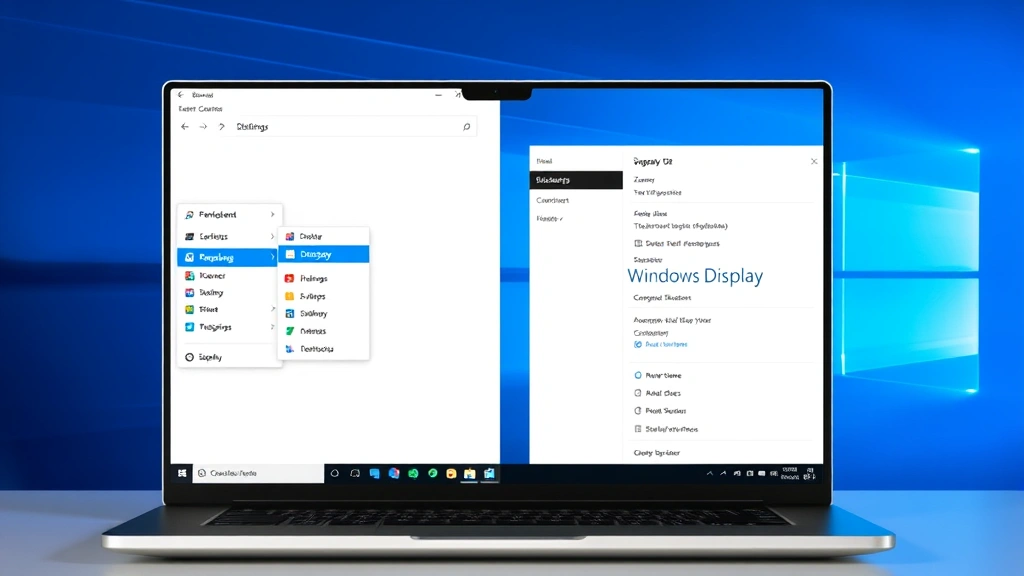
Beyond individual application zoom, Windows offers system-wide display scaling that affects everything on your screen. This differs from application-level zoom because it adjusts how Windows renders the entire interface, not just content within one program. Access these settings by right-clicking your desktop and selecting “Display settings” or navigating to Settings > System > Display.
The Display settings window shows your current resolution and scaling percentage. Windows typically defaults to 100% scaling on standard monitors, but laptops with high-resolution screens often use 125%, 150%, or even 200% scaling automatically. Adjust the “Scale” slider to change this percentage. Common options include 100%, 125%, 150%, 175%, and 200%, though your monitor determines which options appear.
Reducing system-wide zoom (scaling down from 125% to 100%, for example) makes everything smaller—text, icons, windows, and buttons all shrink proportionally. This approach works well when you want to see more content simultaneously on your screen, such as viewing an entire spreadsheet or comparing multiple documents side-by-side. However, if you have vision difficulties, decreasing system scaling might make content uncomfortably small.
After changing your display scaling, Windows requires you to sign out and back in for some changes to apply fully. A notification typically appears offering to log you out immediately or defer the change until your next restart. Applying changes immediately ensures all applications recognize the new scaling, though you’ll need to save any open work first.
Advanced users can access additional display settings through the Advanced display settings option. Here you can view your monitor’s native resolution, refresh rate, and color depth. Some users manually adjust resolution (separate from scaling) to achieve specific zoom effects, though this approach requires technical knowledge and can impact image quality if you select non-native resolutions.
For users working with multiple monitors, Windows allows different scaling percentages on each display. This flexibility proves valuable in multi-monitor setups where displays have different sizes or resolutions. Set each monitor’s scaling independently through the Display settings window by selecting each monitor and adjusting its scale slider.
Application-Specific Zoom Controls
Microsoft Word and Excel provide zoom controls beyond standard keyboard shortcuts. In Word, access the zoom slider at the bottom-right corner of the window, or click the zoom percentage to open a detailed zoom dialog. This dialog offers preset options (200%, 100%, 75%, Page Width, Whole Page, and Two Pages) plus a custom option for entering any zoom percentage between 10% and 400%.
Excel’s zoom functionality works similarly, with the zoom slider in the bottom-right corner. Excel also includes a “Zoom to Selection” feature that automatically adjusts zoom to fit your currently selected cells on screen. This proves exceptionally useful when working with large spreadsheets, as it lets you focus on specific data ranges while maintaining context.
Adobe Reader, the standard PDF viewer, includes dedicated zoom tools in its toolbar. Click the magnifying glass with a minus sign to zoom out, or use View menu options for more granular control. PDFs maintain fixed layouts, so zooming affects readability more dramatically than with reflowable web content. Many users find 125% or 150% zoom comfortable for PDF reading, depending on screen size and personal preference.
Image editing software like Paint and the built-in Photos app handle zoom differently than document applications. In Paint, use View > Zoom or the zoom controls on the toolbar to adjust your view. Zooming out lets you see more of your image canvas, while zooming in allows detailed editing work. The “Fit to Window” option automatically scales your image to fit the current window size.
Visual Studio Code and other developer tools include zoom controls in their settings menus or through keyboard shortcuts. Ctrl + Minus works in most code editors, letting developers adjust text size for comfortable reading and editing. Some developers prefer zooming out to see more code simultaneously, while others zoom in for detailed work on specific functions.
Games and full-screen applications typically don’t support traditional zoom controls, as they manage their own display rendering. If a game appears too large or small, adjust the game’s internal graphics settings or your monitor’s resolution instead. Some games offer UI scaling options separate from the overall resolution, allowing you to zoom the interface independently.
Accessibility and Magnification Tools
Windows includes built-in magnification tools designed for users with vision impairments, though anyone can benefit from these features. The Magnifier tool enlarges portions of your screen, making text and interface elements easier to read. Access Magnifier through Settings > Ease of Access > Magnifier, or search for “Magnifier” in the Windows search bar.
Magnifier operates in several modes: Full screen magnification enlarges everything on your monitor, Lens mode creates a magnified window that follows your cursor, and Docked mode displays a magnified section in a separate window on your screen. Each mode serves different purposes—full screen magnification works well for general use, while Lens mode suits detailed work on specific screen areas.
Adjust magnification level from 100% (no magnification) up to 400% through Magnifier’s settings. Unlike application-level zoom, magnification works system-wide, affecting all applications, windows, and interface elements. This proves valuable when you need consistent magnification across different programs without adjusting zoom settings individually.
The High Contrast display setting, also in Ease of Access settings, increases contrast between text and backgrounds, improving readability without changing zoom levels. Combine High Contrast with magnification for maximum visibility. Windows offers several built-in High Contrast themes optimized for different lighting conditions and vision needs.
Speech Recognition and Narrator features complement magnification and zoom tools. Narrator reads screen content aloud, helping users navigate Windows without relying entirely on visual information. These accessibility features integrate throughout Windows, providing multiple ways to interact with your system beyond traditional keyboard and mouse input.
For detailed accessibility guidance, visit Microsoft’s official Windows accessibility documentation, which covers all available tools and configuration options. Third-party accessibility software also exists, offering advanced magnification and vision assistance features beyond Windows’ built-in tools.
Troubleshooting Zoom Issues
If zoom shortcuts stop working, the application may not support standard zoom controls. Try accessing zoom through the application’s menu system instead. Some applications require specific zoom commands—check the Help menu or application documentation for correct procedures.
When zoom settings appear locked or won’t change, check if the application is running in compatibility mode or with administrator restrictions. Right-click the application icon, select Properties, and check the Compatibility tab for any special settings that might prevent zoom functionality. Disable compatibility mode if it’s enabled and try zooming again.
Browser extensions sometimes interfere with zoom functionality. If zoom stops working in your web browser, disable recently installed extensions one at a time to identify the culprit. Most browsers provide extension management through their settings menus or by typing “chrome://extensions” (Chrome) or “about:addons” (Firefox) in the address bar.
Windows updates occasionally reset display scaling to default values. If your zoom settings change unexpectedly after an update, return to Display settings and re-apply your preferred scaling percentage. Windows remembers these settings, so they should persist until the next major system change.
For help with specific applications, consult Family Handyman’s tech guides or the software publisher’s support documentation. Many common zoom issues have simple solutions once you understand where zoom controls exist within each program.
If your entire display appears zoomed in or out unexpectedly, check your display scaling settings immediately. Right-click the desktop, select Display settings, and verify your scaling percentage matches your preference. A scaling percentage of 125% or higher can make everything appear zoomed in, while 75% or lower makes everything smaller.
FAQ
What’s the difference between zoom and display scaling?
Zoom typically refers to adjusting magnification within a specific application (like zooming a document or webpage), while display scaling adjusts how Windows renders the entire system interface. Zoom affects individual applications, whereas scaling changes everything system-wide. Both serve useful purposes depending on your needs.
Why won’t Ctrl + Minus zoom out on my website?
Some websites restrict zoom levels through developer settings. Additionally, your browser might have zoom disabled through group policy (in workplace environments). Try zooming in your browser’s menu instead of using keyboard shortcuts. If menu zoom works but keyboard shortcuts don’t, browser extensions or settings are likely interfering.
Can I set different zoom levels for different applications?
Yes, most applications remember their individual zoom settings independently. Set Word to 125% zoom and Excel to 100% zoom without conflict—each application maintains its own zoom preference. Browsers remember zoom settings per website, so you can zoom different sites to different levels.
Does zooming out affect print quality?
Zooming out on screen doesn’t affect how documents print. Your print settings determine output size and quality, regardless of your screen zoom level. You can zoom out to 50% on screen and still print at full quality—zoom only affects your display view, not the actual document data.
How do I zoom out on a touchscreen Windows device?
On touchscreen devices, use pinch gestures to zoom—place two fingers on the screen and pinch inward to zoom out or spread outward to zoom in. Keyboard shortcuts like Ctrl + Minus also work on touchscreen devices. Some applications include touch-friendly zoom buttons in their interface.
Is there a way to zoom out on the Windows login screen?
The login screen doesn’t support traditional zoom controls, but Magnifier works on the login screen if enabled in accessibility settings. Enable Magnifier before reaching the login screen, and it will remain active for magnifying the login interface and subsequent screens.

Related Posts

Superscript in Google Docs: Expert Tips

Strikethrough in Excel: Easy Steps for Beginners
