

Can You Light Up Laptop Keys? Expert Tips Inside
Can You Light Up Laptop Keys? Expert Tips Inside
Many laptop users struggle with visibility when working in dim lighting conditions, and the good news is that most modern laptops come equipped with backlit keyboards. If you’re wondering how to turn on light on laptop keyboard, you’re not alone. Whether you’re working late into the evening, traveling, or simply prefer enhanced visibility, understanding how to activate your keyboard backlighting is essential for comfort and productivity.
Laptop keyboard backlighting has become increasingly common across different brands and models. From gaming laptops to ultrabooks, manufacturers have recognized the value of illuminated keys for user experience. However, the methods to activate this feature vary depending on your laptop’s brand and operating system. This comprehensive guide will walk you through every method to light up your laptop keys and troubleshoot any issues you might encounter.
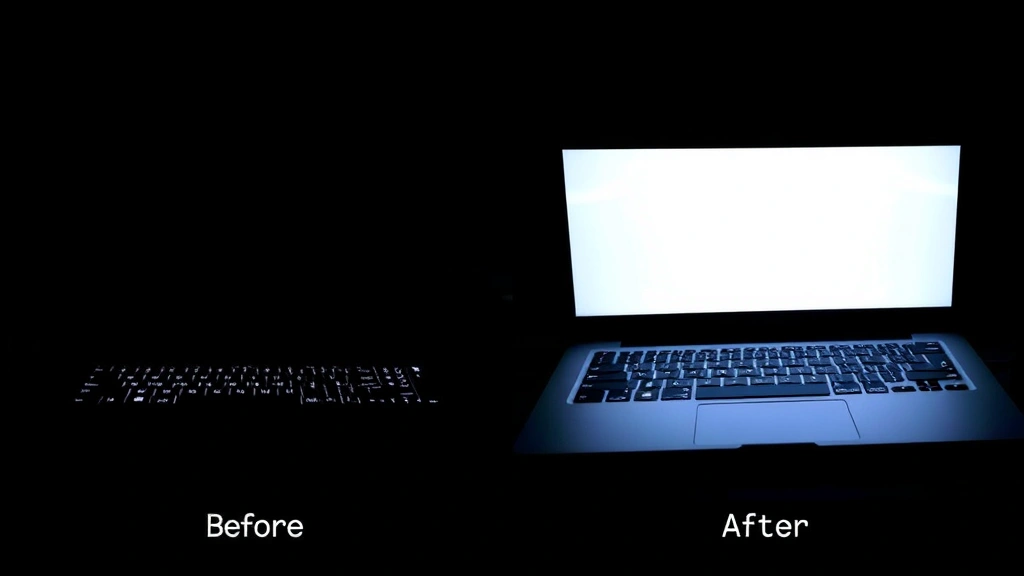
Does Your Laptop Have Backlit Keys?
Before attempting to turn on your keyboard backlighting, you need to determine whether your laptop actually has this feature. Not all laptops come equipped with illuminated keys, particularly budget models and older devices. The easiest way to check is to look at your keyboard in a dark room and see if there’s any light emanating from the keys.
You can also examine your function keys (F1-F12) for a keyboard icon with light rays or brightness symbols. If you see these symbols, your laptop likely has backlit keys. Additionally, check your laptop’s specifications on the manufacturer’s website or your user manual. Most modern laptops from major brands like Dell, HP, Lenovo, ASUS, and Apple include this feature, but it’s worth verifying before troubleshooting.
The presence of backlighting is typically indicated by small LEDs beneath or behind the keycaps. Premium laptops and gaming machines almost always include this feature, while budget-friendly models might skip it to reduce costs. If you’re unsure, visit the FixWise Hub Blog for detailed specifications about your specific model.

How to Turn On Keyboard Light on Windows Laptops
Windows laptops offer several methods to activate keyboard backlighting, depending on your specific model and manufacturer. The most common approach involves using function key combinations that work across most Windows-based systems.
Using Function Key Combinations
The primary method to enable keyboard backlighting on Windows laptops is through function key shortcuts. Look for the F5, F6, or F11 key that displays a keyboard icon with light rays or brightness indicator. Hold the Fn key (usually located in the bottom-left corner of your keyboard) and press the corresponding function key simultaneously.
The exact key varies by manufacturer, but common combinations include:
- Fn + F5: Works on many Dell and HP laptops
- Fn + Spacebar: Common on ASUS and ROG gaming laptops
- Fn + Plus/Minus keys: Found on some Lenovo ThinkPad models
- Fn + Page Up: Used by certain Acer and Gateway laptops
If you’re unsure which key combination applies to your specific model, check your laptop’s user manual or visit the manufacturer’s support website. Most Windows laptops follow similar patterns, so experimenting with these combinations usually yields results.
Windows Settings and Control Panel
Some newer Windows laptops allow you to control keyboard backlighting through system settings. Navigate to Settings > System > Display > Advanced display settings or Control Panel > Hardware and Sound > Power Options. Look for keyboard or lighting options within these menus.
Additionally, many manufacturers include proprietary software for controlling keyboard lighting. Dell has Dell Power Manager, HP has HP Command Center, and ASUS has Armory Crate. Installing and launching these applications provides intuitive controls for adjusting keyboard backlighting intensity and behavior.
Activating Backlighting on Mac Laptops
Apple MacBook Pro models feature keyboard backlighting that’s slightly different from Windows laptops. The activation method is straightforward and consistent across most MacBook models released in recent years.
To turn on your MacBook keyboard light, simply press the F5 key to decrease brightness or F6 key to increase brightness. These keys display a keyboard icon with light rays. If you’re using an older MacBook, you might need to press Fn + F5 or Fn + F6, depending on your system preferences.
Alternatively, you can control keyboard backlighting through macOS settings:
- Click the Apple menu and select System Preferences (or System Settings on newer macOS versions)
- Navigate to Keyboard
- Find the Keyboard Brightness slider
- Adjust the slider to your desired brightness level
You can also enable automatic keyboard backlighting adjustment based on ambient light. In the same Keyboard settings, check the option that says “Adjust keyboard brightness in low light.” This feature uses your MacBook’s built-in light sensor to automatically illuminate keys when you’re in darker environments.
Keyboard Light Shortcuts by Brand
Different laptop manufacturers use varying keyboard light activation methods. Understanding your specific brand’s shortcuts ensures you can quickly enable this feature. For comprehensive guidance on how to turn on keyboard light, refer to brand-specific instructions.
Dell Laptops
Dell XPS, Inspiron, and Alienware models typically use Fn + F5 or Fn + Right arrow key to toggle keyboard backlighting. The F5 key displays a keyboard icon, making it easy to identify. Dell also provides the Dell Power Manager software for more advanced control options.
HP and Pavilion Laptops
HP laptops generally use Fn + F5 or Fn + Spacebar to activate keyboard lighting. The specific key depends on your model, but these are the most common shortcuts. HP Omen gaming laptops may require the HP Command Center application for full control.
Lenovo ThinkPad
Lenovo ThinkPad models use Fn + Spacebar in most cases, though some older models require Fn + Page Up. The Lenovo Vantage software also provides options for customizing keyboard backlighting behavior and scheduling automatic activation.
ASUS and ROG Gaming Laptops
ASUS laptops typically use Fn + Spacebar or dedicated keys with light symbols. Gaming-focused ROG models often feature advanced lighting customization through the Armory Crate application, allowing RGB color changes and synchronization with other peripherals.
MSI Gaming Laptops
MSI laptops frequently use Fn + Plus key to increase keyboard brightness and Fn + Minus key to decrease it. The Dragon Center software provides comprehensive control for gaming laptops with RGB keyboard backlighting.
Adjusting Brightness Levels
Once you’ve successfully activated your keyboard backlighting, you can adjust the brightness to suit your preferences. Most laptops offer multiple brightness levels, typically ranging from off to maximum illumination.
Using the same function key combinations that activated your keyboard light, you can usually cycle through brightness levels by pressing the key multiple times. Each press typically increases or decreases brightness by one level, allowing you to find the perfect setting for your environment.
In manufacturer-specific software, brightness adjustment is often more granular. You can use sliders to set exact brightness levels, and some applications allow you to create profiles for different scenarios. For instance, you might set a lower brightness level for evening work and maximum brightness for gaming sessions.
Consider your battery life when adjusting keyboard backlighting. Brighter settings consume more power, so if you’re working on battery, you might want to use lower brightness levels or disable backlighting entirely to extend your laptop’s runtime. Most modern laptops include options to automatically reduce keyboard brightness when running on battery power.
Troubleshooting Keyboard Backlighting Issues
If you’re having trouble enabling your keyboard backlighting despite following the correct procedures, several factors might be responsible. Start by checking your BIOS settings, as some laptops allow you to enable or disable keyboard backlighting at the firmware level.
To access BIOS, restart your laptop and press the designated key during startup (usually Delete, F2, F10, or F12, depending on your manufacturer). Look for keyboard lighting options within the BIOS menu. If keyboard backlighting is disabled here, enable it and save your changes.
Next, ensure that your keyboard drivers are up-to-date. Outdated drivers can sometimes prevent backlighting features from functioning properly. Visit your manufacturer’s support website, enter your laptop model, and download the latest keyboard or chipset drivers. Install them and restart your computer to apply the changes.
If you’ve recently updated your operating system and backlighting stopped working, the issue might be driver-related. Perform a clean installation of your keyboard drivers by uninstalling the current version in Device Manager and restarting your computer to allow Windows to reinstall them automatically.
Why Your Keyboard Light Might Not Work
Several reasons could prevent your keyboard backlighting from functioning as expected. Understanding these potential causes helps you identify and resolve the issue more efficiently.
Hardware Failure
If your keyboard backlighting worked previously but suddenly stopped, a hardware failure might be responsible. The LEDs beneath your keys might have burned out, or the circuit responsible for powering them could be damaged. In this case, professional repair or keyboard replacement might be necessary. Contact your laptop manufacturer’s support or visit an authorized service center.
Software and Driver Issues
Outdated or corrupted keyboard drivers frequently cause backlighting problems. Windows updates can sometimes overwrite custom keyboard drivers with generic versions that lack backlighting support. Uninstall your current keyboard driver and download the latest version from your manufacturer’s website.
Power Settings and Battery Saver Mode
Some laptops automatically disable keyboard backlighting when operating in battery saver or power-saving mode. If your backlighting only works when plugged in, check your power settings. Navigate to Settings > System > Battery > Battery saver settings and look for options related to keyboard lighting.
BIOS Limitations
As mentioned earlier, BIOS settings can disable keyboard backlighting at the firmware level. Restart your laptop and enter BIOS to verify that backlighting is enabled. If it’s disabled, enable it and save your changes.
Manufacturer Software Requirements
Some laptops require manufacturer-specific software to be installed for keyboard backlighting to function. If you’ve performed a fresh Windows installation, you might need to reinstall this software. Visit your manufacturer’s website and download the keyboard control application for your specific model.
Tips for Maximizing Keyboard Backlighting
Beyond simply turning on your keyboard light, several strategies can help you get the most from this feature. For additional guidance on keyboard management, check out our article on how to restart computer when experiencing technical issues.
Optimize for Your Work Environment
Adjust your keyboard brightness based on your surrounding lighting conditions. In bright daylight, you might not need backlighting at all, while low-light situations benefit from higher brightness levels. Most modern laptops offer automatic adjustment features that sense ambient light and adjust backlighting accordingly.
Create Custom Profiles
If your laptop’s manufacturer software supports it, create custom profiles for different scenarios. Gaming sessions might benefit from maximum brightness, while professional work in an office might use moderate levels. Some software allows you to schedule automatic adjustments based on time of day.
Balance Battery Life and Comfort
Remember that keyboard backlighting consumes battery power. When working on battery, consider using lower brightness levels or disabling backlighting entirely to extend your runtime. This is particularly important for laptops with smaller batteries or during long work sessions away from power outlets.
Keep Your Keyboard Clean
Dust and debris can accumulate around your keyboard and diminish the effectiveness of backlighting. Regularly clean your keyboard using compressed air and a soft brush to maintain optimal light visibility. Avoid using liquids that could damage your keyboard or the LED components.
Explore Advanced Customization
Gaming laptops and premium models often offer advanced lighting customization through manufacturer software. Explore options for RGB color changes, lighting effects, and synchronization with other devices. These features can enhance your setup’s aesthetics and functionality.
FAQ
Can I add backlighting to a laptop that doesn’t have it?
While technically possible, retrofitting keyboard backlighting is complex and usually not practical for most users. It requires disassembling your laptop, purchasing compatible LED components, and installing them beneath the keycaps. This process risks damaging your laptop and typically voids your warranty. For external backlighting solutions, consider purchasing a separate backlit external keyboard instead.
Why is my keyboard backlighting very dim?
Dim backlighting can result from several factors: brightness settings are too low (adjust using function keys), dust accumulation around keys (clean with compressed air), or battery saver mode is enabled (disable in settings). If backlighting was previously bright and suddenly became dim, the LEDs might be failing and require professional replacement.
Does keyboard backlighting drain battery faster?
Yes, keyboard backlighting does consume battery power, though the impact is typically minimal on modern laptops. Backlighting might reduce battery life by 5-10% depending on brightness level and your laptop’s battery capacity. If battery life is critical, disable backlighting when working on battery power.
Can I customize the color of my keyboard backlighting?
Color customization depends on your laptop model. Most standard laptops feature white backlighting only. However, gaming laptops from brands like ASUS ROG, MSI, and Alienware often include RGB backlighting that can be customized through manufacturer software. Check your laptop’s specifications or software options to see if color customization is available.
What should I do if my keyboard backlighting stopped working after an update?
Software updates can sometimes disable backlighting or cause driver conflicts. First, restart your laptop. If backlighting doesn’t return, uninstall your keyboard driver in Device Manager and restart to allow Windows to reinstall it. If that doesn’t work, download and install the latest keyboard driver from your manufacturer’s website.
Is keyboard backlighting available on all laptop brands?
No, keyboard backlighting is not universal. Budget laptops, older models, and some ultraportables don’t include this feature. Premium laptops, gaming machines, and recent models from major manufacturers typically include backlighting. Check your laptop’s specifications or physical keyboard to determine if you have this feature.
Can I control keyboard backlighting with voice commands?
On some newer Windows laptops, you might be able to control keyboard backlighting through Cortana voice commands if manufacturer software supports it. However, this is not standard across all laptops. The most reliable methods remain function key shortcuts and manufacturer-specific software applications.

Related Posts

Superscript in Google Docs: Expert Tips

Strikethrough in Excel: Easy Steps for Beginners
