

Illuminate Your Keyboard? Expert Tips Inside
Illuminate Your Keyboard? Expert Tips Inside
Working in dim lighting can strain your eyes and reduce productivity, making keyboard backlighting a valuable feature for any workspace. Whether you’re gaming late into the night, working from home, or coding in a dimly lit office, knowing how to turn on keyboard light can transform your typing experience. This comprehensive guide walks you through every method to activate your keyboard illumination, from built-in function keys to software controls and hardware adjustments.
Keyboard lighting isn’t just about aesthetics—it’s a practical tool that improves visibility, reduces eye fatigue, and helps you locate keys quickly in low-light conditions. Different keyboard types require different activation methods, and understanding your specific device is essential to unlocking this helpful feature. We’ll explore Windows laptops, Mac devices, mechanical keyboards, and external peripherals so you can find the perfect solution for your setup.
Understanding Keyboard Backlighting Basics
Before diving into activation methods, it’s important to understand what keyboard backlighting actually is and how it works. Keyboard backlighting uses LED (light-emitting diode) technology to illuminate the keys from beneath or behind, making characters visible in low-light environments. Most modern keyboards feature either single-color white lighting or customizable RGB (red, green, blue) lighting that allows you to choose from millions of color combinations.
Not all keyboards have backlighting capabilities. Budget models and older devices may lack this feature entirely. However, if your keyboard was manufactured in the last 5-10 years, especially gaming or professional-grade models, it likely includes some form of illumination. The presence of backlighting can usually be confirmed by checking your device’s specifications or looking for dedicated function keys with light symbols.
The brightness and color of keyboard lighting can typically be adjusted through dedicated hardware buttons, keyboard shortcuts using function keys, or dedicated software applications. Some keyboards automatically detect ambient light and adjust brightness accordingly using built-in sensors. Understanding your keyboard’s specific features will help you maximize its potential and maintain your eye comfort during extended work sessions.
How to Turn On Keyboard Light on Windows Laptops
Windows laptops from major manufacturers like Dell, Lenovo, ASUS, and HP typically include keyboard backlighting, though the activation method varies by brand and model. The most common approach involves using function keys combined with the Fn key modifier.
Standard Function Key Method
Look for a key with a light bulb icon or similar symbol on your keyboard, usually located in the F-row (F1 through F12). Common locations include F5, F9, or F10, depending on your manufacturer. To activate keyboard lighting:
- Locate the function key with the light symbol
- Press Fn + the light key simultaneously
- The keyboard should illuminate, with brightness often increasing with each subsequent press
- Continue pressing to cycle through brightness levels or toggle the light off
If you’re unsure which key controls the lighting, check your laptop’s manual or visit the manufacturer’s support website. Dell laptops often use Fn + F10, while ASUS models frequently employ Fn + Space or Fn + End.
Windows Settings and Control Panel
Some laptops allow you to control keyboard lighting through Windows settings. Navigate to Settings > Devices > Keyboard and look for a backlighting option. This method is less common on Windows machines compared to Mac devices, but newer models increasingly include this feature. If your laptop manufacturer provides proprietary software, you may find additional lighting controls there.
Manufacturer-Specific Software
Many laptop manufacturers bundle control software with their devices. Check your computer’s installed programs for applications like:
- Lenovo Vantage (Lenovo laptops)
- Dell Power Manager or Dell Command Center (Dell devices)
- ASUS Keyboard Hotkeys (ASUS laptops)
- HP System Software (HP devices)
These applications often provide granular control over keyboard lighting, allowing you to adjust brightness, set schedules, or create custom lighting profiles. If you haven’t installed this software, you can download it directly from your laptop manufacturer’s support website.
Enabling Keyboard Light on Mac Devices
Apple’s MacBook lineup has featured backlit keyboards for years, and activating this feature on Mac devices is remarkably straightforward. The process is consistent across most Mac models, whether you’re using a MacBook Air, MacBook Pro, or iMac with a wireless keyboard.
MacBook Keyboard Light Activation
On MacBook models, keyboard backlighting is controlled through the Control Center or directly via function keys. Follow these steps:
- Press F5 to decrease keyboard brightness or F6 to increase brightness
- You’ll see a small on-screen display showing the brightness level
- Press repeatedly to cycle through brightness settings
- The keyboard light will turn off automatically when not needed in bright environments
MacBooks include ambient light sensors that automatically adjust keyboard brightness based on your surroundings. This intelligent feature reduces battery drain and prevents excessive glare when working in well-lit areas.
Mac System Preferences
For additional control, access keyboard settings through System Preferences:
- Click the Apple menu and select System Preferences (or System Settings on newer macOS versions)
- Navigate to Keyboard
- Look for the Keyboard Brightness section
- Check the box for Adjust keyboard brightness in low light
- You can also disable automatic brightness adjustment if you prefer manual control
This method gives you fine-tuned control over when and how your keyboard illuminates, allowing you to customize the experience based on your preferences and working environment.
Mechanical and Gaming Keyboards
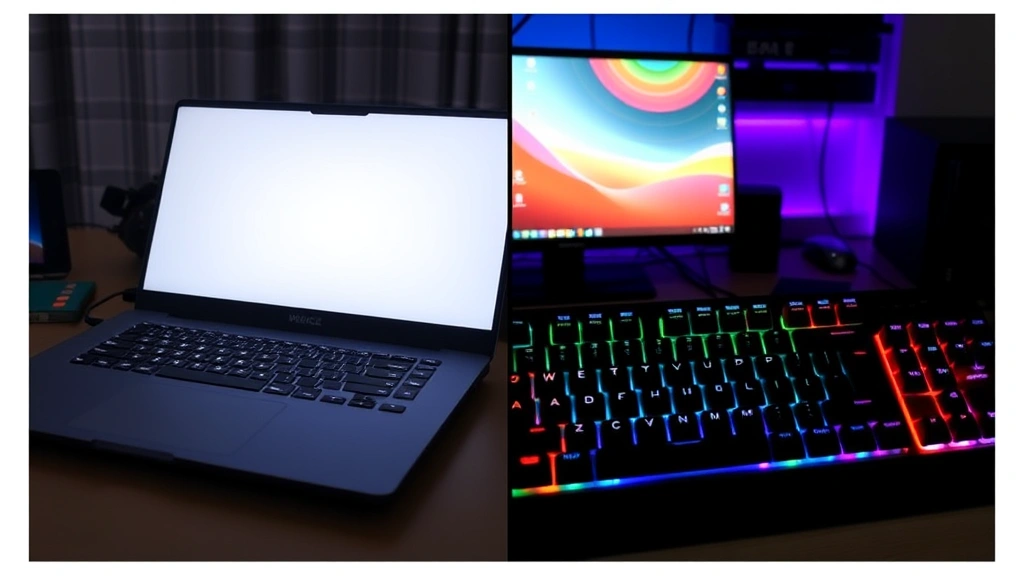
Mechanical keyboards and gaming peripherals often feature more advanced lighting systems than standard laptop keyboards. These devices typically use RGB technology, allowing for vibrant colors and dynamic lighting effects. Activation methods vary significantly based on the keyboard’s manufacturer and complexity level.
Physical Button Controls
Many mechanical keyboards include dedicated physical buttons or switches for controlling illumination. Look for buttons labeled with light symbols, typically located on the top edge or side of the keyboard. These buttons usually:
- Toggle the light on and off with a single press
- Cycle through brightness levels with repeated presses
- Switch between lighting modes or color presets
- Access menu systems for advanced customization
Refer to your keyboard’s manual to identify the specific button layout and functions. Some keyboards feature a dedicated lighting control dial or multi-function knob that provides intuitive brightness adjustment.
Software Control Suites
Gaming keyboard manufacturers like Corsair, Razer, SteelSeries, and Logitech provide comprehensive software suites for controlling keyboard lighting. These programs, often called control centers or configuration utilities, allow you to:
- Adjust individual key colors in RGB lighting systems
- Create custom lighting profiles and animations
- Set brightness schedules based on time of day
- Synchronize lighting with other peripherals
- Save and share custom lighting presets
Download the appropriate software from your keyboard manufacturer’s website and install it on your computer. Once running, the software typically appears in your system tray for quick access. Launch the application and look for sections labeled “Lighting,” “Effects,” or “RGB” to begin customizing your keyboard’s appearance.
Wireless and USB Keyboards
External keyboards connected via USB or wireless connection may have different activation methods. Some wireless keyboards include a dedicated receiver with control buttons, while others rely entirely on software. Check the following:
- Physical buttons on the keyboard itself
- Control buttons on the USB receiver (if applicable)
- Manufacturer software installed on your computer
- Function key combinations specific to that keyboard model
If your external keyboard doesn’t have obvious control methods, consult the manual or manufacturer’s website for device-specific instructions.
Software Solutions and Control Programs
Beyond manufacturer-provided software, several universal and third-party applications can help you manage keyboard lighting across different devices. These tools are particularly useful if your keyboard’s proprietary software is unavailable or if you want centralized control over multiple peripherals.

Operating System Built-In Tools
Modern versions of Windows and macOS include native keyboard control options. As mentioned earlier, accessing these settings through your operating system’s preferences provides a straightforward way to manage illumination without installing additional software. This approach also tends to use fewer system resources and provides better stability.
Third-Party Lighting Software
Several companies offer universal keyboard lighting software that works across multiple brands and devices. Popular options include:
- OpenRGB – A free, open-source application supporting hundreds of devices from various manufacturers
- Keyboard Backlight Control – Simple utilities designed specifically for managing keyboard illumination
- AutoHotkey – Advanced automation tool allowing custom scripts for keyboard control
When choosing third-party software, ensure it’s compatible with your specific keyboard model and operating system. Always download from official sources to avoid malware or compatibility issues.
Gaming Platform Integration
If you use gaming platforms like Steam or Discord, some games and applications include integration with lighting systems. These tools can synchronize keyboard effects with in-game events, creating immersive lighting experiences. Check your game’s settings menu for options related to peripheral lighting or RGB effects.
Troubleshooting Common Issues
Even with proper knowledge, keyboard lighting sometimes fails to activate or function correctly. Understanding common problems and their solutions will help you quickly resolve issues and get your keyboard illuminated again.
Keyboard Light Won’t Turn On
If your keyboard light refuses to activate, try these troubleshooting steps in order:
- Check for battery power – Wireless keyboards require adequate battery charge. Replace batteries or recharge the device
- Verify function key combinations – Ensure you’re using the correct Fn + key combination for your specific model
- Restart your computer – Sometimes a simple restart resolves software conflicts preventing keyboard light activation
- Update drivers and software – Visit your keyboard manufacturer’s website and download the latest drivers and control software
- Check BIOS settings – On some laptops, keyboard backlighting can be disabled in BIOS. Restart your computer and enter BIOS to verify this setting is enabled
- Test with different USB ports – If using a wired keyboard, try connecting to different USB ports to rule out port failure
Keyboard Light Turns Off Unexpectedly
If your keyboard light keeps turning off, consider these causes:
- Automatic brightness adjustment – Check if your device has ambient light detection enabled and disable it if you prefer constant illumination
- Power saving settings – Windows and macOS may disable keyboard lighting during low-power modes. Adjust power settings in your operating system preferences
- Software settings – Review manufacturer software to see if a timer or schedule is configured to turn off lighting automatically
- Keyboard sleep mode – Some keyboards enter sleep mode after inactivity. Check if this feature is enabled in your keyboard’s settings
Uneven or Flickering Illumination
If some keys are brighter than others or the lighting flickers, the issue may be hardware-related:
- Debris or dust – Clean your keyboard gently with compressed air to remove particles blocking light diffusion
- Loose connections – For mechanical keyboards with replaceable keycaps, ensure switches and stabilizers are properly seated
- Failing LED components – If specific keys have dead LEDs, the keyboard may need repair or replacement
- Loose USB connection – Reseat the USB cable or wireless receiver to ensure proper power delivery
Tips for Maximizing Keyboard Light Effectiveness
Simply turning on your keyboard light is just the beginning. To truly maximize its benefits and maintain a comfortable working environment, consider these professional tips from ergonomics and productivity experts.
Optimal Brightness Settings
The ideal keyboard brightness depends on your ambient lighting conditions. In dim environments, maximum brightness helps reduce eye strain by providing clear key visibility. In well-lit areas, moderate brightness prevents glare and reduces unnecessary power consumption. Many users find that medium brightness (50-75%) works well for most indoor office settings.
If your keyboard supports it, enable automatic brightness adjustment to let ambient light sensors optimize illumination. This feature provides the best balance between visibility and battery life, particularly on laptops.
Color Selection for Comfort
If your keyboard offers RGB customization, color choice affects both aesthetics and eye comfort. White and cool-white lighting provides excellent visibility and reduces eye strain. Warm colors like amber or orange can be easier on the eyes during evening work sessions, reducing blue light exposure before bedtime. Avoid overly bright or saturated colors that may cause visual fatigue during extended use.
Combining Keyboard Light with Room Lighting
Keyboard backlighting works best when combined with appropriate room lighting. Avoid working in completely dark environments, even with keyboard lighting enabled. Position a desk lamp or overhead light to illuminate your workspace while using keyboard backlighting as supplementary illumination for key visibility. This combination reduces eye strain and improves overall comfort during long work sessions.
Maintenance and Care
To keep your keyboard’s lighting system functioning optimally:
- Keep your keyboard clean – Dust and debris can dim illumination. Use compressed air or soft brushes to clean keycaps and light diffusers regularly
- Avoid excessive moisture – Keep liquids away from your keyboard to prevent damage to LED components and circuitry
- Use appropriate keycaps – If your keyboard has removable keycaps, ensure replacements are designed to allow light diffusion
- Monitor heat buildup – LED systems generate minimal heat, but ensure your keyboard has adequate ventilation for overall component longevity
Energy Efficiency Considerations
While keyboard backlighting adds minimal power consumption on desktop systems, laptop users should be mindful of battery impact. LED lighting uses relatively little energy, typically consuming 0.5-1.5 watts on gaming keyboards and even less on standard backlit keyboards. If battery life is a concern, disable automatic brightness and use lower brightness settings, or turn off lighting entirely when working on battery power.
FAQ
Why isn’t my keyboard light working after I updated Windows?
Driver updates can sometimes affect keyboard functionality. Visit your laptop or keyboard manufacturer’s website and download the latest drivers and control software. If issues persist, try rolling back to the previous driver version or accessing BIOS settings to verify keyboard backlighting is enabled.
Can I add backlighting to a keyboard that doesn’t have it?
Unfortunately, retrofitting backlighting to a keyboard without built-in LED systems isn’t practical for most users. The components and wiring required are complex and require significant technical expertise. However, external solutions like USB-powered keyboard lights or desk lamps provide similar visibility benefits at a fraction of the cost of purchasing a new keyboard.
Does keyboard backlighting drain laptop battery significantly?
No, keyboard backlighting has minimal impact on battery life. Modern LED systems consume very little power—typically less than 1% of your laptop’s total power draw. If battery life is a concern, disabling automatic brightness adjustment or using lower brightness settings can provide marginal improvements.
What’s the difference between white and RGB keyboard lighting?
White (or single-color) backlighting provides fixed illumination in a single color, typically white or amber. RGB lighting allows you to customize colors and create dynamic effects by mixing red, green, and blue light at various intensities. RGB keyboards offer more aesthetic flexibility but may cost more and require software for customization.
How do I know if my keyboard has backlighting capability?
Check your keyboard’s manual or product specifications on the manufacturer’s website. Visual indicators include function keys with light symbols, physical lighting control buttons, or visible LEDs beneath the keycaps. You can also try the standard function key combinations mentioned in this guide—if nothing happens, your keyboard likely lacks backlighting.
Can I control keyboard lighting with voice commands?
Some advanced gaming keyboards integrated with smart home systems or voice assistants support voice control, but this is uncommon. Most keyboards rely on physical buttons, keyboard shortcuts, or software applications. Check your keyboard’s documentation to see if voice control is supported.
Why does my mechanical keyboard’s lighting look different than other RGB keyboards?
Mechanical keyboards vary in LED placement and type. Some place LEDs under the switches (underglow), while others mount them beneath keycaps. Different switch types and keycap materials also affect light diffusion and appearance. High-quality mechanical keyboards typically offer superior lighting clarity compared to standard keyboards.
Is there a standard way to turn on keyboard light across all brands?
Unfortunately, no universal standard exists. Different manufacturers use different function key combinations, physical buttons, and software solutions. Always consult your specific keyboard’s manual for accurate activation instructions rather than assuming a method will work across brands.

Related Posts

Superscript in Google Docs: Expert Tips

Strikethrough in Excel: Easy Steps for Beginners
