
Disable Facebook Comments? Expert Tips Inside
How to Turn Off Comments on Facebook Posts: Expert Tips Inside
Facebook comments can quickly become overwhelming, especially when posts go viral or attract unwanted attention. Whether you’re managing a business page, protecting your privacy, or simply want to control the conversation on your content, disabling comments is a straightforward solution that gives you complete control over your Facebook presence. This comprehensive guide walks you through every method available to turn off comments on Facebook posts, from individual posts to entire pages.
Managing your Facebook engagement doesn’t mean you have to accept every comment that comes your way. With Facebook’s robust moderation tools, you can disable comments entirely, limit who can comment, or selectively hide specific comments. Understanding these options empowers you to maintain a positive online environment while still connecting with your audience on your terms.
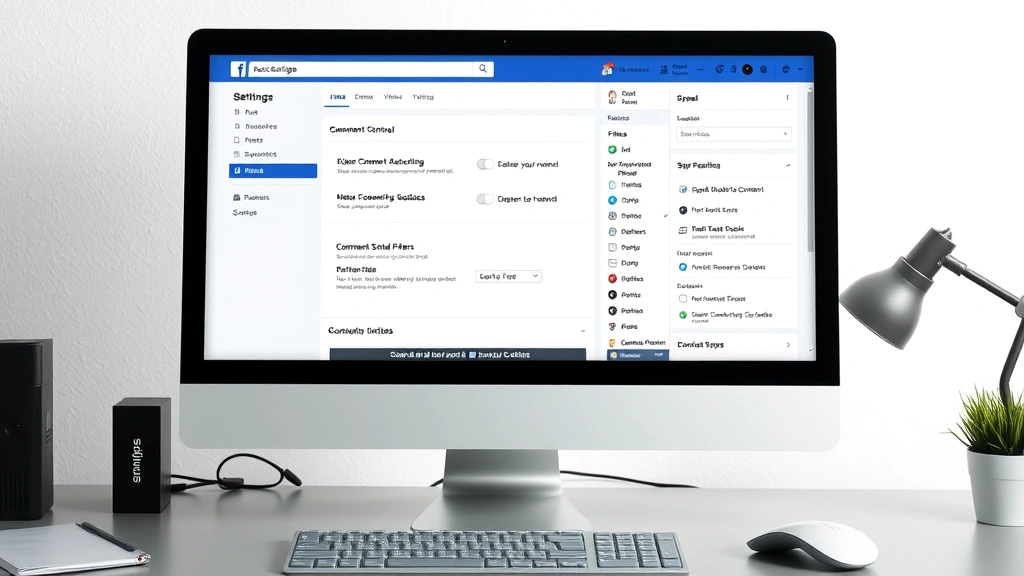
Why Disable Facebook Comments
Understanding when and why to disable comments helps you make informed decisions about your Facebook strategy. Disabling comments serves multiple purposes depending on your situation. Business owners often disable comments on promotional posts to prevent spam or negative reviews from cluttering their feed. Content creators protect themselves from harassment or trolling by limiting who can engage with sensitive posts. Parents use comment restrictions to keep their children’s profiles safer and prevent unwanted contact from strangers.
Privacy concerns represent another significant reason to disable comments. When you post something personal or time-sensitive, you might not want extended discussions or debates happening in your comment section. Additionally, if you’re posting about controversial topics, disabling comments prevents arguments from escalating and keeps your digital space more peaceful. Educational institutions and nonprofits often disable comments on announcements to maintain professionalism and prevent misinformation from spreading.
The ability to turn off features you don’t want extends beyond just Facebook—it’s about taking control of your digital experience. Just as you might want to disable certain notifications or settings on your devices, managing Facebook comments is part of creating a curated online presence that works for you.
How to Turn Off Comments on Individual Posts
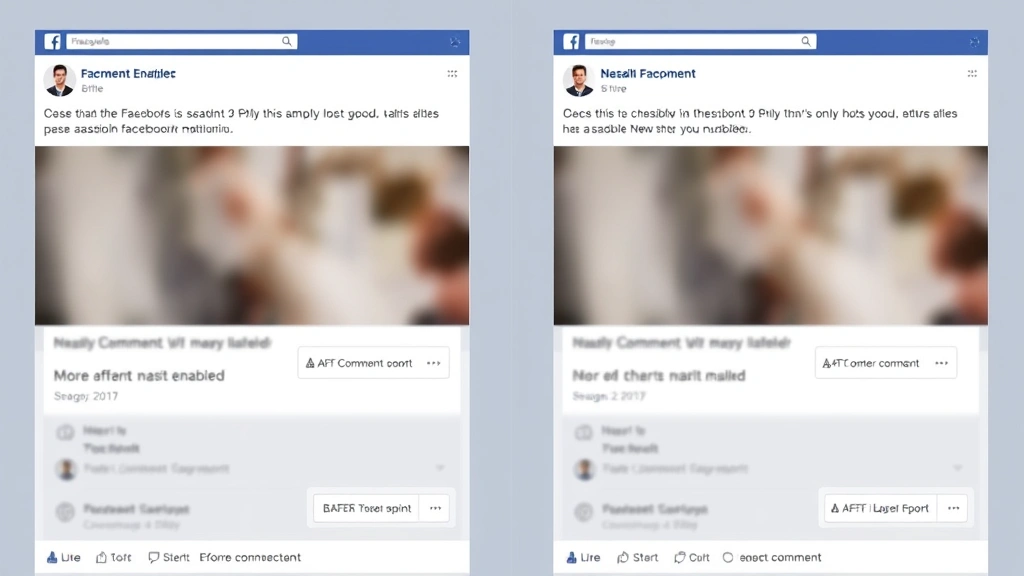
The most flexible approach to comment management is disabling comments on specific posts rather than your entire page. This method allows you to maintain engagement on most content while restricting comments on particular posts that require it. The process differs slightly depending on whether you’re posting from a personal account or a business page, but both are equally simple.
For Personal Facebook Accounts:
- Open Facebook and navigate to the post where you want to disable comments
- Click the three-dot menu icon in the top-right corner of your post
- Select “Edit Privacy” or “Edit Post” from the dropdown menu
- Look for the audience or privacy settings option
- Find the comment restriction option and select “Turn off commenting”
- Click “Save” or “Done” to apply the changes
For Facebook Business Pages:
- Log into your business page and locate the specific post
- Click the three dots in the post’s top-right corner
- Choose “Edit Post” from the menu options
- Look for the comment settings (usually displayed as an icon showing speech bubbles)
- Toggle off the commenting option or select “Turn off comments”
- Confirm your selection and save the changes
Once you disable comments on a post, all existing comments remain visible unless you delete them manually. Visitors to your post will see that commenting is disabled and won’t be able to add new comments, react to comments, or create comment threads. This creates a clean, controlled environment for your content.
If you later decide to re-enable comments on a post, simply follow the same steps and toggle the commenting option back on. Facebook remembers your preference, making it easy to adjust your settings as your needs change. Many users find that managing notifications and settings across platforms becomes easier once they understand the control available to them.
Disabling Comments on Your Entire Facebook Page
If you want a blanket approach to comment management, Facebook allows you to disable comments across your entire page. This setting is particularly useful for pages that receive high volumes of comments or those experiencing persistent issues with spam and inappropriate content. Disabling all comments gives you complete control over your page’s comment section.
Step-by-Step Instructions for Disabling All Comments:
- Open your Facebook business page
- Click “Settings” in the top menu bar
- Select “General” from the left sidebar
- Scroll down to find “Comments” or “Comment Settings”
- Toggle off the option that allows comments on your page
- Save your changes
When you disable comments site-wide, new posts won’t allow any commenting functionality. However, existing comments on previous posts typically remain visible. If you want to remove those comments, you’ll need to delete them manually or use Facebook’s bulk moderation tools available through your page settings.
This approach works well for announcement-only pages, official business pages that don’t want customer feedback through comments, or pages focused on sharing information rather than fostering discussion. Remember that disabling comments doesn’t prevent people from messaging your page or leaving reviews if you’ve enabled that feature—it only affects the comment sections on your posts.
Using Comment Filters and Moderation Tools
Beyond simply disabling comments, Facebook offers sophisticated moderation tools that let you filter and control what appears in your comment section. These tools represent a middle ground between allowing all comments and disabling them entirely. If you want to keep comments enabled but maintain control over their quality, these features are invaluable.
Automatic Comment Filtering:
Facebook’s automated filtering system can help you manage comments without disabling them completely. Access these settings through your page’s Settings menu:
- Profanity Filter: Automatically hides comments containing offensive language based on your selected language and sensitivity level
- Keyword Blocking: Create custom lists of words or phrases that trigger automatic comment hiding
- Spam Filter: Automatically detects and hides likely spam comments
- Unreviewed Comments: Hide comments from people who don’t follow your page or have minimal account history
Manual Moderation Strategies:
In addition to automatic filters, you can manually review and manage comments:
- Hide individual comments without deleting them (they remain visible to the commenter)
- Delete comments that violate your page’s standards
- Ban users who repeatedly post inappropriate content
- Approve comments before they appear publicly using “Pending Comments” settings
For business pages, visiting the FixWise Hub Blog can provide additional insights into managing your online presence effectively. The combination of automatic filters and manual review creates a comprehensive moderation strategy that maintains engagement while protecting your page’s reputation.
Many successful page administrators use a tiered approach: enable comments for most posts, use automatic filters to catch obvious spam and profanity, and manually review comments on high-visibility posts. This balanced strategy maximizes engagement while minimizing problematic content.
Managing Comments on Mobile Devices
Since most Facebook users access the platform through mobile apps, understanding how to manage comments on smartphones and tablets is essential. The mobile interface differs slightly from the desktop version, but the functionality remains the same.
iPhone and iPad Instructions:
- Open the Facebook app and navigate to your post
- Tap the three dots (more options) in the top-right corner of the post
- Scroll down and select “Edit Post” or “Edit Privacy”
- Look for the comment icon or privacy settings
- Tap to toggle off commenting
- Confirm your changes
Android Device Instructions:
- Launch Facebook and find your target post
- Tap the three vertical dots menu icon
- Choose “Edit Post” from the options
- Locate the comment settings (usually shown as a speech bubble icon)
- Toggle the commenting option off
- Save your settings
Mobile comment management is particularly useful when you’re away from your computer. The mobile interface makes it quick to disable comments on posts as you create them, or to adjust settings on existing posts in real-time. Many users prefer managing their Facebook presence entirely from mobile devices, and the streamlined mobile interface makes this feasible.
If you’re managing a business page, the Facebook Page Manager app provides even more robust comment management tools, including the ability to filter, hide, and delete comments in bulk. This app is specifically designed for page administrators who need comprehensive moderation capabilities on the go.
Advanced Privacy Settings for Comment Control
Facebook’s privacy settings extend beyond simple comment disabling, offering granular control over who can interact with your content. Understanding these advanced options helps you create a nuanced comment management strategy tailored to your specific needs.
Audience Restriction Settings:
Before disabling comments entirely, consider limiting your audience instead. You can set individual posts to be visible only to:
- Friends only
- Specific friend lists you’ve created
- Custom audiences you define
- Public (visible to everyone)
When you restrict your audience, you naturally limit who can comment on your posts. This approach maintains some engagement while controlling who participates in the conversation.
Comment Permissions by User Type:
Some pages allow different comment permissions based on user status:
- Page followers: People who follow your page can comment
- Friends only: Only your friends can comment
- Verified users: Only accounts that have been verified can comment
Just as you might want to learn how to disable features on your devices to protect your privacy, these Facebook settings help you maintain control over your digital boundaries. The key is finding the balance between openness and protection that works for your situation.
Scheduled Post Comments:
When you schedule posts in advance, you can set comment permissions at the time of scheduling. This allows you to disable comments on future posts proactively rather than adjusting settings after posting. Many content creators use this feature to maintain consistent comment policies across their content calendar.
Troubleshooting Common Comment Issues
Even with proper settings configured, you might encounter unexpected issues with Facebook comments. Understanding common problems and their solutions helps you maintain effective comment management.
Comments Still Appearing After Disabling:
If comments appear even after you’ve disabled them, the issue usually stems from timing. Facebook sometimes takes a few minutes to update settings across all servers. Wait 5-10 minutes and refresh your page. If comments still appear, verify that you actually saved your changes—sometimes the interface doesn’t clearly confirm that settings were saved.
Unable to Find Comment Settings:
If you can’t locate comment settings in your menus, ensure you’re using the latest version of Facebook or the official Facebook app. Third-party apps and outdated browsers sometimes display different menus. Also verify that you have administrator access to the page if you’re managing a business account—non-admin users may not see all settings.
Deleted Comments Reappearing:
Comments you delete should remain deleted, but occasionally they reappear due to caching issues. Clear your browser cache and cookies, then refresh the page. If a specific user’s comments keep reappearing, consider banning that user from your page entirely through the moderation settings.
Spam Comments Bypassing Filters:
If spam consistently gets through your filters, adjust your filter sensitivity levels higher. Add specific spam keywords to your custom keyword blocklist. For persistent spam from the same users, ban those accounts from commenting on your page. You can also enable the “Pending Comments” feature to manually approve comments before they appear publicly.
Comment Notifications Overwhelming Your Inbox:
Even with comments disabled on specific posts, you might receive notifications about comments on other posts. Manage notification settings separately from comment settings. Visit your notification preferences to control how and when Facebook notifies you about comments.
Frequently Asked Questions
Can people still see old comments after I disable commenting?
Yes, disabling comments doesn’t hide existing comments. They remain visible unless you manually delete them. If you want to remove old comments, you must delete them individually or in bulk through your moderation tools.
Will disabling comments on my post hurt my reach or engagement?
No, disabling comments doesn’t negatively impact your post’s reach. Facebook’s algorithm considers likes, shares, and video views when determining reach. Disabling comments might actually improve your metrics by preventing negative comments that could discourage engagement from others.
Can I disable comments on someone else’s post where I’m tagged?
No, you can only disable comments on posts you created or pages you administer. If someone tags you in a post and comments become problematic, you can ask the original poster to disable comments or remove your tag.
What’s the difference between hiding and deleting comments?
Hidden comments remain visible to the commenter and their friends but don’t appear to the general public. Deleted comments are completely removed and visible to no one. Use hiding for borderline comments and deletion for clear violations.
Can I schedule comment disabling for future posts?
Yes, when you schedule posts in advance through Facebook’s publishing tools, you can set comment permissions at scheduling time. This ensures your scheduled content follows your comment policy automatically.
Do page followers get notified when I disable comments?
No, disabling comments doesn’t send notifications to your followers. They’ll simply notice that the comment option is unavailable when they visit the post.
Can I use third-party tools to manage Facebook comments?
Yes, several third-party social media management tools integrate with Facebook and offer enhanced comment management features. Tools like Hootsuite and Buffer provide centralized comment management across multiple social platforms. However, always ensure third-party tools have proper authorization and security certifications.
What should I do if someone harasses me in comments?
Report the harassing comments to Facebook through the report feature (three dots on the comment). You can also block the user, which prevents them from seeing your profile or commenting on your posts. For serious harassment, contact Facebook’s support team directly.
Can businesses lose credibility by disabling comments?
Not necessarily. Many successful businesses disable comments on promotional posts while keeping them enabled for other content. Transparency about why you disable comments—such as maintaining professionalism or preventing spam—helps customers understand your moderation policy.
Is there a way to selectively allow comments from specific people?
While Facebook doesn’t offer a whitelist feature, you can use restricted lists and custom audiences to limit post visibility to specific people. Combined with comment filtering, this creates a semi-private comment section.

Related Posts

Superscript in Google Docs: Expert Tips

Strikethrough in Excel: Easy Steps for Beginners
