
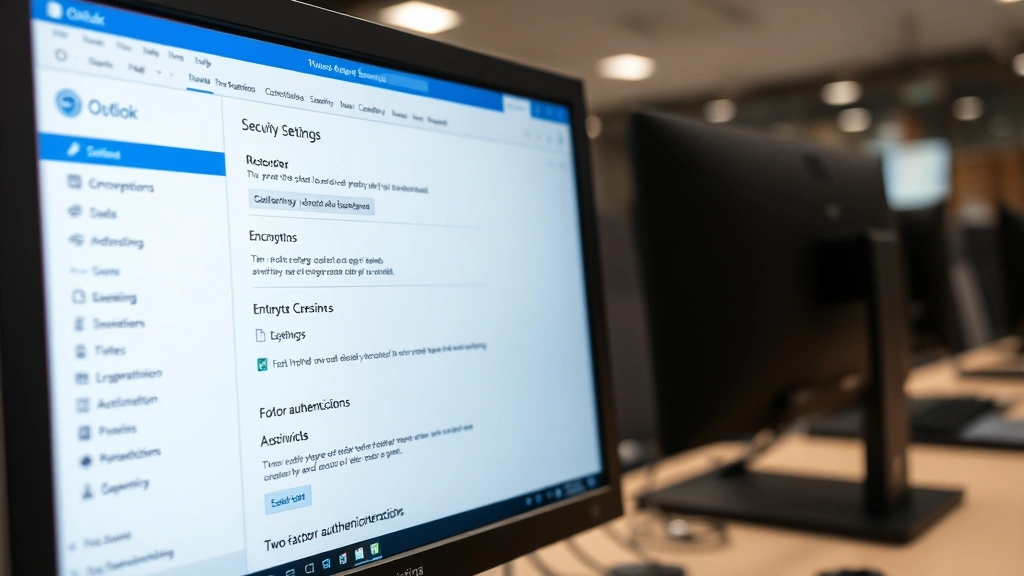
Secure Email in Outlook: Tips from Cyber Experts
Secure Email in Outlook: Tips from Cyber Experts
Email remains one of the most vulnerable entry points for cyberattacks, data breaches, and identity theft. Whether you’re handling sensitive business documents, personal financial information, or confidential communications, knowing how to send secure email in Outlook is essential in today’s digital landscape. Microsoft Outlook offers multiple built-in security features that many users overlook, leaving their messages exposed to interception and unauthorized access.
This comprehensive guide walks you through expert-recommended strategies to protect your emails, encrypt sensitive content, and verify recipient authenticity. By implementing these proven methods, you’ll significantly reduce the risk of your messages being compromised while ensuring compliance with data protection standards. Whether you’re a business professional managing client communications or an individual protecting personal information, mastering Outlook’s security tools is non-negotiable.
Understanding Email Security Threats
Before implementing security measures, it’s crucial to understand the threats targeting email users. Phishing attacks remain the most common email-based threat, with cybercriminals impersonating legitimate organizations to steal credentials and sensitive data. Man-in-the-middle attacks intercept unencrypted emails during transmission, allowing attackers to read or modify content before it reaches the recipient.
Ransomware often arrives through email attachments, encrypting your files until you pay a ransom. Business email compromise (BEC) involves attackers spoofing executive email addresses to authorize fraudulent wire transfers or data theft. Credential harvesting through fake login pages captures your Outlook username and password, granting hackers full account access.
Unencrypted emails transmit in plain text across multiple servers, making them vulnerable at every hop. Your messages may pass through dozens of intermediaries before reaching the recipient, and any of these points represents a potential interception opportunity. This is particularly dangerous when sending passwords, social security numbers, banking information, or proprietary business data.
Understanding these threats motivates proper implementation of Outlook’s security features. The good news is that Outlook’s native security tools provide robust protection when configured correctly. Organizations can also reference Microsoft 365 Defender for enterprise-level threat protection.
Enable Two-Factor Authentication in Outlook
Two-factor authentication (2FA) is your first line of defense against unauthorized account access. Even if a cybercriminal obtains your password through phishing or data breaches, they cannot access your account without the second authentication factor. This dramatically reduces the risk of account compromise and protects all stored emails and contacts.
Steps to enable 2FA for Outlook:
- Visit account.microsoft.com and sign in with your credentials
- Navigate to Security in the left navigation menu
- Select Advanced Security Options
- Choose Two-step verification and click Set up two-step verification
- Select your preferred verification method: authenticator app, phone number, or email address
- Complete the verification process by confirming your chosen method
- Generate and securely store backup codes in case you lose access to your primary verification method
Microsoft Authenticator app is the recommended 2FA method because it offers passwordless sign-in and works even without internet connectivity. Phone-based SMS verification is convenient but slightly less secure than authenticator apps, as SIM swapping attacks can compromise SMS-based authentication. Email-based verification is the least secure option but still provides significant protection over no 2FA.
After enabling 2FA, you’ll receive a verification prompt every time you sign into Outlook from a new device. This slight inconvenience is worth the substantial security improvement. You can mark trusted devices to reduce verification frequency on computers you regularly use, balancing security with convenience.
For additional account protection, visit account.microsoft.com/security and review your recent sign-in activity. If you notice suspicious logins from unfamiliar locations, immediately change your password and review connected apps and devices.
Use Encryption for Sensitive Messages
Email encryption transforms your message content into unreadable code that only the intended recipient can decrypt. Outlook offers multiple encryption options depending on your organizational setup and recipient capabilities. This ensures that even if someone intercepts your email during transmission or accesses the server, they cannot read the sensitive information.
Office 365 Message Encryption (OME) is available for Microsoft 365 subscribers and provides automatic encryption for messages sent to external recipients. To send encrypted messages:
- Compose your email as normal
- Before sending, click Options in the ribbon menu
- Select Encrypt and choose your encryption level
- Choose between Encrypt (applies default encryption) or Do Not Forward (prevents recipients from forwarding, printing, or copying content)
- Send the message
Recipients receive the encrypted message with instructions to verify their identity. They can read the content in their browser without installing special software. This approach maintains accessibility while ensuring protection during transmission and at rest.
S/MIME (Secure/Multipurpose Internet Mail Extensions) provides certificate-based encryption for more technically advanced users. S/MIME requires obtaining a digital certificate from a certification authority. Once installed, you can digitally sign all outgoing messages and encrypt messages to recipients whose certificates you have imported.
To configure S/MIME in Outlook:
- Click File → Options → Trust Center
- Select Trust Center Settings → Email Security
- Under Certificates and Algorithms, click Choose to select your signing certificate
- Enable Sign unsigned outgoing messages for automatic signing
- Check Encrypt contents and attachments for outgoing messages to encrypt by default
S/MIME provides stronger encryption than OME and maintains message formatting better, but it requires more technical setup. Both methods are valid depending on your technical comfort and organizational requirements.
When sending sensitive information, always verify you’re using encryption before clicking send. Make encryption your default for external communications, and only disable it when sending non-sensitive messages to reduce recipient friction.
Implement Digital Signatures
Digital signatures verify that an email genuinely originated from you and hasn’t been altered during transmission. Unlike handwritten signatures, digital signatures use cryptographic technology to authenticate the sender and ensure message integrity. Recipients can trust that the message came from you and contains exactly what you sent.
Digital signatures serve multiple purposes: they authenticate your identity, provide non-repudiation (you cannot deny sending the message), and detect if anyone modified the message content after you sent it. This is particularly important for legal documents, financial transactions, and executive communications.
Setting up digital signatures:
- Obtain a digital certificate from a trusted certification authority (DigiCert, Sectigo, or GlobalSign)
- Import the certificate into Outlook following the provider’s instructions
- Navigate to File → Options → Trust Center → Trust Center Settings
- Select Email Security and click Choose under Signing Certificate
- Select your certificate and confirm
- Check Sign unsigned outgoing messages to automatically sign all messages
Once configured, your messages display a signature badge that recipients can click to verify authenticity. Recipients see a checkmark or certificate icon indicating the message is digitally signed. If the message was modified after sending, the signature becomes invalid, alerting the recipient to potential tampering.
Digital signatures add a small amount of data to each message but provide significant authentication benefits. For important communications, combining digital signatures with encryption provides comprehensive protection and authentication.
Create Secure Distribution Lists
Distribution lists simplify sending messages to multiple recipients, but they also increase the risk of sending sensitive information to unintended recipients. Implementing security controls around distribution lists prevents accidental disclosure and ensures only authorized recipients receive sensitive communications.
When creating distribution lists for sensitive communications, use restricted lists with explicit membership approval. Only add recipients who absolutely need access to the information. Review list membership quarterly to remove employees who changed roles or left the organization.
Best practices for secure distribution lists:
- Limit membership: Only include recipients who need the information for business purposes
- Require approval: Set lists to require membership approval before adding new recipients
- Restrict visibility: Hide distribution lists from the global address book to prevent accidental use by unauthorized users
- Use dynamic lists: Configure lists to automatically update based on department or role, reducing manual membership management
- Audit membership: Review who belongs to sensitive distribution lists monthly
- Encrypt by default: Configure sensitive distribution lists to automatically encrypt all messages
For highly sensitive communications, consider sending individual emails instead of using distribution lists. This eliminates the risk of one email reaching unintended recipients if someone is mistakenly added to the list. The extra time spent sending individual emails is worthwhile for messages containing confidential information.
Configure Advanced Security Settings
Outlook’s advanced security settings provide additional protection against phishing, malware, and other threats. These settings work behind the scenes to filter suspicious emails and warn you about potential dangers.
Enable Advanced Threat Protection:
If your organization uses Microsoft Defender for Office 365, enable all available threat protection features. These include safe links (checking URLs against a database of malicious sites), safe attachments (detonating attachments in a sandbox to detect malware), and anti-spoofing protection.
Navigate to File → Options → Trust Center → Trust Center Settings and review all available security options. Ensure that:
- Macro security: Set to Disable all macros except digitally signed macros
- External content: Enable warnings before downloading external content
- ActiveX controls: Disable ActiveX controls from untrusted sources
- Script downloads: Disable script downloads
These settings may block some legitimate content, but the security benefit outweighs minor inconveniences. Always verify suspicious content with the sender through a separate communication channel before trusting it.
Configure attachment handling:
Disable automatic opening of suspicious file types. Be particularly cautious with executable files (.exe, .bat, .cmd), macros in Office documents, and archives (ZIP, RAR). Malware commonly spreads through these file types.
When you need to restart your computer after installing security updates, prioritize this action immediately to patch known vulnerabilities that attackers exploit.
Best Practices for Daily Email Use
Technical controls only work when combined with user behavior changes. Developing secure email habits protects you even when using different email clients or when security settings are misconfigured.
Verify sender addresses: Phishers impersonate legitimate senders by using similar email addresses. Always verify the full email address, not just the display name. Hover over the sender’s name to see the actual email address. Be suspicious of slight variations like “support@company.co” instead of “support@company.com”.
Check for suspicious content: Phishing emails often contain urgency language, unusual requests, or grammar errors. Be skeptical of emails asking you to click links and verify credentials. Legitimate companies never ask for passwords via email. If an email requests unusual action, contact the sender through a separate channel to verify authenticity.
Avoid opening suspicious attachments: Never open attachments from unknown senders. Even attachments from known senders may be malicious if their account was compromised. When in doubt, contact the sender to confirm they intended to send the attachment.
Use strong, unique passwords: Your Outlook password is the key to your email account. Use a password manager to generate and store complex passwords unique to Outlook. Never reuse passwords across multiple accounts. If your password is compromised in a data breach, your Outlook account remains secure.
Keep Outlook updated: Microsoft regularly releases security patches for Outlook. Enable automatic updates to ensure you receive the latest security improvements. Outdated software contains known vulnerabilities that attackers actively exploit.
Review connected apps: Third-party applications can access your Outlook account if you grant permission. Visit account.microsoft.com → Security → App permissions and review connected apps. Remove any applications you no longer use or don’t recognize.
Use organization-provided security tools: If your organization provides additional security tools like email filtering, mobile device management, or security awareness training, use them. These tools are designed specifically for your organization’s security needs.
For additional help with technology fundamentals, visit the FixWiseHub Blog for comprehensive how-to guides on various tech topics.
Implementing these practices consistently transforms your email security posture. Security is not a one-time setup but an ongoing practice requiring attention and vigilance.
FAQ
What’s the difference between encryption and digital signatures?
Encryption scrambles message content so only the recipient can read it, protecting confidentiality. Digital signatures verify the sender’s identity and detect if the message was modified, providing authentication and integrity. You can use both together for comprehensive protection.
Can I encrypt emails to recipients outside my organization?
Yes. Office 365 Message Encryption allows sending encrypted emails to anyone, regardless of their organization. Recipients access encrypted messages through their browser without needing special software. S/MIME also works with external recipients if you have their digital certificate.
What should I do if I accidentally send an unencrypted email with sensitive information?
Immediately contact the recipient and request they delete the message. Change any exposed passwords or sensitive information. Report the incident to your IT department if this occurred at work. Consider sending a follow-up encrypted message with non-sensitive context about the previous communication.
Is two-factor authentication required for secure email?
While not strictly required, two-factor authentication significantly improves security by preventing account compromise. Even with perfect email encryption, a compromised Outlook account allows attackers to read all stored messages and impersonate you in future communications. 2FA is essential for complete email security.
How often should I review my Outlook security settings?
Review security settings quarterly or whenever your organization updates security policies. Monitor your account’s recent activity monthly through account.microsoft.com. After security incidents or password breaches affecting your organization, immediately review and strengthen your security configuration.
Can I trust public WiFi for sending secure emails?
Using encryption makes public WiFi safe for secure email. Encrypted messages remain protected even if the WiFi network is compromised. However, avoid accessing Outlook without 2FA enabled on public WiFi, as attackers can intercept your login credentials. Always enable 2FA before using public networks.
What external resources provide additional email security guidance?
Microsoft’s official Outlook Support provides comprehensive documentation on all security features. CISA’s email security tips offer government-backed security recommendations. NCSC guidance on email security provides international best practices.

Related Posts

Superscript in Google Docs: Expert Tips

Strikethrough in Excel: Easy Steps for Beginners
