
Retrieve Deleted Messages? Expert Tips Inside
How to Retrieve Deleted Messages: Expert Tips Inside
Accidentally deleted an important text message, email, or chat? Don’t panic. Whether you’re using an iPhone, Android device, or computer, there are multiple proven methods to recover deleted messages. This comprehensive guide walks you through professional recovery techniques that actually work, from built-in backup solutions to specialized software tools.
Message deletion doesn’t always mean permanent loss. Most modern devices store deleted data in recoverable states for a limited time. By acting quickly and following the right steps, you can often restore conversations you thought were gone forever. We’ll cover recovery methods for SMS, iMessage, WhatsApp, Facebook Messenger, Gmail, and more.

Understanding Message Deletion and Recovery
When you delete a message, the data isn’t immediately erased from your device’s storage. Instead, the operating system marks that space as available for new data. Until your device writes new information over that location, the deleted message remains recoverable. This window of opportunity typically lasts from hours to several days, depending on device usage.
The speed of recovery depends on several factors: how long ago the message was deleted, how much new data has been written to your device, whether you have recent backups, and which platform you’re using. Messages backed up to cloud services like iCloud, Google Drive, or OneDrive are easier to restore because they exist independently of device storage.
Understanding these principles helps you choose the right recovery method. If you deleted a message minutes ago and haven’t used your device extensively since, local recovery tools work best. For older deletions, cloud backup restoration is your strongest option.
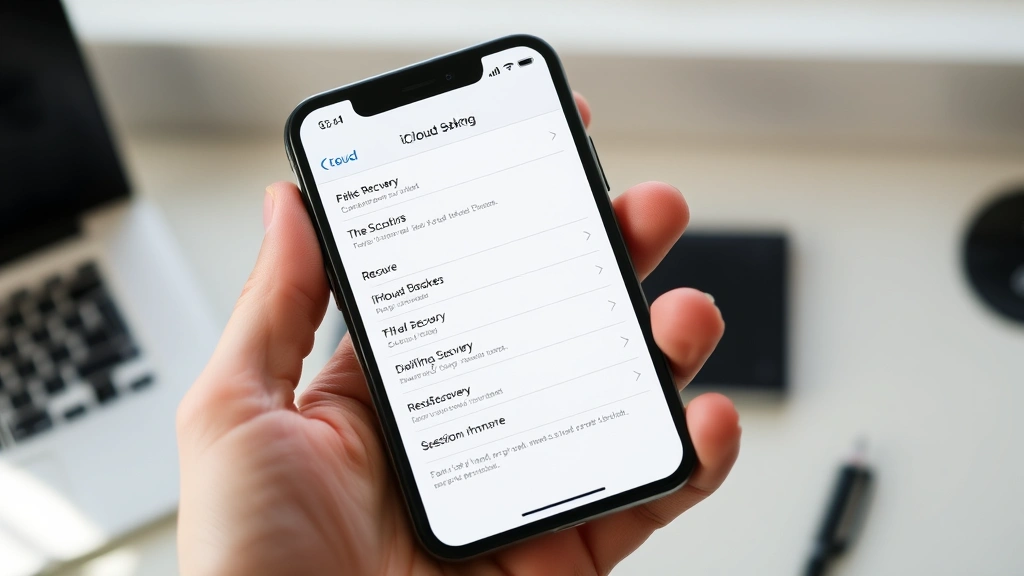
Retrieve Deleted Text Messages on iPhone
iPhone users have several recovery options depending on whether they maintain iCloud backups. The most reliable method involves restoring from a previous backup, though this affects your entire device.
Method 1: Restore from iCloud Backup
This is the most effective method if you have iCloud backups enabled. Follow these steps:
- Go to Settings > General > Reset
- Select Erase All Content and Settings
- When your iPhone restarts, you’ll see the setup screen
- Choose Restore from iCloud Backup
- Sign in with your Apple ID
- Select the backup created before you deleted the messages
- Wait for the restoration process to complete
This method restores your entire device to a previous state, so you’ll lose any data created after that backup. However, it’s the most reliable way to recover deleted SMS and iMessages simultaneously.
Method 2: Check Recently Deleted in Messages App
Newer iPhone models running iOS 16 or later include a Recently Deleted folder in the Messages app, similar to email trash folders.
- Open the Messages app
- Tap Edit in the upper left corner
- Look for Recently Deleted conversations
- Tap Edit again and select conversations you want to recover
- Tap Recover
Messages stay in this folder for 30 days before permanent deletion. This method is non-destructive and doesn’t affect other data.
Method 3: Use Mac to Recover Messages
If you have a Mac, the Messages app syncs with your iPhone through iCloud. Check your Mac’s Messages app to see if deleted conversations still appear there. You can also use Mac’s Time Machine backup if available. Visit the iPhone restart guide if you need to troubleshoot device issues during recovery.
Recover Messages on Android Devices
Android message recovery varies by device manufacturer and which messaging app you use. Samsung, Google Pixel, and other Android phones offer different built-in options.
Method 1: Google Account Backup Restoration
Most Android devices back up SMS messages to your Google Account automatically:
- Open Settings on your Android device
- Go to System > Backup > Backup and restore
- Select Restore
- Choose Messages from the available data types
- Select the backup date containing your deleted messages
- Tap Restore
Timing matters here. If your deleted messages were included in a recent backup, they’ll restore automatically. If you’ve created new backups since deletion, you may need to restore from an older backup.
Method 2: Samsung Messages Recovery
Samsung Galaxy devices include Samsung Cloud backup for messages:
- Go to Settings > Accounts and backup
- Select Samsung Cloud
- Choose Restore
- Select Messages and your backup date
- Confirm the restoration
Method 3: Third-Party Messaging Apps
If you use WhatsApp, Telegram, or Facebook Messenger, these apps maintain their own backups. Check each app’s settings for backup and restore options. WhatsApp backs up to Google Drive, while Telegram stores backups in cloud storage.
Restore Email Messages from Trash
Email is more forgiving than SMS messages because most email services maintain trash folders for extended periods.
Gmail Recovery
- Log into your Gmail account
- Click the Trash label on the left sidebar
- Find the email you want to recover
- Click the email to select it
- Click the Move to button and choose your desired folder
- The email returns to your mailbox immediately
Gmail keeps deleted emails in trash for 30 days. After that, they’re permanently deleted. Even then, Google’s recovery team can sometimes restore older emails.
Outlook Email Recovery
- Open Outlook and log in
- Click Deleted Items folder
- Right-click the email you want to restore
- Select Move > Other Folder
- Choose your destination folder
Outlook keeps deleted items for 93 days in most cases. After that period, recovery becomes significantly more difficult.
Apple Mail Recovery
If you use Apple Mail, check your Trash or Recently Deleted folder. Apple Mail syncs across devices through iCloud, so you might find deleted emails on other Apple devices. If you’ve deleted an entire email account, follow our guide on restarting your iPhone to reset mail settings if needed.
Third-Party Recovery Software Solutions
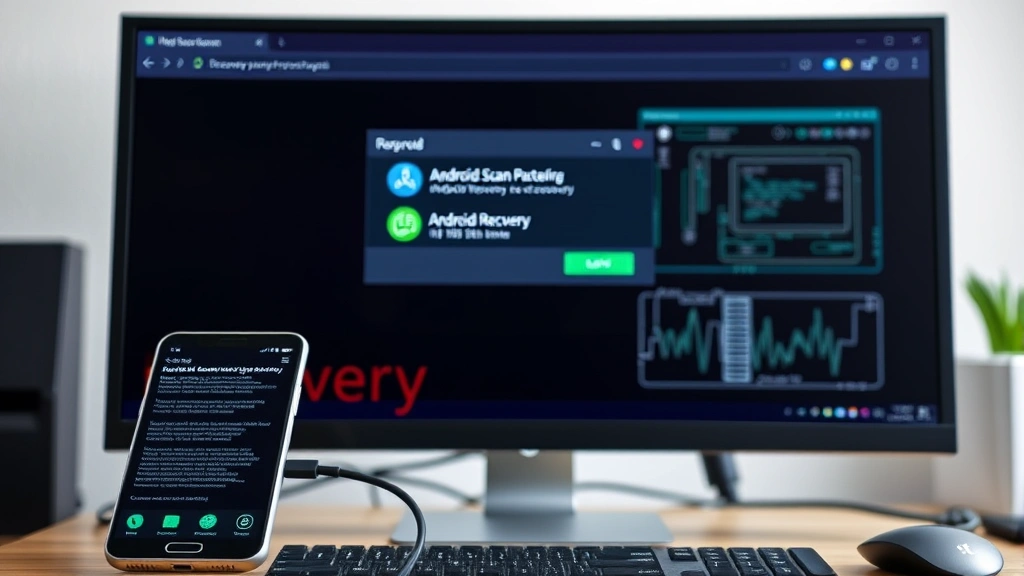
When built-in recovery methods don’t work, specialized software can extract deleted data from device storage. These tools work best when used immediately after deletion and before significant new data is written to your device.
PhoneRescue and Similar Tools
PhoneRescue, Dr.Fone, and similar applications connect to your device and scan storage for recoverable data. They’re particularly useful for:
- Recovering messages deleted weeks ago
- Extracting data from damaged devices
- Restoring messages without complete backup restoration
- Recovering messages from multiple apps simultaneously
These tools typically cost $20-$60 and require a computer connection. PhoneRescue works with both iPhone and Android, offering higher recovery success rates than free alternatives.
EaseUS MobiSaver
EaseUS MobiSaver specializes in recovering messages, contacts, and photos from iOS and Android devices. It offers a free preview of recoverable data before you purchase the full version, helping you verify whether your messages are actually recoverable.
Important Considerations for Third-Party Software
- Download software only from official websites
- Avoid free recovery tools from unknown sources
- Stop using your device immediately after deletion to preserve data
- Connect to a computer using original USB cables
- Follow the software’s instructions precisely
For additional device troubleshooting, check out our article on restarting your ASUS laptop if you’re using a computer as part of your recovery process.
Preventing Future Message Loss
Recovery methods aren’t foolproof. Prevention is always better than recovery. Implementing these strategies protects your important messages from accidental deletion.
Enable Automatic Cloud Backups
Configure your device to back up automatically:
- iPhone: Settings > [Your Name] > iCloud > iCloud Backup > Enable
- Android: Settings > System > Backup > Back up to Google Account > Enable
- WhatsApp: Settings > Chats > Chat Backup > Back Up to Google Drive
Automatic backups run daily when your device is connected to Wi-Fi and plugged in, ensuring you always have recent backups available.
Archive Instead of Delete
For important conversations, use archive features instead of deletion. Most messaging apps include archive functionality that removes messages from your main view without permanently deleting them. You can search for archived messages anytime without risking accidental deletion.
Use Message Pinning Features
Pin important conversations in your messaging app. Pinned messages appear at the top of your conversation list and are less likely to be accidentally deleted. WhatsApp, iMessage, and most modern messaging apps support pinning.
Regular Device Backups
Beyond automatic backups, create manual backups weekly:
- Connect your iPhone to a computer and use iTunes or Finder
- Use Google One on Android for encrypted backup to cloud storage
- Export important email to external storage drives
Multiple backup copies across different locations ensure you’re never more than a few days away from recovering any deleted message. This is especially important for business communications or sensitive information.
Document Important Information
For critical messages containing account numbers, addresses, or confirmation codes, copy them to a notes app or document immediately. This redundancy means you’re not dependent solely on message recovery if deletion occurs.
FAQ
How long can I recover deleted messages?
Recovery timeframe depends on your recovery method. Recently Deleted folders keep messages for 30 days. Cloud backups can restore messages from weeks or months ago if you have older backup versions. Third-party recovery software works best within hours of deletion but might recover messages deleted days ago. Once a device overwrites the storage location with new data, recovery becomes impossible.
Can I recover deleted messages without a backup?
Yes, but success rates decrease significantly. Third-party recovery software can sometimes extract deleted messages directly from device storage if not yet overwritten. However, backups offer much higher recovery success rates. If you have no backup and deletion was recent, try third-party software immediately. Stop using your device to prevent new data from overwriting deleted message data.
Will recovering messages affect my current data?
It depends on your recovery method. Restoring from a complete backup overwrites your current device with the backup version, so you’ll lose any data created after the backup date. Using Recently Deleted folders or trash restoration is non-destructive and doesn’t affect current data. Third-party software recovery also preserves current data by extracting deleted files without overwriting anything.
Are deleted messages truly recoverable from cloud backups?
If your deleted messages were included in a cloud backup created before deletion, yes, they’re fully recoverable. However, if your cloud backup was created after deletion, those messages won’t be in the backup. This is why having multiple backup versions is important. Check your backup history in iCloud, Google Drive, or Samsung Cloud to find a backup from before the deletion occurred.
What if I deleted messages months ago?
Recent recovery becomes unlikely after several months unless you have older backup versions. Check if your cloud backup service maintains backup history. Google One, iCloud, and Samsung Cloud typically keep multiple backup versions. If you have a backup from before the deletion, you can restore from that version. Third-party software has minimal success with very old deletions because storage has likely been overwritten many times.
Can I recover deleted WhatsApp messages?
Yes. WhatsApp backs up to Google Drive (Android) or iCloud (iPhone) daily. To recover deleted WhatsApp messages, uninstall WhatsApp, then reinstall it. During setup, WhatsApp prompts you to restore from your backup. This restores all deleted messages from your most recent backup. You can also manually back up WhatsApp in settings before deleting important conversations, creating a backup point you can restore from later.
Is it safe to use third-party recovery software?
Download only from official websites like PhoneRescue’s official site or EaseUS’s official site. Legitimate recovery software is safe and designed specifically for message recovery. Avoid free recovery tools from unknown sources, which may contain malware. Always read reviews and verify the software’s reputation before downloading.

Related Posts

Superscript in Google Docs: Expert Tips

Strikethrough in Excel: Easy Steps for Beginners
