
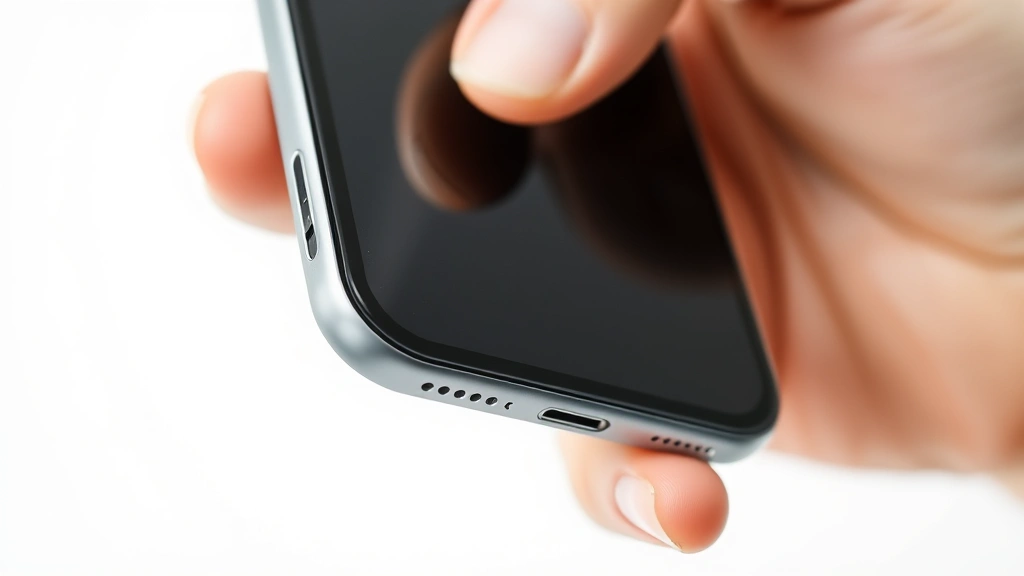
Restarting iPhone: Expert Tips & Tricks
How to Restart Your iPhone: Expert Tips & Tricks
Restarting your iPhone is one of the most fundamental troubleshooting techniques that can resolve numerous issues, from frozen apps to connectivity problems. Whether you’re experiencing sluggish performance, app crashes, or software glitches, a proper restart often serves as the first line of defense before pursuing more complex solutions. Understanding the different restart methods available for your specific iPhone model ensures you can quickly get your device back to optimal performance.
Apple has refined the restart process across generations of iPhones, with each model featuring slightly different procedures depending on whether it includes a physical home button or relies on Face ID technology. This comprehensive guide walks you through every restart method, explains when to use each approach, and provides expert tips to maximize your iPhone’s performance and longevity.
Understanding iPhone Restart Methods
Your iPhone supports three primary restart methods, each serving different purposes and addressing specific issues. A standard restart, also called a soft reset, gracefully shuts down your iPhone and restarts the operating system while preserving your data and settings. This method works best for temporary glitches, frozen applications, and minor performance issues.
The force restart, also known as a hard reset, differs fundamentally from a standard restart. This method forcibly terminates all running processes without saving temporary data, making it ideal for unresponsive devices or serious software conflicts. Unlike factory resets, force restarts preserve all your personal information, photos, and applications—they simply clear the RAM and restart the system.
Understanding when to employ each method prevents unnecessary data loss while ensuring maximum effectiveness. Most iPhone users will benefit from learning all three techniques, as different situations require different approaches. For instance, if your device becomes completely unresponsive like a frozen computer, a force restart becomes necessary rather than a standard restart.
How to Restart iPhone with Face ID
If you own an iPhone X or newer model featuring Face ID technology, the standard restart process involves accessing the power-down menu through the side buttons. Begin by locating the side button and either volume button on your device. Press and hold both buttons simultaneously until the “slide to power off” screen appears on your display.
Once the shutdown screen displays, you’ll see a slider at the top reading “slide to power off” along with emergency SOS and medical ID options. Drag the slider from left to right to initiate the shutdown sequence. Your iPhone will display a countdown and progressively darken as it powers down completely. Wait approximately 30 seconds after the screen goes completely black to ensure full shutdown.
After waiting, press and hold the side button again until the Apple logo appears on your screen. This typically takes 10-15 seconds. Your iPhone will display the startup animation and begin loading iOS. Wait for the device to fully boot and display the lock screen before attempting to use it. This standard restart method refreshes your iPhone’s memory and resolves most temporary software issues.
For users familiar with restarting other devices like ASUS laptops, the iPhone restart process follows similar logic—powering down completely and restarting the operating system. The main difference lies in iPhone’s streamlined interface and lack of traditional power buttons.
Restarting iPhone Models with Home Button
iPhone 8 and earlier models feature a physical Home button at the bottom of the device, requiring a different restart procedure than Face ID models. To restart these devices, locate the top button (labeled Power or Side button depending on model) and press it until the “slide to power off” slider appears.
Drag the power slider from left to right to initiate shutdown. Your iPhone will display a countdown as it powers down completely. Unlike Face ID models, you don’t need to hold two buttons simultaneously—the single top button manages all power functions. Wait 30 seconds after the screen goes black to ensure complete shutdown and memory clearing.
Press the top button again to restart your device. The Apple logo will appear within seconds, followed by the startup animation. Home button models typically boot slightly faster than newer Face ID devices, usually completing the startup sequence within 30-40 seconds. Once your lock screen appears, your iPhone has successfully restarted and cleared temporary system issues.
The Home button restart method remains unchanged across iPhone 6, 7, and 8 generations, ensuring consistency for long-term iPhone users. This familiar process has guided millions through basic troubleshooting for over a decade.
Force Restart Your iPhone
When standard restart procedures fail and your iPhone becomes completely unresponsive, a force restart becomes necessary. This aggressive restart method bypasses normal shutdown procedures and immediately terminates all running processes. Unlike standard restarts, force restarts don’t display shutdown confirmations or animations—they simply stop everything and restart.
For iPhone X and newer Face ID models, perform a force restart by quickly pressing the Volume Up button, then quickly pressing the Volume Down button. Immediately afterward, press and hold the side button until the Apple logo appears—don’t release when the “slide to power off” screen shows, as this indicates a standard restart. Continue holding until the Apple logo displays, which signals the force restart has initiated. This process typically takes 10-15 seconds of continuous side button pressure.
iPhone 8 and earlier models require a different force restart sequence. Simultaneously press and hold the top button and Home button together until the Apple logo appears. Ignore any “slide to power off” prompts and continue holding both buttons. Your screen will briefly display a shutdown sequence before the Apple logo appears, indicating successful force restart initiation. This method works reliably across all Home button models.
Force restarts prove invaluable when apps freeze, your iPhone becomes unresponsive to touch input, or the device stops responding to standard commands. The process carries no risk of data loss since it only clears RAM and restarts the operating system—all your apps, photos, and settings remain intact.
Soft Reset vs Hard Reset
The terminology surrounding iPhone resets can confuse many users, as “soft reset” and “hard reset” mean different things in Apple’s ecosystem compared to Android devices. In iPhone terminology, a soft reset refers to the standard restart process we’ve discussed—powering down and restarting the device gracefully through the shutdown menu.
A hard reset in iPhone context typically refers to force restart, not factory reset. This distinction matters significantly because factory resets erase all data, while force restarts preserve everything. Many online guides use these terms inconsistently, leading to unnecessary confusion and anxiety about data loss.
If you’re seeking to resolve issues while preserving all data, soft resets and force restarts both accomplish this goal. Only factory resets—accessed through Settings > General > Transfer or Reset > Erase All Content and Settings—actually delete your data. This three-tier system provides flexibility: standard restarts for routine maintenance, force restarts for unresponsive devices, and factory resets for comprehensive troubleshooting or device preparation for sale.
Understanding these distinctions prevents accidental data loss and helps you choose the appropriate solution. Most iPhone issues resolve through standard or force restarts, making factory resets unnecessary for typical troubleshooting scenarios.
Troubleshooting When Restart Fails
Occasionally, iPhone restart procedures don’t work as expected, leaving your device unresponsive or stuck on the Apple logo. If your iPhone won’t respond to standard or force restart attempts, several escalation strategies exist before pursuing professional service.
First, ensure your device has adequate battery charge. Restart procedures sometimes fail on devices with critically low battery levels. Connect your iPhone to a charger and wait 15 minutes, allowing the battery to accumulate sufficient charge. Then retry the restart procedure. Low battery can prevent proper shutdown and startup sequences, creating the appearance of a failed restart.
If your iPhone remains unresponsive after charging, attempt the restart procedure again, ensuring you’re following the exact button sequence for your specific model. Many users accidentally perform standard restarts when intending force restarts, or vice versa. Review the procedures above carefully and try again, holding buttons for the full duration until the Apple logo appears.
For iPhones stuck on the Apple logo or boot loop (repeatedly restarting without fully loading), connect your device to a computer running the latest iTunes or Finder and attempt to restore through Apple’s recovery mode. This process reinstalls iOS without erasing data, often resolving stubborn startup issues. Visit Apple’s official support page for detailed recovery mode instructions.
If these steps don’t resolve the issue, your iPhone may require professional service. Contact Apple Support directly or visit an authorized service provider. Persistent startup failures often indicate hardware issues requiring professional diagnosis.
Preventive Maintenance Tips
While restarting your iPhone solves many issues, preventive maintenance reduces the frequency of problems requiring restarts. Regular software updates provide critical performance improvements, security patches, and bug fixes that prevent many common issues. Enable automatic updates in Settings > General > Software Update > Automatic Updates to ensure your device stays current.
Close unused apps regularly to prevent memory bloat and background process accumulation. While iOS manages background app refresh intelligently, manually closing apps you’re not actively using frees up RAM and prevents unnecessary battery drain. Double-tap the Home button (or swipe up from the bottom on Face ID models) and swipe up on unused apps to close them.
Clear your iPhone’s cache periodically by navigating to Settings > General > iPhone Storage and removing apps you no longer use. This action clears associated cached data while preserving your app library for future reinstallation. Additionally, enable Low Power Mode during extended use to reduce background activity and extend battery life between restarts.
Restart your iPhone weekly as preventive maintenance, even when no issues exist. This routine practice clears accumulated RAM, refreshes system processes, and prevents the gradual performance degradation that occurs over extended uptime periods. Many power users restart their devices every Sunday evening as part of their digital maintenance routine.
For those managing multiple Apple devices, understanding restart procedures across your entire ecosystem proves valuable. Whether you’re reading our comprehensive FixWiseHub Blog for additional tech tips or consulting manufacturer documentation, consistent restart practices maintain optimal performance across all your devices.
Keep your iPhone updated with the latest iOS version, as Apple continuously refines performance and stability. Check Settings > General > Software Update regularly for available updates. These updates often include background improvements that reduce restart frequency and improve overall reliability.
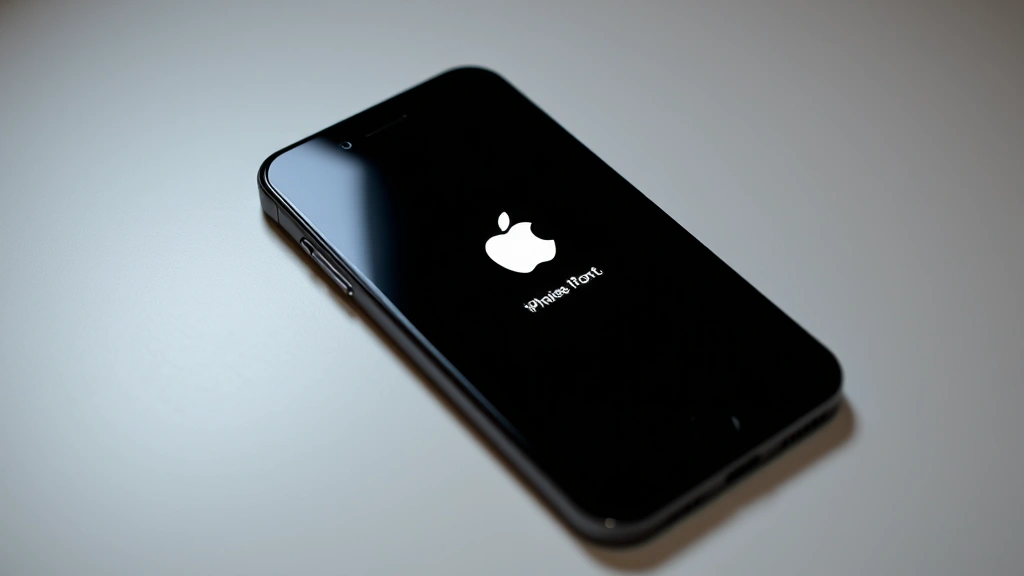
” alt=”iPhone side button and volume buttons location for restart sequence”>
Position your device comfortably with clear access to all buttons before beginning any restart procedure. Proper positioning ensures you can maintain steady pressure throughout the process without accidentally releasing buttons prematurely.
FAQ
Will restarting my iPhone delete my data?
No, restarting your iPhone—whether through standard or force restart methods—preserves all your data, apps, photos, and settings. Only factory resets erase data. Restarts simply power down and restart the operating system, clearing temporary memory without touching permanent storage.
How often should I restart my iPhone?
Restarting weekly provides optimal performance for most users. Power users and those experiencing frequent app crashes may benefit from restarting 2-3 times weekly. There’s no downside to restarting more frequently, as the process takes only minutes and significantly improves overall device performance.
What’s the difference between restart and force restart?
Standard restarts power down your device gracefully through the shutdown menu, allowing apps to close properly. Force restarts immediately terminate all processes without confirmation, useful when your iPhone is completely unresponsive. Both preserve your data; force restarts simply work when standard restarts fail.
Why is my iPhone stuck on the Apple logo?
This typically indicates a software issue during startup. Try force restarting again, then connect to a computer and use recovery mode through iTunes or Finder. If problems persist, contact Apple Support or visit an authorized service provider for professional diagnosis.
Can I restart my iPhone while it’s charging?
Yes, you can safely restart your iPhone while connected to power. In fact, some users prefer restarting while charging to ensure adequate battery throughout the restart process. Charging doesn’t interfere with restart procedures.
What if my iPhone won’t turn back on after restart?
If your iPhone won’t restart after attempting the procedure, ensure it has sufficient battery charge by connecting it to a charger for 15 minutes. Then try the restart procedure again. If it still won’t start, connect to a computer and use recovery mode, or contact Apple Support.
Does force restart damage my iPhone?
No, force restarts carry no risk of damage. They simply terminate running processes more aggressively than standard restarts. Apple designed iPhones to handle force restarts safely, and the process is completely non-destructive to hardware or data.
Should I restart my iPhone before traveling?
Yes, restarting your iPhone before traveling ensures optimal performance and battery life during your trip. A fresh restart clears memory, closes unnecessary background processes, and maximizes available resources for navigation, communication, and entertainment during travel.

Related Posts

Superscript in Google Docs: Expert Tips

Strikethrough in Excel: Easy Steps for Beginners
