

Restart Your ASUS Laptop: Simple Steps Guide
How to Restart Your ASUS Laptop: Simple Steps Guide
Restarting your ASUS laptop is one of the most fundamental troubleshooting steps you can take to resolve performance issues, clear memory, and refresh your system. Whether you’re experiencing slowdowns, frozen applications, or simply need to apply updates, knowing how to properly restart your device is essential. This comprehensive guide walks you through multiple methods to restart your ASUS laptop, from the standard Windows restart procedure to advanced techniques for stubborn systems.
A restart clears your computer’s RAM, closes background processes, and allows Windows to reinitialize system services. For ASUS laptop users, mastering restart procedures can save hours of frustration and potentially prevent more serious hardware or software problems. We’ll explore everything from basic restart methods to troubleshooting scenarios where your laptop won’t respond to normal commands.
Standard Restart Method
The most straightforward way to restart your ASUS laptop involves using the Windows Start menu. This method is ideal for routine restarts and allows your system to properly close all applications and save data before powering down. Begin by clicking the Start button located in the bottom-left corner of your screen. The Windows logo will open the Start menu where you’ll find various power options.
Once the Start menu is open, look for the Power button icon typically located in the bottom-right area of the menu. Click on this icon to reveal a dropdown menu with three primary options: Sleep, Shutdown, and Restart. Select the Restart option, which appears with a circular arrow icon. Your ASUS laptop will then begin the restart sequence, closing all open applications and services gracefully.
During the restart process, Windows will display a notification indicating that it’s preparing to restart. You’ll see a message such as “Your PC will restart in a few seconds” or similar language. This grace period allows any running applications to save their data and perform cleanup operations. It’s crucial to avoid forcing a shutdown during this time, as it could result in data loss or file corruption. The entire restart process typically takes 2-5 minutes depending on your system’s configuration and the number of updates being installed.
For users who prefer a more direct approach, Windows also allows you to access the power menu by clicking the Power icon in the system tray (bottom-right corner of the taskbar). This displays a quick access menu with the same restart, sleep, and shutdown options. This method is particularly useful when you need to restart quickly without navigating through the full Start menu.
Using Keyboard Shortcuts
Keyboard shortcuts provide a faster alternative to navigating menus, especially for users who prefer efficiency. ASUS laptops support several keyboard combinations that trigger restart functions without requiring mouse interaction. The most common shortcut is Alt + F4, which closes the current window or application. However, when pressed on the desktop with no active windows, it opens the Windows shutdown dialog, allowing you to select restart.
Another powerful combination is Ctrl + Alt + Delete, which opens the Windows security screen. From this screen, you can access the Power menu in the bottom-right corner and select Restart. This method is particularly valuable when your system is unresponsive to normal commands, as it bypasses many background processes and accesses Windows’ core security functions.
For advanced users familiar with system administration, Windows key + X opens the Quick Link menu on Windows 10 and 11 systems. This menu provides direct access to various system tools, including a shutdown/restart option. Simply press these keys together, then select the restart option from the menu that appears. This method is especially useful on ASUS laptops where the Start menu might be slow to respond.
The Windows key + I combination opens the Settings application directly. From Settings, navigate to System > Power & sleep > Related settings > Additional power settings, where you can configure restart behaviors and access advanced power options. While this method requires more steps, it’s valuable for users who want to schedule restarts or modify power settings before restarting.
Some ASUS laptop models include proprietary function keys that may trigger system functions. Check your keyboard for keys labeled with system icons or consult your FixWiseHub Blog for model-specific keyboard shortcuts that might provide additional restart options unique to your device.

” alt=”ASUS laptop keyboard showing restart key options and function key combinations”>
Restart Through Command Prompt
For users comfortable with command-line interfaces, the Command Prompt offers precise control over restart operations. Open Command Prompt by pressing Windows key + R to open the Run dialog, then type “cmd” and press Enter. Alternatively, right-click on the Start button and select “Windows Terminal (Admin)” or “Command Prompt (Admin)” depending on your Windows version.
The primary command for restarting is shutdown /r /t 0. The “/r” parameter specifies a restart, while “/t 0” sets the timeout to zero seconds, causing an immediate restart. This command is useful when you need an instant restart without any delay. If you want to provide a grace period, replace the “0” with a number representing seconds. For example, shutdown /r /t 60 restarts your ASUS laptop after 60 seconds, giving you time to save work.
You can also add a custom message that displays to all users before restart using the “/c” parameter. For instance, shutdown /r /t 300 /c “System maintenance restart” provides a five-minute warning with your custom message. This is particularly useful in shared computing environments or when notifying others about an impending restart.
Another useful command is shutdown /a, which cancels a previously scheduled restart. If you accidentally initiated a restart and need to abort it, this command immediately halts the shutdown sequence. This is invaluable in emergency situations where you need to prevent data loss from an unexpected restart.
PowerShell, Microsoft’s advanced command-line tool, also supports restart commands. Open PowerShell as Administrator and use Restart-Computer to initiate a restart. This method integrates with Windows Task Scheduler, allowing you to create automated restart scripts that execute at specific times or conditions. Visit Microsoft’s official Windows documentation for detailed command syntax and advanced parameters.
Force Restart Techniques
Sometimes your ASUS laptop becomes completely unresponsive, refusing to restart through normal methods. In these situations, force restart techniques become necessary to regain control of your system. The gentlest force restart method is holding the Power button for 10-15 seconds until your laptop completely shuts down. This triggers a hard power-off that bypasses all software and forces the system to stop immediately.
After the laptop powers off completely, wait approximately 30 seconds before pressing the Power button again to restart. This waiting period is crucial because it allows residual power to drain from the system’s capacitors and memory, ensuring a clean restart. Skipping this step might result in a restart that doesn’t fully clear the system’s state, potentially leaving you with the same problems that necessitated the force restart.
For ASUS laptops with removable batteries (less common in modern models), you can perform a complete power drain by removing the battery and holding the Power button for 30 seconds. This completely clears all power from the system and is the most thorough reset possible. After waiting a minute, reinsert the battery and press Power to restart. However, most modern ASUS laptops have non-removable batteries, making this method impractical for newer models.
If your laptop has an SSD or hard drive that’s making unusual noises or appears to be the source of the freeze, a force restart is preferable to continued operation. However, force restarts should be considered a last resort because they can potentially damage the file system if the computer was in the middle of writing data. Always attempt standard restart methods first before resorting to force techniques.
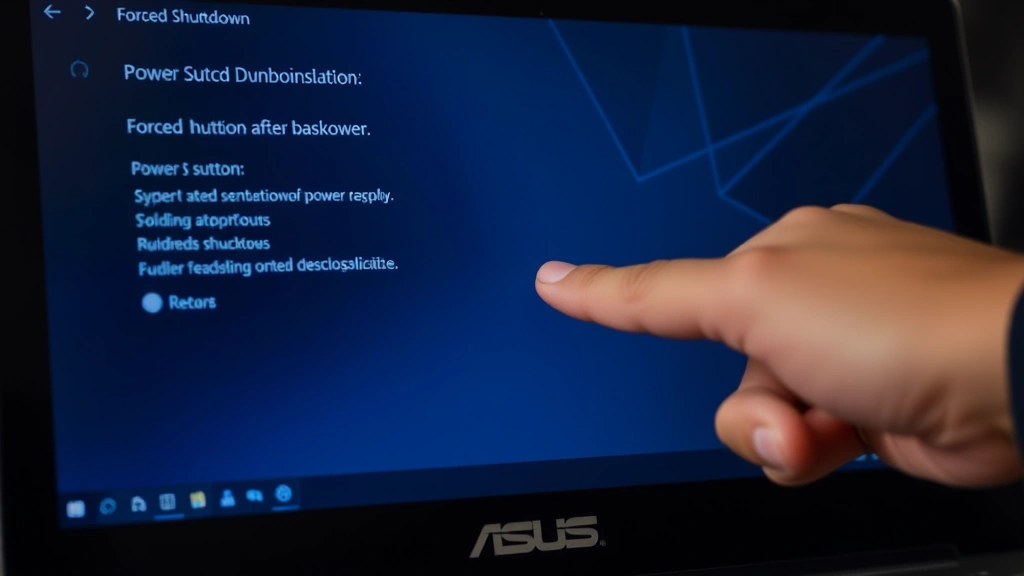
” alt=”Person holding down power button on ASUS laptop to perform forced restart”>
Restart in Safe Mode
Safe Mode is a diagnostic startup state where Windows loads only essential drivers and services. Restarting into Safe Mode is invaluable for troubleshooting problems caused by third-party software or corrupted drivers. To access Safe Mode on your ASUS laptop, hold Shift and click Restart from the Power menu. Windows will display boot options allowing you to select Safe Mode.
Alternatively, access the System Configuration utility by pressing Windows key + R, typing “msconfig”, and pressing Enter. In the Boot tab, check the “Safe boot” checkbox and select your preferred Safe Mode variant: Minimal (basic Safe Mode), Alternate shell (command prompt only), or Network (Safe Mode with network access). Click Apply and OK, then restart your computer. Your ASUS laptop will boot into Safe Mode, where you can diagnose and remove problematic software.
Safe Mode with Networking is particularly useful because it allows you to access the internet while in diagnostic mode. This enables you to download antivirus software, drivers, or research solutions to problems affecting your system. Safe Mode Minimal loads the fewest drivers and services, making it ideal for isolating hardware-related issues.
Once you’ve completed your troubleshooting in Safe Mode, restart your computer normally. Windows will automatically return to standard mode unless you modify the boot configuration again. If you’ve resolved your issues, no further action is necessary. If problems persist, consider the advanced restart methods or consult professional tech support resources for additional assistance.
BIOS and Advanced Restart
BIOS (Basic Input/Output System) is the firmware that initializes your ASUS laptop’s hardware before Windows loads. Restarting at the BIOS level performs the most thorough system reset possible. To access BIOS, restart your laptop and immediately begin pressing the Delete key or F2 key repeatedly as soon as you see the ASUS logo. The specific key varies by model, so check your documentation if neither works.
Once in BIOS, you can reset your system to factory defaults by selecting “Load Setup Defaults” or “Reset to Default Settings”. This clears any problematic BIOS configurations and returns your system to a known stable state. After making changes, select “Save & Exit” to restart your laptop with the new BIOS settings applied.
BIOS restart procedures are particularly useful when your laptop won’t boot into Windows at all. If Windows fails to start, restarting from BIOS allows you to access recovery options, check hard drive health, or modify boot order to boot from recovery media. This level of control is essential for advanced troubleshooting when standard restart methods are unavailable.
Modern ASUS laptops may use UEFI (Unified Extensible Firmware Interface) instead of traditional BIOS. UEFI provides similar functionality with a more modern interface and additional security features. The restart procedures are essentially identical, though the visual appearance and menu options may differ. Consult your specific ASUS model’s documentation for precise BIOS/UEFI restart instructions.
Troubleshooting Restart Issues
Sometimes your ASUS laptop refuses to restart using any of the standard methods. Common causes include frozen applications, driver conflicts, or corrupted system files. If you encounter an application that won’t close and prevents restart, open Task Manager by pressing Ctrl + Shift + Esc. Locate the frozen application, select it, and click “End Task” to force close it. Once all problematic applications are closed, attempt a standard restart.
Driver conflicts often cause restart failures, particularly after recent Windows updates or new hardware installation. If your laptop freezes during restart, try accessing Safe Mode as described above. In Safe Mode, open Device Manager (right-click Start button > Device Manager) and look for any devices with yellow warning icons. Right-click these devices and select “Uninstall device”, then restart in normal mode. Windows will automatically reinstall the drivers, hopefully resolving the conflict.
Disk errors can prevent proper restart sequences. Run the built-in Disk Check utility by opening Command Prompt as Administrator and typing chkdsk /f /r. This scans your hard drive for errors and attempts repairs. You may need to schedule the check to run at the next restart, which is normal. This process can take considerable time but is essential for maintaining system health.
If your ASUS laptop consistently fails to restart, consider performing a clean boot to identify problematic startup programs. Press Windows key + R, type “msconfig”, and go to the Services tab. Check “Hide all Microsoft services”, then uncheck all remaining services. Do the same in the Startup tab (or use Task Manager > Startup tab). Restart your laptop. If it now restarts successfully, re-enable services one at a time to identify the problematic one.
Overheating can also prevent proper restart. If your ASUS laptop feels hot to the touch, allow it to cool for several minutes before attempting restart. Ensure all ventilation ports are clear of dust and obstructions. Compressed air can clean vents effectively, improving airflow and thermal management.
FAQ
How long does a typical ASUS laptop restart take?
A standard restart typically requires 2-5 minutes, depending on your system’s specifications, the number of running services, and whether Windows updates are installing. Newer ASUS laptops with SSDs generally restart faster than older models with traditional hard drives. If your restart takes significantly longer, it may indicate a problem requiring troubleshooting.
Will restarting my ASUS laptop delete my files?
No, a standard restart will not delete any of your files. Restart simply closes all running programs and services, then reinitializes the operating system. All your documents, photos, and applications remain intact. However, any unsaved work in open applications will be lost, so always save important documents before restarting.
Can I restart my ASUS laptop while it’s plugged in?
Yes, it’s perfectly safe and actually recommended to restart your ASUS laptop while it’s plugged into power. This ensures your laptop has adequate power throughout the restart process and prevents unexpected shutdowns due to low battery. Only unplug your laptop after the restart is complete and Windows has fully loaded.
What’s the difference between restart, shutdown, and sleep?
Restart completely powers down your system and then boots it back up, clearing all RAM and reloading Windows. Shutdown powers off your computer completely without restarting. Sleep puts your laptop into a low-power state where it can wake quickly but still consumes some power. For troubleshooting, restart is most effective because it performs a complete system refresh.
How often should I restart my ASUS laptop?
Most experts recommend restarting your laptop at least once weekly to clear temporary files, refresh system memory, and apply any pending Windows updates. If you experience performance issues, sluggish behavior, or application freezes, restart immediately. Some users restart daily, which is also perfectly acceptable and may improve overall system stability.
What should I do if my laptop won’t restart?
First, try the force restart method by holding the Power button for 10-15 seconds. If that fails, try accessing Safe Mode or BIOS as described in this guide. Persistent restart failures may indicate hardware problems or severe software corruption requiring professional repair. Consider contacting ASUS support or visiting an authorized service center if troubleshooting doesn’t resolve the issue.
Is it safe to restart during a Windows update?
Windows updates often require restarts as part of their installation process. If you initiate a restart during an update, Windows will pause the update, complete the restart, and resume the update afterward. However, forcefully interrupting an update by unplugging your laptop during restart can cause serious problems. Always allow scheduled updates to complete before manually restarting.
Can I schedule automatic restarts on my ASUS laptop?
Yes, you can schedule automatic restarts using Windows Task Scheduler. Press Windows key + R, type “taskschd.msc”, and create a new task that runs the shutdown command at your preferred time. This is useful for system maintenance and can be configured to restart at times when you’re unlikely to be using the laptop.

Related Posts

Superscript in Google Docs: Expert Tips

Strikethrough in Excel: Easy Steps for Beginners
