
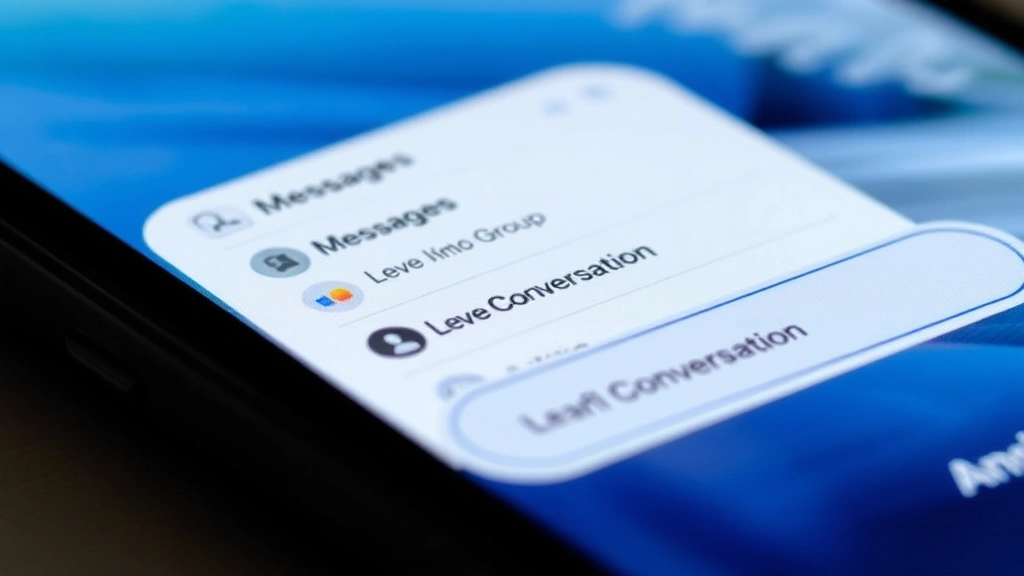
Exit Group Texts? Expert Tips Inside
Exit Group Texts? Expert Tips Inside
Group text messages can quickly become overwhelming, whether they’re filled with endless notifications, irrelevant conversations, or simply cluttering your phone’s communication space. Many people find themselves trapped in group chats they never asked to join or no longer wish to participate in. The good news is that removing yourself from group texting is straightforward across most devices and platforms, and we’ll walk you through every method available.
Understanding how to properly exit a group text ensures you won’t receive further notifications while maintaining respectful communication with the group members. Different devices and messaging platforms have slightly different processes, but the core principle remains the same: you have full control over your messaging experience. This comprehensive guide covers everything from iPhone and Android solutions to third-party messaging apps, ensuring you find the perfect method for your specific situation.
How to Leave Group Texts on iPhone
iPhone users have a dedicated feature built directly into the Messages app that makes leaving group texts incredibly simple. The process differs slightly depending on whether you’re using iMessage (Apple’s proprietary messaging service) or standard SMS/MMS group texts, but both are equally straightforward to exit.
For iMessage Group Texts:
- Open the Messages app on your iPhone
- Find and tap on the group conversation you wish to leave
- Tap the group name or icon at the top of the conversation thread
- Scroll down to find the “Leave this Conversation” option
- Tap “Leave” to confirm your exit from the group
This method only works with iMessage groups where all participants are using Apple devices. If even one person in the group is using an Android device or non-Apple service, the conversation becomes a standard SMS/MMS group message, and the leave option won’t appear.
For SMS/MMS Group Texts:
Unfortunately, iPhone doesn’t provide a native “Leave” button for standard group texts that include non-Apple users. However, you have several effective alternatives. You can mute notifications without leaving the conversation, block the contact if it’s a single person initiating the messages, or create a filter rule to automatically sort these messages. We’ll explore these options in detail in the managing notifications section.
If you absolutely must remove yourself from an SMS group text, your best option is to send a direct message to the group organizer requesting removal. Many people don’t realize this limitation exists, so a simple explanation usually resolves the situation quickly.
Removing Yourself from Android Group Messages
Android devices offer more flexibility than iPhones when it comes to leaving group messages, though the exact process depends on which messaging app you’re using. Google’s native Messages app (formerly Android Messages) has become the standard for many Android users and includes a straightforward exit option.
Using Google Messages:
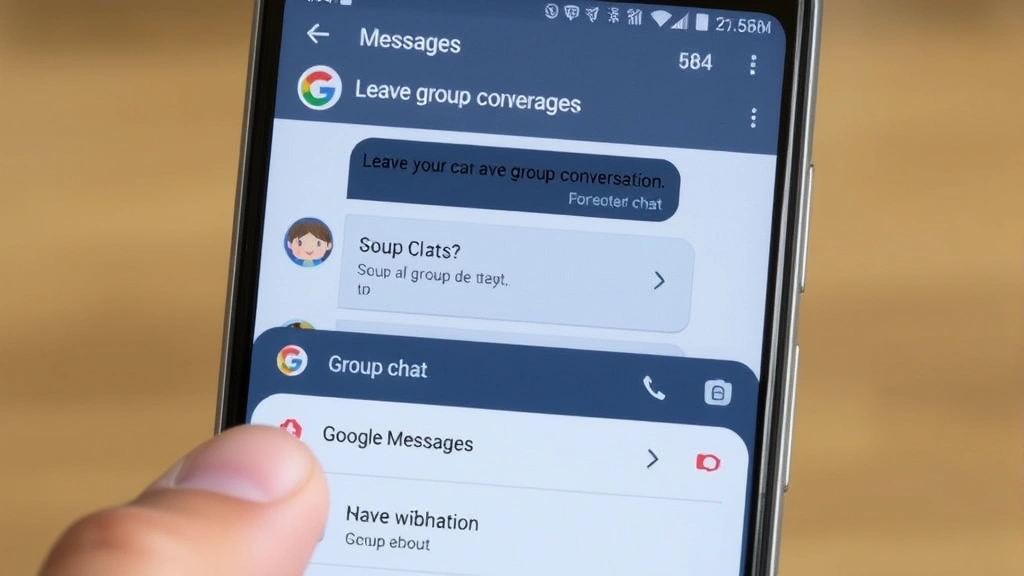
- Launch the Messages app on your Android device
- Long-press on the group conversation you want to leave
- Look for the menu icon (three dots) in the top right corner
- Select “Group info” or “Details” from the dropdown menu
- Find the option labeled “Leave group” or “Remove me”
- Confirm your decision when prompted
The exact wording and menu locations can vary slightly depending on your Android version and phone manufacturer. Samsung devices, for example, may have slightly different labeling, but the fundamental process remains the same.
For Samsung Messages App:
Samsung users with the proprietary Samsung Messages app should follow these steps: open the app, select the group conversation, tap the menu icon, choose “Group settings,” and then select “Leave group.” The confirmation dialog will ensure you don’t accidentally exit a conversation you wanted to keep.
Just like with iPhones, if the group includes a mix of Android and iPhone users via standard SMS, you may not see a leave option. In these cases, the same workaround strategies mentioned in the iPhone section apply equally well to Android devices.
Exiting Group Chats on Third-Party Apps
Many people use third-party messaging platforms like WhatsApp, Telegram, Facebook Messenger, or Signal for group communications. These apps typically offer even more straightforward group exit options than native messaging services, along with additional privacy controls.
WhatsApp Group Exit:
- Open WhatsApp and navigate to the “Chats” tab
- Find and tap and hold the group conversation
- Tap the three-dot menu icon that appears
- Select “Exit group” from the options
- Confirm your departure
WhatsApp will automatically notify all group members that you’ve left, which is actually a useful feature for transparency. This prevents people from wondering why you’ve stopped responding.
Facebook Messenger Groups:
Facebook Messenger handles group exits similarly: open the group chat, tap the group name at the top, scroll down to “Leave chat,” and confirm. You can also mute notifications from specific groups without leaving, which is useful if you want to stay connected but reduce interruptions.
Telegram and Signal:
Both Telegram and Signal offer straightforward group removal options. In Telegram, swipe left on the group (or long-press on Android), then select “Delete Chat.” In Signal, long-press the group conversation and select “Delete” or “Leave group” depending on your version.
Third-party apps generally provide more control and customization options than native messaging services, making them ideal if you frequently participate in group conversations but need better management tools.
Managing Notifications Without Leaving
Sometimes you don’t actually want to leave a group text entirely, but rather reduce the notification noise it creates. This approach allows you to stay connected and responsive without constant interruptions. Think of it like removing unwanted stains from your environment—you’re cleaning up the clutter without removing the item itself.
iPhone Notification Management:
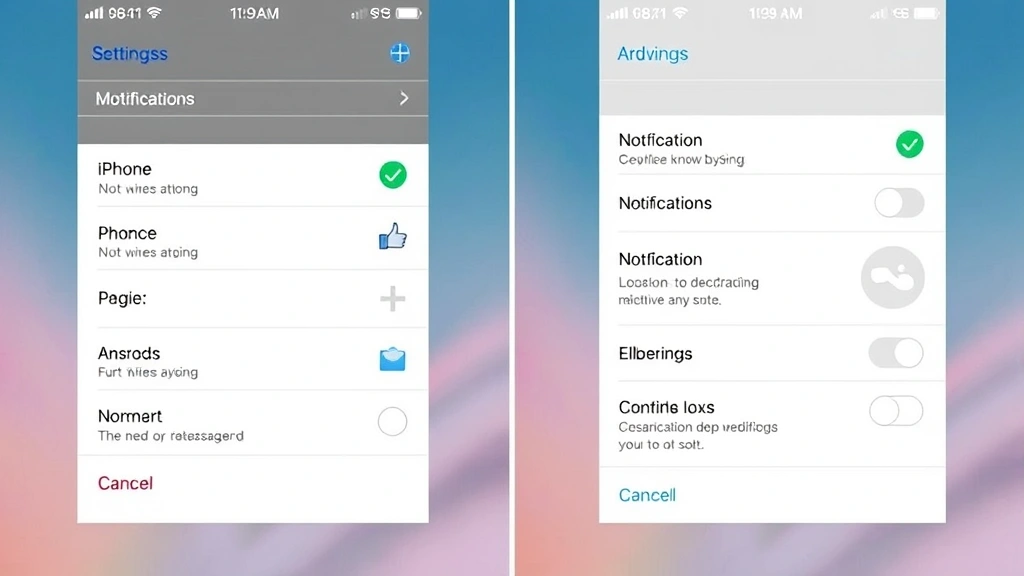
- Mute Notifications: Open the conversation, swipe left on the group chat, tap the bell icon to mute for one hour, eight hours, or indefinitely
- VIP Settings: Add only important contacts to your VIP list so their messages trigger notifications while others don’t
- Focus Modes: Create custom Focus modes that allow messages from specific people while silencing group texts
- Filter Unknown Senders: Enable filtering to separate group texts from unknown numbers into a separate tab
Android Notification Management:
- Mute Conversation: Long-press the group chat and select “Mute notifications” for your preferred duration
- Custom Alerts: Set different notification sounds or vibration patterns for specific conversations
- Notification Channels: Many Android phones allow you to customize notification behavior per app and conversation
- Do Not Disturb Scheduling: Create automatic Do Not Disturb schedules for times when you don’t want interruptions
For those who want even more control, both iPhone and Android allow you to customize which apps send notifications and how prominently they appear. This granular approach lets you stay in the group while reclaiming your digital peace.
Best Practices for Group Text Etiquette
Before you exit a group text, consider the social implications and best practices that maintain healthy relationships with the people involved. Proper communication about your departure prevents misunderstandings and keeps doors open for future reconnection.
Communicating Your Exit:
If you’re leaving a group of close friends or colleagues, sending a brief message before you go shows respect and consideration. Something like “Hey everyone, I’m going to step out of this chat—nothing personal, just managing my notifications better” takes only seconds but prevents people from wondering if they offended you.
When to Leave Immediately:
Certain situations warrant immediate exit without explanation. If you’re in a group chat that’s become toxic, includes unwanted content, or violates your boundaries, you have every right to leave silently. Your mental health and safety always come first, similar to how you’d remove rust from your home’s fixtures to maintain a healthy living space.
Archiving as an Alternative:
Many messaging apps offer an archive feature that hides conversations without fully removing them. This middle ground keeps the conversation accessible if needed while removing it from your active chat list. It’s perfect for group texts you don’t want to completely abandon but also don’t want cluttering your interface.
Creating Boundaries:
Consider setting expectations with regular group chat participants about your availability and notification preferences. Some groups benefit from establishing “quiet hours” or designated discussion topics, which improves the experience for everyone involved.
FAQ
Can someone tell if I’ve left a group text?
Yes, most messaging apps notify group members when someone leaves. iMessage shows “[Name] left this conversation,” and WhatsApp displays a similar notification. However, standard SMS group texts don’t provide this notification, so you can quietly disappear without anyone knowing. If you’re concerned about the social impact, check our main blog for more communication tips and relationship advice.
What if the leave option doesn’t appear?
This typically means you’re in an SMS/MMS group text that includes non-Apple users (if on iPhone) or you’re using a messaging app that doesn’t support group exits. Your alternatives include muting notifications, blocking the conversation, or contacting the group organizer to be manually removed.
Will I still receive messages after leaving?
No. Once you’ve successfully left a group conversation, you won’t receive any further messages from that group. However, if you only mute notifications, you’ll still receive messages—they simply won’t trigger alerts. The distinction between leaving and muting is crucial for choosing the right action.
Can I rejoin a group after leaving?
For iMessage and most third-party apps, you’d need someone still in the group to add you back. For SMS groups, you can’t technically rejoin since there’s no formal membership system. If you change your mind, contact the group organizer and ask to be re-added.
Is there a way to leave quietly without notifications?
Unfortunately, most modern messaging apps notify the group when someone leaves. The exception is standard SMS group texts, which don’t provide notifications. If you want to minimize social awkwardness, consider sending a brief message before you leave, similar to how you’d carefully maintain delicate items with proper care and attention.
How do I handle group texts at work?
Professional group texts require a different approach than casual friend groups. Rather than silently leaving, send a professional message explaining that you’re optimizing your communication channels. This maintains workplace relationships while establishing healthy boundaries.

Related Posts

Superscript in Google Docs: Expert Tips

Strikethrough in Excel: Easy Steps for Beginners
