
How to Reformat SD Card: Step-by-Step Guide
How to Reformat SD Card: A Complete Step-by-Step Guide
SD cards are the unsung heroes of modern digital life. Whether you’re using them in cameras, drones, gaming consoles, or smartphones, these tiny storage devices quietly hold our memories and data. But here’s the thing—over time, they can become cluttered, corrupted, or simply need a fresh start. That’s where reformatting comes in, and honestly, it’s one of the most straightforward maintenance tasks you can perform.
Reformatting an SD card might sound intimidating if you’ve never done it before, but we’re going to walk you through the entire process. Whether you’re dealing with file system errors, slow performance, or just want to clear everything off and start fresh, this guide covers every method you need to know. We’ll explore options for Windows, Mac, and even direct card formatting through devices.
The beauty of reformatting is that it’s a non-invasive procedure that can breathe new life into an aging SD card. Let’s dive into the specifics and get your storage device running smoothly again.
Why Reformat Your SD Card?
Before we jump into the how, let’s talk about the why. Understanding your motivation helps ensure you’re taking the right approach. SD cards can develop issues for various reasons, and reformatting addresses many of them.
Corruption is perhaps the most common culprit. When files aren’t properly closed or your device loses power unexpectedly, the file system can become corrupted. You might notice your device struggling to read the card, files becoming inaccessible, or error messages appearing. Reformatting clears this corruption and restores the card to a functional state.
Performance degradation is another reason to consider reformatting. As you repeatedly write and delete files, the card’s file system can become fragmented. This fragmentation slows down read and write speeds. A fresh reformat reorganizes everything, restoring your card’s original performance.
Security is also worth mentioning. If you’re selling or giving away an SD card, reformatting ensures that deleted files remain truly deleted. While reformatting isn’t military-grade data destruction, it’s effective for everyday privacy concerns.
Sometimes you simply want a clean slate. Maybe you’ve been using an SD card for years and want to start fresh, or you’re switching the card between devices and need a compatible file system. Whatever your reason, reformatting is the solution.
Before You Start: Important Considerations
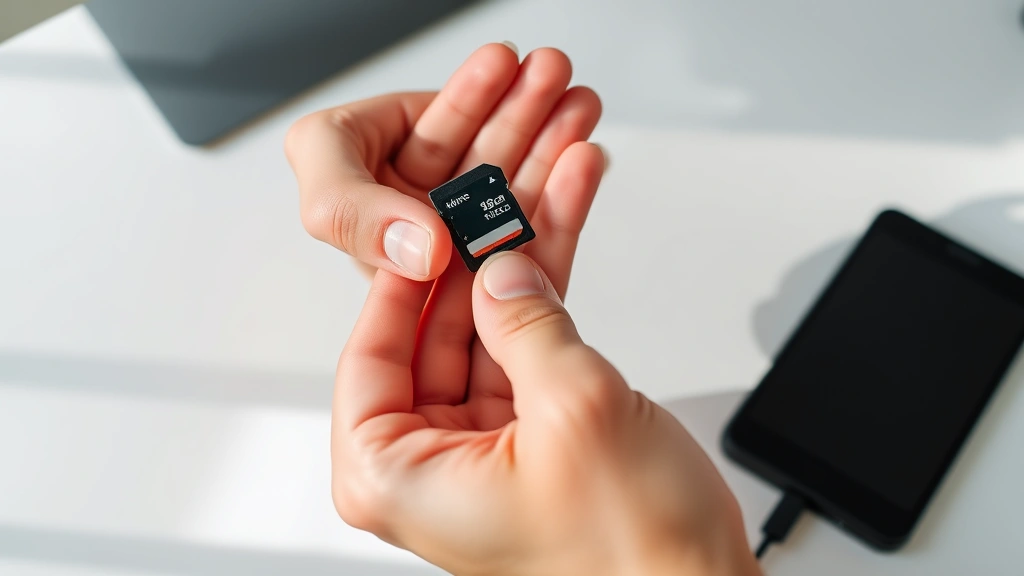
This is crucial: reformatting erases everything on your SD card. Every photo, video, document, and file will be gone. Before proceeding, back up any data you want to keep. Transfer files to your computer, cloud storage, or an external drive. Take five minutes to do this—it’s absolutely worth it.
Next, determine what file system you need. The most common options are FAT32 and exFAT. FAT32 is older and has a 4GB file size limit, making it problematic for modern video files. exFAT is more modern and supports larger files. Most contemporary devices prefer exFAT, but some older cameras and gaming consoles might require FAT32. Check your device’s manual if you’re unsure.
Also, consider your SD card’s capacity. Micro SD cards, standard SD cards, and SDXC cards all reformat differently depending on your device. A card reader is helpful, though not always necessary if your computer has a built-in SD slot.
Finally, ensure your SD card isn’t write-protected. Many SD cards have a small physical lock on the side of the card. If it’s switched to the locked position, your computer won’t allow any changes. Slide it to the unlocked position before proceeding.
Reformatting on Windows
Windows makes reformatting straightforward, and you have two main approaches: using File Explorer or the Disk Management tool. Let’s start with the simplest method.
Method 1: Using File Explorer
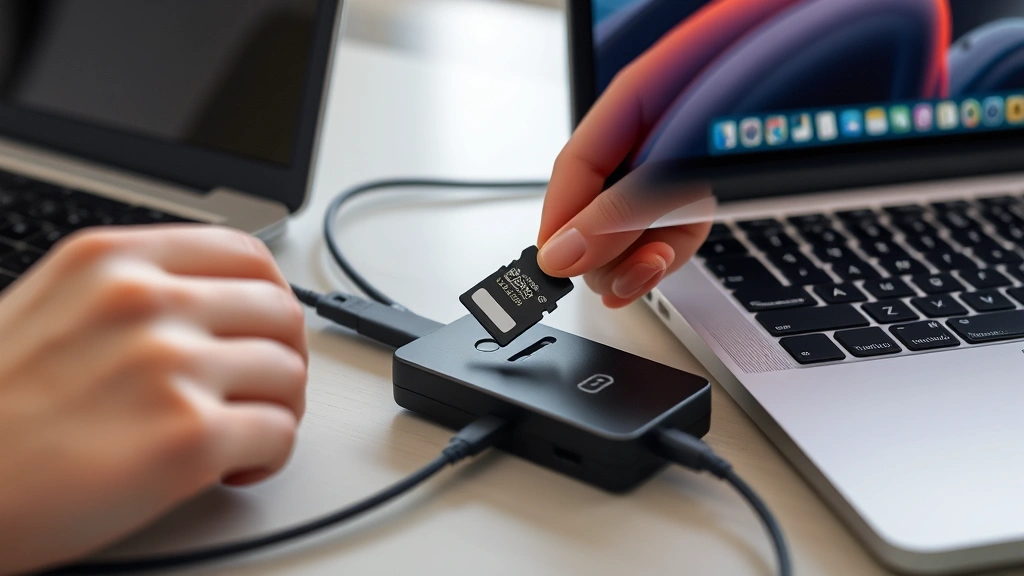
Insert your SD card into your card reader or computer’s SD slot. Wait a few seconds for Windows to recognize it. Open File Explorer and locate your SD card in the left sidebar—it’ll appear as a removable drive.
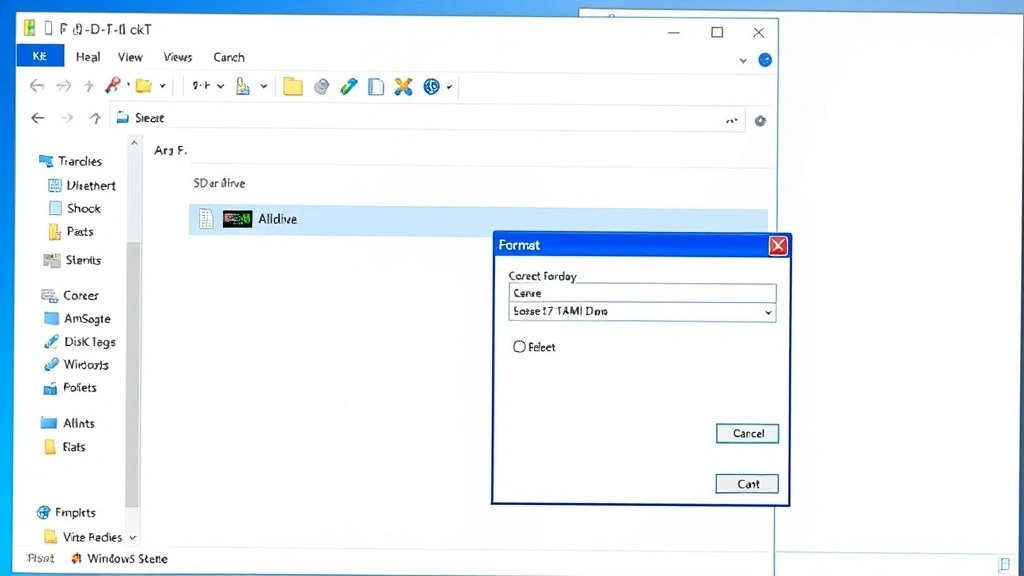
Right-click on the SD card and select “Format” from the context menu. A formatting dialog box will appear. Give your card a name if you’d like (this is optional), then select your file system from the dropdown. Choose exFAT for modern devices or FAT32 for older equipment. Leave the allocation unit size on default unless you have specific requirements.
Check the “Quick Format” box for a faster process. This option completes in seconds. If you’re concerned about data security or the card is acting strangely, uncheck this box for a full format, which takes longer but is more thorough.
Click “Start” and confirm the warning message. Windows will reformat your card within moments. Once complete, your SD card is ready to use.
Method 2: Using Disk Management
For more control, try Disk Management. Right-click the Windows Start button and select “Disk Management.” Find your SD card in the list of drives—it’ll show as a removable device.
Right-click the SD card partition and select “Format.” Enter a volume label, choose your file system, and confirm. This method gives you more visibility into the formatting process and is useful if File Explorer isn’t recognizing your card properly.
If you encounter any issues during Windows formatting, you might want to explore additional formatting techniques for stubborn cards.
Reformatting on Mac
Mac users have equally straightforward options using the built-in Disk Utility application. The process is remarkably intuitive once you know where to look.
Insert your SD card into your Mac’s SD slot or into a card reader connected via USB. Open Finder and navigate to Applications > Utilities > Disk Utility. You’ll see your SD card listed on the left side of the window.
Select your SD card from the list. At the top of the window, click the “Erase” button. A dialog box will appear asking for a name and format. Name your card something memorable, then select the format from the dropdown.
For most modern devices, choose “exFAT” format. If you’re working with older devices or need cross-platform compatibility, select “FAT32.” Mac also offers APFS format, but this is primarily for internal Mac drives and isn’t ideal for SD cards used across multiple devices.
Click “Erase” and confirm the action. Disk Utility will complete the process within seconds. Your SD card is now reformatted and ready to use on any compatible device.
If your Mac doesn’t recognize the SD card at all, the issue might be hardware-related rather than software-related. Try a different card reader or USB adapter to rule out connection problems.
Reformatting Directly on Your Device
Many devices allow you to format SD cards directly without needing a computer. This method is often the most convenient and ensures compatibility with your specific device.
Digital Cameras
Most digital cameras have a built-in format option. Insert the SD card into your camera and navigate to the settings menu. Look for options labeled “Format Card,” “Initialize,” or “Format Memory Card.” Select this option and confirm. Your camera will handle the reformatting automatically, ensuring the card works perfectly with that device.
Gaming Consoles
Nintendo Switch, PlayStation, and Xbox all support SD card formatting through their system settings. For the Switch, go to System Settings > Data Management > Manage Software > Format SD Card. The console will handle everything for you.
Smartphones and Tablets
Android devices typically don’t have removable SD cards anymore, but some older models do. If your device supports expandable storage, navigate to Settings > Storage > SD Card > Format. This ensures maximum compatibility with your phone’s operating system.
The advantage of formatting through your device is that it automatically selects the optimal file system and settings. Your device knows exactly what it needs, so you don’t have to guess.
Troubleshooting Common Issues
“The SD Card is Write-Protected”
This error means the physical lock on your SD card is engaged. Look at the side of the card—you’ll see a tiny switch. Slide it toward the edge of the card to unlock it. If the switch is already in the unlocked position, the lock mechanism might be stuck. Try gently sliding it back and forth a few times.
“Windows Cannot Format the Drive”
If Windows refuses to format your card, try using a different card reader. The current reader might be faulty. You can also try connecting the card reader to a different USB port. If you’re still having issues, restart your computer and try again. Sometimes Windows locks drives temporarily, and a restart clears these locks.
“The Card Isn’t Recognized at All”
First, ensure the card reader is properly connected and that your computer recognizes it as a device. Check Device Manager on Windows or System Report on Mac. If the card reader shows up but the card doesn’t, the card might be damaged. Try the card in another device to confirm. If it works elsewhere, the card reader is the problem. If it doesn’t work anywhere, the card itself may be failing.
“Reformatting Is Taking Forever”
If you’re not using the quick format option, full formatting can take several minutes for larger capacity cards. This is normal. However, if it’s been over an hour, something’s wrong. Force-eject the card and try a different card reader or computer.
“I Need to Recover Data After Reformatting”
Here’s some good news: reformatting doesn’t permanently destroy data. Professional recovery software can often retrieve files from a reformatted card, though success isn’t guaranteed. If you’ve accidentally reformatted a card with important data, stop using it immediately and consult data recovery services. The longer you use the card, the more likely your old data gets overwritten.
For maintaining your system’s overall health, you might also want to know how to monitor your computer’s performance while working with storage devices.
Frequently Asked Questions
How often should I reformat my SD card?
You don’t need to reformat regularly unless you’re experiencing issues. Most people reformat when switching between devices, preparing to sell or give away a card, or troubleshooting performance problems. If your card is working fine, leave it alone. Unnecessary reformatting won’t improve anything.
Will reformatting fix a corrupted SD card?
Reformatting often fixes corruption issues caused by improper file system damage. However, if the card has physical damage or electronic failures, reformatting won’t help. You’ll know reformatting worked if your device suddenly recognizes the card again and functions normally.
Can I reformat an SD card to NTFS format?
Technically, yes, but don’t. NTFS is designed for internal hard drives and isn’t optimized for SD cards. Most devices won’t recognize NTFS-formatted cards, and compatibility issues will plague you. Stick with exFAT or FAT32.
What’s the difference between a quick format and a full format?
Quick format erases the file system index, making files appear deleted but leaving data on the card. Full format overwrites all data with zeros, making recovery much harder. For personal use, quick format is fine. For security concerns, use full format.
Can I reformat an SD card while it’s in my camera?
Yes, and this is actually recommended. Formatting through your device ensures compatibility and proper file system setup. Most cameras have built-in format functions specifically for this reason.
How do I know if my SD card needs reformatting?
Signs include slow performance, error messages when accessing files, the device not recognizing the card, or files becoming corrupted. If you’re experiencing any of these issues, reformatting is worth trying before assuming the card is dead.
Is there a way to format an SD card without losing data?
No. Reformatting by definition erases everything on the card. If you need to keep your data, back it up first. There’s no such thing as a non-destructive reformat.
Can I use the same SD card in multiple devices?
Yes, as long as all devices support the same file system. exFAT is the most universally compatible option. Format the card to exFAT, and it should work with cameras, computers, phones, and most other devices.

Related Posts

How Long to Boil Lobster Tails: Cooking Guide

How Long to Fly from New York to London? Travel Times
