
Program a Universal Remote: Easy Steps Guide
How to Program a Universal Remote: Easy Steps Guide
A universal remote can simplify your entertainment setup by consolidating control of multiple devices into a single handset. Whether you’re managing a television, soundbar, streaming device, or cable box, learning how to program a universal remote is a straightforward process that takes just minutes. This guide walks you through every method, from automatic code entry to manual programming, ensuring you can operate all your devices without juggling multiple remotes.
Universal remotes work by transmitting infrared signals that mimic the original remote’s commands. Most modern universal remotes support hundreds of device brands and models, making them incredibly versatile. The key is identifying your device’s brand and model number, then entering the corresponding code into your remote’s memory. We’ll explore multiple programming techniques so you can choose the method that works best for your situation.
Understanding Your Universal Remote
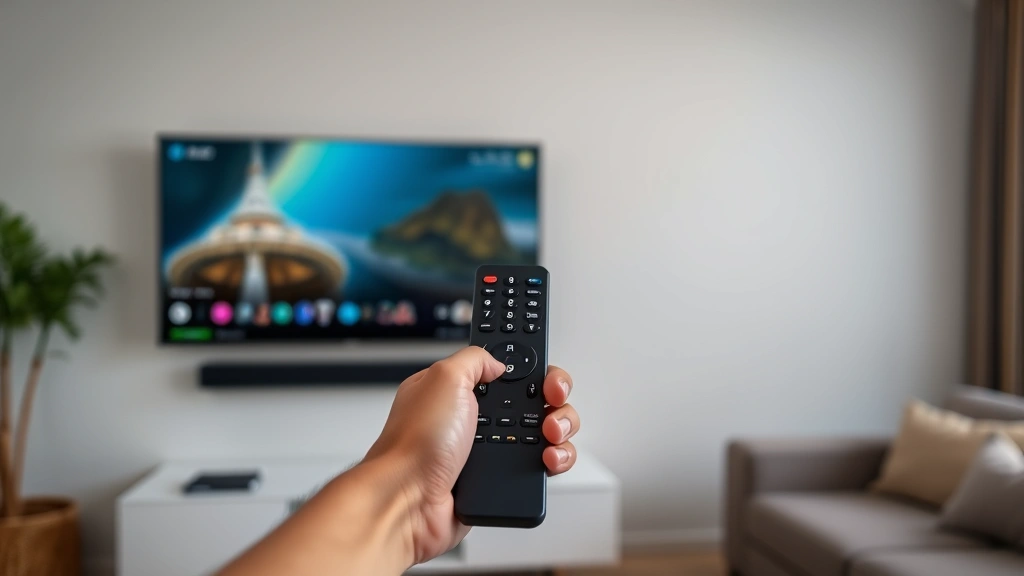
Universal remotes come in several varieties, each with different programming methods. The most common types include learning remotes, which can memorize commands from your original remotes, and pre-programmed remotes that contain codes for thousands of devices built into their memory. Understanding which type you own is the first step toward successful programming.
Before beginning, locate your remote’s instruction manual or visit the manufacturer’s website to understand your specific model’s capabilities. Most universal remotes feature a setup button or mode button that initiates programming mode. Some remotes display LED indicators that flash during programming, while others provide on-screen feedback through your television. Familiarize yourself with these features to avoid confusion during the setup process.
The buttons on your universal remote typically correspond to standard device controls: power, volume, channel/input selection, and menu navigation. Some remotes include dedicated buttons for specific devices, allowing you to switch between controlling your TV, cable box, soundbar, and other equipment. This segregation makes operating multiple devices more intuitive once programming is complete.
Gathering Device Information
Successful remote programming begins with collecting essential information about each device you want to control. You’ll need the manufacturer name and model number for every device, which typically appears on the device itself or in its original documentation. For televisions, this information is often found on a sticker on the back or bottom of the unit.
Create a list of all devices you plan to control before starting the programming process. This might include your television, cable or satellite box, streaming device, soundbar, or AV receiver. Having this information organized prevents frustration and ensures you don’t miss any equipment during setup. If you’ve misplaced documentation, most manufacturer websites allow you to search for product information using your device’s model number.
Write down the device brand and model for each item, as you’ll reference this information repeatedly throughout the programming process. Some universal remotes organize codes by device type (TV, cable box, audio receiver) rather than brand, so understanding this organizational structure helps you locate the correct codes quickly. Many remotes include a printed code list in their packaging, though online databases often provide more comprehensive information.
Method 1: Automatic Code Search Programming
The automatic code search method is the simplest approach for most users and requires no code lookup. This technique works best for pre-programmed universal remotes that contain extensive device databases. Start by pointing your universal remote at the device you want to program, then press and hold the setup button until the LED light changes color or blinks, indicating programming mode is active.
Once in programming mode, press the device button you want to program (TV, cable box, audio, etc.). The remote will begin transmitting codes sequentially, and you’ll see your device respond to certain codes—for example, your television might turn off. When this happens, immediately press the enter button or select button on your remote to lock in that code. The LED will flash to confirm the code has been saved.
If your device doesn’t respond during the automatic search, the remote may not contain a compatible code in its database. In this case, proceed to manual code entry or contact the remote manufacturer for an updated code list. Automatic code search typically takes between one and ten minutes per device, depending on how many codes the remote must cycle through before finding a match.
Method 2: Manual Code Entry
Manual code entry is necessary when automatic code search fails or when you’ve identified the specific code for your device. Begin by finding the correct code for your device through the remote’s code list, manufacturer’s website, or online databases like Universal Remote Control Codes. These resources maintain updated databases for thousands of device models.
To enter a code manually, press and hold the setup button until the LED indicator changes, then release the button. Press the device button (TV, cable, audio) you want to program. Enter the code using the number pad on your remote—typically a three to five-digit sequence. After entering all digits, press the enter or select button. The LED should flash to confirm the code has been accepted and stored in the remote’s memory.
If the code doesn’t work after entry, try alternate codes for the same device. Many devices have multiple compatible codes, and occasionally a different code provides better functionality. Return to the code list and try the next available code, repeating the manual entry process. Some remotes allow you to program multiple codes for a single device, which can be useful if certain buttons don’t function properly with the first code.
Method 3: Brand-Based Programming
Some universal remotes simplify programming by using brand selection rather than specific codes. With this method, press the setup button, select your device type, then press the number corresponding to your device’s brand from a displayed or printed list. This approach works well for major manufacturers but may not support less common brands.
The brand-based method is particularly useful for basic device control when you don’t have access to specific codes. If your remote displays a brand list on your television screen, navigate through the list using arrow buttons and press select when you reach your device’s manufacturer. The remote will program itself with codes for that brand. Test the remote immediately to ensure all buttons function correctly.
This method sometimes requires additional steps if the brand has multiple code variants. You might need to select between different versions of codes for the same manufacturer—for instance, older versus newer Samsung television codes. Testing each variant helps identify which one provides the most complete button functionality for your specific device model.
Testing and Troubleshooting
After programming each device, thoroughly test all buttons to ensure proper functionality. Start with essential controls like power, volume, and channel selection. Navigate through menus using the directional pad and select button to confirm these functions work correctly. Some buttons may not be compatible with certain devices, which is normal—universal remotes can’t always program every single button for every device.
If certain buttons don’t work after programming, try a different code for the same device. Return to the code list and attempt manual programming with an alternate code, which often resolves button functionality issues. You can also try the programming techniques used for similar devices to help troubleshoot complex setups.
For devices that still won’t respond, consult the remote manufacturer’s support resources or visit Remote Control Repair for advanced troubleshooting. If your remote has a learning function, you can program buttons manually by pointing your original remote at the universal remote and pressing the button you want to copy. This workaround allows you to control devices even if their codes aren’t in the remote’s database.
When troubleshooting fails, consider whether your device requires a different programming approach. Some older devices or specialized equipment may need dedicated remotes or alternative control methods. Modern smart home systems offer another option—integrating your devices with voice assistants or smartphone apps provides control without relying solely on a physical remote.
For more complex home automation projects, explore how systematic planning and preparation ensures successful installations. Similarly, methodical troubleshooting approaches work well for remote programming challenges. Visit the FixWise Hub Blog for additional home technology guides.
FAQ
How long does it take to program a universal remote?
Programming typically takes five to fifteen minutes per device. Automatic code search may take longer if the remote must cycle through many codes, while manual entry is usually faster once you’ve identified the correct code. Overall setup for multiple devices rarely exceeds one hour.
Can I program a universal remote without the instruction manual?
Yes. Most remote manufacturers provide instructions online, and universal code databases are available through home improvement retailers’ websites. You can also contact the remote manufacturer’s customer service for guidance specific to your model.
What if my device brand isn’t in the code list?
Try searching for codes under alternative brand names—some manufacturers operate under multiple names in different regions. If unavailable, contact the device manufacturer to ask about universal remote compatibility, or use the learning function to manually program buttons from your original remote.
Can I program one remote to control multiple TVs?
Yes, most universal remotes allow programming multiple devices of the same type. However, you’ll need a way to switch between them, either through dedicated device buttons or mode selection. Some remotes limit the number of devices you can program, so check your remote’s specifications.
Do I need batteries to program a universal remote?
Yes, fresh batteries are essential for programming. Low battery power may prevent the remote from entering programming mode or transmitting codes correctly. Install new batteries before beginning the programming process.
What’s the difference between learning and pre-programmed remotes?
Pre-programmed remotes contain codes for thousands of devices and are ready to use immediately. Learning remotes record commands from your original remotes, allowing them to control any infrared device regardless of brand. Learning remotes offer more flexibility but require additional setup time.

Related Posts

Superscript in Google Docs: Expert Tips

Strikethrough in Excel: Easy Steps for Beginners
