

How to Password Protect an Excel File: Expert Guide
How to Password Protect an Excel File: Expert Guide
Your Excel spreadsheets contain sensitive information—financial data, client lists, proprietary formulas, or confidential project details. The last thing you want is unauthorized access to these files sitting on your computer or shared drive. Password protecting your Excel files isn’t just a nice-to-have feature; it’s a fundamental security measure that takes just minutes to implement.
Whether you’re managing a small business budget, handling personal finances, or collaborating on company-wide reports, understanding how to password protect an Excel file gives you peace of mind and control over who can view or edit your data. The good news? Microsoft Excel makes this process straightforward across Windows and Mac platforms, and we’re going to walk you through every method available.
This comprehensive guide covers everything from basic password protection to advanced encryption techniques, ensuring your data stays secure whether you’re working with Excel 2019, Excel 365, or the latest versions. Let’s dive in.
Why Password Protect Your Excel Files?
Before we jump into the technical steps, let’s discuss why password protection matters. Excel files often contain information that shouldn’t be freely accessible to everyone who touches your computer or network. Think about what lives in your spreadsheets: salary information, customer contact details, financial projections, formulas you’ve spent hours perfecting, or strategic business plans.
Password protection serves multiple purposes. First, it prevents accidental modifications by colleagues who might not realize they’re editing a critical file. Second, it blocks intentional data theft or corporate espionage. Third, it helps you comply with data protection regulations like GDPR or HIPAA if you’re handling regulated information. Fourth, it protects your intellectual property—those custom formulas and data analysis methods you’ve developed.
The beauty of Excel’s protection features is that you get granular control. You can require a password just to open the file, or you can allow people to view it but require a password to make changes. You can protect individual sheets while leaving others editable. You can even prevent users from changing the overall workbook structure. This flexibility means you can tailor security to your specific needs without creating unnecessary friction for legitimate users.
Method 1: Password Protect to Open (Encrypt File)
This is the most robust protection method. When you password protect an Excel file to open, you’re essentially encrypting the entire file. Nobody can even view the spreadsheet without entering the correct password. This is your go-to option when dealing with highly sensitive information.
On Windows (Excel 2019 and later):
- Open your Excel file and click File in the top menu
- Select Info from the left sidebar
- Click the Protect Workbook button
- Choose Encrypt with Password
- Enter your desired password in the dialog box
- Click OK and re-enter the password to confirm
- Save the file using Ctrl+S or File > Save
From this point forward, anyone attempting to open the file will see a password prompt. Without the correct password, Excel won’t even decrypt the file enough to display its contents.
On Mac (Excel 2019 and later):
- Open your Excel file and click Tools in the menu bar
- Select Protect Workbook
- Choose Encrypt with Password
- Enter your password
- Click OK and confirm the password again
- Save the file using Cmd+S
The process is nearly identical on Mac, just with slightly different menu navigation. One important note: if you forget this password, there’s no recovery method. Microsoft cannot unlock the file for you, and specialized password recovery tools aren’t guaranteed to work on modern Excel encryption. Write down your password securely—perhaps in a password manager like Bitwarden, 1Password, or LastPass.

Password Protect to Modify
Sometimes you want people to view your spreadsheet but prevent them from making changes without your permission. This is where “password to modify” comes in handy. Users can open and read the file freely, but they’ll need a password to edit it, or they can save a copy with a different name (leaving your original untouched).
On Windows:
- Open your Excel file and go to File > Info
- Click Protect Workbook
- Select Encrypt with Password (same as Method 1, but we’ll use it differently)
- Instead of encrypting, look for Protect Workbook > Encrypt with Password option, or alternatively use File > Save As
- In the Save As dialog, click Tools button (bottom left area)
- Select General Options
- Enter a password in the “Password to modify” field
- Leave “Password to open” blank unless you want both protections
- Click OK and confirm your password
- Click Save
On Mac:
- Open your Excel file and click File > Save As
- In the save dialog, click the down arrow next to File Format
- Look for and select Excel Workbook (.xlsx)
- Click the Options button
- Check the box for Protect contents
- Enter your password and click OK
- Confirm the password
- Click Save
This approach is excellent for collaborative environments where you want to share data but maintain control over modifications. Recipients can view everything, analyze the data, and even print it, but they can’t accidentally (or intentionally) alter your original file.
Protect Sheet Contents
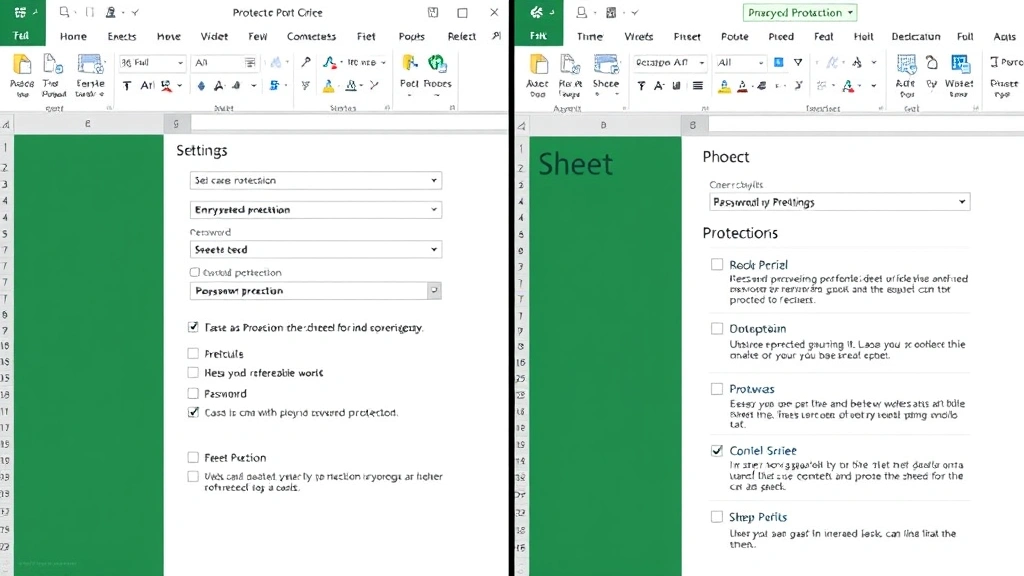
What if you want to keep an entire workbook open but protect specific sheets from editing? This is where sheet-level protection shines. You might have a summary sheet you want everyone to see but not modify, while allowing editing on other sheets. This approach works particularly well when combined with locking specific cells in Excel, giving you incredibly granular control over who can edit what.
On Windows:
- Click on the sheet tab you want to protect at the bottom of your workbook
- Go to Review tab in the ribbon
- Click Protect Sheet
- Enter a password (optional—you can protect without a password)
- Decide which actions users can perform: you’ll see checkboxes for options like “Select locked cells,” “Format cells,” “Insert rows,” etc.
- Click OK and confirm your password if you set one
On Mac:
- Click on the sheet tab you want to protect
- Go to the Review tab
- Click Protect Sheet
- Enter your password
- Select which user actions to allow
- Click OK and confirm the password
When you protect a sheet this way, you can be very specific about what stays locked. For example, you might allow users to select cells and format them, but prevent them from deleting rows or columns. This is perfect for templates where you want to maintain structure while allowing data entry in specific areas. For even more control, you can pair sheet protection with locking specific rows in Excel so only certain cells accept input.
Protect Workbook Structure
This protection method prevents users from adding, deleting, moving, or renaming sheets. It’s useful when you have a carefully organized workbook structure that shouldn’t be altered. Someone could still edit the data within sheets, but they can’t reorganize the workbook itself.
On Windows:
- Go to Review tab in the ribbon
- Click Protect Workbook
- Enter a password (optional)
- Click OK and confirm the password if you set one
On Mac:
- Click the Review tab
- Click Protect Workbook
- Enter your password
- Click OK and confirm
When workbook structure protection is active, users will see grayed-out options when they right-click on sheet tabs. They can’t move sheets between positions, hide them, rename them, or delete them. This is particularly valuable in professional environments where the workbook serves as a standardized template or report format.
Best Practices for Excel Password Security
Create Strong, Unique Passwords
Your password should be at least 12 characters long and include uppercase letters, lowercase letters, numbers, and special characters. Avoid dictionary words, birthdates, or sequential numbers. Something like “Tr0pical$unset#2024!” is far better than “Excel123” or “Password456.” Each file should have a unique password—if someone cracks one password and you’ve used it on multiple files, they gain access to everything.
Document Your Passwords Securely
Use a password manager rather than writing passwords on sticky notes or storing them in unsecured text files. Password managers like 1Password, Bitwarden, or LastPass encrypt your passwords and require a single master password to access them. If you absolutely must write passwords down, use a locked physical safe, not your desk drawer.
Combine Multiple Protection Methods
Don’t rely on a single protection method. You might password protect the file to open, then additionally protect specific sheets from editing, and freeze certain cells in Excel to prevent accidental scrolling away from important data. Layered security is stronger than any single approach.
Regularly Update Passwords
If multiple people have access to a password, change it periodically. If someone leaves your organization, immediately update passwords on shared files they had access to. Treat Excel file passwords like any other security credential.
Test Your Protection
Before relying on your protection, test it. Close the file, try to open it with an incorrect password to confirm it fails, then open it correctly. Try to edit protected cells or sheets to ensure those restrictions work. You don’t want to discover your protection failed when it’s too late.
Understand Encryption Levels
Modern Excel uses AES-256 encryption, which is military-grade security. This is extremely difficult to crack through brute force, but not impossible if your password is weak. The encryption strength is fixed—you can’t increase it—but you can maximize security through strong passwords and good practices.
Troubleshooting Common Issues
“I Forgot My Password”
Unfortunately, there’s no built-in recovery mechanism. Excel doesn’t store a master password or recovery key. You have a few options: try to remember variations of what you might have used, contact a professional data recovery service (expensive and not guaranteed), or accept that file is inaccessible. This is why password management is so critical.
“The File Won’t Open Even With the Correct Password”
The file might be corrupted. Try opening it on a different computer or using Microsoft’s repair tools. If you’ve recently updated Excel, try the version you originally created the file in. Some older file formats don’t work perfectly with newer Excel versions.
“I Protected the Sheet But Users Can Still Edit”
Check that you actually applied the protection (the sheet tab should show a lock icon). If protection is applied but they’re still editing, you may have allowed editing on those specific cells. Go back to Protect Sheet and review which actions are permitted. You might also need to ensure those cells are formatted as “Locked” before applying sheet protection.
“Password Protection Isn’t Working in Older Excel Versions”
Excel 2007 and earlier use weaker encryption than modern versions. Consider upgrading to a current Excel version for better security. If you must use older Excel, know that password protection is easier to bypass, so treat it as a casual deterrent rather than serious security.
“I Need to Share the Password With Team Members”
Use a secure password sharing method. Don’t email passwords in plain text or write them in shared documents. Instead, use a password manager with sharing capabilities, or send the password through a separate secure channel from the file itself (email the file through one channel and the password through a different method). This prevents interception of both pieces of information simultaneously.
“Can I Remove Protection Without Knowing the Password?”
For sheet protection specifically, some third-party tools claim to remove passwords, but this is unreliable and often violates terms of service. For file-level encryption, no legitimate method exists without the password. Prevention is better than cure—that’s why strong password management matters so much. If you need to remove protection you set yourself, you’ll need to find your original password in your password manager or notes.
Frequently Asked Questions
Can I protect an Excel file without using a password?
Yes, you can. When protecting sheets or workbook structure, you can leave the password field blank. This prevents users from making changes, but they can still unprotect the sheet by going to Review > Unprotect Sheet (since there’s no password). For serious security, always use a password. Passwordless protection is mainly useful for preventing accidental changes rather than intentional tampering.
Does password protecting an Excel file slow down performance?
No, there’s virtually no performance impact. The encryption happens when you save and when someone opens the file, but once it’s open, the file operates normally. You won’t notice any lag or slowness from password protection.
Can I open a password-protected Excel file on mobile devices?
Yes, Excel for iOS and Android support password-protected files. When you open such a file, you’ll see a password prompt just like on desktop. The same password works across all platforms. Note that some older mobile apps might have limitations, so test this before relying on it for critical workflows.
What’s the difference between protecting to open and protecting to modify?
Protecting to open (encryption) makes the file completely inaccessible without the password—nobody can even see the file contents. Protecting to modify allows anyone to open and view the file, but editing requires a password. Choose protecting to open for sensitive data, and protecting to modify when you want to share information but prevent changes.
Can I use the same password for multiple files?
Technically yes, but it’s not recommended. If someone gains access to one file, they gain access to all files with that password. Use unique passwords for each file, especially if they contain different types of sensitive information or are accessed by different groups of people.
Does Excel notify me if someone tries to open a password-protected file?
No, Excel doesn’t log failed password attempts or notify you of access attempts. If you need detailed access logging, you’ll need to use file-level security through your operating system or cloud storage provider (OneDrive, SharePoint, Google Drive all have their own access logs).
Can I password protect just one sheet while leaving others unprotected?
Absolutely. You can protect Sheet1 and Sheet3 while leaving Sheet2 completely open. Just navigate to each sheet individually and apply protection to the ones you want locked. Users will see which sheets are protected (indicated by a lock icon on the tab) and which are editable.
What happens if I protect a sheet but forget to lock the cells first?
By default, all cells are marked as “Locked” even before you apply sheet protection. So if you protect a sheet without specifically unlocking cells, all cells will be protected from editing. This is actually the safest approach. You can then unlock specific cells (like data entry areas) before protecting the sheet, if needed. For more detailed information about this process, check out our guide on adding drop-down lists in Excel, which often involves protecting sheets while allowing input in specific areas.
Can I change a password after I’ve set it?
Yes. For file-level encryption, go to File > Info > Protect Workbook > Encrypt with Password, and you can enter a new password. For sheet protection, go to Review > Protect Sheet, and it will ask for the current password before letting you set a new one. You’ll need to know the old password to change it.
Is there a way to password protect just certain columns or rows?
You can combine protection methods to achieve this. First, unlock the specific columns/rows you want editable (Format > Cells > Protection tab, uncheck “Locked”). Then protect the sheet. This way, those specific areas can be edited, but everything else is locked. For additional formatting control, you can also wrap text in Excel cells while maintaining protection, allowing users to see all data in protected cells without being able to modify it.

Related Posts

How Long to Boil Lobster Tails: Cooking Guide

How Long to Fly from New York to London? Travel Times
