
Pairing JBL Earbuds: Expert Tips for Easy Setup
Pairing JBL Earbuds: Expert Tips for Easy Setup
JBL earbuds are renowned for their superior sound quality and sleek design, making them a popular choice among audio enthusiasts and casual listeners alike. However, getting them properly paired with your device is the first crucial step to enjoying your investment. Whether you’re a tech-savvy user or someone who prefers straightforward instructions, this comprehensive guide will walk you through every aspect of pairing JBL earbuds with various devices.
The pairing process is generally intuitive, but understanding the nuances can save you time and frustration. From initial setup to troubleshooting common issues, we’ll cover everything you need to know to get your JBL earbuds working seamlessly with your smartphone, tablet, laptop, or other Bluetooth-enabled devices. By the end of this guide, you’ll be a JBL pairing expert.
Understanding JBL Earbud Models and Their Features
JBL manufactures a diverse range of earbud models, each with slightly different pairing mechanisms and features. The most popular models include the JBL Free, JBL Tune series, JBL Live Pro, and JBL Reflect Mini. Understanding your specific model is essential because some variations exist in the pairing process depending on the generation and features of your earbuds.
Most JBL earbuds use Bluetooth 5.0 or higher technology, which provides stable connections and faster pairing times compared to older Bluetooth versions. Some premium models feature multipoint connectivity, allowing you to pair with multiple devices simultaneously and switch between them seamlessly. Check your earbuds’ documentation or the official JBL website to identify your specific model number and its capabilities.
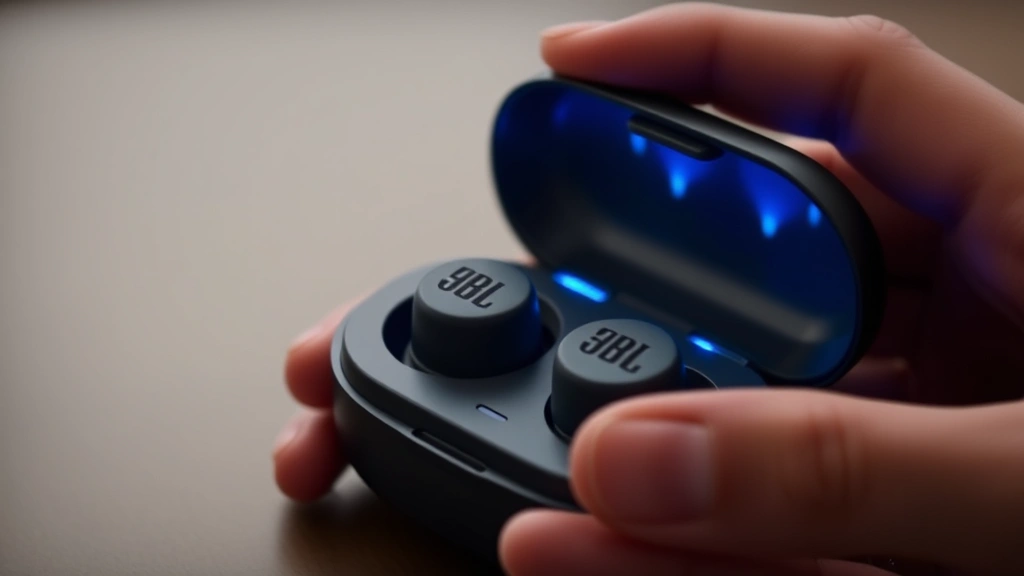
The charging case that comes with your JBL earbuds plays a crucial role in the pairing process. The case not only charges your earbuds but also houses the pairing button and LED indicators that communicate the current status of your device. Familiarizing yourself with these indicator lights—typically white, blue, or red—will help you understand what’s happening during the pairing process.
Pre-Pairing Preparation and Charging
Before attempting to pair your JBL earbuds, proper preparation is essential. First, ensure that both earbuds are fully charged. Place them in the charging case and wait until the LED indicator shows a solid white or blue light, indicating a complete charge. This typically takes 1-2 hours for a full charge from empty.
Next, verify that Bluetooth is enabled on your device. For smartphones and tablets, access your settings menu and toggle Bluetooth on. For laptops and computers, the process varies slightly depending on your operating system, but Bluetooth settings are typically found in system preferences or control panel settings.
Clear your device’s Bluetooth history if you’re experiencing pairing issues. This means forgetting any previous JBL earbud connections. To do this on most devices, go to Bluetooth settings, find your JBL earbuds in the list of paired devices, and select “Forget” or “Remove.” This ensures a clean pairing process without interference from old connection data.
Ensure that your JBL earbuds are in pairing mode before attempting to connect them to your device. Most JBL models enter pairing mode automatically when first removed from the charging case, but if you’re re-pairing, you may need to manually activate pairing mode by pressing and holding the button on the earbuds or case for 5-10 seconds until you see specific LED flashing patterns.
Step-by-Step Pairing Instructions for Different Devices
The basic principle of pairing JBL earbuds remains consistent across devices: enable Bluetooth, put your earbuds in pairing mode, and select them from your device’s available Bluetooth connections. However, the specific steps vary slightly depending on whether you’re using an Android phone, iPhone, Windows computer, or Mac.
The first time you pair your JBL earbuds, the process is typically automatic. Remove the earbuds from the charging case, and they should automatically enter pairing mode. Your device’s Bluetooth menu should immediately detect them and prompt you to confirm the connection. Simply tap or click the notification to complete the pairing.
For subsequent connections with already-paired devices, the process is even simpler. Just remove your JBL earbuds from the case, enable Bluetooth on your device, and they should automatically reconnect within seconds. This seamless reconnection is one of the major advantages of modern Bluetooth earbuds.
If automatic reconnection doesn’t occur, manually select your JBL earbuds from your device’s Bluetooth menu. The earbuds should appear in the list of available devices. Tap or click on them to establish the connection. The entire process should take less than a minute.
Pairing with Android Devices
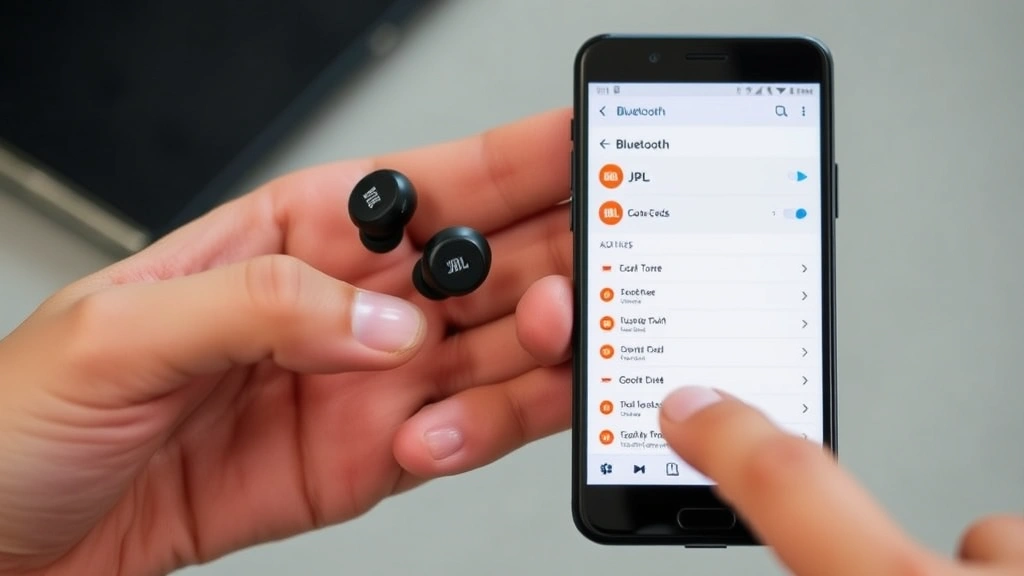
Pairing JBL earbuds with Android devices is straightforward and works consistently across different Android versions and manufacturers. Start by opening your Android device’s Settings app. Navigate to the Bluetooth section, which is usually found under “Connected devices” or “Connections” depending on your Android version.
Ensure that Bluetooth is toggled on. You should see a list of available devices. If this is your first time pairing, place your JBL earbuds in pairing mode by removing them from the case or pressing the pairing button. The earbuds should appear in the available devices list within 10-15 seconds.
Tap on your JBL earbuds’ name to initiate the pairing process. Depending on your Android version, you may see a confirmation dialog or a pairing code prompt. If prompted for a PIN, the default is usually 0000, but check your JBL earbuds’ manual for the specific code.
Once the pairing is confirmed, you should see your JBL earbuds listed under “Connected devices” with a status indicator showing they’re connected. Test the connection by playing audio through your device. If you hear sound through the earbuds, the pairing was successful.
For users with multiple Android devices, check our comprehensive how-to guides for device-specific instructions. Some Android devices offer quick-pairing features through NFC technology, which can further simplify the connection process if your JBL earbuds support this feature.
Pairing with iOS and Apple Devices
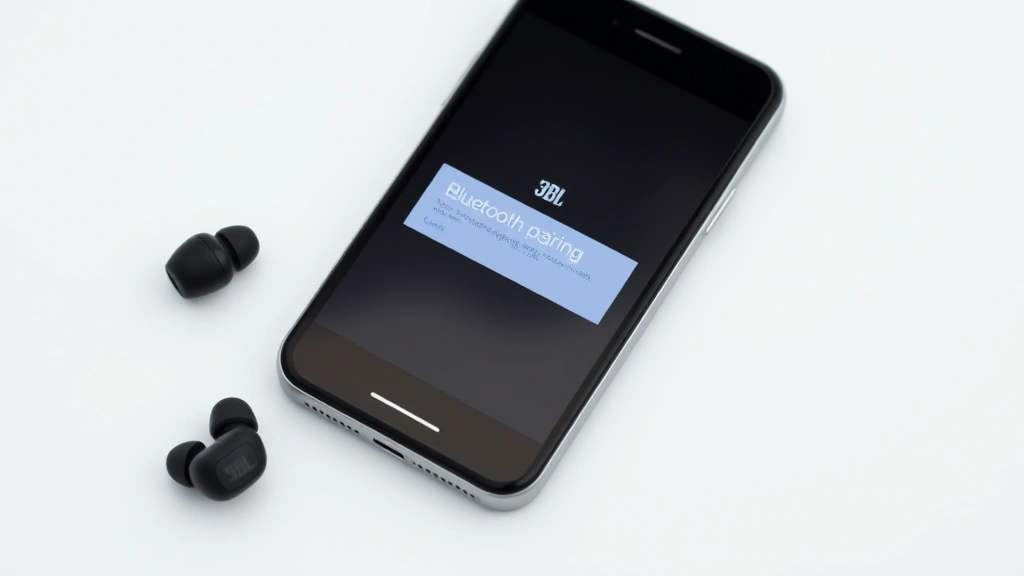
Apple devices, including iPhones, iPads, and MacBooks, have a streamlined Bluetooth pairing process that’s even simpler than Android in many ways. Begin by opening your iOS device’s Settings app and navigating to Bluetooth. Toggle Bluetooth on if it isn’t already enabled.
Remove your JBL earbuds from the charging case, which automatically puts them in pairing mode. Within a few seconds, your earbuds should appear in the list of available devices with their model name (such as “JBL Tune 750”). Tap on the name to begin pairing.
Apple devices often display a pairing notification on the lock screen or home screen. You may be prompted to confirm that you want to connect to the JBL earbuds. Tap “Connect” to complete the pairing process. The earbuds will then appear in your Bluetooth settings as a connected device.
For Mac users, the process is nearly identical. Open System Preferences (or System Settings on newer macOS versions), click on Bluetooth, and ensure it’s enabled. Your JBL earbuds should appear in the available devices list. Click on them to initiate pairing, and confirm the connection when prompted.
One advantage of Apple’s ecosystem is that once you pair your JBL earbuds with one device, they can automatically connect to other Apple devices using the same iCloud account. This feature, called Automatic Device Switching, makes it convenient to use your earbuds across multiple Apple products without manual re-pairing.
Advanced Pairing Features and Settings
Many modern JBL earbud models include advanced features that enhance the pairing and connectivity experience. Multipoint connectivity, available on premium models, allows you to pair with two devices simultaneously. This means you can listen to audio from one device while remaining connected to another, making it easy to switch between your phone and laptop.
To enable multipoint connectivity, consult your specific model’s manual, as the activation process varies. Generally, you’ll need to access your earbuds’ settings through the JBL app or a manufacturer’s companion app. Once enabled, you can pair multiple devices by repeating the standard pairing process for each device.
The JBL app, available for both iOS and Android, provides additional customization options beyond basic pairing. Through the app, you can adjust equalizer settings, configure touch controls, update firmware, and manage advanced features. Downloading and installing the JBL app is highly recommended to maximize your earbuds’ functionality.
Voice assistant integration is another feature worth exploring. Most JBL earbuds support voice assistants like Google Assistant, Siri, or Alexa. During the pairing process, your device may ask which voice assistant you prefer to use with the earbuds. This setting can typically be changed later through the JBL app or your device’s Bluetooth settings.
Battery optimization settings in the JBL app can help extend your earbuds’ battery life. Some models allow you to adjust power-saving modes or disable features you don’t use frequently. These settings can be particularly useful if you want to maximize listening time between charges.
Troubleshooting Common Pairing Problems
Even with proper preparation, occasional pairing issues can occur. One of the most common problems is that JBL earbuds won’t enter pairing mode. If this happens, ensure the earbuds are sufficiently charged. Low battery can prevent pairing mode activation. Place them in the charging case for at least 15 minutes and try again.
If your earbuds still won’t pair, try resetting them to factory settings. Most JBL models can be reset by pressing and holding the button on the earbuds or case for 10-15 seconds. The LED will flash in a specific pattern (usually alternating colors) indicating a successful reset. After resetting, remove them from the case to enter pairing mode and attempt to pair again.
Another frequent issue is that the earbuds pair but produce no sound. First, check your device’s volume settings—ensure the volume isn’t muted or set to minimum. Next, verify that your JBL earbuds are selected as the audio output device in your device’s Bluetooth settings. Sometimes your device may connect to the earbuds but continue playing audio through the device’s built-in speakers.
If sound is still absent, try disconnecting and reconnecting the earbuds. Go to your device’s Bluetooth settings, tap “Forget” or “Remove” for your JBL earbuds, then repeat the pairing process from scratch. This often resolves audio-related issues by clearing any corrupted connection data.
Intermittent connectivity, where the connection drops and reconnects frequently, typically indicates interference from other Bluetooth devices or Wi-Fi networks. Move away from other Bluetooth devices, turn off Wi-Fi temporarily to test, or try pairing in a different location with fewer electronic devices. If interference persists, update your JBL earbuds’ firmware through the companion app.
For persistent problems that don’t resolve through standard troubleshooting, consider checking JBL’s official support website for model-specific troubleshooting guides. You can also contact JBL customer support directly for assistance with defective units or complex technical issues.
If you’re having trouble with other device pairings, our guide on pairing Amazon Fire Stick remotes demonstrates similar Bluetooth pairing principles that may provide additional insights into the general pairing process.
Frequently Asked Questions
How long does it take to pair JBL earbuds?
The initial pairing process typically takes 30 seconds to 2 minutes from the moment you remove the earbuds from the case. Subsequent connections to already-paired devices usually happen automatically within 5-10 seconds. The speed depends on your device’s Bluetooth capability and any environmental interference.
Can I pair JBL earbuds with multiple devices at once?
Standard JBL earbuds can be paired with multiple devices, but they only maintain an active connection with one device at a time. Premium models with multipoint connectivity can actively connect to two devices simultaneously. Check your specific model’s specifications to determine if multipoint connectivity is supported.
What should I do if my JBL earbuds won’t appear in my device’s Bluetooth list?
First, ensure the earbuds are charged and in pairing mode. Reset your JBL earbuds by holding the button for 10-15 seconds. On your device, forget any previous JBL connections and ensure Bluetooth is toggled off and back on. If the issue persists, restart your device and try again.
Why do my JBL earbuds keep disconnecting?
Frequent disconnections usually result from Bluetooth interference, low battery, or outdated firmware. Move away from other Bluetooth devices, charge your earbuds fully, and check for firmware updates through the JBL app. If the problem continues, reset the earbuds and repair them with your device.
Is it necessary to download the JBL app to pair my earbuds?
No, the JBL app is not required for basic pairing functionality. You can pair your earbuds using your device’s standard Bluetooth settings. However, the JBL app provides access to advanced features, firmware updates, and customization options that significantly enhance your user experience.
How do I switch my JBL earbuds between devices?
To switch between devices, disconnect the earbuds from the current device by disabling Bluetooth or forgetting the connection. Then, enable Bluetooth on the new device and select your JBL earbuds from the available devices list. For multipoint-capable models, switching is automatic when you play audio on a different paired device.
What’s the default PIN for pairing JBL earbuds?
Most modern JBL earbuds don’t require a PIN code for pairing. If a PIN is requested, the default is typically 0000. However, always check your specific model’s user manual for accurate PIN information, as some older models may use different codes.
Can I pair JBL earbuds with my car’s Bluetooth system?
Yes, JBL earbuds can be paired with most car Bluetooth systems. The process is similar to pairing with phones or computers. Access your car’s Bluetooth settings, put your JBL earbuds in pairing mode, and select them from the available devices list. Once paired, they’ll automatically connect when you enter the car with Bluetooth enabled.

Related Posts

Superscript in Google Docs: Expert Tips

Strikethrough in Excel: Easy Steps for Beginners
