
Pair Amazon Fire Stick Remote: Expert Tips Inside
How to Pair Amazon Fire Stick Remote: Expert Tips Inside
Pairing your Amazon Fire Stick remote is one of the most essential setup steps, yet many users struggle with connection issues that can be resolved in minutes. Whether you’re setting up a new Fire Stick device, replacing a lost remote, or troubleshooting an unresponsive control, understanding the pairing process ensures seamless entertainment without frustration. This comprehensive guide walks you through every method, from standard pairing to advanced troubleshooting techniques used by tech professionals.
The Fire Stick remote uses Bluetooth technology to communicate with your device, making it a wireless solution that provides convenience and flexibility. However, Bluetooth connections occasionally fail due to interference, outdated firmware, or simple user error. By following the expert strategies in this article, you’ll master remote pairing and resolve 99% of connection problems without requiring technical support.
Understanding Fire Stick Remote Basics
Amazon Fire Stick remotes come in several varieties, each with slightly different pairing requirements. The standard Alexa Voice Remote, the Fire TV Cube remote, and the newer Fire TV remote with power controls all use Bluetooth Low Energy (BLE) technology. This wireless protocol offers excellent range—typically 30 feet in open space—while consuming minimal battery power.
Before attempting to pair your remote, identify which Fire Stick model you own. The original Fire Stick, Fire Stick 4K, Fire Stick HD, and Fire Stick Max all support remote pairing, though the process may vary slightly. Check your device’s model number on the bottom of the unit or in the settings menu under About. Understanding your specific model helps you apply the correct pairing method and avoid unnecessary troubleshooting steps.
The pairing process essentially tells your Fire Stick device to recognize and communicate with your remote’s unique Bluetooth identifier. Once paired, the remote and device maintain this connection automatically, even after power cycling. However, interference from other Bluetooth devices, physical obstructions, or depleted batteries can temporarily disrupt this connection.
Most pairing failures occur because users don’t follow the exact sequence of steps or attempt pairing while the Fire Stick is still loading. Patience and precision are critical. Allow your Fire Stick to fully boot up—typically 30-60 seconds after plugging in—before initiating any pairing attempts. This ensures the device’s Bluetooth receiver is fully active and ready to detect incoming signals.
Standard Pairing Process for New Remotes
The standard pairing method works for 95% of Fire Stick remote connection scenarios. This process is straightforward and requires no technical knowledge, making it the first approach you should attempt.
Step 1: Prepare Your Fire Stick Device
Ensure your Fire Stick is plugged into a power source and connected to your television. The device should be powered on and displaying the home screen. If the Fire Stick is in sleep mode, press any button on your television remote to wake it up. Wait at least 30 seconds after plugging in a newly powered Fire Stick before attempting to pair a remote, as the Bluetooth receiver needs initialization time.
Step 2: Position Your Remote Correctly
Hold your Fire Stick remote 6-12 inches away from the Fire Stick device itself. Ensure you have a clear line of sight—don’t point the remote at walls or obstacles between the remote and the Fire Stick. Bluetooth signals travel in relatively straight lines, and physical obstructions like metal objects or dense walls can weaken the connection signal.
Step 3: Initiate Pairing Mode
Press and hold the Home button (the circular button with a house icon) on your remote for approximately 10 seconds. You’ll see the remote’s LED light blink or flash, indicating it has entered pairing mode. This light behavior signals that the remote is broadcasting its Bluetooth identifier and waiting for the Fire Stick to respond.
Step 4: Confirm Pairing on Your Television
Look at your Fire Stick’s screen. Within 10-15 seconds, a pairing confirmation message should appear. This message typically reads “Pairing in progress” or displays a visual indicator showing the remote connecting to the device. Once the confirmation appears, you can release the Home button on your remote. The pairing process usually completes within 20-30 seconds.
Step 5: Test Your Connection
After the pairing confirmation disappears from your screen, test the remote by pressing the up and down arrow buttons. Navigate through the menu to ensure all buttons respond correctly. If navigation works smoothly, your pairing was successful. If buttons feel sluggish or unresponsive, proceed to the troubleshooting section below.
Troubleshooting Connection Issues
When standard pairing fails, systematic troubleshooting identifies the root cause. Most issues stem from battery problems, Bluetooth interference, or software glitches rather than hardware failure.
Check Battery Status First
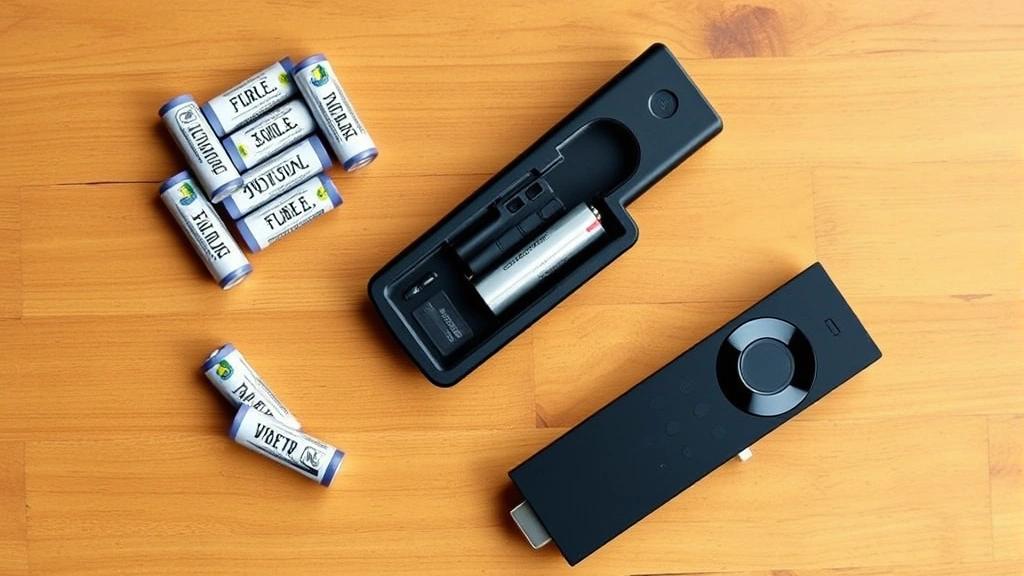
Dead or dying batteries are the most common reason remotes fail to pair. Remove the battery cover on the back of your remote and inspect the batteries. Amazon Fire Stick remotes typically use two AA batteries. If the batteries look corroded, discolored, or are more than a year old, replace them with fresh alkaline batteries. Rechargeable batteries sometimes provide insufficient voltage for pairing, so stick with quality alkaline brands like Duracell or Energizer.
After installing new batteries, wait 5 seconds before attempting to pair again. This brief delay allows the remote’s internal circuits to fully power up and initialize.
Restart Your Fire Stick Device
Software glitches occasionally prevent the Bluetooth receiver from functioning properly. Restart your Fire Stick by unplugging the power cable from the back of the device. Wait 30 seconds, then plug it back in. Allow the device to fully boot—you’ll see the Amazon logo and loading screen—before attempting pairing. This simple restart refreshes the device’s memory and often resolves temporary connection issues.
Eliminate Bluetooth Interference
Other Bluetooth devices in your home can interfere with Fire Stick remote pairing. Common culprits include wireless speakers, smartphones, smartwatches, and cordless phones. During the pairing process, move these devices away from your Fire Stick and remote—ideally into a different room. Once pairing completes successfully, you can move devices back to their normal locations without affecting the established connection.
Clear Your Fire Stick’s Bluetooth Cache
Navigate to Settings on your Fire Stick home screen. Select Remotes & Bluetooth Devices (or Bluetooth Devices depending on your model). Look for your remote in the list and select Forget or Remove. This action erases the previous pairing data, allowing you to establish a completely fresh connection. After forgetting the remote, restart your Fire Stick and attempt standard pairing again.
Try Pairing in a Different Location
Sometimes environmental factors affect Bluetooth signals. If pairing fails consistently, move your Fire Stick to a different room temporarily. Test pairing in a location away from microwave ovens, wireless routers, and other RF-emitting devices. If pairing succeeds in a different location, the issue is environmental interference rather than hardware failure. You can then move your Fire Stick back to its original location once pairing completes.
Advanced Pairing Techniques
For users with persistent pairing problems or those managing multiple Fire Stick devices, these advanced techniques provide additional solutions.
Using the Fire TV Mobile App as Alternative Control
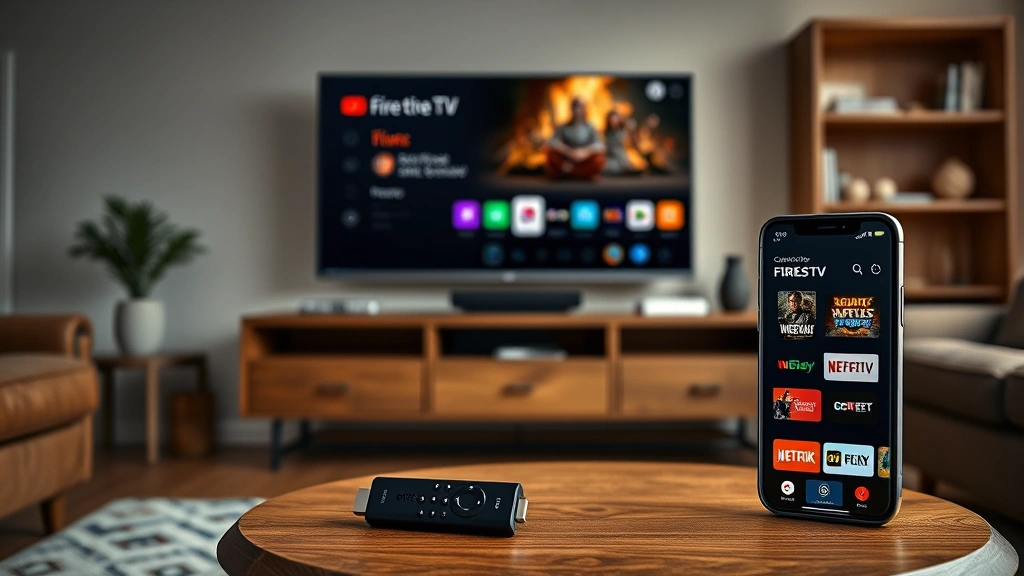
While troubleshooting remote issues, you can control your Fire Stick using the official Fire TV mobile app. Download the app on your smartphone, connect to the same WiFi network as your Fire Stick, and use your phone as a temporary remote. This approach works even if your physical remote refuses to pair, allowing you to access settings and perform diagnostics while you resolve the hardware issue.
Perform a Factory Reset on Your Remote
Some Fire Stick remotes support factory reset procedures that clear all pairing data from the remote itself. Press and hold the Home and Back buttons simultaneously for 10 seconds. This action resets the remote to factory defaults, clearing any corrupted pairing information. After the reset, attempt standard pairing again with your Fire Stick.
Update Your Fire Stick Firmware
Outdated firmware occasionally causes Bluetooth compatibility issues. Navigate to Settings > About > Check for Updates on your Fire Stick. If an update is available, install it and allow your device to restart. Updated firmware includes bug fixes and improved Bluetooth stability that may resolve pairing problems. After updating, attempt pairing your remote using the standard method.
Contact Amazon Support with Device Information
If advanced troubleshooting fails, contact Amazon Customer Support with detailed information about your attempts. Provide your Fire Stick model number, remote model, battery type, and a description of the exact steps you’ve taken. Amazon support representatives can access your device remotely and may discover solutions unavailable through standard troubleshooting.
Maintaining Your Remote Connection
Once you’ve successfully paired your Fire Stick remote, proper maintenance ensures the connection remains stable and responsive.
Replace Batteries Proactively
Rather than waiting for your remote to fail, replace batteries every 6-9 months. Proactive battery replacement prevents the frustration of sudden remote failure during critical moments. Mark your calendar or set a phone reminder to check battery status seasonally. This simple habit eliminates most connection problems before they occur.
Store Your Remote Properly
Keep your remote in a cool, dry location away from extreme temperatures, moisture, and direct sunlight. Avoid placing heavy objects on top of your remote, which can damage internal components. Store the remote on a stable surface or in a designated holder where it won’t be dropped or crushed. Proper storage extends your remote’s lifespan and prevents physical damage that could affect Bluetooth functionality.
Avoid Common Damage Scenarios
Spilled liquids, dropped remotes, and exposed batteries are the primary causes of permanent remote damage. If your remote gets wet, immediately remove the batteries and allow it to dry completely in a warm, dry location for 24-48 hours before reinstalling batteries. Never expose your remote to extreme heat or cold, as temperature extremes can degrade battery performance and damage electronic components.
Keep Your Fire Stick Firmware Current
Enable automatic updates on your Fire Stick if available. Navigate to Settings > About and look for an Automatic Updates option. When enabled, your Fire Stick automatically downloads and installs the latest firmware during off-hours, ensuring your device maintains optimal Bluetooth performance and security. Regular updates also introduce new features and compatibility improvements.
Manage Multiple Remotes on One Device
Fire Stick devices support pairing multiple remotes simultaneously, useful for households with multiple users. To pair an additional remote, follow the standard pairing process while the first remote remains paired—the device will add the new remote without forgetting the original. However, limit the number of paired remotes to 4-5, as excessive pairings can occasionally cause connection conflicts.
FAQ
How long does Fire Stick remote pairing typically take?
Standard pairing completes within 20-30 seconds from the moment you press and hold the Home button. If pairing takes longer than 60 seconds, the process has likely failed. Stop the attempt, restart your Fire Stick, and try again.
Can I pair my Fire Stick remote without a working remote?
Yes. Use the Fire TV mobile app on your smartphone to navigate your Fire Stick and access settings. The mobile app provides full remote functionality and allows you to troubleshoot or pair new remotes through the settings menu.
What’s the maximum distance for Fire Stick remote pairing?
Bluetooth range for Fire Stick remotes is typically 30 feet in open space. However, walls, metal objects, and other obstacles reduce this range. For reliable pairing and operation, keep your remote within 20 feet of your Fire Stick with minimal obstructions.
Why does my Fire Stick remote keep disconnecting?
Frequent disconnections usually indicate weak batteries, Bluetooth interference, or a device that needs restarting. Replace your batteries first, then restart your Fire Stick. If disconnections persist, check for nearby Bluetooth devices causing interference and move them away from your Fire Stick.
Can I use a third-party remote with my Fire Stick?
Many third-party remotes are compatible with Fire Stick devices, but they follow different pairing procedures. Consult your third-party remote’s manual for specific pairing instructions. However, official Amazon remotes provide the most reliable compatibility and full feature access.
Does pairing erase my Fire Stick settings or apps?
No. Pairing a remote does not affect any settings, apps, or content on your Fire Stick. Pairing only establishes a wireless connection between the remote and device. Your accounts, watch history, and downloaded apps remain completely unchanged.
What should I do if my remote’s LED light won’t turn on during pairing?
A non-responsive LED typically indicates dead batteries. Replace the batteries with fresh alkaline batteries and try again. If the LED still doesn’t light after battery replacement, the remote’s internal circuits may be damaged and the remote likely needs replacement through Amazon support.
Can weather or temperature affect remote pairing?
Extreme temperatures can temporarily affect battery performance and Bluetooth functionality. If pairing fails during very cold weather, allow your remote and Fire Stick to reach room temperature (approximately 68-72°F) before attempting again. Avoid exposing your remote to temperatures below 32°F or above 95°F, as these extremes can cause permanent damage.

Related Posts

Superscript in Google Docs: Expert Tips

Strikethrough in Excel: Easy Steps for Beginners
