
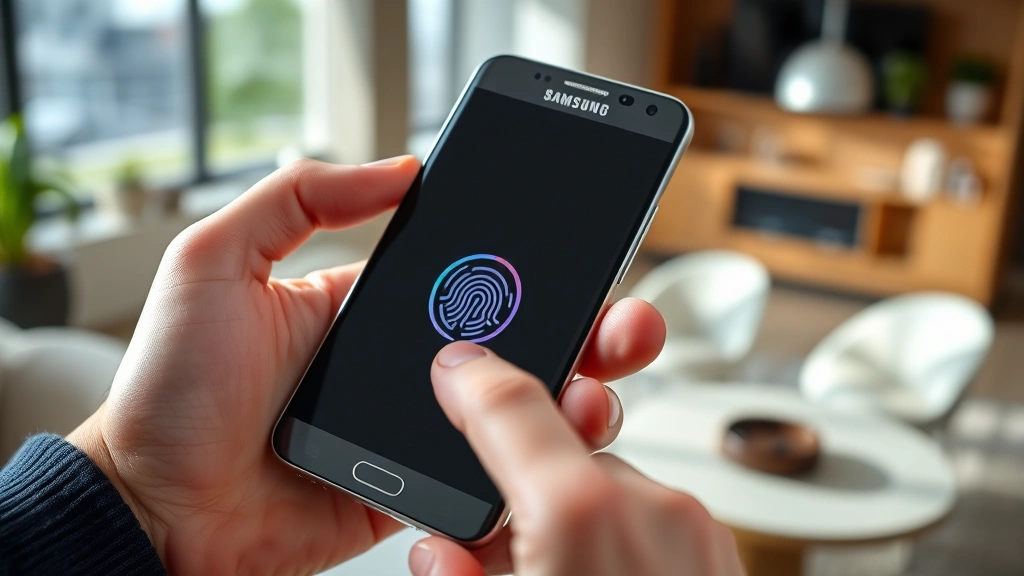
Unlock Samsung Phone? Expert Tips & Steps
How to Open Line on a Samsung Phone: Expert Tips & Steps
Samsung phones are among the most popular smartphones worldwide, known for their durability and advanced features. However, many users find themselves locked out of their devices or unsure how to access certain functions. Whether you’ve forgotten your PIN, pattern, or password, or you need to bypass security features for legitimate reasons, understanding the proper methods to unlock your Samsung phone is essential. This comprehensive guide will walk you through multiple approaches, from basic troubleshooting to advanced recovery options.
Opening or unlocking a Samsung phone safely requires patience and the right knowledge. Unlike forcing your way into a device, which can cause permanent damage, following professional methods ensures your phone remains functional while regaining access. We’ll cover everything from using your Samsung account credentials to performing a factory reset, along with tips to prevent lockouts in the future.
Understanding Samsung Phone Security Features
Samsung phones come equipped with multiple layers of security designed to protect your personal data. The most common security methods include PIN codes (numeric passwords), patterns (connecting dots on screen), passwords (alphanumeric combinations), and biometric options like fingerprint and facial recognition. Understanding which security method you’ve enabled is the first step toward unlocking your device.
When you set up a new Samsung phone, the system links your device to your Samsung account automatically. This account serves as a backup authentication method if you forget your primary unlock credentials. Additionally, Samsung integrates Google’s security features, meaning your Google account can also help you regain access. Modern Samsung devices also support various recovery methods documented in our how-to guides, each with specific requirements and success rates.
The security architecture of Samsung phones has evolved significantly. Older models may have different unlock procedures compared to newer devices running Android 11 or later. Knowing your device’s model number and Android version will help you identify the most appropriate unlocking method for your specific situation.

Method 1: Unlock Using Your Samsung Account
If you’ve set up a Samsung account on your device, this is often the most straightforward method to regain access. After several failed unlock attempts, your Samsung phone will typically offer the option to unlock using your Samsung account credentials. Here’s the step-by-step process:
- On the lock screen, enter an incorrect PIN, pattern, or password multiple times (usually 5-10 attempts) until you see a notification indicating your account can be used to unlock the device
- Tap the “Samsung Account” or “Unlock with Samsung Account” option when it appears
- Enter your Samsung account email address and password
- If you’ve forgotten your Samsung account password, tap “Forgot Password?” and follow the recovery process using your registered email or phone number
- Once verified, your phone will unlock and return to the home screen
- You’ll be prompted to create a new unlock method if desired
This method works best when your Samsung account is actively synced with your device and you have access to the email address associated with the account. The process typically takes less than five minutes and doesn’t require any advanced technical knowledge. Make sure you’re connected to Wi-Fi or have mobile data enabled for this method to work properly.
Method 2: Use Your Google Account
Google Account unlock is another powerful option, especially for devices running older versions of Android. While newer Samsung phones (Android 10+) have restricted this feature for security reasons, it remains valuable for older models. If available on your device, follow these steps:
- After multiple failed unlock attempts, look for a “Forgot Pattern,” “Forgot PIN,” or “Forgot Password” option on the lock screen
- Tap this option to access the Google Account recovery screen
- Enter the email address associated with your Google account
- Enter your Google account password when prompted
- Complete any additional verification steps, such as answering security questions or entering a recovery code
- Your device will unlock once authentication is successful
For this method to work, your Google account must have been previously added to the device during setup or after. If you don’t remember your Google password, you can reset it by visiting the Google Account Recovery page from another device or computer. This method is most reliable on Samsung phones running Android 9 or earlier versions.
Method 3: Android Device Manager Recovery
Android Device Manager, now integrated into Google’s Find My Mobile service, allows you to manage your device remotely if you’re signed in with your Google account. This method requires access to another device with internet connectivity:
- On a computer or another device, visit the Find My Mobile website and sign in with your Google account
- Select your Samsung phone from the list of registered devices
- Choose the “Lock” or “Unlock” option (some versions may show “Erase” as the only option)
- Follow the on-screen prompts to unlock your device remotely
- Your phone will receive the unlock command and should unlock within minutes
This method requires that your device has an internet connection, even if it’s locked. If your phone is connected to Wi-Fi or has mobile data enabled, you have a good chance of success. Keep in mind that Find My Mobile’s capabilities vary depending on your Android version and Samsung device model. Visiting Samsung’s official support website can provide model-specific guidance.
Method 4: Perform a Factory Reset
When all other methods fail, a factory reset is your last resort. This method completely erases your device and restores it to factory settings, removing the lock screen in the process. Warning: This will delete all data on your phone, including photos, messages, and installed apps. Before attempting this method, understand the consequences:
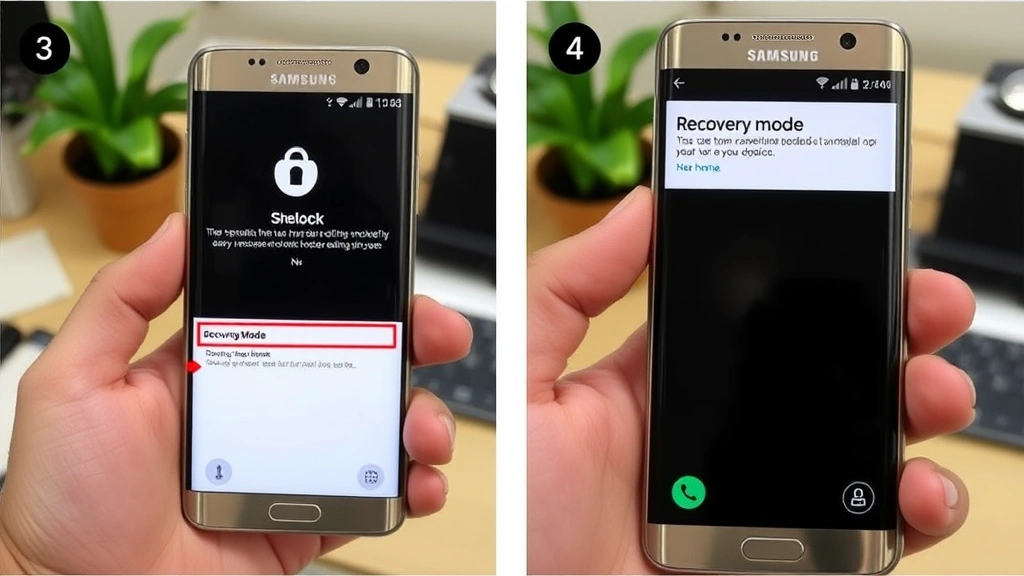
Using Recovery Mode (Most Common Method):
- Power off your Samsung phone completely
- Press and hold the Volume Up button and the Power button simultaneously until the Samsung logo appears
- Release the buttons when you see the boot menu
- Use the Volume Down button to navigate to “Wipe data/factory reset” or “Factory data reset”
- Press the Power button to select this option
- Confirm the action when prompted (usually by pressing Volume Up)
- The device will reboot and complete the factory reset process, which may take several minutes
- Once complete, your phone will restart to the initial setup screen without any lock
The key combination for entering Recovery Mode varies slightly between Samsung models. For older devices, you might need to hold Volume Down and Home button instead. Check your specific model’s documentation if the above combination doesn’t work. This method works on virtually all Samsung phones regardless of Android version.
Method 5: Contact Samsung Support
If you’re uncomfortable performing a factory reset or other technical procedures, Samsung’s customer support team can assist you. This is particularly helpful if you can prove ownership of the device:
- Visit Samsung’s support portal and navigate to your device model
- Choose “Contact Us” and select your preferred contact method (phone, chat, or email)
- Explain your situation and provide proof of ownership (original receipt, IMEI number, or serial number)
- Samsung technicians will guide you through the unlock process specific to your device
- In some cases, they may provide a service code or unlock instruction tailored to your situation
Professional support is invaluable if your device has special software or if you want expert guidance throughout the process. Samsung representatives can also help if you’re unsure about which method is appropriate for your specific model and Android version.
Preventing Future Lockouts
Once you’ve regained access to your Samsung phone, implementing preventative measures will help you avoid lockouts in the future. Consider these best practices:
- Use a Password Manager: Store your unlock credentials securely in a password manager app so you can access them if needed
- Enable Biometric Authentication: Set up fingerprint or facial recognition alongside your PIN or password for easier access while maintaining security
- Set Up Account Recovery Options: Ensure your Samsung account and Google account have updated recovery email addresses and phone numbers
- Write Down Important Information: Keep your Samsung account email, Google account email, and IMEI number in a secure location separate from your phone
- Regular Backups: Use Samsung Cloud or Google Drive to regularly back up your important data, making factory resets less devastating
- Choose a Memorable PIN: Select a PIN you can easily remember but that isn’t obvious (avoid birthdays or sequential numbers)
Following these preventative steps creates multiple layers of protection and recovery options. If you ever get locked out again, you’ll have backup methods to regain access without data loss. Additionally, keeping your Android system updated ensures you have the latest security patches and unlock features available.
FAQ
What’s the difference between unlocking a Samsung phone and factory resetting it?
Unlocking a Samsung phone means regaining access to your device while keeping your data intact. A factory reset erases everything and returns the phone to its original state. Unlocking methods like using your Samsung or Google account preserve your data, while a factory reset is a last resort that removes all information.
Can I unlock my Samsung phone without losing my data?
Yes, methods 1-3 (using Samsung account, Google account, or Android Device Manager) will unlock your phone without data loss. Only the factory reset method (Method 4) will erase your data, which is why it should be your last resort.
How long does it take to unlock a Samsung phone?
Using your Samsung or Google account typically takes 5-10 minutes. A factory reset may take 15-30 minutes depending on your device’s storage capacity. Remote unlocking via Find My Mobile can vary from a few minutes to several hours depending on internet connectivity.
What should I do if I don’t remember any of my account passwords?
You can reset both your Samsung and Google account passwords using account recovery options on their respective websites. You’ll need access to your registered email address or phone number. If you’ve lost access to those as well, contacting customer support is your best option.
Is it safe to use third-party unlocking services?
Third-party unlocking services are generally not recommended as they can compromise your device’s security, void your warranty, and potentially expose your personal data. Always use official Samsung or Google recovery methods first.
Will unlocking my Samsung phone void my warranty?
Using official methods like Samsung Account, Google Account, or contacting Samsung Support will not void your warranty. However, a factory reset may be considered a device modification by some carriers, so check your warranty terms if concerned.
Can I unlock my Samsung phone if it’s not connected to the internet?
Methods 1 and 2 require internet connectivity. If your phone is completely offline, the factory reset method (which doesn’t require internet) would be your only option. Make sure your device has Wi-Fi or mobile data enabled for remote unlock methods.

Related Posts

Superscript in Google Docs: Expert Tips

Strikethrough in Excel: Easy Steps for Beginners
