

Merge Excel Cells? Expert Tips Inside
How to Merge 2 Cells in Excel: Expert Tips Inside
Merging cells in Excel is one of the most practical formatting techniques for creating professional-looking spreadsheets. Whether you’re building a report header, organizing data, or designing a template, knowing how to merge cells efficiently can save you time and improve your spreadsheet’s visual appeal. This comprehensive guide walks you through every method to merge cells in Excel, from basic techniques to advanced formatting options.
Cell merging combines two or more adjacent cells into a single larger cell. This is particularly useful when you want to create centered titles, span headers across multiple columns, or organize complex data layouts. Understanding the proper way to merge cells—and the potential pitfalls—ensures your spreadsheets remain functional and professional.
Understanding Cell Merging Basics
Before diving into the how-to, it’s important to understand what happens when you merge cells. When you merge cells, Excel combines multiple cells into one larger cell. The merged cell displays content from the upper-left cell of the selection, while content from other selected cells is deleted. This is why many users prefer to learn how to combine cells in Excel using formulas instead, which preserves all data.
Merging cells affects several spreadsheet functions. For instance, sorting and filtering become problematic with merged cells because Excel’s data tools expect uniform cell structures. Additionally, merged cells can cause alignment issues when you’re working with large datasets. However, for headers, titles, and decorative purposes, merging remains an excellent formatting choice.
Excel offers several merge options beyond simple merging. You can merge cells and center content, merge cells and left-align, or merge cells without changing alignment. Understanding these variations helps you choose the right approach for your specific needs.

Step-by-Step Guide to Merge Two Cells
The most straightforward method to merge two cells in Excel involves just a few clicks. Follow these steps for a basic merge:
- Select the cells you want to merge: Click on the first cell, then hold Shift and click on the second cell. Alternatively, click and drag from the first cell to the second cell to select both.
- Access the Home tab: Make sure you’re on the Home ribbon tab at the top of Excel.
- Locate the Merge & Center button: In the Alignment group, you’ll find the Merge & Center button. This is typically represented by a grid icon with overlapping cells.
- Click the dropdown arrow: Next to Merge & Center, there’s a small dropdown arrow. Click this to see merge options.
- Choose your merge type: Select “Merge & Center” to merge and center content, “Merge Across” to merge cells horizontally while keeping alignment, or “Merge Cells” for a basic merge without centering.
- Confirm the merge: Excel will immediately merge your selected cells. If prompted about deleting content, confirm the action.
For users working with specific data ranges, understanding how to split cells in Excel is equally important, as you may need to reverse merged cells later.
Using the Merge Cells Dialog Box
For more control over merging options, Excel provides a dedicated dialog box. This method is particularly useful when you want to access advanced settings:
- Select your cells: Choose the two or more cells you want to merge.
- Right-click to open context menu: Right-click on your selection to bring up the context menu.
- Choose Format Cells: Select “Format Cells” from the menu (or press Ctrl+1 on Windows, Cmd+1 on Mac).
- Navigate to the Alignment tab: In the Format Cells dialog box, click the Alignment tab.
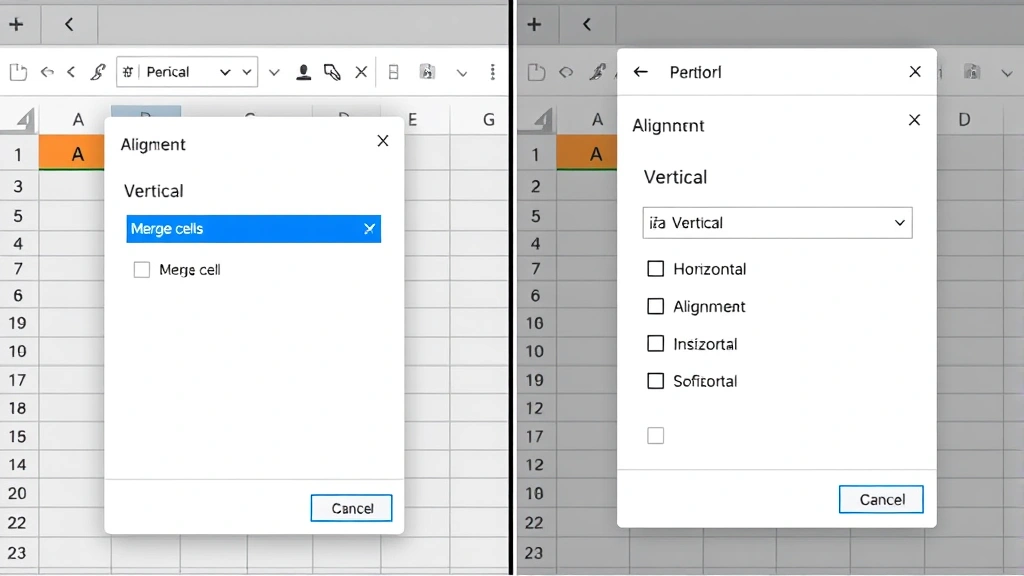
- Check the Merge Cells option: You’ll see a checkbox labeled “Merge cells” in the lower portion of the dialog. Check this box.
- Adjust text alignment: While in this dialog, you can set horizontal and vertical alignment for your merged cell. Choose options like “Center,” “Left,” or “Right” for horizontal alignment.
- Click OK: Apply your settings by clicking the OK button.
This method provides granular control over how your content appears within the merged cell, making it ideal for creating professional headers and formatted sections.
Advanced Merging Techniques
Once you’ve mastered basic merging, you can explore more sophisticated techniques. Many advanced users prefer using formulas and functions to achieve similar results without actually merging cells. This preserves data integrity and maintains Excel’s sorting and filtering capabilities.
One alternative approach involves using the CONCATENATE function or the ampersand operator (&) to combine cell contents. For example, entering =A1&” “&B1 in cell C1 combines the contents of cells A1 and B1 with a space between them. This method keeps cells separate while displaying combined content.
Another advanced technique is using the TEXTJOIN function, available in Excel 2016 and later. This function offers more flexibility than CONCATENATE and allows you to specify delimiters. The syntax =TEXTJOIN(“, “,TRUE,A1:B1) combines multiple cells with commas as separators, automatically ignoring empty cells.
For spreadsheets requiring complex layouts, consider using cell borders and background colors instead of merging. This approach maintains data structure while creating visual separation. You can freeze rows in Excel to keep headers visible while scrolling, which often eliminates the need for extensive merging.
Common Issues and Solutions
Users frequently encounter problems when merging cells. Understanding these issues helps you avoid frustration and maintain spreadsheet functionality.
Data Loss: When merging cells containing data, Excel keeps only the content from the upper-left cell and deletes content from other cells. To prevent data loss, copy content from all cells before merging, or use formula-based combining instead.
Sorting and Filtering Problems: Merged cells interfere with Excel’s sorting and filtering features. If you need to sort or filter your data, avoid merging cells in data ranges. Reserve merging for header rows or summary sections only.
Printing Issues: Merged cells sometimes cause unexpected page breaks or formatting problems when printing. Test your print preview before sending documents to ensure merged cells display correctly across pages.
Alignment Challenges: Content in merged cells may not align as expected. Use the Format Cells dialog to explicitly set vertical and horizontal alignment rather than relying on defaults.
Unmerging Cells: To unmerge cells, select the merged cell, go to the Home tab, click the Merge & Center dropdown, and select “Unmerge Cells.” This restores the original cell structure.
Related formatting tasks like learning to hide columns in Excel can complement your merging strategy for creating cleaner, more organized spreadsheets.
Best Practices for Cell Merging
Professional spreadsheet designers follow specific guidelines when merging cells to maintain functionality and appearance.
Merge Only Headers and Titles: Limit merging to header rows, report titles, and decorative sections. Keep data ranges unmerged to preserve sorting and filtering capabilities.
Use Merge & Center for Headers: When creating centered headers that span multiple columns, Merge & Center is the ideal choice. This combines merging with automatic centering in a single action.
Consider Alternatives First: Before merging, ask whether the same visual effect could be achieved through formatting. Often, borders, background colors, or font styling accomplish your goals without merging.
Document Your Merges: If working in teams, document where and why cells are merged. This helps collaborators understand your spreadsheet structure and avoid accidentally unmerging important sections.
Test Functionality: Always test sorting, filtering, and printing after merging cells. Ensure these functions work as expected with your merged layout.
Maintain Consistency: If you merge cells in multiple places, maintain consistent formatting. Use the same alignment, font size, and styling across all merged sections for a professional appearance.
For comprehensive spreadsheet management, explore related techniques like learning to combine cells in Excel using multiple methods, which provides flexibility for different scenarios.
FAQ
Can I merge cells without losing data?
Standard cell merging in Excel deletes content from all but the upper-left cell. To preserve data, copy all content before merging, or use formula-based combining methods like CONCATENATE or TEXTJOIN instead of merging.
Why can’t I sort a column with merged cells?
Excel’s sort function requires uniform cell structures. Merged cells break this uniformity, preventing sorting. Unmerge cells in your data range before sorting, or use alternative formatting methods for headers.
How do I center content in a merged cell?
Use the Merge & Center button from the Home tab’s Alignment group. This merges cells and automatically centers content. Alternatively, merge cells first, then use the Format Cells dialog to set alignment to Center.
Can I merge cells in different rows and columns?
Yes, you can merge cells in a grid pattern. Select all cells you want to merge (they must be adjacent), then use any merge method. Excel will combine them into one larger cell.
What’s the difference between Merge & Center and Merge Cells?
Merge & Center combines cells and centers the content. Merge Cells combines cells without changing alignment. Use Merge & Center for headers and titles; use Merge Cells when you want to control alignment separately.
How do I unmerge cells in Excel?
Select the merged cell, go to Home tab, click the Merge & Center dropdown, and select “Unmerge Cells.” This separates the merged cell back into individual cells.
Are there keyboard shortcuts for merging cells?
Excel doesn’t have a built-in keyboard shortcut for merging. However, you can access the Format Cells dialog with Ctrl+1 (Windows) or Cmd+1 (Mac), then navigate to the Alignment tab to merge from there.

Related Posts

Superscript in Google Docs: Expert Tips

Strikethrough in Excel: Easy Steps for Beginners
