
Check iPhone for Viruses? Expert Tips & Tools
How to Check iPhone for Viruses: Expert Tips & Tools
Your iPhone is one of your most valuable devices, storing personal information, financial data, and countless memories. While Apple’s iOS operating system is renowned for its security features, the question remains: can iPhones get viruses, and how do you check for them? The short answer is that iPhones are significantly more resistant to traditional viruses than Android devices, but they’re not completely immune to malware, spyware, and other security threats. Understanding how to check for viruses on iPhone is essential for protecting your device and your personal information.
Many iPhone users operate under the false assumption that their devices are completely protected simply because they use Apple’s ecosystem. However, threats like phishing attacks, malicious apps, and spyware can still compromise your iPhone’s security. This comprehensive guide will walk you through the steps to check for viruses on your iPhone, identify warning signs of infection, and implement preventative measures to keep your device secure.
Can iPhones Actually Get Viruses?
This is the foundational question that many iPhone users ask. The reality is nuanced: traditional viruses as they exist on Windows computers are extremely rare on iPhones, but other types of malicious software can still affect your device. Apple’s App Store review process and iOS security architecture create significant barriers to virus distribution, but they’re not impenetrable.
iPhones can be infected with malware, spyware, and adware, particularly through:
- Compromised apps from the App Store (though rare, it happens)
- Phishing links in emails, text messages, or social media
- Malicious websites that exploit browser vulnerabilities
- Jailbroken devices with unrestricted access to system files
- Man-in-the-middle attacks on unsecured Wi-Fi networks
- Spyware installed through social engineering
The distinction is important: while your iPhone won’t catch a virus in the traditional sense like a Windows PC might, it can still be compromised by various security threats. Understanding this difference helps you take appropriate protective measures.
Warning Signs Your iPhone May Be Infected
Before diving into how to check for viruses, you should recognize the symptoms that suggest your iPhone might be compromised. Being aware of these warning signs allows you to take action quickly. Here are the primary indicators:
- Unusual battery drain: Malware running in the background consumes significant battery power. If your battery depletes much faster than normal without increased usage, this could indicate an infection.
- Excessive data usage: Check your cellular data statistics in Settings. If you notice unexplained spikes in data consumption, malware may be transmitting information from your device.
- Slow performance: Infected devices often lag, freeze, or crash frequently as malicious processes compete for system resources.
- Unfamiliar apps: Look through your app library for applications you don’t remember downloading. Malware often installs additional apps without user consent.
- Pop-up advertisements: While some websites show ads, excessive random pop-ups—especially when not browsing—suggest adware infection.
- Overheating: An unusually hot iPhone indicates intensive background processes, which could be malware-related.
- Strange behavior: Unexpected app crashes, random restarts, or unusual notifications warrant investigation.
- Increased cellular charges: Some malware makes premium calls or sends expensive text messages without your knowledge.
How to Check for Viruses on iPhone
Now that you understand the potential threats, let’s explore the practical steps to check your iPhone for viruses. This process involves examining your device’s behavior, reviewing installed applications, and checking security settings.
Step 1: Review Your Apps and Storage
Begin by examining what’s installed on your device. Go to Settings > General > iPhone Storage to see all installed applications and their sizes. Look for:
- Apps you don’t recognize or remember installing
- Recently added applications that seem suspicious
- Apps with unusually large file sizes
- Multiple variations of similar apps (like several calculator apps)
Delete any suspicious applications immediately by tapping the app and selecting “Remove App.”
Step 2: Check Your Safari Browsing History
Malware often changes your browser settings or history. Open Safari and check your browsing history for unfamiliar websites. If you see sites you don’t recognize, particularly those with suspicious names, this could indicate infection. You can also check if your Safari homepage has been changed by going to Settings > Safari > Homepage.
Step 3: Review Installed Profiles and VPN Settings
Malicious profiles can be installed without obvious notification. Navigate to Settings > General > VPN & Device Management (or Profiles & Device Management depending on your iOS version). If you see unfamiliar profiles or VPN connections you didn’t authorize, delete them immediately by tapping the profile and selecting “Remove.”
Step 4: Examine Your Notification Settings
Some malware attempts to modify notification settings or enable notifications for suspicious applications. Check Settings > Notifications and review which apps have notification permissions enabled. Disable notifications for apps you don’t use or don’t recognize.
Using Built-in Security Features
Apple provides several native security tools within iOS that can help protect and monitor your device. Understanding how to leverage these features is crucial for maintaining iPhone security.
Run a Security Audit with Settings
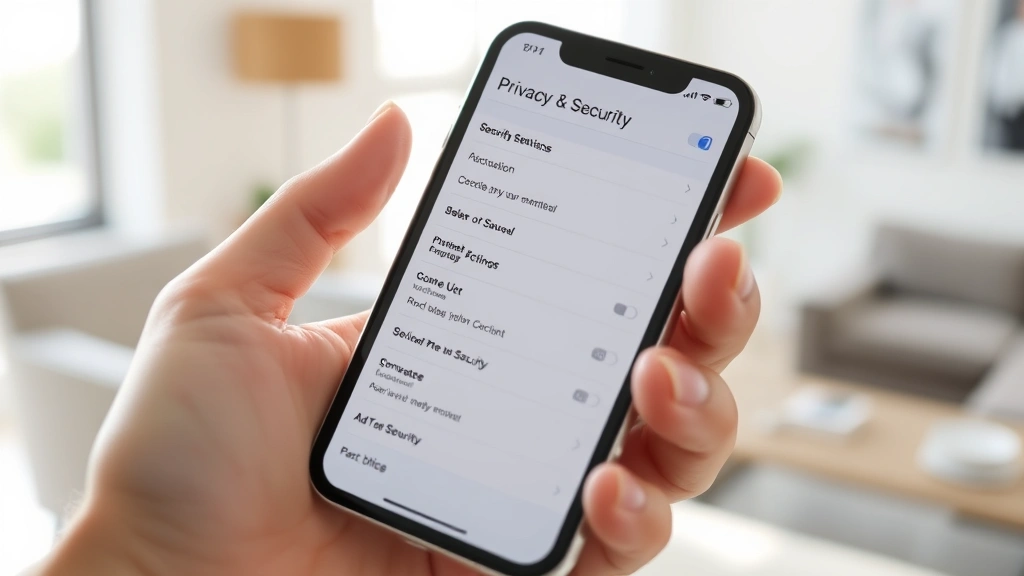
Navigate to Settings > Privacy & Security to access Apple’s security dashboard. This section shows:
- App Privacy Report: Displays which apps have accessed your location, camera, microphone, photos, and contacts. Review this regularly for suspicious activity.
- App Tracking Transparency: Shows which apps request permission to track your activity across other apps and websites.
- Bluetooth: Lists all paired Bluetooth devices. Remove any unfamiliar devices.
- Local Network: Shows apps that want to access devices on your local network.
Each of these sections can reveal unauthorized access or suspicious permissions.
Check Your Apple ID Security
Malware sometimes attempts to compromise your Apple ID. Go to Settings > [Your Name] > Password & Security to review:
- Recent login activity from unknown devices
- Trusted devices and their locations
- Recovery contact information
- Two-factor authentication status
If you notice unfamiliar devices or suspicious login activity, change your Apple ID password immediately and remove untrusted devices from your account.
Third-Party Security Tools
While iOS’s built-in security is robust, third-party security applications can provide additional monitoring and protection. However, it’s important to note that Apple restricts what antivirus apps can do on iOS—they cannot scan your entire system like desktop antivirus software. Nevertheless, reputable security apps can help monitor threats.
Recommended Security Applications
- Avast Mobile Security: Offers Wi-Fi security scanning, phishing protection, and privacy monitoring. While it won’t scan files like desktop antivirus, it provides valuable threat detection.
- Norton Mobile Security: Provides real-time threat protection, identity monitoring, and secure Wi-Fi connection features.
- McAfee Mobile Security: Includes app scanning, Wi-Fi security, and privacy monitoring tools.
- Bitdefender Mobile Security: Offers anti-phishing protection and privacy monitoring with minimal system impact.
When selecting a security app, choose only from reputable developers with strong track records. Avoid unknown applications claiming to be “antivirus” software, as these are often scams themselves.
Steps to Remove Viruses from iPhone
If you’ve confirmed or suspect your iPhone is infected, follow these systematic steps to remove the threat.
Method 1: Delete Suspicious Apps
If you’ve identified malicious applications, the simplest removal method is deletion. Press and hold the suspicious app icon, select “Remove App,” and confirm deletion. This removes the app and its associated data from your device.
Method 2: Clear Safari Cache and Data
Malware often persists through cached browser data. Clear your Safari data by going to Settings > Safari > Clear History and Website Data. Select “All History” to ensure complete removal of cached content.
Method 3: Remove Malicious Profiles
As mentioned earlier, navigate to Settings > General > VPN & Device Management and remove any unfamiliar profiles. This eliminates configurations that malware may have installed to maintain persistence on your device.
Method 4: Reset Network Settings
Some malware modifies network configurations. Go to Settings > General > Reset > Reset Network Settings. This removes all saved Wi-Fi networks and Bluetooth pairings but can eliminate malware-induced network modifications. Note that you’ll need to re-enter your Wi-Fi passwords afterward.
Method 5: Perform a Full iPhone Reset
If you suspect serious infection and other methods haven’t resolved the issue, a complete factory reset may be necessary. Before doing this, back up your iPhone to iCloud or your computer. Then go to Settings > General > Reset > Erase All Content and Settings. This completely wipes your device and restores it to factory settings. After reset, restore from your backup, but only if you’re certain the backup wasn’t created while your device was infected.
Prevention Tips to Protect Your Device
The best approach to iPhone security is prevention. Implementing these protective measures significantly reduces your risk of infection.
Keep iOS Updated
Apple regularly releases security updates that patch vulnerabilities. Enable automatic updates by going to Settings > General > Software Update > Automatic Updates. Keeping your device current is one of the most effective protection strategies. Similar to how you’d maintain your home security system, regular updates keep your digital defenses strong.
Use Strong Authentication
Enable two-factor authentication for your Apple ID and all important accounts. This prevents unauthorized access even if passwords are compromised. You can also secure your voicemail with a strong password to prevent attackers from accessing your communications.
Be Cautious with Links and Attachments
Don’t click links from unknown senders, even if they appear to come from trusted contacts. Phishing attacks often impersonate legitimate companies or acquaintances. Hover over links to preview the actual URL before tapping, and be especially suspicious of links requesting passwords or financial information.
Download Apps Only from the App Store
While the App Store isn’t perfect, it’s significantly safer than sideloading apps from the web. Apple’s review process, while not foolproof, screens for obvious malware. Avoid jailbreaking your iPhone, as this removes Apple’s security protections and makes infection much more likely.
Use Strong, Unique Passwords
Implement a password manager to create and store complex passwords for each account. Weak passwords make it easier for attackers to compromise your accounts and install malware. Your iPhone’s built-in password manager can generate and save secure passwords automatically.
Connect Only to Trusted Wi-Fi Networks
Public Wi-Fi networks are vulnerable to man-in-the-middle attacks where malware can intercept your data. Avoid conducting sensitive activities like banking on public networks. If you must use public Wi-Fi, use a reputable VPN service to encrypt your traffic. However, choose VPN providers carefully, as some collect and sell user data.
Regular Security Audits
Schedule monthly reviews of your device’s security settings, installed apps, and activity logs. This routine maintenance helps you catch suspicious changes early. You might also want to review your device management settings alongside other device maintenance, similar to managing settings on other devices.
Enable Find My iPhone
Go to Settings > [Your Name] > Find My > Find My iPhone and enable this feature. While primarily designed for locating lost devices, it also allows you to remotely wipe your iPhone if it’s compromised or stolen, preventing malware from accessing your data.
FAQ
Can iPhones get viruses from text messages?
While you cannot get a virus simply by receiving a text message, malicious links within text messages (SMS phishing or “smishing”) can lead to infection if you click them and are directed to a malicious website. Never click links from unknown senders, even if they appear to come from trusted contacts.
What should I do if I accidentally clicked a suspicious link?
Don’t panic. Simply clicking a link doesn’t automatically infect your device. However, if the link directed you to a page requesting personal information or asking you to download something, take action immediately. Delete any downloaded files, change your passwords, and monitor your accounts for suspicious activity. Consider running a security app scan as a precaution.
Can antivirus apps completely protect my iPhone?
No antivirus app can guarantee 100% protection. Due to iOS restrictions, security apps cannot perform deep system scans like desktop antivirus software. They primarily offer phishing protection, Wi-Fi security monitoring, and privacy features. The best protection comes from a combination of careful user behavior, keeping iOS updated, and using reputable security tools.
Is jailbreaking my iPhone worth the security risk?
Jailbreaking removes Apple’s security protections and makes your device significantly more vulnerable to malware. The ability to customize your device isn’t worth the dramatic increase in security risk. Most useful customizations are now available through official iOS features anyway.
How do I know if my iPhone has been hacked?
Signs of hacking include unexpected account access, unfamiliar apps, unusual data usage, rapid battery drain, strange pop-ups, and unexplained changes to settings. If you notice any of these symptoms, follow the removal steps outlined in this guide and contact Apple Support if needed.
Can I get a virus from visiting a website?
Visiting a malicious website can potentially expose you to phishing attempts or drive-by downloads, but modern iOS versions make traditional “drive-by” malware infections difficult. The greater risk is clicking links that direct you to fake login pages designed to steal your credentials. Always verify you’re on legitimate websites before entering sensitive information.
What’s the difference between malware and viruses?
Viruses are self-replicating programs that spread by attaching to other files. Malware is a broader category including viruses, spyware, ransomware, adware, and other malicious software. iPhones are generally protected from viruses but can still be infected with other types of malware. Understanding this distinction helps you take appropriate protective measures.
Should I use a VPN on my iPhone?
A reputable VPN can enhance privacy and security, especially on public Wi-Fi networks. However, choose VPN providers carefully, as some collect and sell user data. Use VPNs from established security companies with transparent privacy policies. Avoid free VPN services, which often monetize user data to offset costs.

Related Posts

Superscript in Google Docs: Expert Tips

Strikethrough in Excel: Easy Steps for Beginners
