
Add Table of Contents in Word? Expert Tips Inside
How to Add Table of Contents in Word: Expert Tips Inside
Creating a professional document in Microsoft Word becomes significantly easier when you organize it with a table of contents. Whether you’re drafting a lengthy report, thesis, or comprehensive guide, a table of contents serves as a roadmap for your readers, allowing them to navigate directly to sections that interest them most. This feature is particularly valuable in business environments, academic settings, and technical documentation where document length and complexity demand clear organization.
The good news is that adding a table of contents in Word is far simpler than many users realize. Rather than manually typing out page numbers and section titles—a tedious and error-prone process—Word automates the entire procedure using heading styles. In this comprehensive guide, we’ll walk you through every method available, from automatic generation to customization options, ensuring your document looks polished and professional.
Understanding Heading Styles in Word
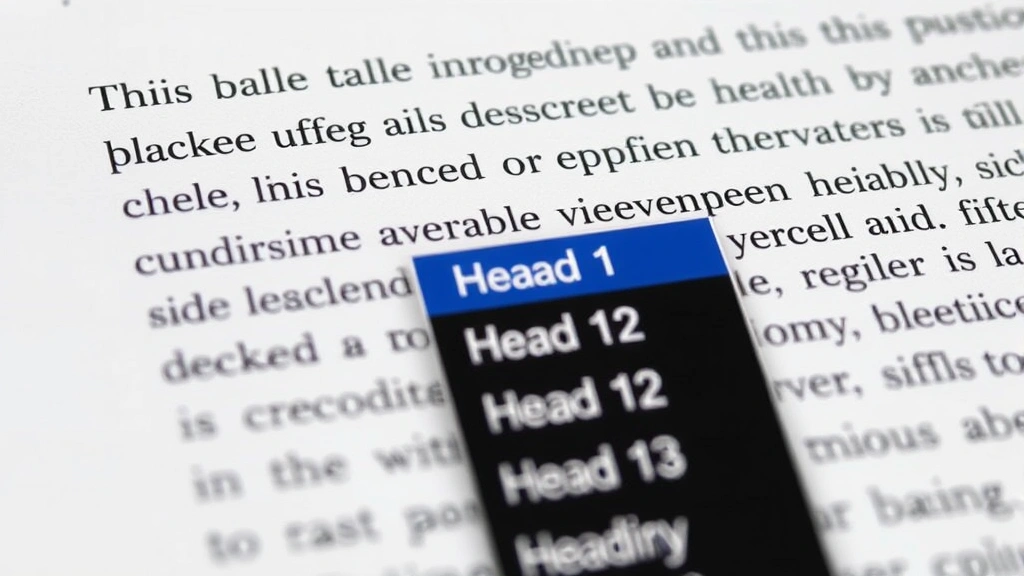
Before you can create a functional table of contents, you need to understand how Word recognizes document structure. Microsoft Word relies on heading styles to identify which text should appear in your table of contents. These styles—Heading 1, Heading 2, Heading 3, and so on—serve as markers that tell Word where your major sections and subsections begin.
To apply heading styles to your document, select the text you want to format and navigate to the Home tab in the ribbon. You’ll find style options in the Styles group. Click on the appropriate heading level: Heading 1 for main sections, Heading 2 for subsections, and Heading 3 for sub-subsections. This hierarchical structure is crucial because Word uses these styles to build your table of contents automatically.
Many users make the mistake of manually formatting text to look like headings by using bold font and larger sizes. This won’t work for table of contents generation. Word specifically searches for heading styles, not formatting appearance. By using proper heading styles from the start, you’re setting yourself up for success and making future edits much simpler. If you need additional formatting help with your documents, check out our guide on how to add signature in Word for other professional document features.
- Heading 1: Main topic divisions (use sparingly for primary sections)
- Heading 2: Subsections within main topics
- Heading 3: Sub-subsections for detailed breakdowns
- Heading 4-9: Further subdivision levels if needed
The consistency of your heading application directly impacts your table of contents quality. If you apply Heading 1 to some sections but skip it for others, your TOC will reflect those inconsistencies. Spend time at the document’s beginning ensuring all headings follow a logical, hierarchical structure.
Automatic Table of Contents Generation
The most efficient method for creating a table of contents is using Word’s automatic generation feature. This approach takes mere seconds and updates automatically whenever you modify your document structure. Position your cursor at the location where you want your table of contents to appear—typically after your title page or introduction.
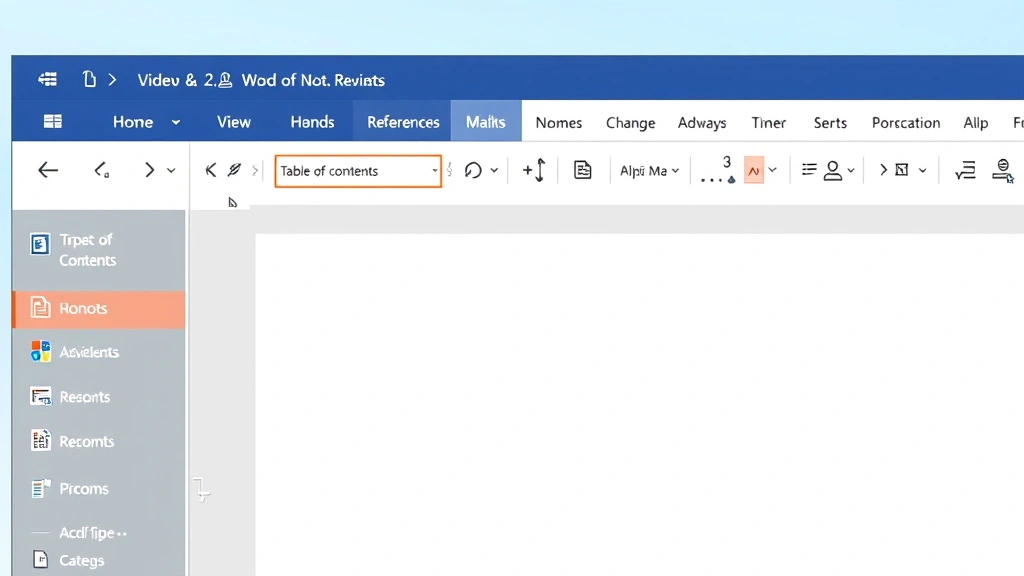
Navigate to the References tab in the ribbon menu. Look for the Table of Contents button, which displays an icon resembling a document with lines. Click this button to reveal several pre-designed table of contents templates. Word offers various styles ranging from simple and clean to more elaborate designs with different formatting options.
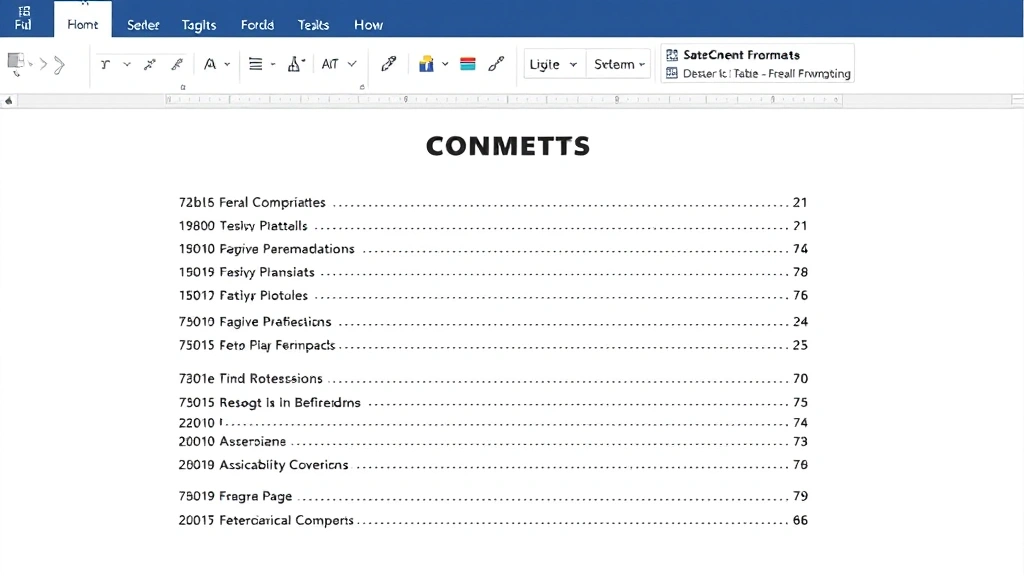
Select your preferred style by clicking on it. Word immediately inserts a fully formatted table of contents at your cursor location, complete with section titles and page numbers. The entire process takes seconds, yet produces professional results that would take hours to create manually. This automation also means your table of contents remains accurate even if you later add, remove, or rearrange sections.
The automatic method includes several advantages over manual creation. First, it’s fast—you’re done in seconds. Second, it’s accurate—Word pulls information directly from your heading styles, eliminating transcription errors. Third, it’s dynamic—any changes to your document structure automatically reflect in the table of contents with a simple update. For additional document organization tips, explore our resource on how to add checkbox in Word.
Step-by-step automatic generation:
- Apply heading styles to all sections in your document
- Position cursor where you want the table of contents
- Click References tab in the ribbon
- Click Table of Contents button
- Select your preferred template design
- Word generates your complete table of contents automatically
After insertion, you can click anywhere within the table of contents to see it’s formatted as a field. This field connection means updating the TOC is as simple as right-clicking and selecting update, which we’ll cover in detail later.
Manual Table of Contents Creation
While automatic generation is recommended, certain situations may require manual table of contents creation. If you’re working with an older Word document that doesn’t use heading styles, or if you need extraordinary customization beyond standard templates, manual creation offers flexibility.
To create a manual table of contents, navigate to the References tab and click the Table of Contents button. Instead of selecting a template design, look for a “Manual” option in the dropdown menu. Word inserts a placeholder table of contents with generic entries that you manually edit.
This approach requires you to type each section title and corresponding page number yourself. While this provides maximum control over appearance and content, it also introduces the possibility of errors. If you later add new sections or change page numbers, you must manually update every entry—a time-consuming process prone to mistakes.
Manual creation is best reserved for special circumstances where automatic generation won’t work. For most users and most documents, the automatic method provides superior results with minimal effort. The manual approach does offer one advantage: complete formatting control. You can include or exclude specific sections, customize the appearance of individual entries, and create non-standard TOC structures if your document requires it.
When to consider manual creation:
- Working with legacy documents lacking proper heading styles
- Creating highly customized TOC structures
- Combining content from multiple sources with inconsistent formatting
- Building specialized documents with unique organizational requirements
If you do opt for manual creation, maintain a backup copy of your original document. Manual TOCs are fragile—any structural changes require complete re-creation of the table of contents.
Customizing Your Table of Contents
Word’s default table of contents templates work well for most documents, but you may want to customize appearance to match your organization’s branding or personal preferences. Fortunately, Word provides numerous customization options without requiring manual entry.
To access advanced customization options, click the Table of Contents button in the References tab, then select “Custom Table of Contents” (usually labeled as “More Tables of Contents” in recent Word versions). This opens the Table of Contents dialog box where you can adjust multiple settings.
The dialog box allows you to modify several key aspects. The Print Layout section controls appearance in printed documents, while the Web Layout section affects how your TOC appears in online versions. You can adjust the number of heading levels included—for example, showing only Heading 1 and Heading 2 while excluding deeper levels. This is useful when your document contains many subdivision levels but you want a streamlined TOC.
The Show page numbers checkbox controls whether page numbers appear beside each entry. Most formal documents include page numbers for easy navigation, but some informal documents or web-based versions might omit them. You can also choose whether page numbers appear right-aligned with leader dots (the dotted line connecting title to page number) or left-aligned without leaders.
Font and style customization requires working with the TOC Styles in your document. These aren’t the same as heading styles—they specifically format how your table of contents appears. Access these through the Styles pane (Ctrl+Alt+Shift+S or right-click in the style area). Look for styles named TOC 1, TOC 2, TOC 3, etc. Right-click any of these and select Modify to adjust fonts, colors, spacing, and other formatting attributes.
Common customization adjustments:
- Include or exclude heading levels: Reduce visual clutter by showing only main sections
- Adjust leader style: Choose dots, dashes, or solid lines connecting titles to pages
- Change fonts: Match your document’s overall aesthetic
- Modify colors: Add brand colors or improve visual hierarchy
- Adjust spacing: Increase or decrease line spacing within the TOC
Remember that customizing the TOC Styles affects how all future tables of contents appear in your document. If you update your TOC later, it retains these customizations. This makes initial customization a worthwhile investment that pays dividends throughout your document’s lifecycle.
Updating and Managing Your Table of Contents
One of the table of contents’ greatest advantages is its automatic update capability. Whenever you modify your document—adding sections, changing heading text, rearranging content, or altering page breaks—your table of contents can instantly reflect these changes.
To update your table of contents, right-click anywhere within it. A context menu appears with update options. Select “Update Field” to refresh the TOC based on your current document structure. Word prompts you to choose between updating page numbers only (if you’ve added content that shifted pages but didn’t change structure) or updating the entire table (if you’ve added, removed, or renamed sections).
In most cases, select “Update entire table” to ensure accuracy. Word scans your document, identifies all heading styles, extracts their text and page numbers, and regenerates your table of contents accordingly. This process takes seconds regardless of document length.
You can also update your TOC using keyboard shortcuts. Select anywhere in the table of contents and press F9. Word immediately updates the field. This keyboard shortcut works throughout Word and is the fastest method for frequent updates.
Update frequency recommendations:
- During writing: Update after each major revision session
- Before sharing: Always update immediately before sending documents
- Before printing: Update once more before printing to ensure accuracy
- During editing: Update whenever you add or remove significant sections
The table of contents remains connected to your document structure through field codes. These invisible codes tell Word to pull information from your heading styles and automatically format it as a table of contents. This connection is what enables the automatic update feature and is why using proper heading styles is so crucial.
If you accidentally delete your table of contents, you can easily recreate it by following the automatic generation steps again. Your heading styles remain intact, so Word immediately rebuilds an identical TOC. This resilience makes table of contents one of Word’s most reliable features.
Troubleshooting Common Issues
Despite Word’s sophisticated table of contents functionality, users occasionally encounter problems. Understanding common issues and their solutions helps you maintain a professional document without frustration.
Missing sections in table of contents: The most frequent problem occurs when sections don’t appear in your TOC. This almost always results from improper heading style application. Verify that every section you want included uses actual heading styles (Heading 1, Heading 2, etc.) rather than manual formatting. Click on each section title, check the style dropdown in the Home tab, and apply the appropriate heading style if needed. After correcting all styles, update your table of contents.
Incorrect page numbers: If page numbers in your TOC don’t match actual section locations, you likely have page break issues in your document. Page breaks affect how Word calculates page numbers. Insert page breaks intentionally using Ctrl+Enter rather than pressing Enter repeatedly. After fixing page breaks, update your table of contents to reflect corrected page numbers.
Table of contents won’t update: Occasionally, the update function seems unresponsive. Try right-clicking the TOC and selecting “Update Field” rather than using the keyboard shortcut. If the TOC still won’t update, delete it entirely and recreate it using the automatic generation method. This forces Word to rebuild the field codes from scratch.
Formatting changes disappear after update: If you manually format your table of contents (changing fonts or colors) and these changes disappear after updating, you’re formatting the text directly rather than modifying TOC Styles. Use the Styles pane to modify TOC 1, TOC 2, etc. styles instead. These style modifications persist through updates.
Hyperlinks not working: Word’s table of contents includes hyperlinks by default—clicking an entry jumps to that section. If hyperlinks don’t work, check your document’s hyperlink settings. Ensure hyperlinks are enabled in Word options. Also verify that your heading styles are properly applied, as hyperlinks depend on these style connections.
For additional document troubleshooting and feature implementation, check out our comprehensive FixWiseHub Blog for more how-to guides.
FAQ
Can I create a table of contents without heading styles?
Technically yes, using the manual table of contents option, but this requires typing entries yourself and manually updating them whenever your document changes. Heading styles enable automatic generation and updates, making them strongly recommended for any document longer than a few pages.
Will my table of contents update automatically when I change heading text?
No, automatic updates occur only when you open the document or explicitly update the field. Word doesn’t update in real-time as you type. Right-click your TOC and select “Update Field” after making significant changes to ensure accuracy.
How many heading levels should I include in my table of contents?
This depends on your document’s complexity. Most documents work well with Heading 1 and Heading 2 only. Including too many levels creates a cluttered, difficult-to-read TOC. If your document has many subdivision levels, consider showing only 2-3 levels in your table of contents while using deeper levels for document organization.
Can I have multiple tables of contents in one document?
Yes, Word allows multiple TOCs. Insert each one separately at different locations in your document. This is useful for long documents with distinct sections, such as separate tables of contents for chapters and appendices. Update each TOC independently by right-clicking and selecting update.
What if my document spans multiple files?
Word’s table of contents works within single documents only. If your content spans multiple files, consider using Word’s Master Document feature, which combines multiple documents into one virtual document with a unified table of contents. Alternatively, you can manually create a TOC that references multiple files, though this requires more effort.
How do I remove a table of contents?
Click anywhere in your table of contents and a border appears around it. Right-click and select “Delete Table of Contents” or simply press Delete. Your heading styles remain intact, allowing you to recreate the TOC anytime using the automatic generation method.
Can I customize the “Table of Contents” heading text?
Yes, the heading “Table of Contents” is editable. Click directly on it and type your preferred text, such as “Contents” or “Navigation.” However, if you later update the TOC field, this custom text may revert to the default. To permanently customize this text, modify the TOC Styles in your document’s style set.
What’s the difference between updating page numbers only and updating entire table?
Updating page numbers only recalculates page locations for existing entries without scanning for new sections. This is faster but works only when you’ve added content that affects pagination without changing your document’s structure. Updating the entire table rescans all headings, detects new sections, removes deleted ones, and updates all page numbers—the safer choice in most situations.
For more professional document features and formatting tips, explore related guides such as how to add signature in Word and how to add checkbox in Word.
Creating a professional table of contents in Word transforms how readers interact with your document. By mastering these techniques and understanding the underlying principles of heading styles and field codes, you’ll produce polished, navigable documents that reflect your attention to detail. Whether you’re writing academic papers, business reports, or technical documentation, a well-crafted table of contents enhances readability and professionalism. Start implementing these methods today and experience the difference proper document organization makes.

Related Posts

Superscript in Google Docs: Expert Tips

Strikethrough in Excel: Easy Steps for Beginners
