

Add App to Home Screen? Easy Step-by-Step Guide
How to Add App to Home Screen: Easy Step-by-Step Guide
Adding an app to your home screen is one of the quickest ways to access your favorite applications without digging through menus. Whether you’re using an iPhone, Android device, or even a web app on your computer, the process is straightforward once you know where to look. This guide walks you through every method available, ensuring you can customize your device exactly how you want it.
Your home screen is real estate, and you want to fill it with the apps you use most frequently. Instead of scrolling through your entire app library every time you need something, pinning your favorite tools to the home screen saves time and improves your workflow. We’ll cover iOS, Android, and progressive web apps so you have complete coverage regardless of what device you’re using.
How to Add App to Home Screen on iPhone
Adding apps to your iPhone home screen involves accessing the App Library and selecting which apps you want readily available. Apple’s iOS makes this process intuitive, whether you’re using an iPhone 12, 13, 14, or the latest model. The steps remain consistent across most recent iOS versions.
Method 1: Using the App Library
Start by opening the App Library, which appears as the last page when you swipe left through all your home screens. Look for the app you want to add and long-press it until a menu appears. Select “Add to Home Screen” from the options presented. The app will immediately appear on your current home screen, and you can drag it to your preferred location.
Method 2: From the App Store
Open the App Store app and search for or navigate to the application you want to add. Tap the cloud icon with a download arrow (or the “Get” button if it’s not installed). Once installed, tap “Open,” then long-press the app icon on the screen that appears. Choose “Add to Home Screen” and confirm. This method works especially well when you’re installing a new app for the first time.
Method 3: From Settings
Navigate to Settings > Apps or your app management section. Find the app you want to add to your home screen, tap it, and look for an option like “Add to Home Screen” or “Show on Home Screen.” Not all apps offer this option directly in Settings, but some do, particularly system apps.
Once you’ve added an app to your home screen, you can long-press and hold it to move it around, create folders, or access other options. iPhone allows unlimited home screen pages, so you can organize apps however you prefer. Consider grouping similar apps together—productivity tools on one screen, entertainment apps on another, and so on.
Adding Apps to Android Home Screen
Android devices offer slightly different methods depending on your phone manufacturer and Android version. Samsung, Google Pixel, OnePlus, and other brands may have minor variations, but the fundamental process remains the same. Here’s how to add apps to your Android home screen across most devices.
Method 1: From the App Drawer
Open your app drawer (usually accessed by swiping up from the bottom or tapping the app grid icon). Find the app you want to add and long-press it. A menu will appear with options including “Add to Home Screen” or “Add to Home.” Select this option, and the app will appear on your current home screen. You can then move it to your preferred location by dragging.
Method 2: Direct Home Screen Long-Press
If you’ve already added an app once, you can long-press directly on the app icon on your home screen to access additional options. Some Android devices allow you to create shortcuts or add app widgets this way, giving you more customization options than simply placing the icon.
Method 3: Using Google Play Store
Open Google Play Store and search for the app you want. Tap “Install” to download it. Once installation completes, you’ll see an “Open” button. Tap it, and the app will launch. From the home screen that appears, long-press the app icon and select “Add to Home Screen.” This ensures the app is installed and added in one workflow.
Android’s flexibility means you can also add app widgets to your home screen, which display live information without opening the full app. Long-press an empty area of your home screen, select “Widgets,” choose an app, and add its widget. This is particularly useful for weather apps, calendars, and news readers.
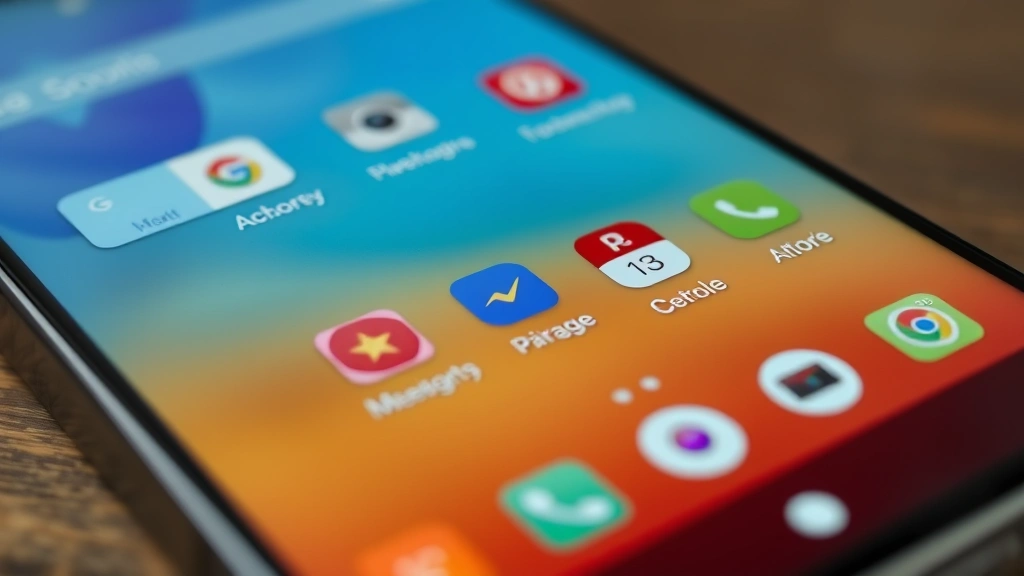
Creating App Folders and Organization
As you add more apps to your home screen, organization becomes essential. Both iOS and Android support app folders, allowing you to group related applications and reduce clutter. A well-organized home screen makes finding apps faster and keeps your device looking clean and professional.
iOS Folder Creation
On iPhone, creating folders is simple. Long-press an app icon and drag it onto another app icon. iOS will automatically create a folder containing both apps. You can drag additional apps into the folder by long-pressing them and dragging them into the open folder. Double-tap the folder to rename it with a custom name like “Productivity,” “Games,” or “Social Media.” iOS will even suggest folder names based on app categories.
Android Folder Creation
Android folder creation works similarly. Long-press an app icon and drag it onto another app icon on your home screen. A folder will be created automatically. You can then drag additional apps into this folder. Unlike iOS, some Android devices allow you to customize folder appearance and colors, depending on your launcher.
Organization Best Practices
Consider organizing your apps by frequency of use. Place your most-used applications on the first home screen for quick access. Group similar apps together—all social media apps in one folder, all productivity tools in another. This logical organization means you’ll spend less time searching and more time using the apps you need. Many users keep a “Utilities” folder for system apps and tools they use occasionally but still want accessible.
Remember that you can also customize the dock at the bottom of your home screen on both iOS and Android. The dock typically holds 4-6 apps depending on your device, making it perfect for your absolute most-used applications that you want instantly accessible from any home screen.
Adding Web Apps to Home Screen
Beyond native apps available in app stores, you can also add web applications directly to your home screen. This is particularly useful for web-based tools and services you use regularly. Progressive Web Apps (PWAs) work across devices and platforms, offering a native app-like experience without installation through traditional app stores.
Adding Web Apps on iPhone
Open Safari and navigate to the web app or website you want to add. Tap the share icon (arrow pointing up from a box) at the bottom of the screen. Scroll down and select “Add to Home Screen.” Choose a custom name for the shortcut if desired, and tap “Add.” The web app will appear on your home screen as an icon, and tapping it will open the website in full-screen mode without Safari’s address bar.
Adding Web Apps on Android
Open Chrome or your default browser and navigate to the web app. Tap the menu icon (three vertical dots) in the upper right corner. Select “Install app” or “Add to Home Screen,” depending on your browser version. Confirm the installation, and the web app will appear as an icon on your home screen. Tapping it launches the app in full-screen mode.
Benefits of Web Apps
Web apps offer several advantages. They don’t consume storage space like native apps, they update automatically when you visit them, and they work consistently across different devices. Many productivity tools, project management platforms, and utility services now offer PWAs, making them excellent candidates for home screen placement. Services like FixWiseHub and similar how-to guides are accessible as web apps, letting you quickly access information without opening a browser.
Removing and Rearranging Apps
Your home screen organization needs will change over time. Apps you use frequently may become less relevant, while new apps might take their place. Knowing how to efficiently remove and rearrange apps keeps your device optimized for your current workflow.
Removing Apps from Home Screen (iOS)
Long-press the app you want to remove and select “Remove from Home Screen.” The app will disappear from your home screen but remains installed on your device and accessible from the App Library. If you want to completely delete the app from your iPhone, select “Remove App” and then “Delete App” to remove it from your device entirely.
Removing Apps from Home Screen (Android)
Long-press the app you want to remove. Depending on your device, you’ll see options like “Remove,” “Uninstall,” or “Delete.” Select “Remove” to take it off your home screen while keeping it installed. Choose “Uninstall” if you want to completely remove the app from your device. Some Android devices also allow you to drag apps to a trash icon that appears while you’re in edit mode.
Rearranging App Icons
Both iOS and Android allow you to rearrange apps by long-pressing and dragging them to new positions. You can move apps between home screens, place them in different folders, or dock them at the bottom. This flexibility means you can experiment with different layouts until you find what works best for your usage patterns.
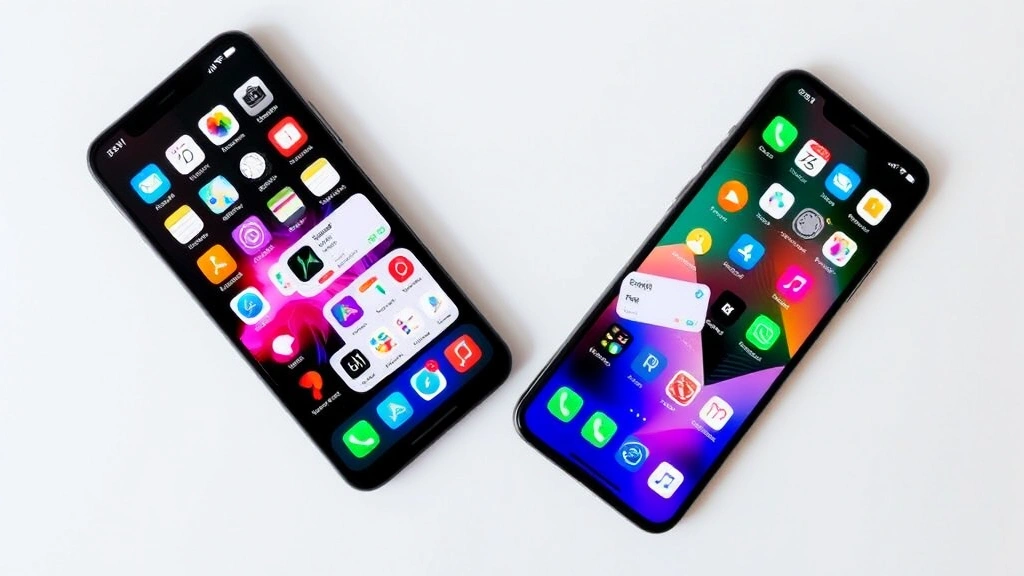
Troubleshooting Common Issues
Sometimes adding apps to your home screen doesn’t work as expected. Understanding common issues and their solutions helps you resolve problems quickly and get back to using your device.
App Won’t Add to Home Screen
If an app refuses to be added to your home screen, first ensure you have enough free space. Both iOS and Android require available storage to function properly. Check your device’s storage settings and delete unnecessary files or apps if needed. If you’re adding a web app, ensure your browser is up to date. Try clearing your browser cache and cookies, then attempt to add the app again. Some web apps require specific browser versions to function properly.
App Icon Appears but Won’t Open
If an app icon appears on your home screen but the app won’t launch, the app may not be fully installed. Try uninstalling and reinstalling the app from your app store. Restart your device and attempt to open the app again. If the problem persists, check your device’s storage—insufficient storage can prevent apps from running properly.
Folder Creation Issues
If you’re having trouble creating folders by dragging apps together, ensure you’re using the correct technique. On iOS, drag one app directly onto another app icon and hold for a moment. On Android, the process is similar but may vary depending on your launcher. If folders still won’t create, try restarting your device and attempting again.
Web App Installation Problems
Progressive Web Apps may not install if your browser doesn’t support them or if the website isn’t a true PWA. Check if the website offers an installation option in its menu. Some websites require specific conditions—like being accessed over HTTPS—to enable installation. If installation fails, the website may not support PWA functionality, and you’ll need to use it through your browser instead.
Performance Slowdowns
If your home screen becomes sluggish after adding many apps, consider organizing them into folders to reduce visual clutter. Fewer icons on your home screen can improve responsiveness, particularly on older devices. Disable live widgets or use static app icons instead of animated ones if performance becomes an issue.
FAQ
Can I add the same app to multiple home screens?
Yes, both iOS and Android allow you to add the same app to multiple home screens. Simply navigate to each home screen and add the app using the standard method. However, this takes up additional space, so most users prefer to use just one instance and navigate to it or use spotlight search for quick access.
Will adding an app to home screen use more storage?
No, adding an app to your home screen only creates a shortcut or icon. It doesn’t duplicate the app or consume additional storage. The app itself takes up the same amount of space regardless of how many home screen shortcuts point to it.
Can I customize the appearance of app icons on my home screen?
iOS users can use the Shortcuts app to create custom icons for apps, changing how they appear on your home screen while maintaining full functionality. Android users have more options through third-party launchers that allow icon packs and custom themes. Some launchers let you change icon shapes, colors, and sizes.
What’s the maximum number of apps I can add to my home screen?
Both iOS and Android support unlimited home screen pages, so technically you can add as many apps as you want. However, practical limits exist based on your device’s storage and performance. Most users find that 4-6 home screens are sufficient for organization and easy navigation.
How do I add apps to my home screen if I can’t long-press?
If long-pressing isn’t working, try right-clicking on an app icon (if using a device with mouse support) or accessing the app through your device’s settings menu. On some devices, you can also drag apps directly from the app drawer to your home screen without long-pressing first.
Can I add system apps to my home screen?
Yes, system apps like Settings, Calendar, and Notes can be added to your home screen just like any other app. If they’re not already visible, find them in your app library or app drawer and add them using the standard method.
Do home screen shortcuts work for all app types?
Most apps support being added to your home screen, but some may have restrictions. Game apps, system apps, and utility apps typically work perfectly. If an app doesn’t offer the option to add to home screen, it may not support this feature, or your device may have restrictions in place.

Related Posts

Roasting Spaghetti Squash: Expert Tips & Tricks

Roast Pecans at Home: Easy & Delicious Guide
