
Superscript in Google Docs: Expert Tips
Superscript in Google Docs: Expert Tips for Perfect Formatting
Superscript formatting is one of those essential skills that separates polished documents from amateur ones. Whether you’re writing scientific papers, mathematical equations, footnotes, or chemical formulas, knowing how to superscript in Google Docs will elevate your document quality instantly. Google Docs makes this process surprisingly simple, though many users don’t realize just how many ways they can apply superscript formatting to their work.
This comprehensive guide walks you through every method available in Google Docs, from keyboard shortcuts to menu options, and even explores advanced techniques for maintaining consistent formatting across longer documents. By the end, you’ll be a superscript expert, ready to tackle any formatting challenge that comes your way.
What Is Superscript and Why It Matters
Superscript is text formatting that raises characters above the baseline of normal text, making them smaller and positioned higher. Think of the “2” in “E=mc²” or the “1” in “footnote¹.” This formatting serves both aesthetic and functional purposes in professional documents.
In academic writing, superscript appears constantly—for citations, footnotes, and mathematical expressions. In scientific documents, you’ll find it in chemical formulas, mathematical equations, and measurement notations. Even in business documents, superscript adds polish to trademarks, registered symbols, and legal references. Understanding how to apply it correctly demonstrates attention to detail and professionalism.
Google Docs recognizes this importance and provides multiple pathways to achieve superscript formatting. Whether you prefer keyboard shortcuts or menu navigation, you’ll find an approach that works for your workflow. The beauty of Google Docs is its flexibility—different methods suit different users and situations.
Keyboard Shortcut Method
The fastest way to apply superscript in Google Docs is using the keyboard shortcut. This method is perfect for users who want to maintain their typing flow without reaching for the mouse.
For Windows users: Select the text you want to superscript, then press Ctrl + Shift + Period (.). This instantly converts your selected text to superscript format. The process is immediate and requires no additional steps.
For Mac users: Select your text and press Command + Shift + Period (.). Mac users enjoy the same efficiency as Windows users, with just a slight variation in the modifier keys.
Here’s the step-by-step process:
- Position your cursor at the beginning of the text you want to superscript
- Click and drag to select the entire text or character
- Hold down the appropriate modifier keys (Ctrl+Shift for Windows, Command+Shift for Mac)
- Press the Period key while holding the modifiers
- Release all keys—your text is now superscript
This method works for single characters, entire words, or multiple words. Many users find this the most efficient approach once they memorize the shortcut. The keyboard shortcut is particularly valuable when you’re writing mathematical equations or adding multiple citations throughout a document.
Using the Format Menu
If keyboard shortcuts aren’t your preference, the Format menu provides a straightforward alternative. This method works identically across Windows and Mac systems, making it reliable regardless of your operating system.
- Select the text you wish to format as superscript
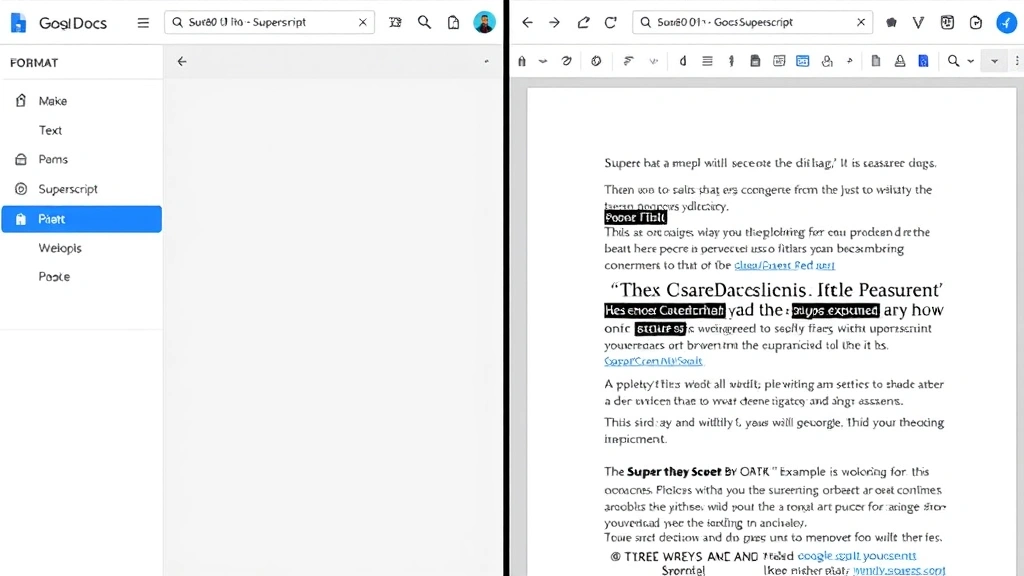
- Click the Format menu in the top menu bar
- Hover over Text to reveal the submenu
- Click Superscript from the dropdown options
- Your selected text instantly converts to superscript
The Format menu method provides visual confirmation of your action. You can see exactly where the option is located, making it ideal for users who prefer menu navigation or are just learning the application. This approach also works well when you need to remove formatting in Word and similar applications, as the menu structure follows comparable logic.
You can also toggle superscript off using the same menu path. If you’ve already applied superscript and want to remove it, simply select the superscript text and repeat the process—clicking Format → Text → Superscript will deactivate the formatting.
Subscript vs Superscript
Understanding the difference between superscript and subscript is crucial for proper document formatting. While superscript raises text above the baseline, subscript does the opposite—it lowers text below the baseline.
Superscript uses:
- Footnote and endnote markers (see our guide on formatting tips at FixWiseHub)
- Mathematical exponents: x²
- Copyright symbols: ©
- Trademark indicators: ™
- Scientific notation and citations
Subscript uses:
- Chemical formulas: H₂O
- Mathematical variables: x₁, x₂
- Footnote reference numbers in some styles
- Biological and chemical notation
In Google Docs, applying subscript follows nearly identical steps to superscript. Select your text, then use Ctrl + Comma (,) on Windows or Command + Comma (,) on Mac. Alternatively, navigate Format → Text → Subscript through the menu system. This consistency makes it easy to switch between the two formatting options as needed.
Many documents require both superscript and subscript formatting. For instance, a chemistry paper might use subscript for chemical formulas and superscript for citations. Mastering both techniques ensures your documents maintain professional appearance throughout.
Advanced Formatting Techniques
Beyond basic superscript application, Google Docs offers advanced techniques for power users working with complex documents. These methods enhance efficiency when dealing with extensive formatting requirements.
Using Find and Replace: For documents with numerous instances requiring superscript formatting, Find and Replace can save considerable time. While Google Docs doesn’t allow direct formatting replacement like Microsoft Word, you can identify patterns and apply formatting selectively. This approach works well for standardizing citations or mathematical notations throughout lengthy documents.
Creating Keyboard Shortcuts: Google Docs allows users to create custom keyboard shortcuts through Google’s keyboard shortcut settings. Power users can assign alternative shortcuts that feel more natural to their workflow, though the default shortcuts are already quite accessible.
Combining with Other Formatting: Superscript can be combined with other formatting options like bold, italic, and color changes. Select your text, apply superscript, then add additional formatting as needed. Google Docs maintains all formatting simultaneously, allowing for sophisticated document designs.
Using Special Characters: For common superscript characters, Google Docs’ Special Characters menu (Insert → Special characters) provides pre-formatted options. This is particularly useful for trademark symbols (™), registered marks (®), and copyright symbols (©) that already appear in superscript form.
Common Use Cases
Understanding where and when to use superscript helps maintain document consistency and professional appearance. Different document types follow specific superscript conventions.
Academic Papers: Superscript numbers indicate footnotes or endnotes, appearing after punctuation marks. When citing sources, the superscript number corresponds to the citation information at the document’s foot or end. This format is standard across MLA, APA, and Chicago styles, though placement rules vary slightly.
Scientific and Mathematical Documents: Superscript indicates exponents, powers, and mathematical operations. The expression “2³ = 8” uses superscript to show “2 to the third power equals 8.” Chemistry papers use superscript for ionic charges: Ca²⁺ indicates calcium ion with a +2 charge. Physics documents employ superscript for dimensional analysis and unit notation.
Business Documents: Corporate writing uses superscript for trademark and registered trademark symbols. A company might write “Our Product™” or “Brand Name®” to indicate intellectual property protection. These symbols appear automatically when properly formatted, enhancing document professionalism.
Historical and Legal Documents: Superscript numbers reference footnotes providing context, definitions, or legal citations. Legal documents might reference statutes or previous cases using superscript notation, maintaining clean body text while providing necessary references.
Medical and Technical Writing: Superscript appears in dosage notations, measurement units, and technical specifications. Medical papers might reference numbered citations or use superscript for measurement notation like “mg/mL²” in certain contexts.
Troubleshooting Tips
Even with straightforward superscript formatting, users occasionally encounter issues. These troubleshooting tips resolve common problems quickly.
Superscript Not Applying: If superscript doesn’t activate, ensure you’ve selected the text before applying formatting. Many users attempt to apply superscript with the cursor positioned but no text selected. Click and drag to highlight your target text, then apply the keyboard shortcut or menu option.
Removing Unwanted Superscript: To deactivate superscript from selected text, repeat the same process that activated it. Use the keyboard shortcut again or access Format → Text → Superscript to toggle the formatting off. This works the same as removing formatting from other document elements.
Inconsistent Formatting Appearance: If superscript text appears larger or differently sized than expected, check your font settings. Superscript should automatically reduce text size, but custom font settings might affect appearance. Adjust font size through Format → Text to ensure consistency.
Printing Issues: Superscript formatting may not display correctly when printing if your document uses non-standard fonts. Test print functionality before finalizing documents. Use standard fonts like Times New Roman or Arial for maximum compatibility across devices and printers.
Copying Formatted Text: When copying superscript text from Google Docs into other applications, formatting sometimes doesn’t transfer. If you need superscript in another program, consider using special character codes or checking the receiving application’s formatting options. Most modern applications maintain superscript formatting when copying from Google Docs.
Mobile Device Formatting: The Google Docs mobile app has limited formatting options compared to the web version. For extensive superscript work, use the desktop version of Google Docs. However, you can still apply basic superscript on mobile by selecting text and using the Format menu if available on your device.
Keyboard Shortcut Reference Card: Create a quick reference by writing down the shortcuts: Windows users remember “Ctrl + Shift + Period,” while Mac users recall “Command + Shift + Period.” Keeping this reference nearby during document preparation helps develop muscle memory for faster formatting.
Consider exploring related formatting skills to enhance your document quality further. Learning strikethrough formatting in Excel provides comparable skills applicable across Office applications. Understanding various formatting options creates more professional, polished documents across all platforms.

FAQ
Can I apply superscript to entire paragraphs?
Technically yes, but it’s not recommended. Superscript is designed for individual characters or small text segments. Applying superscript to entire paragraphs creates difficult-to-read documents. Use superscript selectively for citations, exponents, and special notations only.
Does Google Docs maintain superscript when exporting to PDF?
Yes, superscript formatting exports correctly to PDF format. When you download your Google Doc as a PDF, all superscript formatting preserves perfectly. This makes Google Docs an excellent choice for creating professional documents intended for PDF distribution.
How do I print a Google Doc with superscript?
Superscript prints exactly as it appears on screen. Use File → Print to access printing options, or use Ctrl+P (Windows) or Command+P (Mac). Preview your document before printing to ensure superscript formatting appears as expected. Most printers handle superscript without issues.
Is there a way to automatically convert certain text to superscript?
Google Docs doesn’t offer automatic superscript conversion for specific text patterns, unlike some advanced word processors. However, you can use Find and Replace to identify instances of text requiring superscript, then apply formatting manually to each occurrence.
Can I undo superscript formatting with Ctrl+Z?
Yes, pressing Ctrl+Z (Windows) or Command+Z (Mac) immediately undoes the last action, including superscript formatting. This allows quick corrections if you accidentally apply superscript to the wrong text. Google Docs maintains extensive undo history for document recovery.
What’s the difference between superscript in Google Docs and Microsoft Word?
Both applications apply superscript similarly—raising text above the baseline and reducing its size. The main difference is keyboard shortcuts: Google Docs uses Ctrl+Shift+Period, while Word uses Ctrl+Shift+Plus. The visual appearance and functionality remain virtually identical between platforms.
Does superscript work in Google Sheets?
Google Sheets offers limited superscript support compared to Google Docs. While you can apply superscript in Sheets cells, the functionality is more restricted. For documents requiring extensive superscript formatting, Google Docs remains the better choice.
How do I make the superscript text larger without removing the superscript effect?
Select your superscript text, then increase the font size through Format → Text → Font size. This enlarges the superscript while maintaining its raised position. Adjust size carefully to maintain document balance and readability.

Related Posts

Strikethrough in Excel: Easy Steps for Beginners

Storing Green Onions: Expert Tips and Tricks