

Select Multiple Files on Mac: Expert Tips
Select Multiple Files on Mac: Expert Tips
Managing files efficiently on your Mac is essential for productivity, whether you’re organizing documents, photos, or project files. Knowing how to select multiple files quickly can save you significant time and streamline your workflow. Mac offers several intuitive methods to select multiple files simultaneously, each suited for different scenarios and user preferences.
This comprehensive guide walks you through every technique for selecting multiple files on Mac, from basic keyboard shortcuts to advanced Finder tricks. Whether you’re a beginner just getting comfortable with macOS or an experienced user looking to optimize your file management, these expert tips will transform how you work with files on your Mac.
Basic Selection Methods
The foundation of selecting multiple files on Mac begins with understanding the most straightforward approaches. These basic methods work in Finder and most Mac applications, making them essential knowledge for any Mac user.
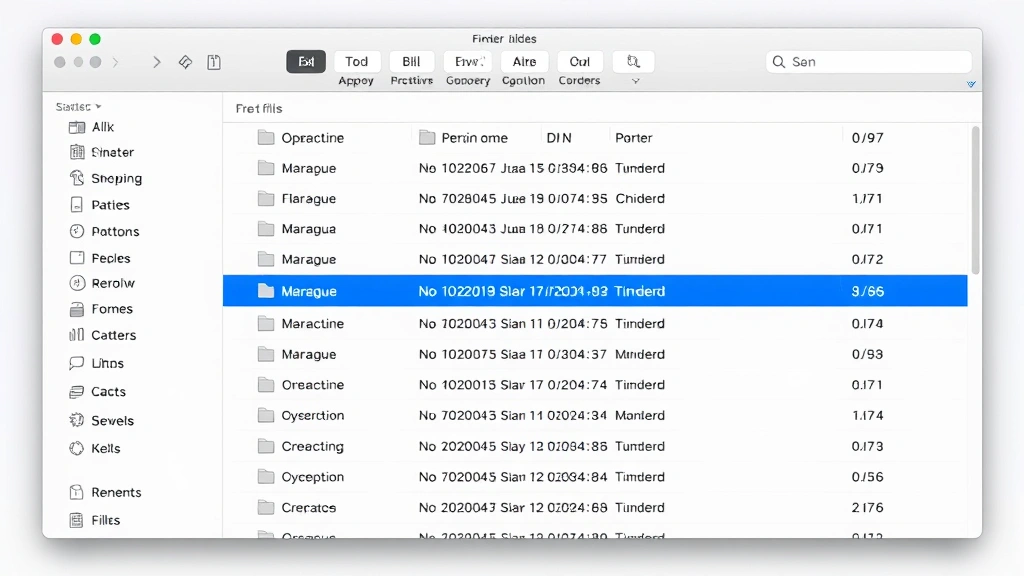
Click and Drag Selection: The simplest way to select multiple files is by clicking and dragging your cursor across the files you want to select. Start by clicking in an empty area near your files, then drag diagonally across all the files you wish to select. This method works best when files are clustered together in a list or grid view. As you drag, you’ll see a blue highlight indicating which files will be selected. Release the mouse button when you’ve encompassed all desired files.
Individual Click Selection: To select files that aren’t adjacent to each other, click on the first file, then hold the Command key while clicking on additional files. Each click adds another file to your selection without deselecting previously chosen files. This method is perfect for selecting specific files scattered throughout a folder. You can see each selected file highlighted in blue, and the status bar shows how many files you’ve selected.
Select All Command: When you need every file in a folder, use Command+A to select all files at once. This works in Finder windows and most applications. After selecting all files, you can then deselect individual items by Command-clicking them if needed. The select all command is incredibly efficient for bulk operations like moving, copying, or organizing entire folders.
Understanding these basic methods provides the foundation for more advanced file selection techniques. Each method has specific use cases, and mastering them ensures you can work efficiently regardless of your file organization or the task at hand.
Keyboard Shortcuts for Quick Selection
Mac keyboard shortcuts dramatically speed up file selection, especially when you’re working with large numbers of files. These shortcuts work consistently across Finder and most macOS applications.
Command+A (Select All): This universal shortcut selects every file and folder in the current window. It’s the fastest way to select everything without clicking individual items. After using Command+A, you can deselect specific files by Command-clicking them while holding the Command key.
Command+Click (Multiple Selection): Hold Command and click individual files to add them to your selection. You can click as many files as needed while keeping Command pressed. This method is ideal when you need non-contiguous files from different areas of your folder. The Command key ensures each click adds to your selection rather than replacing it.
Shift+Click (Range Selection): Click on the first file you want to select, then hold Shift and click on the last file in your desired range. Mac automatically selects everything between these two points. This is efficient for selecting consecutive files in a list. For example, if you want files 5 through 15 in a sorted list, click file 5, then Shift-click file 15.
Arrow Keys with Shift: You can also use Shift+Up Arrow and Shift+Down Arrow to extend your selection one file at a time. Start by clicking a file, then hold Shift while pressing arrow keys to expand your selection. This method provides precise control and works well when you need to carefully select a specific range of files.
Space Bar Preview: While selecting files, press Space to preview a file without opening it. This helps confirm you’ve selected the correct files before performing bulk operations. The preview window shows file information and a thumbnail, helping you verify your selection.
These keyboard shortcuts work seamlessly together. You can combine Command+Click with Shift+Click to select complex combinations of files, giving you maximum flexibility in your file selection strategy.
Advanced Selection Techniques
Once you’ve mastered basic selection methods, advanced techniques allow you to select files based on specific criteria. These approaches are particularly useful for organizing large file collections or performing targeted operations.
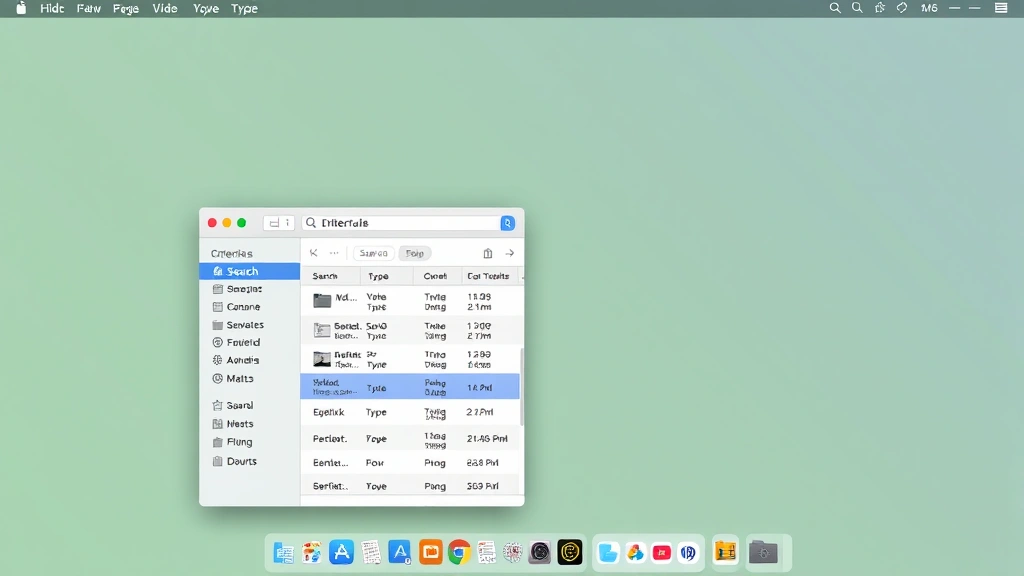
Smart Folders and Saved Searches: Create a Smart Folder in Finder to automatically gather files based on criteria like date modified, file type, or file size. Access this through File > New Smart Folder. Smart Folders display matching files automatically, allowing you to select from pre-filtered results. This is particularly useful when you want to repeatedly select files matching the same criteria without manually filtering each time.
Gallery View Selection: When viewing files in Gallery or Cover Flow view, you can select multiple files using the same Command and Shift click methods. Gallery view provides a visual preview of each file, making it easier to identify exactly which files you want to select. This view is especially helpful when selecting images or documents where visual identification matters.
Column View Multi-Selection: Column view allows you to navigate through folders hierarchically while selecting files. Use Command and Shift clicks in the rightmost column to select multiple files while seeing your folder structure. This method combines organization with selection, helping you understand file relationships while selecting.
Select by File Type: In Finder, you can use the search functionality to filter files by type, then select all results. Click the search bar, enter your criteria, and use Command+A to select all matching files. This approach is excellent for bulk operations on specific file types without manually identifying each file.
Spotlight Search Selection: Use Spotlight (Command+Space) to search for files, then select multiple results directly in the search window. Spotlight shows matching files across your entire Mac, allowing you to select files from different folders simultaneously. After selecting files in Spotlight, you can perform actions on them directly.
Selection Tips and Tricks
Experienced Mac users employ several techniques to maximize efficiency when selecting files. These tips and tricks enhance your workflow beyond basic selection methods.
Quick Look Preview During Selection: After selecting multiple files, press Space to open Quick Look, showing previews of all selected files. You can navigate through previews using arrow keys, confirming your selection is correct before performing bulk operations. This prevents accidental actions on wrong files.
Deselect Individual Files: If you’ve selected too many files using Command+A or drag selection, deselect specific items by Command-clicking them. This is faster than starting over, especially when you want most files but need to exclude a few. The Command-click toggle makes it easy to adjust your selection precisely.
Use Finder’s Arrangement Options: Arrange files by name, date, size, or kind to group similar files together. This makes selecting specific file types or files from particular time periods much easier. Go to View menu and select Sort By to reorganize your files before selection.
Create Temporary Folders: For complex multi-step selection tasks, create a temporary folder and move selected files there. This keeps your selection organized and allows you to work with files without affecting your original folder structure. You can always move files back when finished.
Combine Selection with Tags: Use Mac’s color tags or custom tags to mark files before bulk operations. Select files with specific tags using Finder’s search, then perform actions on tagged files. Tags provide a visual system for organizing selection criteria.
Use Extended Attributes Search: For advanced users, search by file attributes like creation date, modification date, or file size to select specific file groups. The search bar in Finder includes options for detailed criteria, allowing sophisticated file selection without manual filtering.
These advanced tips transform file selection from a basic task into an optimized workflow component. Combining multiple techniques allows you to handle complex file organization scenarios efficiently.
Common Selection Mistakes
Even experienced users occasionally make mistakes when selecting files. Understanding common errors helps you avoid them and work more efficiently.
Forgetting to Deselect Before New Selection: When using click-and-drag selection after using Command+A, your previous selection remains active until you click an empty area. Always click empty space to deselect before starting a new drag selection to avoid accidentally selecting unwanted files.
Confusing Command and Control Keys: On Mac, use Command (⌘) for selection shortcuts, not Control. Control+Click opens context menus instead of adding to selection. This is a common mistake for users transitioning from Windows, where Control performs similar functions.
Losing Selection by Clicking Wrong Area: Clicking on a file without Command or Shift held deselects all other files and selects only that one file. If you lose your selection accidentally, use Command+Z to undo and restore your previous selection.
Selecting Files in Wrong View: Some selection methods work better in specific Finder views. List view is ideal for Shift-click range selection, while icon view works better for click-and-drag selection. Experiment with different views to find what works best for your selection needs.
Not Checking Selection Before Action: Always verify your selection before performing destructive actions like delete or move. Use Quick Look (Space) to preview selected files, and check the file count in the status bar to confirm you’ve selected the correct number of files.
Forgetting Keyboard Alternatives: If you’re struggling with mouse-based selection, try keyboard shortcuts instead. Some users find Command+Click easier than drag selection, while others prefer Shift+Click for range selection. Don’t be afraid to experiment with different methods.
Avoiding these common mistakes saves time and prevents accidental file operations. Building awareness of potential errors helps you develop reliable selection habits.
FAQ
What’s the fastest way to select multiple files on Mac?
The fastest method depends on your file arrangement. For consecutive files, use Shift+Click to select a range instantly. For non-consecutive files, Command+Click each item. For all files, Command+A is fastest. If you frequently select the same file types, create a Smart Folder to pre-filter files before selecting.
Can I select files across multiple folders simultaneously?
Yes, use Spotlight Search (Command+Space) to find files across your Mac, then select multiple results from different folders. Alternatively, use Smart Folders with search criteria to display files from multiple locations, then select from the results. You can also open multiple Finder windows to select from different folders in each window.
How do I select files by specific criteria on Mac?
Use Finder’s search functionality or create a Smart Folder with specific criteria. You can search by file type, date modified, file size, tags, or name. Once files matching your criteria appear, use Command+A to select all results. This approach is more efficient than manually identifying files matching your criteria.
Why isn’t my selection working properly?
Common causes include using Control instead of Command, clicking the wrong area (which deselects), or using incompatible shortcuts in your current application. Try restarting Finder or using Command+A to select all, then deselect unwanted files individually. If problems persist, check that your keyboard settings are correct in System Preferences.
Can I save my file selections for later use?
While you can’t save individual selections directly, Smart Folders automatically gather files matching your criteria each time you access them. For frequent selection tasks, organize files with tags, create folders for specific purposes, or use color labels to mark files for future bulk operations. This creates a semi-permanent selection system.
What’s the difference between selecting and highlighting on Mac?
Highlighting shows which file your cursor is hovering over, while selection (shown in blue) indicates files you’ve actively chosen for operations. Only selected files are affected when you perform actions like copy, move, or delete. Highlighting is just a visual indicator and doesn’t affect file operations.

Related Posts

Superscript in Google Docs: Expert Tips

Strikethrough in Excel: Easy Steps for Beginners
