
Remove Formatting in Word: Expert Tips
How to Remove Formatting in Word: Expert Tips for Clean Documents
Microsoft Word formatting can quickly become cluttered with multiple font styles, colors, spacing adjustments, and other visual elements that make your document look unprofessional. Whether you’ve copied text from a website, inherited a document from a colleague, or simply want to start fresh with a clean slate, knowing how to remove formatting in Word is an essential skill for anyone who works with documents regularly.
Removing unwanted formatting doesn’t require advanced technical knowledge. Word provides several straightforward methods to strip away formatting quickly and efficiently, from simple keyboard shortcuts to built-in tools that handle complex formatting tasks. In this comprehensive guide, we’ll walk you through every method available, from the most basic techniques to advanced solutions for stubborn formatting issues.
Understanding Word Formatting
Before diving into removal techniques, it’s important to understand what formatting actually is in Microsoft Word. Formatting refers to any visual styling applied to text or objects, including font type, size, color, bold, italic, underline, highlighting, indentation, line spacing, and paragraph styles. When you copy text from websites or other documents, you often inherit unwanted formatting that doesn’t match your document’s style guide.
Word distinguishes between two main types of formatting: direct formatting and style-based formatting. Direct formatting is manually applied to specific text, while style-based formatting comes from paragraph or character styles. Understanding this distinction helps you choose the right removal method. Additionally, FixWiseHub Blog covers various cleaning and removal techniques that share similar principles with document formatting cleanup.
Many users struggle with formatting issues because Word preserves formatting from source documents when copying and pasting. This can lead to inconsistent fonts, unexpected colors, and irregular spacing throughout your document. The good news is that Word offers multiple solutions to address these problems efficiently.
Clear Formatting Button Method
The simplest way to remove formatting in Word is using the Clear Formatting button, which is available in the Home tab of the ribbon. This method works best for removing direct formatting from selected text.
- Select the text you want to clear of formatting by clicking and dragging across it
- Navigate to the Home tab in the ribbon
- Look for the “Clear Formatting” button, typically represented by an eraser icon or “A” symbol with an eraser
- Click the button to instantly remove all direct formatting from the selected text
- The text will revert to the default style formatting for your document
This method is particularly effective for handling copied text that contains multiple formatting layers. The Clear Formatting button removes bold, italic, underline, font color, highlighting, and font size changes all at once. However, it may not remove all formatting in complex documents with embedded styles or linked formatting.
Keyboard Shortcuts for Quick Removal
For users who prefer keyboard navigation, Word offers several useful shortcuts that remove formatting without touching the mouse. These shortcuts are faster for large documents or repeated formatting removal tasks.
The most universal shortcut is Ctrl+M, which removes paragraph-level formatting (indentation, spacing, and styles) while preserving character-level formatting like bold and italic. To use this method:
- Select the paragraph or text block you want to modify
- Press Ctrl+M to remove paragraph formatting
- Repeat as needed for multiple paragraphs
For removing all formatting including character formatting, use Ctrl+A to select all text, then Ctrl+Spacebar to clear character formatting. This combination works well when you want to apply a consistent style across your entire document.
Another valuable shortcut is Ctrl+Shift+Z, which removes direct character formatting while keeping paragraph styles intact. This proves especially useful when you need to preserve structural formatting but eliminate manual text styling adjustments.
Find and Replace Formatting
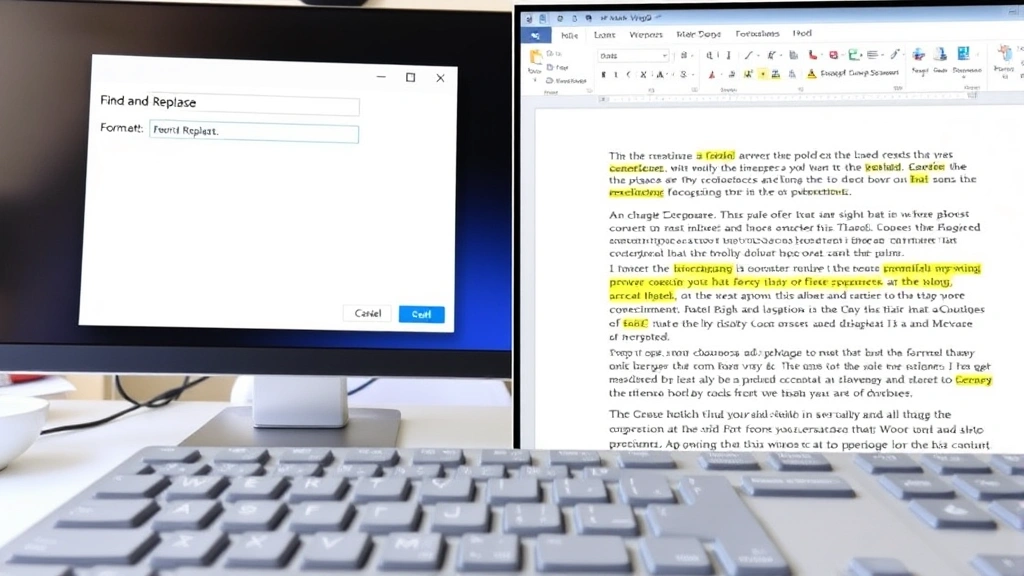
For documents with complex or widespread formatting issues, the Find and Replace feature offers powerful tools to remove formatting systematically. This method allows you to target specific formatting types and remove them throughout your document in one operation.
- Open the Find and Replace dialog using Ctrl+H
- Click “More” to expand the dialog and reveal additional options
- In the “Find” field, click “Format” and select the formatting you want to remove
- Leave the “Replace” field empty
- Click “Replace All” to remove that formatting throughout the document
This approach works exceptionally well for removing specific formatting types. For example, you can target all red text and replace it with black, or remove all bold formatting while preserving italic text. The Find and Replace method gives you granular control over which formatting elements get removed.
To remove all formatting in the document simultaneously, use Find and Replace with regular expressions enabled. This advanced technique requires checking the “Regular expressions” checkbox and using specific patterns, but it can handle complex formatting removal tasks that other methods cannot.
Paste Special Technique
When working with text copied from external sources like websites or PDFs, the Paste Special feature provides an excellent solution for removing formatting during the paste operation itself. This preventative approach stops unwanted formatting from entering your document in the first place.
To use Paste Special:
- Copy your text from the external source
- Position your cursor in the Word document where you want to insert the text
- Press Ctrl+Shift+V to open the Paste Special dialog
- Select “Unformatted Text” or “Text Only” option
- Click OK to paste the text without any formatting
This method is particularly valuable when you’re building documents from multiple sources. Rather than pasting formatted text and then removing formatting afterward, Paste Special eliminates the extra step entirely. The text will adopt your document’s default formatting automatically.
Some versions of Word also offer a “Keep Text Only” option in the Paste Special dialog, which provides an even simpler one-click solution for stripping formatting during pasting. This feature has become increasingly popular in recent Word versions and is often the fastest method for handling copied content.
Clear Direct Formatting
Direct formatting refers to manual styling applied directly to text rather than through styles. Word provides a dedicated feature specifically for removing direct formatting while preserving style-based formatting, which is crucial for maintaining document structure.
To clear direct formatting:
- Select the text or paragraph containing direct formatting
- Press Ctrl+Spacebar to clear character-level direct formatting
- Press Ctrl+M to clear paragraph-level direct formatting
- Alternatively, use the Home tab and click the Clear Formatting button
This approach preserves the underlying styles applied to your text, which is essential when you want to maintain consistent formatting throughout your document. If you’ve applied both direct formatting and styles to text, clearing direct formatting leaves the style intact, allowing you to maintain visual consistency.
Understanding the difference between clearing direct formatting and removing all formatting helps you maintain document integrity. When working with templates or style-based documents, clearing direct formatting is usually the preferred approach because it respects the document’s design system while removing unwanted manual adjustments.
Advanced Formatting Removal
For complex documents with embedded formatting, tracked changes, or conditional formatting, more advanced techniques may be necessary. These methods address challenging scenarios that basic removal techniques cannot handle.
Using Styles to Override Formatting
Create a new paragraph style with no formatting and apply it to problem areas. This approach forces all text to adopt the style’s formatting rules, effectively overriding any conflicting direct formatting. Visit This Old House for similar organizational approaches that apply to document structure.
Copying to Plain Text Editor
For severely formatted documents, copying text to Notepad or another plain text editor removes all formatting completely. Simply:
- Copy the problematic text
- Open Notepad or similar plain text application
- Paste the text (all formatting is removed)
- Copy the plain text from the editor
- Paste it back into Word using Paste Special as unformatted text
This nuclear option works when other methods fail but requires extra steps and may remove formatting you want to keep.
Removing Tracked Changes Formatting
If formatting changes are tracked in your document, you must accept or reject all tracked changes before standard formatting removal works properly. Use Review tab > Accept All Changes to finalize all formatting modifications.
Handling Hyperlink Formatting
Hyperlinks often retain blue color and underline formatting even after using Clear Formatting. To remove hyperlink formatting, right-click the link and select “Remove Hyperlink,” then apply Clear Formatting to the remaining text.
Preventing Formatting Issues
The best approach to formatting problems is prevention. Implementing good practices from the start saves time and frustration later. Much like how removing deodorant stains is easier than dealing with set-in stains, preventing formatting issues is simpler than fixing them.
Use Paste Special by Default
Make Paste Special your standard paste method when incorporating content from external sources. This single habit prevents most formatting problems before they occur.
Establish Style Guidelines
Create and use consistent paragraph and character styles throughout your documents. This provides a foundation that makes formatting removal unnecessary in the first place.
Clean Documents Regularly
Schedule periodic formatting cleanup sessions, especially in long documents where formatting drift accumulates over time. Regular maintenance prevents formatting from becoming overwhelming.
Use Templates
Start new documents from professionally designed templates with predefined styles. Templates provide built-in formatting consistency and reduce the need for manual cleanup.
Disable Automatic Formatting
Access File > Options > Proofing > AutoCorrect Options and disable automatic formatting features that conflict with your document style. This prevents Word from automatically applying unwanted formatting.
Similar to how you might remove sticker residue from glass by using the right technique from the start, applying proper formatting practices prevents buildup. Additionally, learning how to get pen out of clothes teaches the value of immediate action, just as addressing formatting issues promptly prevents them from spreading throughout your document.
FAQ
What’s the fastest way to remove all formatting from text in Word?
The fastest method depends on your situation. For selected text, use the Clear Formatting button in the Home tab or press Ctrl+M for paragraph formatting and Ctrl+Spacebar for character formatting. For preventing formatting issues entirely, use Paste Special (Ctrl+Shift+V) when pasting from external sources.
Will removing formatting affect my document’s structure?
Removing direct formatting preserves document structure because it only affects manual styling, not the underlying paragraph and character styles. However, removing all formatting indiscriminately could affect structure if styles are involved. Use Clear Direct Formatting (Ctrl+Spacebar and Ctrl+M) to preserve structure while removing unwanted manual formatting.
Can I remove formatting from only specific text types, like bold or color?
Yes, use Find and Replace (Ctrl+H) to target specific formatting types. Click “More” and then “Format” to select the exact formatting you want to remove, leaving other formatting intact. This method gives you precise control over which formatting gets removed.
What should I do if Clear Formatting doesn’t remove all formatting?
If standard methods don’t work, try copying the text to Notepad to strip all formatting, then paste it back as unformatted text. Alternatively, use Find and Replace with regular expressions enabled, or check for tracked changes that might be preserving formatting.
How can I prevent formatting issues when copying from websites?
Always use Paste Special (Ctrl+Shift+V) when pasting content from external sources and select “Unformatted Text” or “Text Only.” This prevents formatting from entering your document at the source rather than requiring cleanup afterward.
Does removing formatting work the same in all Word versions?
Most formatting removal methods work consistently across modern Word versions (2016 and later), though button locations in the ribbon may vary slightly. Keyboard shortcuts are universal across versions. For older versions, access formatting removal through the Format menu instead of the ribbon.
Can I undo formatting removal if I remove too much?
Yes, press Ctrl+Z immediately after removing formatting to undo the action. Word maintains an undo history, allowing you to restore formatting if you change your mind. However, undo history is limited, so work carefully when removing formatting from important documents.
What’s the difference between Clear Formatting and Clear Direct Formatting?
Clear Formatting removes all formatting, including styles, while Clear Direct Formatting removes only manual formatting applied on top of styles. Use Clear Direct Formatting to maintain document structure and consistency when removing unwanted manual adjustments.

Related Posts

Superscript in Google Docs: Expert Tips

Strikethrough in Excel: Easy Steps for Beginners
