
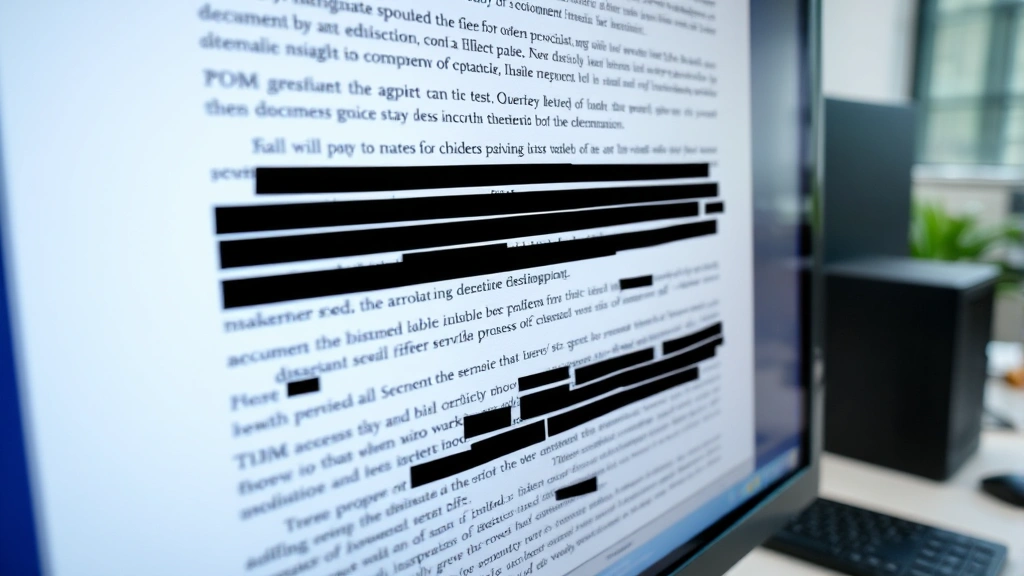
How to Redact a PDF? Expert Tips Inside
How to Redact a PDF? Expert Tips Inside
Redacting a PDF is an essential skill in today’s digital world, whether you’re protecting sensitive information, preparing documents for sharing, or complying with privacy regulations. Unlike simply highlighting or covering text with a marker, proper PDF redaction ensures that confidential information is permanently removed and cannot be recovered by tech-savvy individuals. This comprehensive guide will walk you through multiple methods to redact PDFs effectively, from using built-in tools to specialized software solutions.
Whether you’re dealing with financial records, legal documents, medical information, or personal data, understanding how to properly redact a PDF protects both you and the recipients of your documents. We’ll explore various techniques suitable for different skill levels and document types, ensuring you have the knowledge to handle any redaction scenario with confidence.

Understanding PDF Redaction and Why It Matters
PDF redaction is the process of permanently removing or obscuring sensitive information from a digital document. This differs fundamentally from simply painting over text or using a highlighter tool, which only creates a visual cover-up while leaving the underlying data intact and recoverable. Proper redaction completely eliminates the information from the file, making it impossible to retrieve through any method.
The importance of proper redaction cannot be overstated. Organizations face serious legal and financial consequences if confidential information is accidentally exposed through improper redaction techniques. Medical records, social security numbers, financial information, and trade secrets all require secure removal from documents before sharing. When you visit our FixWiseHub blog for comprehensive how-to guides, you’ll find detailed instructions on protecting your sensitive data across various formats.
Redaction serves multiple purposes in professional and personal contexts. Legal professionals redact documents for discovery processes, healthcare providers remove patient identifiers for HIPAA compliance, and businesses protect proprietary information when sharing documents externally. Understanding the difference between visual masking and true redaction ensures your sensitive information stays protected.
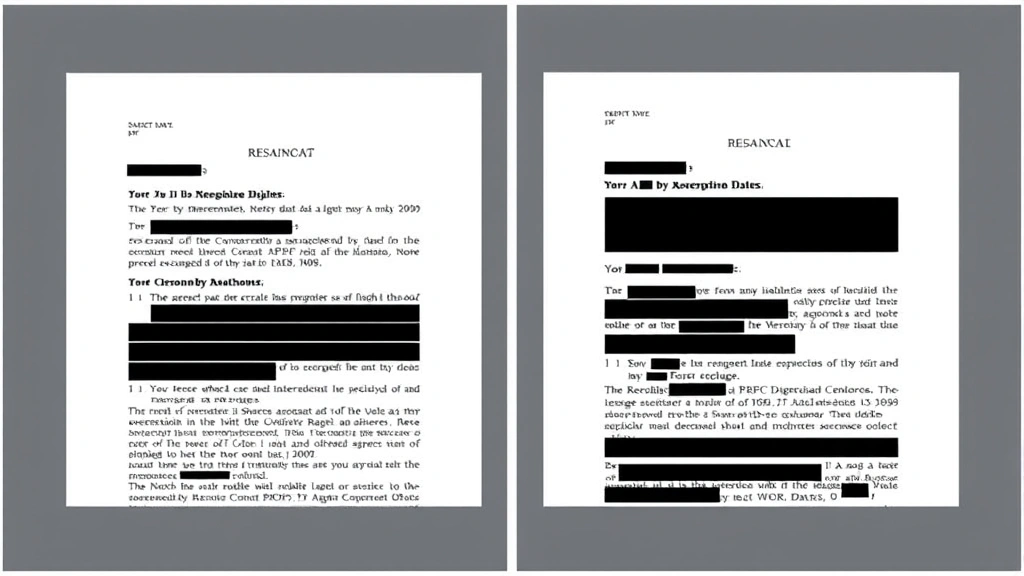
Using Adobe Acrobat Pro for Professional Redaction
Adobe Acrobat Pro stands as the industry standard for comprehensive PDF editing and redaction. This powerful software provides specialized redaction tools designed specifically for permanent information removal, making it the preferred choice for legal professionals, healthcare providers, and government agencies.
Accessing the Redaction Tool: Open your PDF in Adobe Acrobat Pro and navigate to the Tools menu. Select the Redact tool, which appears in the Protect section. This dedicated tool ensures that removed content is permanently deleted rather than simply hidden from view. The interface displays a clear indication that you’re using a professional-grade redaction feature, not a basic highlight tool.
Applying Redactions: Click and drag across text or images you want to remove. You can select multiple areas before applying the redaction. Adobe allows you to customize the redaction appearance, choosing whether to display a black box or other visual indicators. Once applied, the redaction becomes permanent—the underlying data is completely removed from the PDF file structure.
Batch Redaction: For documents with consistent sensitive information patterns, Adobe Acrobat Pro enables search-based redaction. You can search for specific terms, phone numbers, email addresses, or patterns, and redact all instances simultaneously. This feature proves invaluable when processing large documents or multiple files containing similar protected information.
Applying Final Redactions: Before sharing your document, use the “Apply Redactions” function to finalize all changes. This step permanently removes the redacted content and prevents any possibility of recovery. Save the file with a new filename to preserve the original document if needed.
Free Tools and Browser-Based Solutions
Not everyone requires or can afford Adobe Acrobat Pro’s premium features. Fortunately, several free and low-cost alternatives provide effective PDF redaction capabilities for basic to intermediate needs.
PDFtk and Open-Source Solutions: PDFtk offers command-line PDF manipulation tools available free for personal use. While requiring some technical knowledge, it provides permanent redaction capabilities comparable to professional software. For users comfortable with technology, this represents an excellent cost-effective option.
Browser-Based Redaction Tools: Services like Smallpdf, ILovePDF, and PDF24 offer online redaction features accessible through any web browser. These tools allow you to upload documents, apply redactions, and download the modified file without installing software. However, exercise caution with sensitive documents on cloud-based platforms—verify the service’s privacy policy and security measures before uploading confidential information.
LibreOffice and Alternative Suites: While not specifically designed for redaction, LibreOffice Draw can open PDFs and allow you to add black shapes over sensitive text. This method requires manual application and verification but provides a free alternative when other tools aren’t available. Remember that this approach creates visual masking rather than true redaction.
For comprehensive information about document protection and preparation, consult Family Handyman’s resources on securing your important documents and information.
Step-by-Step Redaction Process
Whether using professional software or free tools, follow this systematic approach to ensure thorough and secure redaction of your PDF documents.
Step 1: Identify Sensitive Information Begin by carefully reviewing your entire document to locate all sensitive data requiring removal. This includes names, addresses, phone numbers, social security numbers, financial account information, medical details, email addresses, and any proprietary business information. Create a mental checklist or physical notes of all items requiring redaction to ensure nothing gets missed.
Step 2: Make a Working Copy Always work on a copy of your original document, preserving the unredacted version in a secure location. This protects against accidental loss of the original file and allows you to start over if mistakes occur during the redaction process.
Step 3: Open the Document in Your Chosen Tool Launch your selected redaction software and open the PDF file. Ensure you have the correct version and that the document displays properly before beginning redaction work.
Step 4: Apply Redactions Systematically Work through the document methodically, page by page. Apply redactions to all identified sensitive information. Most tools allow you to see a preview of your redactions before finalizing them, helping catch any missed items.
Step 5: Verify Completeness After redacting all visible sensitive information, review the document again to confirm nothing was missed. Pay special attention to headers, footers, metadata, and document properties, which sometimes contain hidden sensitive information.
Step 6: Remove Metadata and Document Properties PDFs often contain metadata including author names, creation dates, revision history, and comments. Access the document properties or metadata settings and remove or modify any sensitive information stored there. This step is crucial for complete redaction.
Step 7: Finalize and Save Apply final redactions and save the document with a new filename. Use your redaction tool’s finalize function to ensure all redactions are permanent and irreversible. Never save over the original file without backup.
Step 8: Verify the Redacted Version Open the newly saved redacted PDF and verify that all sensitive information has been properly removed and cannot be recovered. Try copying text from redacted areas to confirm the underlying data is truly gone.
Advanced Redaction Techniques
For complex documents or specialized redaction needs, advanced techniques ensure comprehensive protection of sensitive information.
Metadata Removal: Beyond visible text redaction, PDFs contain embedded metadata that may include author information, edit history, comments, and revision tracking. Use your redaction software’s metadata removal function or specialized metadata cleaning tools to strip this information entirely. This proves especially important for documents with collaborative editing history or sensitive creation information.
Pattern-Based Redaction: When documents contain consistent sensitive information patterns—such as all social security numbers formatted as XXX-XX-XXXX or phone numbers in a specific format—use search-and-replace functionality to identify and redact all instances simultaneously. This approach reduces the risk of missing sensitive information scattered throughout lengthy documents.
Selective Redaction by Document Section: Some documents require different redaction levels for different recipients. Create multiple versions of your PDF with appropriate redactions for each audience. For example, financial documents might have different redaction levels for internal stakeholders versus external partners. Clearly label each version to prevent confusion.
Combining Multiple Tools: For particularly sensitive documents, consider using multiple redaction methods. Apply primary redaction through professional software, then verify results using alternative tools. This layered approach provides additional assurance that redactions are truly permanent and secure.
When dealing with documents related to measurements or specifications, you might also benefit from reviewing resources on measuring techniques to ensure accurate documentation before redaction.
Common Mistakes to Avoid
Relying on Visual Masking: The most critical mistake is using simple highlighting or shape tools to cover sensitive information. These methods only hide text visually while leaving the underlying data intact and recoverable. Always use dedicated redaction tools that permanently remove information from the file.
Forgetting Hidden Content: PDFs may contain hidden text in comments, tracked changes, revision history, or metadata. Thoroughly check all document properties and remove hidden content before sharing. Many serious data breaches have resulted from overlooked hidden information in supposedly redacted documents.
Incomplete Document Review: Rushing through redaction is dangerous. Information appears in unexpected places—footers, headers, watermarks, image text, and background elements. Set aside adequate time for careful, thorough review of every page and every element.
Sharing Unfinalized Redactions: Some redaction tools allow you to apply redactions without finalizing them. Sharing documents with unfinal redactions allows recipients to undo them and access sensitive information. Always use the finalize function before distribution.
Overlooking Multiple Document Versions: If you’ve edited or revised a document multiple times, ensure all versions are properly redacted before sharing. One unredacted version accidentally shared can compromise the entire redaction effort. Track and manage all document versions carefully.
Ignoring Metadata and Properties: Document properties often contain sensitive information invisible in the document itself. Author names, company information, creation dates, and revision history may expose confidential details. Remove all metadata as part of your redaction process.
Security Best Practices
Use Reputable Redaction Software: Choose established, trusted tools with proven security records. For sensitive government, legal, or medical documents, use software specifically designed and certified for secure redaction. Avoid experimental or unproven tools with sensitive information.
Verify Tool Legitimacy: Before using any redaction software, verify it’s from a legitimate source and read recent user reviews. Malicious software designed to appear as redaction tools could compromise your sensitive data. Download only from official websites or verified app stores.
Handle Cloud-Based Services Carefully: If using online redaction tools, understand their data handling practices. Some services retain uploaded files on their servers. For highly sensitive documents, use local software installed on your computer rather than cloud-based solutions. When you must use online tools, choose services with strong privacy policies and encryption.
Secure Your Redaction Environment: Perform redaction work on secure, updated computers protected by current antivirus software and firewalls. Avoid redacting sensitive documents on public WiFi or shared computers. Consider using a dedicated device for handling confidential documents.
Document Your Redaction Process: Maintain records of what information was redacted, when, and why. This documentation proves helpful if questions arise about the redaction process and demonstrates due diligence in protecting sensitive information. Store these records securely.
Implement Access Controls: Before and after redaction, control who can access your documents. Use password protection, file permissions, and secure storage methods. Even properly redacted documents should only be accessible to authorized individuals.
Test Your Redaction Results: After redacting documents, verify the redaction effectiveness. Try copying text from redacted areas, examine the file properties, and review metadata to confirm all sensitive information is truly gone. This verification step prevents embarrassing and potentially costly mistakes.
For additional information on securing and protecting your important documents, This Old House offers guidance on document organization and home office security.
FAQ
What’s the difference between redaction and highlighting?
Highlighting simply covers text visually while the underlying data remains in the file and can be recovered. True redaction permanently removes the information from the PDF file structure, making it impossible to access. Always use dedicated redaction tools, never simple highlighting tools.
Can redacted information be recovered?
When using professional redaction tools that permanently remove content, the information cannot be recovered. However, if you use improper methods like highlighting or shape tools, the underlying data remains accessible through file analysis. This is why proper redaction technique is critical.
Which redaction tool is best for legal documents?
Adobe Acrobat Pro remains the industry standard for legal document redaction due to its specialized tools and certification for compliance purposes. For legal matters, professional-grade software is recommended over free alternatives to ensure proper compliance and documentation.
How do I redact a PDF for free?
Several free options exist including PDFtk command-line tools, browser-based services like Smallpdf, and LibreOffice Draw. While adequate for basic needs, free tools may lack advanced features and comprehensive metadata removal capabilities found in professional software.
Should I remove metadata from PDFs?
Yes, absolutely. Metadata can contain sensitive information including author names, creation dates, revision history, and comments. Always remove or modify metadata as part of your redaction process to ensure complete information protection.
Is it safe to use online redaction tools?
Online tools can be safe if you choose reputable services with strong privacy policies and encryption. However, for highly sensitive documents, local software on your personal computer provides better security control. Always verify the service’s security practices before uploading confidential information.
Can I redact a PDF on my phone?
Several mobile apps offer PDF redaction functionality, though the experience is typically less comprehensive than desktop solutions. For important documents, desktop redaction tools provide better precision and verification capabilities. Mobile redaction works adequately for minor, non-critical redactions.
What should I do with the original unredacted document?
Store the original securely in a locked location with restricted access. Keep it separate from the redacted version to prevent accidental sharing. Document why you’re retaining the original and implement strong security measures to protect it from unauthorized access or theft.

Related Posts

Superscript in Google Docs: Expert Tips

Strikethrough in Excel: Easy Steps for Beginners
