
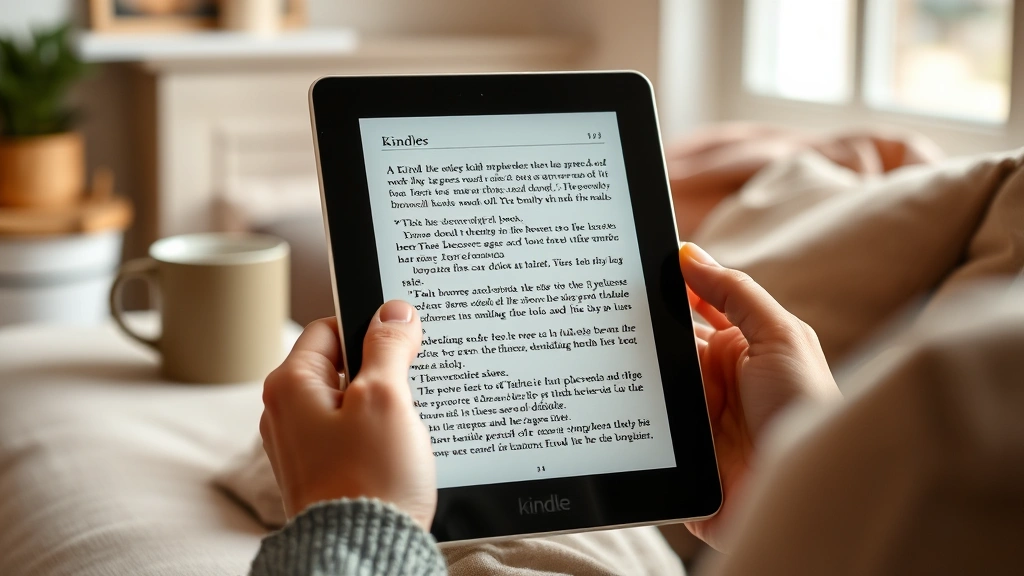
Buy Kindle Books? Easy Steps & Expert Tips
How to Purchase Kindle Books: Easy Steps & Expert Tips
Buying Kindle books has become one of the most convenient ways to build your digital library and access thousands of titles instantly. Whether you’re a voracious reader looking to expand your collection or someone just getting started with e-books, understanding the purchasing process can save you time and money. The Kindle ecosystem, powered by Amazon, offers seamless integration across devices, competitive pricing, and exclusive deals that make digital reading accessible to everyone.
With millions of titles available at your fingertips, from bestsellers to niche non-fiction, the process of purchasing Kindle books is straightforward and user-friendly. This comprehensive guide will walk you through every step of buying Kindle books, share expert tips to maximize your reading budget, and help you avoid common mistakes. Whether you’re buying on your Kindle device, smartphone, tablet, or computer, you’ll find detailed instructions and practical advice to enhance your digital reading experience.
Getting Started with Kindle
Before you can purchase Kindle books, you’ll need to have the right setup in place. Amazon’s Kindle platform works across multiple devices, including dedicated e-readers, tablets, smartphones, and computers. The beauty of the Kindle ecosystem is that you don’t necessarily need to own a physical Kindle device to buy and read Kindle books—Amazon provides free reading apps for virtually every platform.
To begin your Kindle book purchasing journey, you have several options. You can use a Kindle e-reader device like the Kindle Paperwhite, Kindle Oasis, or basic Kindle model. Alternatively, you can download the Kindle reading app for your smartphone or tablet. If you prefer reading on your computer, Amazon’s web-based Kindle Cloud Reader allows you to purchase and read books directly through your browser. Each option provides the same purchasing functionality, so choose whatever device you use most frequently.
Your first step should be to ensure you have an active Amazon account with valid payment information on file. If you already shop on Amazon for other items, you’re all set. Your existing account credentials will work perfectly for purchasing Kindle books. The integration between your Amazon shopping account and Kindle purchases makes the entire process seamless and convenient.
Creating Your Amazon Account
If you don’t already have an Amazon account, creating one is quick and free. Visit Amazon.com and click the “Account & Lists” option in the top navigation. Select “Start here” under the “New customer?” section. You’ll be prompted to enter your email address and create a password. Amazon will send you a verification email—click the link to confirm your address.
During account setup, you’ll need to add a payment method. Amazon accepts credit cards, debit cards, and for Prime members, various gift card options. You can also set up a Kindle-specific payment method through Amazon’s 1-Click purchasing feature, which streamlines future purchases. This feature allows you to buy books with a single click, though you can disable it if you prefer additional confirmation before each purchase.
Once your account is created and verified, take a moment to set up your Kindle devices or apps. Go to your account settings and register any Kindle devices you own. This registration links your devices to your account and ensures that books you purchase will automatically appear on all your registered devices. You can manage your registered devices in the “Your Devices and Content” section of your Amazon account.
Methods to Purchase Kindle Books
Amazon provides multiple convenient ways to purchase Kindle books, each with its own advantages. Understanding these different methods helps you choose the approach that works best for your reading habits and preferences. The flexibility of the Kindle platform means you can shop however is most convenient at any given moment.
Direct Purchase on Amazon.com: The most straightforward method is visiting Amazon’s Kindle store directly through your web browser. Search for any book title using the search bar, and Amazon will display both physical and Kindle editions. You can read reviews, check the sample pages, and compare prices before making your purchase decision. This method is ideal when you want to research books thoroughly before buying.
Kindle Device Purchasing: If you own a Kindle e-reader, you can purchase books directly from the device itself. Simply press the home button, select “Store,” and browse or search for titles. This method is convenient because you don’t need to switch to another device—you can start reading immediately after purchase. The wireless delivery is instant, and your new book appears in your library within seconds.
Mobile App Shopping: The Kindle app available on iOS and Android devices allows in-app purchasing. Open the Kindle app, tap the “Store” or “Shop” option, browse available titles, and purchase with your stored payment method. However, note that on iOS devices, Amazon cannot offer in-app purchases due to Apple’s policies, so you may need to purchase through Amazon.com instead.
Web-Based Purchasing: The Kindle Cloud Reader allows you to purchase and read books directly through your web browser. This method works on any device with internet access and is perfect if you don’t want to download apps or use specific devices.
Step-by-Step Purchase Guide
Let’s walk through the complete process of purchasing a Kindle book from start to finish. This detailed guide covers the most common method—purchasing through Amazon.com—though the process is similar regardless of your chosen platform.
Step 1: Find Your Book Begin by visiting Amazon.com and using the search bar to locate the book you want to purchase. Type the title, author name, or keywords related to the book. Amazon will display search results showing various editions, including paperback, hardcover, and Kindle versions. Look specifically for the Kindle edition, which will be clearly labeled.
Step 2: Review Book Details Click on the Kindle edition to view the full product page. This page contains essential information including the book’s description, customer reviews, ratings, and sample pages. You can read the first chapter or preview by clicking “Look Inside” to ensure the book meets your expectations before purchasing. Check the file size, number of pages, and publication date to ensure you’re getting the correct edition.
Step 3: Check the Price Review the listed price carefully. Kindle books often cost less than physical editions, but prices vary significantly. Some books qualify for Kindle Unlimited, Amazon’s subscription service that allows unlimited reading for a monthly fee. If you’re a Prime member, you may also have access to Prime Reading, which includes a rotating selection of free books.
Step 4: Select Your Delivery Device Before clicking the purchase button, you’ll see a dropdown menu asking where to send the book. Select the Kindle device or app where you want the book delivered. If you have multiple registered devices, you can choose any of them. You can also send the book to multiple devices, or add it to your library to download later.
Step 5: Complete Your Purchase Click the “Buy Now with 1-Click” button to complete your purchase instantly. If 1-Click is disabled, you’ll see a “Buy Now” button instead, which will take you to a confirmation page where you can review your order before finalizing. Your payment method will be charged immediately.
Step 6: Verify Delivery After purchase, check your registered device or app. The book should appear in your library within seconds to a few minutes. If it doesn’t appear immediately, refresh your library or restart your device. You’ll also receive a confirmation email from Amazon with your purchase receipt.

Payment Options and Security
Amazon accepts various payment methods for Kindle book purchases, ensuring you have flexibility in how you pay. The most common options include credit cards (Visa, Mastercard, American Express, Discover), debit cards, and for certain customers, alternative payment methods through your Amazon account.
Secured Payment Processing: All transactions are processed through Amazon’s secure servers using encryption technology. Your payment information is never shared with sellers or third parties. Amazon stores your payment details securely, and you can manage which payment methods are available for Kindle purchases through your account settings.
1-Click Purchasing: Amazon’s 1-Click feature is enabled by default for most accounts, allowing instant purchases with a single click. While convenient, some readers prefer to disable this feature to prevent accidental purchases or to add a confirmation step. You can toggle 1-Click on or off in your account settings under “Login & security.”
Parental Controls: If you want to restrict Kindle purchases on family devices, Amazon offers parental controls that require a password for purchases. This is especially useful if children have access to your devices. Set this up in your account settings under “Digital content and devices.”
Purchase History and Refunds: You can view all your Kindle purchases in your “Your Devices and Content” section. Amazon allows you to return Kindle books within seven days of purchase for a full refund, though frequent returns may limit your ability to use this feature. To request a return, go to your purchase history, find the book, and select “Return for refund.”
Money-Saving Tips and Deals
Purchasing Kindle books doesn’t have to break the bank. Amazon offers numerous ways to save money on digital books, and understanding these options can significantly reduce your reading expenses over time.
Kindle Unlimited Subscription: For $11.99 per month, Kindle Unlimited provides access to over three million books, magazines, and audiobooks. If you read more than one book per month, this subscription typically pays for itself. You can read as many books as you want, and there’s no penalty for returning books early to borrow others. A 30-day free trial is available for new members.
Prime Reading: Amazon Prime members receive access to Prime Reading at no additional cost. This service includes a rotating selection of books, magazines, and newspapers. While the selection is smaller than Kindle Unlimited, it’s an excellent benefit if you’re already a Prime member.
Daily Deals and Lightning Deals: Amazon regularly features discounted Kindle books through daily deals and lightning sales. These books are often priced at $0.99 to $3.99, down from their regular prices. Check the Kindle Store homepage daily or enable notifications to catch these deals before they end.
Free Kindle Books: Amazon offers thousands of free Kindle books, including classics, indie publications, and promotional titles. Browse the “Free Kindle Books” section to discover titles without spending anything. Many authors offer their books free for limited periods to build readership.
Kindle Monthly Deals: Amazon features a curated selection of books with special pricing each month. These deals change regularly and often include bestsellers and popular titles at significant discounts.
Library Lending: Many public libraries offer digital lending through services like OverDrive and Libby, which allow you to borrow Kindle-compatible books for free. Check if your local library participates in these programs to access books without purchasing.
Managing Your Kindle Library
Once you’ve purchased several Kindle books, organizing your library becomes important for easy navigation and discovery. Amazon provides several tools to help you manage your collection efficiently.
Organizing with Collections: Create custom collections to organize books by genre, author, or reading priority. In your “Your Devices and Content” section, click “Create new collection” and add books to your custom categories. This organization system helps you find books quickly and track your reading progress.
Using the Wish List: If you find a book you want to purchase later, add it to your Wish List instead of buying immediately. This feature helps you keep track of books you’re interested in and allows you to share recommendations with friends and family. You can access your Wish List anytime to purchase books when you’re ready.
Archiving Books: If your Kindle device has limited storage, you can archive books you’ve finished reading. Archived books remain in your library and can be downloaded again anytime, but they don’t take up space on your device. This is particularly useful for older Kindle devices with smaller storage capacities.
Syncing Across Devices: One of Kindle’s best features is automatic synchronization across all your registered devices. When you finish reading a book on one device, you can seamlessly continue reading on another device from the exact same location. This synchronization happens automatically through your Amazon account.
Troubleshooting Common Issues
While Kindle purchasing is generally straightforward, you may occasionally encounter issues. Here are solutions to common problems readers face.
Book Won’t Deliver: If a purchased book doesn’t appear on your device, first check your internet connection. Restart your device and refresh your library. If the problem persists, visit your “Your Devices and Content” section, find the book, and select “Deliver” to manually send it to your device.
Payment Declined: If your payment method is declined, verify that your card information is current and that your billing address matches your card issuer’s records. You may also need to contact your bank to ensure they’re not blocking Amazon transactions. Try using a different payment method if available.
Cannot Find Book in Store: Some books may be unavailable in certain regions or may be in publishing disputes. Try searching for the book by ISBN number or look for alternative editions. If the book is unavailable, check back later, as availability can change.
Account Access Issues: If you can’t access your Kindle account, use Amazon’s “Forgot Password” option to reset your credentials. Ensure you’re using the correct email address associated with your account. Contact Amazon customer service if you continue experiencing access problems.
Device Registration Problems: If your device isn’t registered to your account, go to “Your Devices and Content” in your account settings and select “Register a new device.” Follow the on-screen instructions to complete the registration process.
FAQ
Can I purchase Kindle books on my mobile phone?
Yes, you can purchase Kindle books through the Kindle app on your smartphone or tablet. On Android, you can purchase directly within the app. On iOS, you’ll need to purchase through Amazon.com due to Apple’s restrictions, then the book will appear in your Kindle app automatically.
Do I need a Kindle device to buy Kindle books?
No, you don’t need a physical Kindle device. You can purchase and read Kindle books on smartphones, tablets, computers, or through the Kindle Cloud Reader in your web browser. Amazon’s apps are available for all major platforms.
Can I share Kindle books with family members?
Yes, Amazon offers Family Library functionality that allows you to share books with family members. You can set up a Family Library in your account settings and add up to four adults and four children. Shared books appear in family members’ libraries automatically.
How long do I have to return a Kindle book?
Amazon allows you to return Kindle books within seven days of purchase for a full refund. After seven days, returns are no longer available. To return a book, go to your purchase history and select the return option.
Are Kindle books cheaper than physical books?
Generally, yes. Kindle books are often priced lower than their physical counterparts because they don’t require printing or shipping. However, prices vary by title and publisher. Some bestsellers maintain similar prices across formats, while others offer significant discounts for the digital version.
Can I read Kindle books offline?
Yes, once you download a Kindle book to your device, you can read it without an internet connection. This is especially useful for travel or situations where internet access is limited. Your reading progress will synchronize across devices once you reconnect to the internet.
What happens if I delete a Kindle book from my device?
Deleting a book from your device removes it from that device’s storage but doesn’t delete it from your account. The book remains in your library and can be re-downloaded anytime. You can also archive books instead of deleting them if you want to keep them in your library without taking up device storage.
Are there age restrictions for purchasing Kindle books?
You must have a valid Amazon account to purchase Kindle books, which typically requires being at least 18 years old. However, you can set up accounts for younger family members with parental controls and restrictions on purchasing capabilities.
Understanding how to purchase Kindle books opens up a world of digital reading possibilities. By following this comprehensive guide, you’ll be able to navigate the Kindle ecosystem confidently, find great deals on books you love, and build a thriving digital library. Whether you’re interested in exploring different genres or deepening your knowledge in specific areas, the Kindle platform provides convenient access to millions of titles at competitive prices. Start exploring today and discover why millions of readers worldwide have embraced digital reading through Kindle.

Related Posts

Superscript in Google Docs: Expert Tips

Strikethrough in Excel: Easy Steps for Beginners
