
Pair Fire TV Remote Easily: Expert Steps Inside
How to Pair Fire TV Remote Easily: Expert Steps Inside
Fire TV remotes are essential for navigating your streaming experience, but pairing issues can frustrate even experienced users. Whether you’ve just unboxed a new Fire TV device, replaced a lost remote, or your existing remote has stopped responding, understanding the pairing process is crucial. The good news is that pairing a Fire TV remote is straightforward when you follow the correct steps, and most connection problems can be resolved in minutes without technical expertise.
This comprehensive guide walks you through every method to pair your Fire TV remote, troubleshoot common issues, and optimize your setup for seamless control. By the end, you’ll have the knowledge to handle any pairing scenario and keep your remote working perfectly.
Understanding Fire TV Remote Types
Amazon manufactures several Fire TV remote models, each with slightly different pairing procedures. The most common types include the standard IR (infrared) remote, the voice remote with Alexa functionality, and the newer second-generation voice remotes. Understanding which remote you own is the first step toward successful pairing.
The standard IR remote communicates with your Fire TV device using infrared signals, similar to traditional television remotes. These remotes don’t require Bluetooth pairing and work through line-of-sight communication. However, newer Fire TV models increasingly feature Bluetooth-enabled remotes that connect wirelessly without requiring a direct line of sight to your device.
Voice-enabled Fire TV remotes offer additional functionality, allowing you to search content, control smart home devices, and access Alexa features hands-free. These remotes must be paired via Bluetooth to function properly. Identifying your specific remote model helps you apply the correct pairing procedure and understand what features should work after successful connection.
Pre-Pairing Preparation Steps
Before attempting to pair your Fire TV remote, complete these essential preparation steps to ensure success:
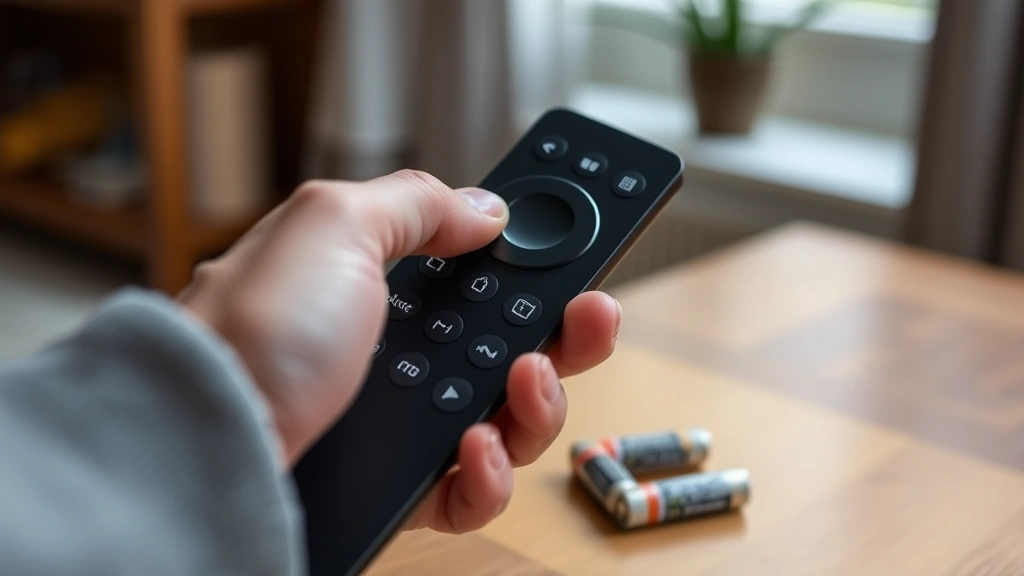
- Check battery status: Insert fresh batteries into your remote (typically two AA batteries). Low battery power is the most common reason pairing fails. Test with brand-new batteries rather than ones you’ve used previously.
- Ensure Fire TV is powered on: Your Fire TV device must be fully booted and displaying the home screen or menu. If your TV is in standby mode, press the power button or unplug and replug the device to restart it.
- Position devices correctly: Keep your Fire TV device and remote within 10 feet of each other during the pairing process. Remove any obstacles between the devices that might block Bluetooth signals.
- Check for Bluetooth interference: Move away from other Bluetooth devices like wireless speakers, headphones, or phones that might interfere with the pairing signal. Interference can prevent successful connection establishment.
- Verify network connectivity: Ensure your Fire TV device is connected to your home Wi-Fi network. While Bluetooth pairing doesn’t require internet, some Fire TV models need network access to complete initial setup.
These preparation steps take only a few minutes but dramatically increase your chances of pairing success on the first attempt.

Standard Pairing Method
The standard pairing method works for most Fire TV devices with Bluetooth-enabled remotes. This process is designed to be intuitive and requires no special technical knowledge.
- Access the Fire TV home screen: Ensure your Fire TV device is fully powered on and displaying the main menu or home screen. If you see a setup wizard, complete the initial setup first or skip to the next applicable step.
- Navigate to Settings: Using your existing remote or the Fire TV app on your smartphone, go to Settings. This is typically found in the menu bar or as a gear icon on the home screen.
- Select Remotes and Devices: In the Settings menu, look for an option labeled “Remotes & Bluetooth Devices” or “Remotes and Devices.” This section manages all wireless device connections to your Fire TV.
- Choose “Add a New Remote”: Select the option to add a new remote device. Your Fire TV will enter pairing mode and begin searching for available remotes within range.
- Activate pairing mode on the remote: Press and hold the Home button (the button with a house icon) on your Fire TV remote for 10-15 seconds. You should see a light on the remote blink or hear a confirmation sound indicating pairing mode is active.
- Wait for connection confirmation: Your Fire TV screen will display a confirmation message when the remote successfully pairs. This typically takes 5-10 seconds after activating pairing mode on the remote.
- Test the remote: Press various buttons on the remote to confirm all functions work properly. Test the directional pad, select button, back button, and any voice function buttons if applicable.
Once you see the pairing confirmation message, your Fire TV remote is successfully connected and ready to use. The pairing information is stored on your device, so you won’t need to repeat this process unless you factory reset your Fire TV or pair with a different device.
Pairing Without Home Screen Access
Sometimes you need to pair a Fire TV remote when you can’t access the home screen or settings menu. This situation arises when you’ve lost your original remote, your Fire TV won’t display anything on your television, or you’re setting up a brand-new device.
The emergency pairing method bypasses the need for menu navigation. Simply press and hold the Home button on your new remote for 10-15 seconds. Many Fire TV models will automatically enter pairing mode during startup or when a compatible remote initiates the pairing sequence. The device will search for the remote signal and establish connection without requiring menu access.
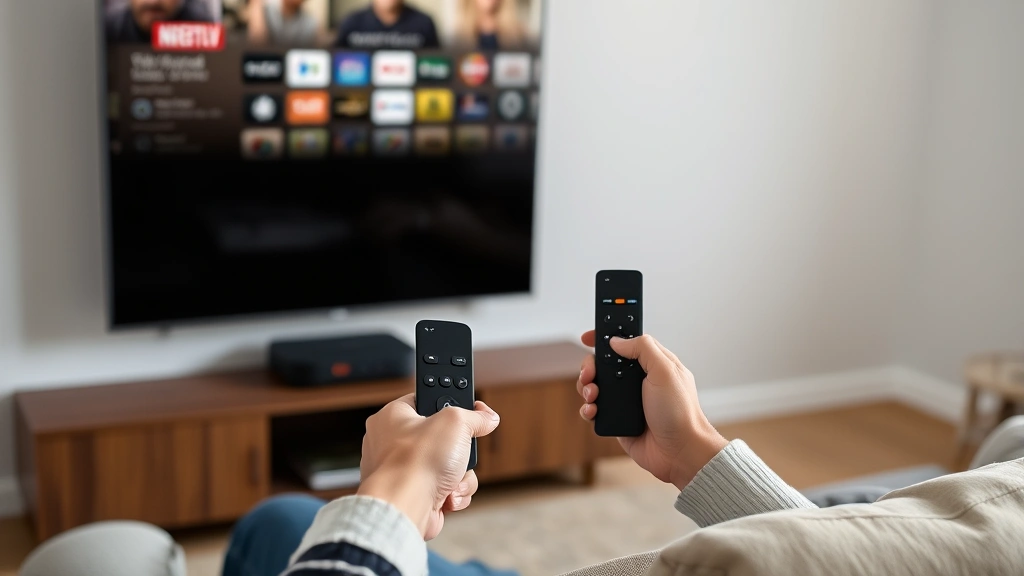
If emergency pairing doesn’t work, use your Fire TV mobile app to complete setup. Download the Amazon Fire TV app on your smartphone and connect it to the same Wi-Fi network as your Fire TV device. The app functions as a temporary remote, allowing you to navigate to Settings and complete the pairing process for your physical remote. This method is particularly useful when your original remote is lost or damaged.
For completely new Fire TV devices that won’t display anything, try factory reset pairing. Unplug your Fire TV device for 30 seconds, then plug it back in. During the boot-up sequence, immediately press and hold the Home button on your new remote. The device should detect the remote during initialization and establish connection automatically.
Troubleshooting Connection Issues
Even when you follow all steps correctly, occasional pairing problems occur. These troubleshooting techniques resolve the most common issues:
Remote not detected during pairing: First, verify the batteries are fresh and properly inserted. Remove the batteries, wait 10 seconds, and reinsert them. Try pairing again from the beginning. If the remote still isn’t detected, your Bluetooth adapter in the Fire TV device may be malfunctioning. Try pairing a different remote if available. If multiple remotes won’t pair, contact Amazon support for device replacement.
Pairing times out without connection: This usually indicates Bluetooth interference or the remote is too far away. Move closer to your Fire TV device (within 6 feet) and move away from other Bluetooth devices. Turn off nearby wireless speakers, phones, or other smart home devices temporarily. Wait 30 seconds and retry the pairing process.
Remote pairs but buttons don’t work: After successful pairing, some users find certain buttons unresponsive. This often means the remote is still too far away or obstructed. Move closer to your Fire TV. If buttons still don’t work, try unpairing and repairing your remote. In Settings, find your remote in the Remotes & Bluetooth Devices list, select it, and choose “Unpair” or “Forget Device.” Then follow the standard pairing method again.
Multiple remotes causing conflicts: If you have several Bluetooth remotes in your home, they can interfere with each other. Unpair remotes you’re not using, or keep them in different rooms during pairing. Each Fire TV device maintains its own list of paired remotes, so ensure you’re pairing with the correct device.
For persistent issues, try factory resetting your Fire TV. Go to Settings > Device > Reset to Factory Defaults. This erases all pairings and settings, allowing you to start fresh. You’ll need to complete initial setup again, but this often resolves stubborn connection problems that other methods can’t fix.
Advanced Pairing Techniques
Beyond standard pairing, several advanced methods help in specific situations or provide enhanced functionality:
Pairing with Fire TV Stick devices: Fire TV Stick models use the same basic pairing process but may have slightly different menu navigation. Access Settings through the home screen menu, select Remotes & Bluetooth Devices, and follow the standard pairing procedure. Fire TV Sticks have limited processing power compared to Fire TV boxes, so ensure you’re using a compatible remote model designed for your specific Stick generation.
Multi-device pairing: A single Fire TV remote can be paired with multiple Fire TV devices in your home. Each pairing is independent, so you’ll need to pair the remote with each device separately. This is useful if you have Fire TV devices in different rooms and want to use the same remote throughout your home.
Using the Fire TV mobile app as a remote: The official Amazon Fire TV app transforms your smartphone into a full-featured remote. Download it from your device’s app store, ensure your phone connects to the same Wi-Fi as your Fire TV, and open the app. You can control your Fire TV completely from your phone, type text using your phone’s keyboard, and even use voice commands if your phone has a microphone. This is particularly helpful during initial setup when you haven’t paired a physical remote yet. For more help with technology setup, check out FixwiseHub Blog for comprehensive how-to guides.
Bluetooth adapter troubleshooting: If your Fire TV device doesn’t have built-in Bluetooth, you may need an external Bluetooth adapter. These plug into the USB port on your Fire TV device. Ensure the adapter is powered on and compatible with your Fire TV model. Some older Fire TV models require specific adapter types, so check Amazon’s compatibility list before purchasing.
Maintaining Your Remote Connection
After successfully pairing your Fire TV remote, proper maintenance ensures the connection remains stable and functional:
- Replace batteries regularly: Change batteries every 3-4 months or when you notice the remote responding slowly. Fresh batteries maintain strong Bluetooth signals and prevent unexpected disconnections.
- Keep remotes clean: Dust and debris can interfere with button responsiveness and Bluetooth transmission. Gently wipe your remote with a soft, dry cloth monthly. Avoid using liquids that might damage the electronics.
- Avoid extreme temperatures: Store your remote in a cool, dry place. Extreme heat or cold degrades battery performance and can damage internal components. Don’t leave remotes in cars, direct sunlight, or near heating vents.
- Prevent physical damage: Avoid dropping your remote or sitting on it. Physical damage to the circuit board or Bluetooth antenna prevents proper pairing and communication. Use a remote holder or designated storage spot to minimize accidents.
- Keep Bluetooth range clear: Maintain a clear line of sight between your remote and Fire TV device when possible. While Bluetooth works through some obstacles, removing interference improves responsiveness and connection stability.
- Update Fire TV software: Regularly check for software updates in Settings > About > System Update. Updated software often includes Bluetooth improvements and bug fixes that enhance remote pairing stability.
These maintenance practices extend your remote’s lifespan and prevent many common connection problems from developing.
Frequently Asked Questions
How long does it take to pair a Fire TV remote?
The actual pairing process typically takes 5-15 seconds once you activate pairing mode on the remote. However, the entire process from accessing settings to confirming successful pairing usually takes 2-3 minutes. If pairing takes longer than 30 seconds, something is preventing successful connection and you should try troubleshooting steps.
Can I pair a Fire TV remote without the Fire TV powered on?
No, your Fire TV device must be powered on and fully booted for Bluetooth pairing to work. The device’s Bluetooth receiver must be active to detect and establish connection with the remote. If you’re setting up a brand-new Fire TV, plug it in and wait for the startup sequence to complete before attempting to pair your remote.
What if I lost my Fire TV remote entirely?
You have several options for replacing a lost remote. Purchase an official Amazon Fire TV remote from any major retailer. While waiting for a replacement, use the Fire TV mobile app to control your device temporarily. The app provides full remote functionality and works on any smartphone connected to your home Wi-Fi network. Once your replacement remote arrives, follow the standard pairing procedure.
Can I use a universal remote with Fire TV?
Some universal remotes support Fire TV devices, but compatibility varies significantly. Check your universal remote’s documentation to see if it includes Fire TV codes. Third-party remotes may not support all features like voice commands. For full functionality and reliability, Amazon recommends using an official Fire TV remote designed specifically for your device model. Check This Old House for general home technology setup guidance.
Why does my remote pair but then disconnect?
Remote disconnections usually indicate low battery power, Bluetooth interference, or the device is out of range. Replace batteries with fresh ones first. If disconnections continue, move closer to your Fire TV and remove nearby Bluetooth devices. If the problem persists, unpair the remote completely and repair it using the standard method. Persistent disconnections may indicate a hardware problem requiring device replacement.
Can I pair multiple Fire TV remotes to one device?
Yes, you can pair multiple remotes to a single Fire TV device. Each remote is independent, so you can have backups or share control among household members. Pair each remote following the standard procedure. All paired remotes will work with your Fire TV simultaneously, though only one can send commands at a time.
Is Bluetooth pairing the only way to control Fire TV?
No, you have several control options. Bluetooth-enabled remotes offer the most convenient control method. Infrared remotes work without pairing but require line-of-sight. The Fire TV mobile app provides complete control via Wi-Fi on any smartphone. Voice assistants like Alexa can control Fire TV if you have compatible smart speakers. Each method has advantages depending on your specific situation and preferences.

Related Posts

Superscript in Google Docs: Expert Tips

Strikethrough in Excel: Easy Steps for Beginners
