
Unlocking a Samsung Phone: Expert Tips
Unlocking a Samsung Phone: Expert Tips and Complete Guide
Samsung phones are among the most popular Android devices worldwide, but many users struggle with unlocking their devices or accessing specific features like the LINE messaging app. Whether you’ve forgotten your PIN, pattern, or password, or you’re simply trying to figure out how to open LINE on your Samsung phone, this comprehensive guide will walk you through every method available. Understanding your options ensures you can regain access to your device quickly and securely.
Unlocking a Samsung phone involves several different scenarios—from biometric authentication using fingerprint or face recognition to traditional PIN entry and even factory resets as a last resort. Each method has its own advantages and requirements, and knowing which one applies to your situation is crucial. This guide covers all the legitimate ways to unlock your Samsung device, along with troubleshooting tips and best practices for securing your phone going forward.
Understanding Samsung Phone Security
Samsung phones come equipped with multiple layers of security designed to protect your personal data and prevent unauthorized access. The device lock screen serves as your first line of defense, preventing anyone from using your phone without permission. Modern Samsung devices support several authentication methods, including fingerprint sensors, facial recognition, PINs, patterns, and passwords. Understanding how these security features work is the first step toward effectively managing your device access.
The security infrastructure on Samsung phones is integrated with Google’s Android operating system, which means your Samsung account and Google account both play important roles in device recovery. When you set up your Samsung phone, you’re prompted to create or link both accounts. These accounts become essential if you ever forget your unlock credentials, as they provide alternative ways to regain access to your device. Additionally, Samsung devices include a feature called Knox, which provides enterprise-grade security and further protects your sensitive information.
Before attempting any unlock method, it’s important to understand that Samsung has implemented strict security measures to prevent unauthorized access. This means that if you own the device, you’ll need to verify your identity through your Samsung account or Google account. These verification steps are in place to protect your privacy, even if someone gains physical access to your phone. Legitimate unlock methods always require proof of ownership, which is why having your account credentials readily available is so important.

Using Biometric Unlock Methods
Biometric authentication represents the fastest and most convenient way to unlock your Samsung phone on a daily basis. Samsung phones offer two primary biometric options: fingerprint recognition and facial recognition. Both methods use advanced technology to scan and verify your biological characteristics, allowing instant access to your device without typing any codes. Setting up these features takes just a few minutes and significantly improves your phone’s usability.
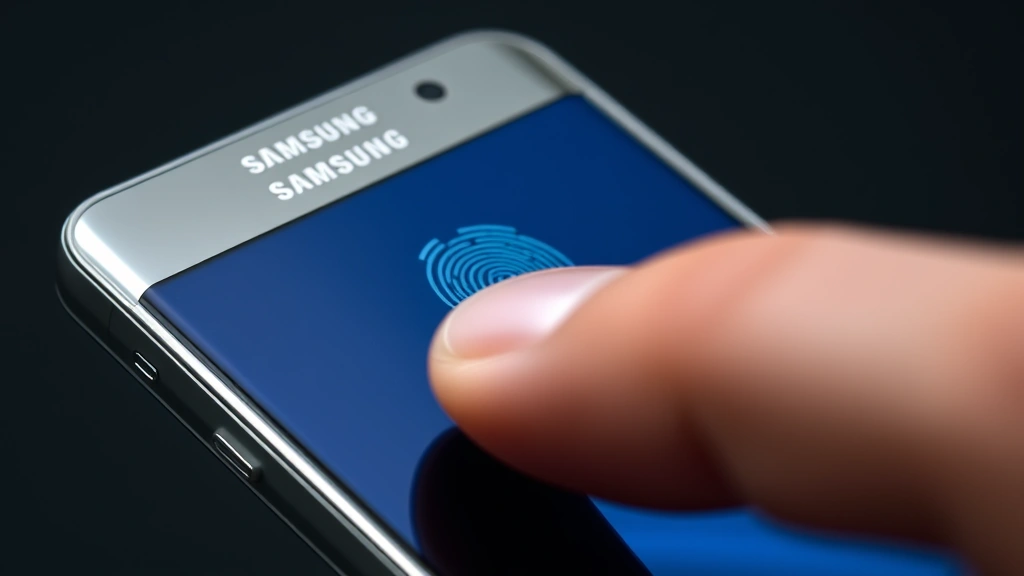
Fingerprint Recognition Setup: Most Samsung phones include an in-display fingerprint sensor or a side-mounted sensor. To set up fingerprint unlock, navigate to Settings, then Security and Privacy (or Lock Screen), and select Fingerprint. You’ll be prompted to scan your finger multiple times from different angles to ensure the sensor captures your unique fingerprint pattern. Samsung recommends enrolling at least two fingers so you have a backup option if one finger is injured or unavailable.
To use your fingerprint to unlock your phone, simply press your enrolled finger against the sensor when the device is locked. The phone will vibrate slightly and unlock if the fingerprint matches your stored data. You can also use your fingerprint for app authentication, Samsung Pay, and other sensitive functions. If your fingerprint isn’t recognized after several attempts, you’ll be prompted to enter your PIN or password as a backup method.
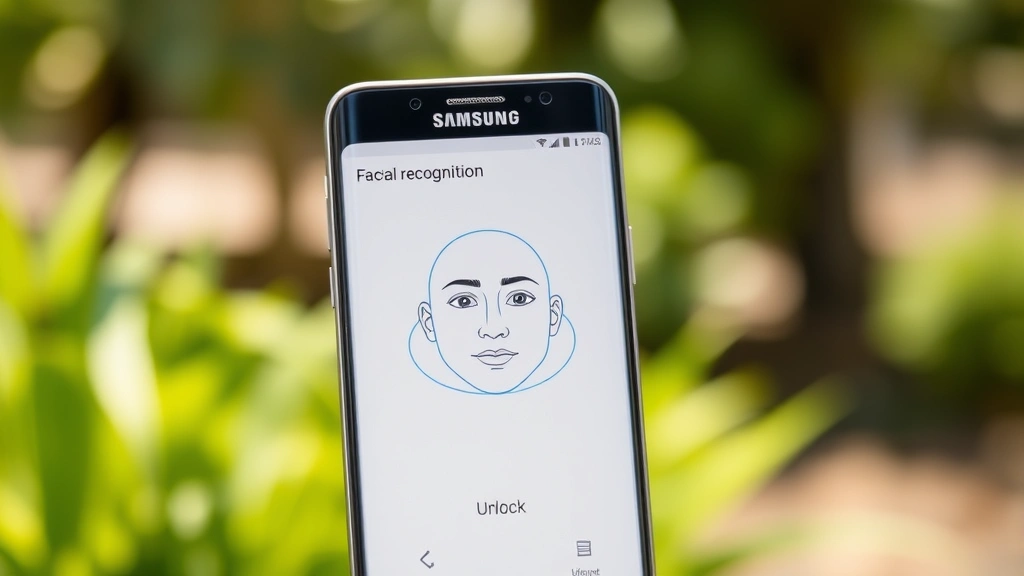
Facial Recognition Setup: Samsung’s facial recognition technology uses your device’s front-facing camera to create a 3D map of your face. To enable this feature, go to Settings, select Security and Privacy, then choose Face Recognition. Hold your phone at a natural distance from your face and follow the on-screen prompts to scan your face from multiple angles. The system will ask you to move your head slightly to capture your face from different positions, ensuring accurate recognition in various lighting conditions.
Facial recognition on Samsung phones works even in low light conditions, though it performs best in moderate to bright lighting. You can unlock your phone simply by looking at it when it’s activated, making it the most seamless unlock method available. However, facial recognition can be spoofed by photos or videos in some cases, which is why Samsung recommends using it in combination with a PIN or password for maximum security. For highly sensitive apps or transactions, you can require additional authentication beyond facial recognition.
PIN, Pattern, and Password Recovery
If you’ve forgotten your PIN, pattern, or password, Samsung provides several recovery options that require verification of your identity. The most straightforward method involves using your Samsung account credentials, which you set up during the initial device setup process. After several failed unlock attempts, your Samsung phone will display a message offering account recovery options.
Using Your Samsung Account: When you see the unlock screen after multiple failed attempts, look for an option that says “Forgot pattern?” or “Forgot PIN?” Tap this option and you’ll be directed to enter your Samsung account email address and password. Once you’ve successfully authenticated with your Samsung account, you’ll be able to set a new PIN, pattern, or password. This method works seamlessly as long as you remember your Samsung account credentials and have an internet connection available.
To set up your Samsung account if you haven’t already, visit the Samsung Account website and create a new account or sign in with an existing one. Make sure to use an email address you have regular access to, as Samsung will send verification codes to this address during the account recovery process. Store your Samsung account credentials in a secure location, such as a password manager, so you can access them quickly if needed.
Using Your Google Account: Samsung phones are integrated with Google’s Android operating system, which means you can also use your Google account to recover access to your device. After entering an incorrect PIN or pattern several times, you should see an option to sign in with your Google account. Enter the email address and password associated with your Google account, and you’ll be able to reset your device lock. This method is particularly useful if you’ve changed your Samsung account password or no longer have access to that account.
Make sure your Google account is synced with your Samsung phone before you need to use this recovery method. You can verify this by going to Settings, then Accounts, and checking that your Google account appears in the list. If it doesn’t, add your Google account by selecting “Add account” and following the prompts. Having both your Samsung account and Google account linked to your device provides redundancy if one account becomes inaccessible.
Setting a Strong PIN or Password: When creating a new PIN or password, follow these security best practices to protect your device. A strong PIN should be at least six digits long and avoid obvious sequences like 123456 or your birth year. Passwords should be at least eight characters long and include a mix of uppercase letters, lowercase letters, numbers, and special characters. Avoid using personal information like your name, address, or phone number, as these can be easily guessed by someone who knows you.
Samsung Find Mobile Feature
Samsung’s Find Mobile feature is an incredibly useful tool if you’ve lost your phone or forgotten how to unlock it. This service, also known as Samsung Find Mobile or Find My Mobile, allows you to remotely unlock your device, locate it on a map, or even erase your data if necessary. To use this feature, you’ll need to have previously registered your Samsung account on your device and enabled the Find Mobile service.
Visit the Samsung Find Mobile website from any computer or another device and sign in with your Samsung account credentials. Once logged in, you’ll see a dashboard showing all devices registered to your account. Select the device you want to unlock and choose the “Unlock” option. Samsung will send a verification code to your registered email address. After entering this code, your device will be unlocked remotely, allowing you to access your phone and set a new security method.
The Find Mobile feature also provides other valuable functions beyond unlocking. You can locate your phone on a map in real-time, which is helpful if you’ve misplaced it nearby. The service can also trigger an alarm on your device to help you find it, even if it’s on silent. If you’re concerned about data security and believe your phone has been stolen, you can remotely erase all personal data from your device through the Find Mobile dashboard. This ensures that thieves cannot access your sensitive information, even if they manage to get past your lock screen.
To ensure you can always use Find Mobile when needed, enable this feature before you encounter any problems. Go to Settings, then Security and Privacy, and look for Find Mobile or Find My Mobile. Sign in with your Samsung account and enable the service. Make sure location services are turned on, as Find Mobile requires GPS access to locate your device accurately. You should also verify that your Samsung account email address is current and that you have access to it, since Samsung will use this email for verification during the unlock process.
Factory Reset Options
If all other methods fail and you cannot unlock your Samsung phone, a factory reset represents your last resort. This process erases all data on your device and returns it to its original factory settings. Before attempting a factory reset, understand that this action is permanent and cannot be undone. You will lose all apps, photos, messages, and other personal data stored on your device unless you have a backup.
Factory Reset Using Recovery Mode: To perform a factory reset using recovery mode, first power off your Samsung phone completely. Then press and hold the Volume Up button and Power button simultaneously until the Samsung logo appears. Release the Power button but continue holding Volume Up until the recovery menu appears. Use the Volume buttons to navigate to “Wipe data/factory reset” and press the Power button to select it. Confirm the action by selecting “Yes” when prompted.
The factory reset process may take several minutes to complete. Your phone will restart automatically once finished, and you’ll see the initial setup screen as if the phone were brand new. You’ll need to set up your Samsung account again and enter your Google account credentials to fully activate your device. This is actually beneficial because it allows you to set a new PIN, pattern, or password during the setup process.
Factory Reset Using Settings: If you can access your phone’s settings before it locks completely, you can perform a factory reset through the Settings app. Navigate to Settings, then General Management (or similar, depending on your Samsung model), and look for Reset options. Select “Reset” or “Factory data reset” and follow the on-screen prompts. You may be asked to confirm your action by entering your current PIN or password, or by signing in to your Samsung or Google account.
Before performing a factory reset, make absolutely certain you have a backup of any important data. Check if you have Samsung Cloud enabled, which automatically backs up your contacts, calendar, and other important information. You can verify this by going to Settings, then Accounts, and selecting your Samsung account. Look for Backup and Restore options to see what data is being backed up. Additionally, check your Google account backup by going to Settings, then Accounts, then Google, and reviewing your backup settings.
How to Open LINE on Your Samsung Phone
LINE is a popular messaging application used by millions of people worldwide, particularly in Asia. If you’re trying to figure out how to open LINE on a Samsung phone, the process is straightforward once you have access to your device. This section provides detailed instructions for downloading, installing, and using LINE on your Samsung phone.
Downloading and Installing LINE: The easiest way to get LINE on your Samsung phone is through the Google Play Store. Open the Play Store app on your device, which you can find on your home screen or in your app drawer. Tap the search icon at the top of the screen and type “LINE” to find the official application. Look for the app with the green icon featuring a white speech bubble, which is the official LINE Messenger app. Tap “Install” to download and install the application automatically.
Once the installation is complete, you’ll see an “Open” button where the “Install” button was previously displayed. Tap this button to launch LINE for the first time. Alternatively, you can find LINE in your app drawer and tap it to open the application. The first time you open LINE, you’ll be taken through a setup process where you’ll need to create an account or sign in to an existing one.
Creating a LINE Account: When you open LINE for the first time, you’ll be prompted to create a new account or log in to an existing account. If you’re new to LINE, tap “Create a new account” and follow the on-screen instructions. You’ll need to provide a phone number or email address, and LINE will send a verification code to confirm your identity. Enter this code when prompted, and you’ll be able to set your display name and profile picture.
If you already have a LINE account, simply tap “Log in” and enter your email address and password. Make sure you have an internet connection when logging in, as LINE needs to verify your credentials with their servers. Once you’ve successfully logged in, you’ll have access to all your existing LINE contacts and message history. You can then start using LINE to send messages, make calls, and share media with your contacts.
Customizing LINE Settings: After you’ve logged in to LINE, you can customize the application to suit your preferences. Open the LINE app and tap the settings icon, usually represented by a gear symbol. From here, you can adjust notification settings, privacy options, and display preferences. You can choose to receive notifications for new messages, calls, and other events, or disable them if you prefer not to be disturbed. You can also set your profile picture and status message to let your contacts know what you’re up to.
To add contacts to LINE, you can search for them by their LINE ID, phone number, or email address. You can also use the QR code feature to quickly add friends—just ask them to show you their LINE QR code and scan it with your camera. Once you’ve added contacts, you can start conversations by tapping their name in your chat list. LINE also supports group chats, allowing you to communicate with multiple people at once. For more advanced features like video calls and voice messages, explore the additional options available within the app.
If you want to learn more about optimizing your Samsung phone’s performance and features, check out the FixWiseHub Blog for comprehensive how-to guides and tutorials covering various smartphone and technology topics. You can also explore related guides on our site for additional helpful information about maximizing your device’s capabilities.
Preventing Future Lockouts
The best approach to dealing with phone lockouts is to prevent them from happening in the first place. By taking proactive steps to secure your device and maintain access to your accounts, you can avoid the stress and inconvenience of being locked out. Here are several strategies to implement today that will protect you in the future.
Store Your Credentials Securely: Keep your Samsung account email, password, and recovery codes in a secure location. Consider using a password manager like Bitwarden, 1Password, or LastPass to store these credentials safely. Password managers encrypt your information and make it easy to access your passwords when needed without writing them down or storing them in plain text. Make sure you remember the master password for your password manager, as this is the key to accessing all your other passwords.
Enable Two-Factor Authentication: Add an extra layer of security to your Samsung and Google accounts by enabling two-factor authentication. This feature requires you to enter a verification code from your phone or email whenever you try to log in from a new device. Go to your Samsung account settings online and look for security options. Similarly, visit your Google account settings and enable two-factor authentication there as well. This makes it much harder for someone to gain unauthorized access to your accounts, even if they somehow obtain your password.
Keep Recovery Information Updated: Regularly verify that your recovery email addresses and phone numbers are current and accessible. If you’ve changed your email address or phone number, update this information in your Samsung and Google account settings immediately. Having outdated recovery information can make it impossible to regain access to your account if you ever need to. Set a reminder to review your account security settings every few months to ensure everything is still accurate.
Create Regular Backups: Enable automatic backups through Samsung Cloud and Google Drive to ensure your important data is safely stored. Go to Settings, then Accounts, and configure backup options for both services. Regular backups mean that even if you need to perform a factory reset, you can restore your data afterward. This is particularly important for photos, videos, and documents that would be difficult or impossible to recreate if lost.
Use a Memorable but Secure PIN: Create a PIN that you can remember easily but that isn’t obvious to others. Avoid using your birth year, address, or other personal information that someone could guess. A good strategy is to use a PIN based on a memorable date that isn’t public knowledge, such as the day you met a close friend or a significant personal event. Test your memory of your PIN regularly to ensure you can reliably enter it without mistakes.
Set Up Biometric Backups: Enroll multiple fingerprints and set up facial recognition as a backup to your PIN or password. If your primary fingerprint is injured or unavailable, having a secondary fingerprint enrolled ensures you can still unlock your device. Similarly, facial recognition can serve as a backup if you forget your PIN. Having multiple unlock methods provides flexibility and reduces the likelihood of being locked out due to a single method failing.
FAQ
What should I do if I forgot my Samsung PIN and don’t remember my Samsung account password?
If you’ve forgotten both your PIN and your Samsung account password, you can use your Google account to unlock your device instead. After several failed unlock attempts, select the option to sign in with your Google account. If you’ve also forgotten your Google password, visit Google’s account recovery page to reset it using your recovery email or phone number. Once you’ve reset your Google password, use it to unlock your Samsung device.
Is it possible to unlock a Samsung phone without a PIN or account access?
Unfortunately, modern Samsung phones include strong security features that prevent unlocking without either a PIN, biometric authentication, or account access. This is by design to protect your personal data from theft. If you own the device but cannot access any of these methods, your best option is to contact Samsung support with proof of purchase. They may be able to assist you through a verification process, though this can be time-consuming.
How long does it take to factory reset a Samsung phone?
A factory reset typically takes between 5 and 15 minutes, depending on your specific Samsung model and how much data is stored on the device. The process involves erasing all data and reinstalling the operating system, which requires time to complete. Your phone will restart automatically once the process is finished. Make sure your phone has at least 50% battery remaining before starting a factory reset to avoid interruption.
Can I unlock my Samsung phone remotely if I don’t have the Find Mobile feature enabled?
If you didn’t enable Samsung Find Mobile before losing access to your device, you cannot use that feature to unlock it remotely. However, you can still attempt to unlock your phone using your Samsung account or Google account credentials if you can access the unlock screen. If you’re unable to do this, a factory reset through recovery mode is your remaining option. Going forward, enable Find Mobile immediately to ensure you have this option available in the future.
What’s the difference between a PIN and a pattern lock on Samsung phones?
A PIN is a numerical code (typically 4-6 digits) that you enter to unlock your phone, while a pattern lock requires you to draw a specific pattern by connecting dots on the screen. Both provide similar security levels, though some people find patterns easier to remember. PINs are generally considered slightly more secure because they’re less visible to observers who might watch you unlock your device. Choose whichever method you find most comfortable and secure.
Will a factory reset remove my Google account from my Samsung phone?
A factory reset will erase all data from your phone, but it won’t permanently remove your Google account from the device. However, you’ll need to sign in to your Google account again after the reset completes. During the initial setup process after a factory reset, you’ll be prompted to enter your Google account credentials. Make sure you remember your Google account email and password before performing a factory reset.
How can I prevent my Samsung phone from locking with a PIN if I find it inconvenient?
If you find a PIN inconvenient, use biometric authentication instead. Set up fingerprint recognition or facial recognition, which allows you to unlock your phone instantly without entering any codes. You can also disable the lock screen entirely by going to Settings, then Security and Privacy, and selecting “None” as your lock method. However, this is not recommended as it leaves your phone vulnerable to unauthorized access. A good compromise is to use biometric authentication with a PIN backup for security.

Related Posts

Superscript in Google Docs: Expert Tips

Strikethrough in Excel: Easy Steps for Beginners
