
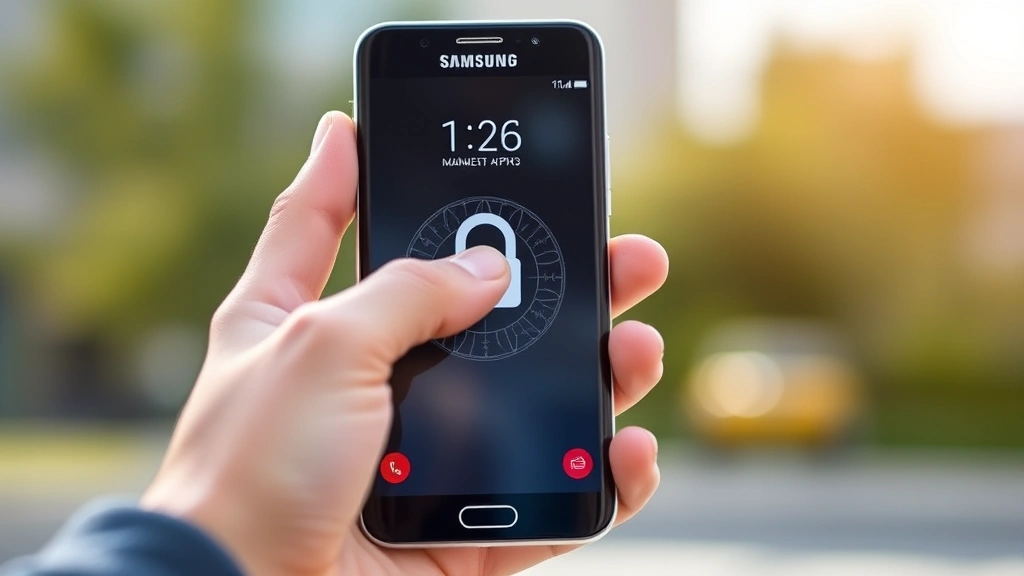
Unlock Samsung Phone? Easy Step-by-Step Guide
How to Unlock a Samsung Phone: Complete Step-by-Step Guide
Getting locked out of your Samsung phone can be frustrating, whether you’ve forgotten your password, PIN, or pattern lock. The good news is that Samsung provides several legitimate methods to regain access to your device without losing your data. This comprehensive guide walks you through each option, from the simplest solutions to more advanced recovery techniques.
Understanding your unlock options is essential before you proceed. Samsung phones offer multiple security layers, and depending on which one you’ve set up, you’ll have different pathways to regain access. Whether you’re dealing with a forgotten pattern, PIN, password, or biometric lock, we’ll cover all the methods you need to know.
Using Your Samsung Account to Unlock Your Device
The easiest way to unlock a Samsung phone is through your Samsung Account, which serves as your backup authentication method. If you’ve linked your Samsung Account to your device during setup, you can use your account credentials to regain access. This method works on most Samsung devices running Android 5.0 or higher.
First, enter your unlock code incorrectly several times until the system prompts you to try again after a timeout period. After multiple failed attempts (usually 5-10 tries), you’ll see an option that says “Forgot Pattern,” “Forgot PIN,” or “Forgot Password.” Tap this option immediately. The system will then offer you the choice to unlock using your Samsung Account credentials.
Enter the email address and password associated with your Samsung Account. Make sure you’re using the exact credentials you registered with Samsung. If you’ve changed your password recently, use the current password, not an old one. The system will verify your identity and, if successful, allow you to create a new unlock pattern, PIN, or password for your device.
This method is particularly valuable because it doesn’t erase any of your data. Your photos, contacts, messages, and apps all remain intact on your device. The only thing that changes is your security credentials, which you can now customize to something you’ll remember.
Pattern Lock Recovery Methods
If you’ve set up a pattern lock on your Samsung phone, there are specific recovery procedures you can follow. Pattern locks are popular because they’re easy to remember, but they can also be easy to forget, especially if you haven’t used them regularly.
After entering an incorrect pattern multiple times, your device will display a message indicating you’ve exceeded the maximum attempts. At this point, look for options like “Forgot Pattern” or “Try Again Later.” Tap the forgot option, and you’ll be presented with alternative verification methods. These typically include:
- Signing in with your Samsung Account
- Using your Google Account credentials
- Answering your security questions if you set them up
- Using your backup PIN if you created one during setup
The Google Account option is particularly useful because most Samsung phone users have a Google Account linked to their device. Simply enter the email address and password for the Google Account you used when setting up your phone. Google will verify your identity, and you’ll be able to reset your pattern lock.
If you’ve set up security questions during your initial phone setup, you may be able to unlock your device by answering those questions correctly. These questions typically relate to personal information like your mother’s maiden name, your favorite pet’s name, or the city where you were born.
PIN and Password Reset Options
Numeric PIN codes and alphanumeric passwords offer stronger security than pattern locks, but they’re also easier to forget. Fortunately, Samsung provides multiple pathways to reset these security measures. Understanding each option helps you choose the best recovery method for your situation.
When you enter an incorrect PIN or password multiple times, your Samsung device will eventually lock you out temporarily and show a message asking you to try again later. During this lockout period, look carefully at the bottom of the screen for recovery options. Most Samsung devices display buttons like “Forgot PIN?” or “Forgot Password?” that appear after several failed attempts.
Tapping these buttons reveals your recovery options. The most straightforward method is using your linked Samsung Account. Enter your Samsung Account email and password, and the system will authenticate you. Once verified, you’ll be able to create a new PIN or password. This process typically takes just a few minutes and requires no additional tools or technical knowledge.
If you don’t remember your Samsung Account password, you can reset it through Samsung’s official website. Visit the Samsung Account recovery page, click “Forgot your password?” and follow the prompts. You’ll need access to the email address associated with your account, as Samsung will send you a password reset link there.

Find My Mobile Service: Samsung’s Official Solution
Samsung’s Find My Mobile service is an official tool designed specifically to help users regain access to their locked devices. This service is free and works on virtually all Samsung smartphones and tablets. It’s one of the most reliable methods because it’s directly supported by Samsung’s infrastructure.
To use Find My Mobile, visit the Find My Mobile official website from any computer or another device. Click on “Unlock My Mobile” and sign in with your Samsung Account credentials. The service will search for your device and, once located, provide you with unlock options.
One major advantage of Find My Mobile is that it can unlock your device remotely without erasing your data. The system sends an unlock command to your phone, which then removes your current security lock. You can then set up a new PIN, pattern, or password that you’ll remember. This method is particularly valuable for business users who cannot afford to lose their data.
If your device isn’t connected to the internet or Find My Mobile can’t locate it, the service offers alternative solutions. You can perform a remote factory reset, which clears all data but allows you to set up your phone from scratch. While this erases your information, it’s sometimes necessary if you’ve lost access through other means.
Find My Mobile also provides features like remote tracking, remote locking, and remote data backup. These tools make it easier to manage your Samsung device’s security even if you’re not physically near it. The service requires that you’ve previously registered your device with your Samsung Account, so it’s worth setting up proactively.
Factory Reset as Last Resort
When all other methods fail, a factory reset is your final option to regain access to your Samsung phone. This method completely erases your device and returns it to its original factory state. While this removes all your data, it also removes all security locks, allowing you to set up your phone fresh.
To perform a factory reset on a locked Samsung phone, you’ll need to access the Recovery Mode. The process varies slightly depending on your specific Samsung model, but the general steps are similar. Power off your device completely, then hold down specific button combinations to enter Recovery Mode.
For most Samsung phones, hold the Power button, Volume Up button, and Home button simultaneously until you see the Samsung logo appear. Keep holding these buttons until the Recovery Mode menu appears on your screen. Once in Recovery Mode, use the Volume buttons to navigate and the Power button to select options.
Look for an option that says “Wipe Data/Factory Reset” or “Format Data.” Selecting this option will display a warning message explaining that all data will be erased. Confirm that you want to proceed, and your device will begin the factory reset process. This typically takes several minutes to complete.
After the reset finishes, your phone will restart and display the initial setup screen, just like when you first purchased it. You can then set up your device with a new security method that you’ll remember. This is an excellent opportunity to reconsider your security strategy and choose a method that works better for you.
Before resorting to a factory reset, ensure you’ve backed up any important data to cloud storage if possible. If you have access to your Samsung Account, Google Account, or other cloud services, your contacts, photos, and other data may be recoverable after you set up your device again.

Preventing Future Lockouts
The best approach to smartphone security is prevention. By implementing smart security practices now, you can avoid the stress and inconvenience of being locked out of your device in the future. Several strategies help you maintain strong security while keeping your device accessible.
Start by using a security method you’ll actually remember. While complex passwords offer better security, a PIN or pattern you’re familiar with is more practical for daily use. Consider using a combination that relates to something meaningful but not obvious to others, like a sequence based on important dates or a number pattern you use regularly.
Link multiple recovery methods to your device. Set up both a Samsung Account and a Google Account on your phone. Having multiple authentication options increases the likelihood that you’ll be able to unlock your device if you forget one credential. Additionally, set up security questions during your initial phone setup, providing another recovery pathway.
Enable biometric authentication like fingerprint or face recognition if your Samsung phone supports these features. These methods are convenient for daily access while maintaining strong security. Even if you forget your PIN or password, your biometric data provides a backup way to access your device.
Create a secure record of your important credentials. Write down your Samsung Account email and password in a secure location, such as a password manager or a locked safe. Never store passwords in plain text on your phone or in obvious places. Password managers like Bitwarden or 1Password encrypt your credentials and make recovery easier if needed.
Enable two-factor authentication on your Samsung Account. This adds an extra security layer that requires verification through a secondary method, like a code sent to your email or phone number. While this makes your account more secure, ensure you maintain access to the recovery email and phone number associated with your account.
Regularly test your recovery methods. Every few months, verify that your Samsung Account credentials still work and that you can access your recovery options. This proactive approach ensures you’re not caught off guard if you actually need to unlock your device.
Consider creating a backup PIN or password and storing it securely. Some users create a secondary PIN that they keep written down in a safe place specifically for emergency access. This backup method provides a safety net without compromising your primary security.
For additional comprehensive guides on managing your devices, explore our FixWiseHub Blog for how-to guides and tutorials covering various tech topics and solutions.
Frequently Asked Questions
Can I unlock my Samsung phone without losing my data?
Yes, in most cases you can. Using your Samsung Account or Google Account to unlock your device preserves all your data. Only a factory reset erases your information, and that should be your last resort. Methods like Find My Mobile can also unlock your device remotely without data loss.
What if I don’t remember my Samsung Account password?
Visit the Samsung Account recovery page and click “Forgot your password?” You’ll receive a reset link at the email address associated with your account. If you don’t have access to that email address, contact Samsung Support for additional assistance in verifying your identity.
How long does it take to unlock a Samsung phone?
Using your Samsung Account or Google Account typically takes just a few minutes. Find My Mobile service may take longer if your device needs to connect to the internet first. A factory reset can take 10-30 minutes depending on your phone’s storage capacity and age.
Will unlocking my phone void my warranty?
No. Using official Samsung methods like your Samsung Account or Find My Mobile service does not void your warranty. Only unauthorized modifications or third-party unlocking services might affect your warranty status.
Can I unlock my Samsung phone if it’s not connected to the internet?
Some unlock methods, like using your Google Account, may work offline if your device has previously synced with that account. However, Find My Mobile requires an internet connection. If your device isn’t connected, you may need to use a factory reset as your final option.
What should I do if I keep forgetting my unlock code?
Consider switching to a simpler security method like biometric authentication (fingerprint or face recognition) as your primary access method. You can set a backup PIN for situations where biometrics don’t work. Alternatively, use a memorable number or pattern and test it regularly to reinforce your memory.
Is it safe to use third-party unlocking services?
We recommend using only official Samsung methods or services. Third-party unlocking services may compromise your device’s security, void your warranty, or potentially expose your personal data. Samsung’s official tools are free and secure, making them the best choice.

Related Posts

Superscript in Google Docs: Expert Tips

Strikethrough in Excel: Easy Steps for Beginners
