
Merge Excel Cells? Here’s What Experts Recommend
Merge Excel Cells? Here’s What Experts Recommend
Merging cells in Excel is one of the most common formatting tasks professionals encounter when organizing data, creating headers, or designing spreadsheets for presentations. Whether you’re building a budget tracker, creating a report template, or simply want to make your spreadsheet more visually appealing, understanding how to merge cells effectively can save you time and prevent data loss. This guide walks you through the process, explores best practices, and shows you when merging is—and isn’t—the right choice.
Excel’s cell merging feature combines two or more adjacent cells into a single larger cell. While it’s a straightforward operation, there are important considerations to keep in mind, including how it affects data, formulas, and spreadsheet functionality. Let’s explore everything you need to know about merging cells in Excel and discover expert-recommended approaches that will improve your workflow.
Why Merge Cells in Excel?
Merging cells serves several practical purposes in spreadsheet design. The primary reason professionals merge cells is to create visually organized headers that span multiple columns. For example, if you’re building a quarterly sales report with months displayed across columns, merging cells allows you to create a single header that says “Q1 Sales” spanning three columns below. This creates a professional hierarchy and makes your spreadsheet easier to read at a glance.
Another common reason is to create centered titles or labels that look more polished than text confined to a single cell. Merged cells also help with combining cells for better data presentation, though this requires careful planning. Additionally, merged cells are useful when you’re creating forms, templates, or dashboards where visual organization matters as much as data accuracy.
However, it’s worth noting that Microsoft Excel experts and data management professionals often caution against over-merging, as it can complicate sorting, filtering, and formula calculations. Understanding when to merge and when to use alternatives is crucial for maintaining spreadsheet integrity.
How to Merge 2 Cells in Excel: Step-by-Step
Merging two cells in Excel is a straightforward process that takes just a few clicks. Here’s the most direct method:
- Select the cells you want to merge: Click on the first cell, then hold Shift and click on the second cell. Both cells should now be highlighted in blue, indicating they’re selected.
- Open the Home tab: If you’re not already on the Home tab in the ribbon, click it now. This is the default tab when you open Excel.
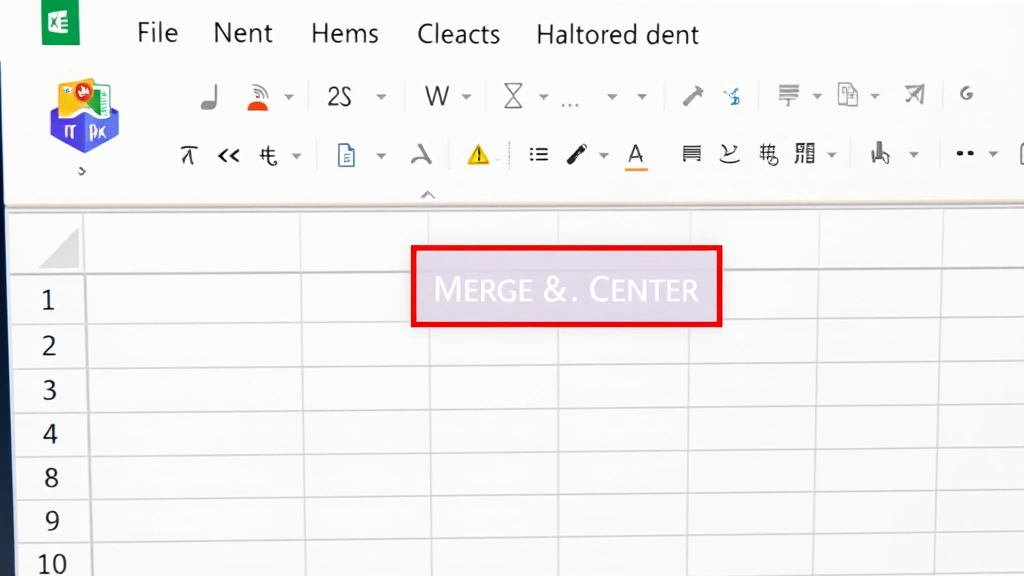
- Locate the Merge & Center button: In the Alignment group, look for the “Merge & Center” button. It typically displays an icon showing cells combining together.
- Click the dropdown arrow: Click the small arrow next to Merge & Center to see all available merge options.
- Select your merge type: Choose from “Merge & Center,” “Merge Across,” or “Merge Cells” depending on your needs.
- Confirm the action: Excel will merge the selected cells. If there’s data in multiple cells, Excel will prompt you that only the content from the upper-left cell will be retained.
For keyboard shortcut enthusiasts, there isn’t a built-in Excel shortcut for merging, but you can create a custom macro to automate this process if you frequently merge cells. This is particularly useful if you’re designing multiple templates or working with standardized spreadsheet formats.
Merging Methods Explained
Excel offers three distinct merging options, each serving different purposes. Understanding the differences ensures you choose the right method for your specific task.
Merge & Center is the most popular option. It combines selected cells and centers the content both horizontally and vertically within the merged area. This method is ideal for creating titles, headers, and labels that need to be prominently displayed. The centering automatically applies, saving you a formatting step.
Merge Across combines cells in the same row while keeping them separate vertically. This is useful when you have multiple rows and want to merge cells across columns within each row independently. Unlike Merge & Center, this option doesn’t automatically center your text, giving you more control over alignment.
Merge Cells is the basic merge function that simply combines cells without any automatic formatting or centering. This gives you complete control over how your content appears within the merged area. Many advanced users prefer this option because it doesn’t impose formatting decisions on their data.
To access these options, click the dropdown arrow next to the Merge & Center button in the Alignment section of the Home tab. This reveals all available merge options in a clean menu.
Important Warnings About Data Loss
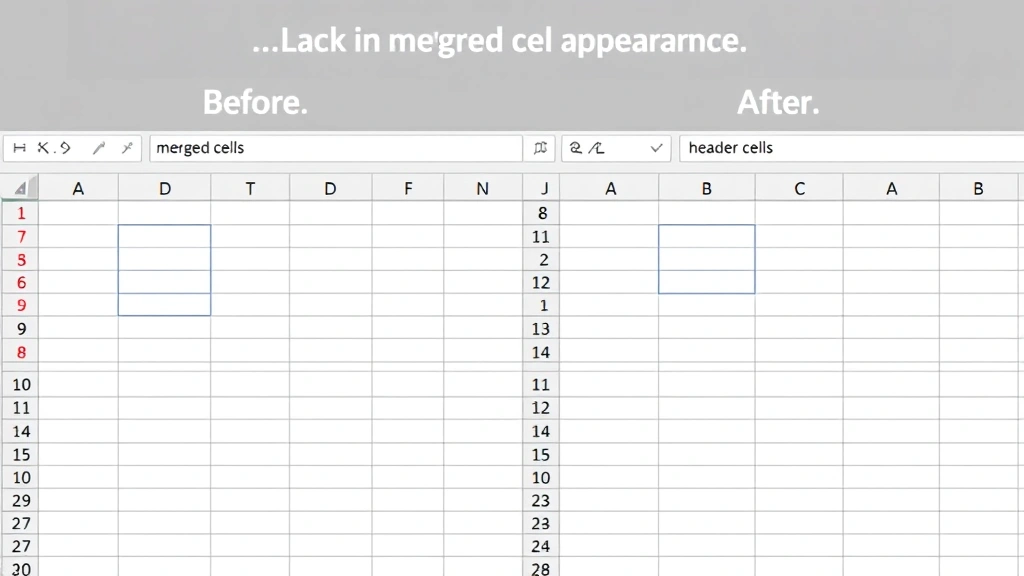
Before you merge cells, you absolutely must understand the critical warning that Excel displays. When you merge cells containing data in more than one cell, Excel will delete all data except what’s in the upper-left cell. This is permanent and cannot be undone once you confirm the merge operation.
Here’s a concrete example: if you merge cells A1 (containing “John”) and B1 (containing “Smith”), the merged result will only contain “John”. The word “Smith” will be permanently deleted. Excel does provide a warning dialog, but it’s easy to miss or dismiss without realizing the consequence.
To avoid this problem, always:
- Review all selected cells before merging to confirm their contents
- Copy important data from cells that will lose content before performing the merge
- Consider using splitting cells first if you need to preserve data
- Use Ctrl+Z immediately if you accidentally merge cells with important data
Professional spreadsheet designers often recommend creating a backup or copy of your spreadsheet before performing extensive merging operations. This safety measure ensures you can recover if something goes wrong.
Alternatives to Merging Cells
Excel experts frequently recommend considering alternatives to merging before you proceed. In many cases, alternative formatting methods achieve the same visual result while maintaining better spreadsheet functionality.
Center Across Selection is the most direct alternative to merging. Instead of actually combining cells, this formatting option centers text across multiple selected cells while keeping them functionally separate. This preserves your data integrity and allows formulas and filters to work normally. To use this method, select your cells, right-click, choose “Format Cells,” go to the Alignment tab, and select “Center Across Selection” from the Horizontal alignment dropdown.
Adjusting Column Width is another underutilized alternative. Instead of merging cells, you can simply widen a column to accommodate longer text. This keeps your spreadsheet structure intact while improving readability. Double-click the column border to auto-fit the width to your content.
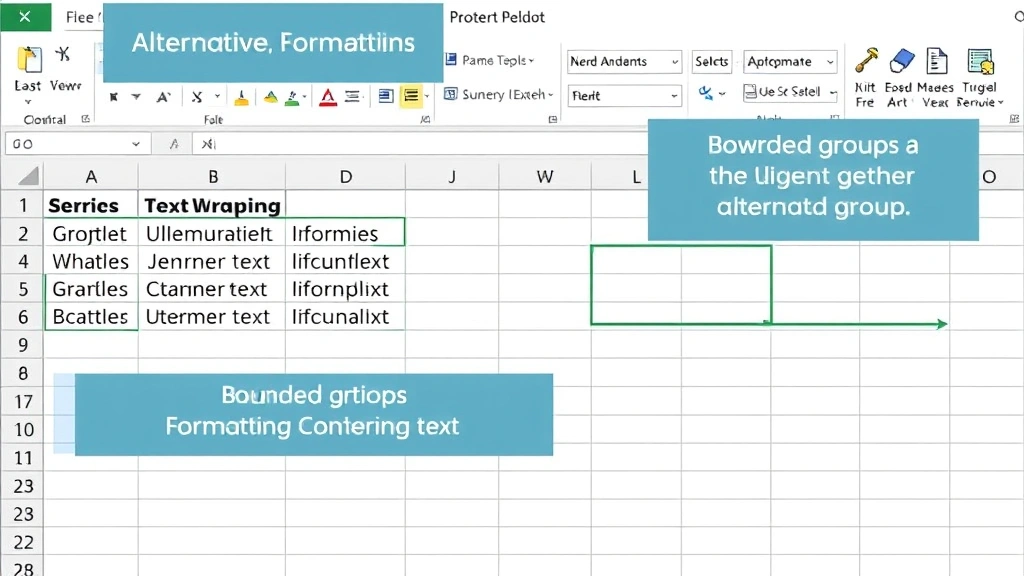
Using Text Wrapping allows long text to display across multiple lines within a single cell without merging. Select your cell, right-click, choose “Format Cells,” go to the Alignment tab, and check “Wrap text.” This automatically adjusts row height to accommodate wrapped text.
Borders and Shading can create visual grouping without merging cells. Apply borders around groups of cells or use background colors to indicate related data. This approach maintains full spreadsheet functionality while creating clear visual organization.
These alternatives are particularly valuable when you’re working with data that needs to be sorted, filtered, or used in formulas. Freezing rows and applying these formatting techniques creates professional-looking spreadsheets without the complications that merged cells introduce.
Best Practices for Merged Cells
If you decide that merging is the right choice for your project, follow these expert-recommended best practices to minimize problems and maintain spreadsheet quality.
Merge Only for Headers and Titles: Limit merging to non-data areas like headers, titles, and labels. Never merge cells that contain actual data or formulas that other cells depend on. This keeps your data structure clean and prevents calculation errors.
Plan Your Layout First: Before merging, sketch out your spreadsheet design on paper or in a separate document. This helps you visualize the final layout and identify potential issues before you make irreversible changes.
Document Your Merged Cells: If you’re sharing spreadsheets with others, add a note or comment indicating which cells are merged and why. This helps collaborators understand your design decisions and avoid accidentally unmerging cells.
Avoid Merging in Data Ranges: Never merge cells within ranges that you plan to sort, filter, or use in formulas. This breaks functionality and can produce unexpected results. Keep data areas pristine and separate from formatted display areas.
Use Consistent Merge Sizes: If you’re merging multiple sets of cells, use consistent dimensions. For example, if you merge three columns for one header, merge three columns for all headers. This creates visual consistency and makes your spreadsheet look more professional.
Test Your Spreadsheet: After merging, test all formulas, sorting, and filtering features to ensure nothing is broken. If you find problems, use hiding columns or other formatting techniques as alternatives.
Unmerging Cells When Needed
Eventually, you may need to unmerge cells—whether because your layout changed, you discovered problems, or you’re reorganizing your spreadsheet. Fortunately, unmerging is just as simple as merging.
To unmerge cells:
- Select the merged cell: Click on any part of the merged cell area to select it.
- Go to the Home tab: Make sure you’re on the Home tab in the ribbon.
- Click the Merge & Center dropdown: Click the small arrow next to the Merge & Center button.
- Select “Unmerge Cells”: This option appears at the bottom of the dropdown menu.
- Confirm the unmerge: The cells will immediately return to their individual state. Any content will remain in the upper-left cell of the former merged area.
When you unmerge cells, the original content returns to the upper-left cell, but cells that previously contained data (which was deleted during the merge) will remain empty. This is why backing up your spreadsheet before merging is so important—unmerging won’t recover lost data.
If you’re working with complex spreadsheets and frequently need to modify merged cells, consider using the Undo function (Ctrl+Z) to revert recent changes rather than manually unmerging. This often proves faster and more reliable than manual unmerging operations.
For detailed information about combining cells in more advanced ways, check out our guide on how to combine cells in Excel, which explores formula-based concatenation methods that don’t require merging.
FAQ
Does merging cells affect formulas?
Yes, merging cells can affect formulas. If a formula references cells that are later merged, the formula may break or produce unexpected results. It’s best to merge cells before creating formulas that reference them, or avoid merging cells that are part of formula ranges entirely.
Can I merge cells in Excel Online?
Yes, Excel Online supports cell merging through the Home tab in the ribbon. The process is identical to the desktop version. However, some advanced merge options may have limited functionality in the online version.
What happens to my data when I merge cells?
When you merge cells containing data in multiple cells, only the content from the upper-left cell is preserved. All other data is permanently deleted unless you undo the operation immediately or had previously copied it elsewhere.
Is there a keyboard shortcut for merging cells?
Excel doesn’t have a built-in keyboard shortcut for merging cells. However, you can create a custom keyboard shortcut through the Quick Access Toolbar or use VBA macros if you frequently merge cells.
Why is my spreadsheet not sorting correctly after merging?
Merged cells interfere with Excel’s sorting and filtering features. To resolve this, unmerge the cells, perform your sort or filter operation, and then reapply merging if needed. This is one of the primary reasons experts recommend using alternatives to merging when working with data.
Can I merge cells across different rows?
You can merge cells that span multiple rows and columns simultaneously. Select all the cells you want to merge (they must be contiguous), and then use any of the merge options. However, this creates a large merged area that may complicate spreadsheet functionality.

Related Posts

Superscript in Google Docs: Expert Tips

Strikethrough in Excel: Easy Steps for Beginners
