

Merge 2 Cells in Excel: Easy Steps Explained
How to Merge 2 Cells in Excel: Easy Steps Explained
Merging cells in Excel is one of the most useful formatting techniques for creating professional-looking spreadsheets. Whether you’re building a title row, creating section headers, or organizing data into logical groups, knowing how to merge 2 cells in Excel can significantly improve your spreadsheet’s appearance and readability. This guide walks you through multiple methods to merge cells, troubleshoot common issues, and understand when merging is the best choice for your data presentation.
Cell merging combines two or more adjacent cells into a single larger cell. This technique is particularly valuable when you want to create centered headers that span multiple columns, organize complex data layouts, or make your spreadsheet more visually appealing. Unlike simply combining data from multiple cells, merging actually creates one unified cell space, which is essential for professional document formatting.

What Does Merging Cells Mean?
Before diving into the technical steps, it’s important to understand exactly what happens when you merge cells. When you merge two or more cells, Excel combines them into a single cell that spans the width and height of all selected cells. The merged cell will contain the content from the top-left cell in your selection, and any data in the other selected cells will be deleted (though Excel typically warns you about this before proceeding).
Merging is different from using the combine cells feature, which allows you to concatenate data from multiple cells while keeping them separate. Understanding this distinction helps you choose the right technique for your specific spreadsheet needs. Merged cells are ideal for headers, titles, and visual organization, while combining cells works better when you need to preserve individual cell data while putting it together in one location.
One important consideration: merged cells can sometimes cause issues with sorting, filtering, and data analysis. Many Excel experts recommend using merged cells sparingly and primarily for headers and labels rather than data cells. This approach maintains spreadsheet functionality while still achieving your formatting goals.
Method 1: Using the Merge Cells Button
The most straightforward way to merge cells in Excel is using the dedicated Merge Cells button in the Home ribbon. This method works in Excel 2016, 2019, 2021, and Microsoft 365, and is the quickest option for most users.
Step-by-step instructions:
- Open your Excel spreadsheet and select the two cells you want to merge. Click on the first cell, then hold Shift and click on the second cell to select both.
- Navigate to the Home tab in the ribbon at the top of your screen.
- Look for the Merge & Center button in the Alignment group. This button typically shows a grid icon with merged cells.
- Click the dropdown arrow next to Merge & Center to see your merging options.
- Select Merge Cells from the dropdown menu. Your two cells are now merged.
- If you want your content centered in the merged cell, click Merge & Center instead, which automatically centers the text.
This method is perfect for quick merging tasks and gives you the option to center your content simultaneously. The Merge & Center button is especially useful when creating headers, as it combines the merging action with text alignment in one click. If you frequently customize your spreadsheet formatting, you might want to add this button to your Quick Access Toolbar for even faster access.
Method 2: Using the Format Menu
For users who prefer menu-based navigation or need access to more advanced merging options, the Format menu provides comprehensive cell merging controls.
Step-by-step instructions:
- Select the two cells you want to merge by clicking the first cell and Shift-clicking the second.
- Click the Home tab in the ribbon.
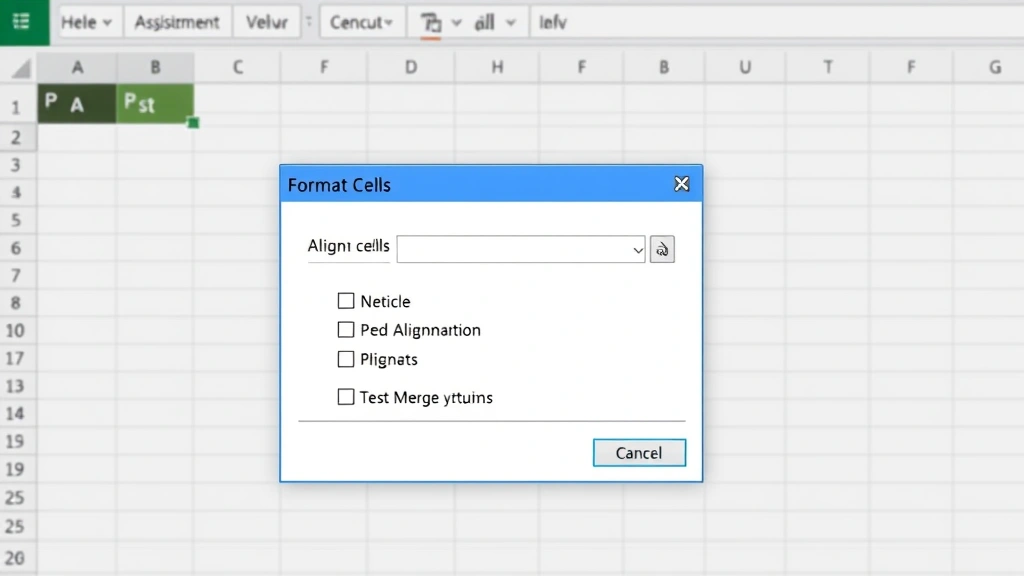
- In the Alignment group, click the small arrow icon to open the Format Cells dialog box. Alternatively, you can right-click on your selected cells and choose Format Cells.
- In the Format Cells dialog, click the Alignment tab.
- Check the Merge cells checkbox in the dialog box.
- You’ll see additional options for horizontal and vertical alignment. Choose your preferred alignment settings.
- Click OK to apply the merge.
This method gives you more control over alignment settings while merging. You can specify exactly how your content aligns within the merged cell—whether it’s centered, left-aligned, right-aligned, or justified. This approach is ideal when you need precise formatting control and want to set alignment properties at the same time as merging.
Method 3: Using Keyboard Shortcuts
If you’re a keyboard shortcut enthusiast, you can merge cells using keyboard commands, though this requires a bit more navigation than the button methods.
Step-by-step instructions:
- Select your two cells using keyboard navigation. Click the first cell, then hold Shift and use arrow keys to select the second cell.
- Press Ctrl + 1 to open the Format Cells dialog box.
- Press Alt + A to navigate to the Alignment tab.
- Press Alt + M to check the Merge cells checkbox.
- Press Enter or Tab to apply the merge.
While keyboard shortcuts might seem more complex initially, they can speed up your workflow significantly if you’re merging many cells throughout your spreadsheet. Once you memorize the key combination, you’ll find it faster than navigating menus repeatedly.
Merging Cells with Data
One critical consideration when merging cells is what happens to the data they contain. By default, when you merge cells containing data, Excel keeps only the content from the top-left cell and discards content from other cells. This behavior can cause accidental data loss if you’re not careful.
Handling data in merged cells:
If you want to preserve data from all cells before merging, you should first combine the data into a single cell. You can do this by creating a formula in an empty cell that concatenates the values from both cells using the CONCATENATE function or the ampersand (&) operator. For example: =A1&” “&B1 will combine cells A1 and B1 with a space between them.
Once your combined data is in a single cell, you can safely merge that cell with an adjacent empty cell without losing information. This approach is much safer than merging cells that already contain separate data. For more information about working with multiple cells, check out our guide on how to combine cells in Excel.
Another best practice is to only merge cells in header rows or label areas rather than in data ranges. This prevents complications with sorting, filtering, and other data analysis features that work better with unmerged cells. If you need to organize data visually, consider using cell borders and background colors as alternatives to merging.
Unmerging Cells
Sometimes you need to reverse a merge operation. Whether you’ve changed your formatting approach or made a mistake, unmerging cells is just as simple as merging them.
To unmerge cells:
- Click on the merged cell you want to unmerge.
- Go to the Home tab and click the dropdown arrow next to Merge & Center.
- Select Unmerge Cells from the dropdown menu.
- The merged cell will split back into individual cells. The content remains in the top-left cell position.
Alternatively, you can use the Format Cells dialog method: select the merged cell, open Format Cells (Ctrl+1), go to the Alignment tab, and uncheck the “Merge cells” checkbox. Both methods work equally well.
Understanding how to unmerge is important because it gives you flexibility in your spreadsheet design. You can experiment with different layouts and easily revert changes if a particular formatting approach doesn’t work as intended. This is particularly useful when managing complex spreadsheet layouts with multiple sections and headers.
Common Issues and Solutions
Even though merging cells is straightforward, users sometimes encounter problems. Understanding these common issues and their solutions will help you troubleshoot effectively.
Issue 1: Excel won’t let me merge cells
This usually happens when you try to merge cells that contain formulas or when Excel detects a problem with your selection. Solution: Make sure all cells you’re trying to merge are adjacent (touching each other). If they’re not, you’ll need to select them differently. Also, if cells contain complex formulas, consider copying the formula result to a new cell before merging.
Issue 2: Data disappeared after merging
When you merge cells with data in multiple cells, Excel keeps only the top-left content. Solution: Before merging, use a formula to combine all data into one cell. You can also undo the merge (Ctrl+Z) to recover lost data, then combine the information properly before merging again.
Issue 3: Merged cells are causing sorting problems
Merged cells in your data range can prevent sorting and filtering from working correctly. Solution: Avoid merging cells in data ranges. Use merging only for headers, titles, and labels. If you need visual organization within data, use cell formatting instead.
Issue 4: Merged cells look misaligned
Sometimes merged cells don’t align the way you expect. Solution: Use the alignment options in the Format Cells dialog to set horizontal and vertical alignment precisely. You might want to combine merging with text wrapping for better appearance in large merged cells.
Issue 5: Copying merged cells causes problems
When you copy merged cells and paste them elsewhere, the paste might not work as expected. Solution: If you’re having issues, try pasting special (Ctrl+Shift+V) and selecting specific paste options, or unmerge the cells before copying and re-merge them at the destination.
For additional formatting help, check out resources like Microsoft’s official Excel support documentation or Ablebits’ comprehensive Excel guides.
If you’re interested in other cell manipulation techniques, you might also want to learn about how to split cells in Excel, which is the opposite operation and equally useful for data organization.
Another related skill that complements cell merging is learning how to hide columns in Excel, which provides alternative ways to organize and present your spreadsheet data professionally.
FAQ
Can I merge more than 2 cells at once?
Yes, absolutely. The merging process works the same whether you’re merging 2 cells, 3 cells, or an entire range. Simply select all the cells you want to merge (they must be adjacent) and use any of the methods described above. This is particularly useful for creating large header cells that span multiple columns.
Will merging cells affect my formulas?
Merging cells won’t damage existing formulas, but if your formulas reference cells that will be merged, you might lose data since only the top-left cell’s content is retained. Always check your formulas before merging cells that contain them. It’s best to merge empty cells or cells containing only labels and headers.
Is there a way to merge cells without losing data?
Yes. Before merging, create a formula in a new cell that combines the content from both cells using CONCATENATE or the ampersand operator. Then merge that new cell with an empty cell. Alternatively, you can manually copy the important data elsewhere before merging cells that contain information.
Can I merge cells in Excel Online?
Yes, Excel Online supports cell merging through the same ribbon interface. Open your spreadsheet in Excel Online, select your cells, go to the Home tab, and use the Merge & Center button just as you would in desktop Excel.
Why should I avoid merging cells in data ranges?
Merged cells in data ranges can interfere with sorting, filtering, and other data analysis features. Excel expects each column to have consistent cell structure, and merged cells disrupt this. Reserve merging for headers, titles, and labels only to maintain spreadsheet functionality.
Can I merge cells vertically and horizontally at the same time?
Yes. When you select a rectangular range of cells (for example, a 3×3 grid) and merge them, Excel creates one large cell spanning both columns and rows. This is useful for creating prominent title cells or large header sections in your spreadsheet.
What’s the difference between Merge Cells and Merge & Center?
Merge Cells simply combines the cells into one without changing text alignment. Merge & Center does the same thing but also centers the text both horizontally and vertically in the merged cell. Choose based on your formatting preferences.

Related Posts

Superscript in Google Docs: Expert Tips

Strikethrough in Excel: Easy Steps for Beginners
