
Master Half Swipe on Snapchat: Expert Tips
Master Half Swipe on Snapchat: Expert Tips and Tricks
The half swipe on Snapchat is one of the most useful yet underutilized features that can dramatically improve your messaging experience. Whether you’re trying to preview messages without marking them as read or quickly access specific chat features, mastering this technique will make you a Snapchat power user. This guide will walk you through everything you need to know about executing the perfect half swipe and leveraging it for better control over your conversations.
Many Snapchat users struggle with half swiping because they don’t understand the precise finger movements required or the different variations available across devices. By learning the exact techniques demonstrated in this comprehensive guide, you’ll be able to peek at messages, access reply options, and navigate your chat interface with professional-level precision. We’ll cover desktop methods, mobile techniques, troubleshooting tips, and advanced strategies to help you become a Snapchat expert.
What Is a Half Swipe on Snapchat?
A half swipe on Snapchat is a precise finger gesture that allows you to partially open a chat message or access hidden menu options without fully committing to the action. Unlike a full swipe, which completely opens a message or executes a command, a half swipe gives you a preview or reveals additional options by moving your finger only partway across the screen. This technique is particularly valuable for maintaining your “read” status while still being able to see message content.
The primary benefit of mastering half swiping is the ability to read messages without triggering the “read receipt” notification that alerts the sender you’ve viewed their message. This is especially useful in professional contexts, group chats, or situations where you want to maintain privacy about your activity. Additionally, half swiping can reveal quick-action buttons, reply options, and other contextual menu items that aren’t immediately visible in the standard chat interface.
Understanding the mechanics of half swiping requires knowing that Snapchat’s interface responds to the distance and speed of your swipe gesture. A partial swipe activates different functionality than a complete swipe, making precision and practice essential for consistent results. Different devices and operating systems may require slightly different techniques, which we’ll explore in detail throughout this guide.
[IMAGE_1]
How to Half Swipe on iPhone
On iPhone devices, the half swipe technique requires a deliberate and controlled finger movement from right to left across the chat message you want to preview. Start by locating the message in your chat list that you want to half swipe. Place your finger at the far right edge of the message row and begin moving it slowly leftward. The key is to stop your finger movement when you’ve moved approximately one-third to one-half of the way across the message, rather than swiping all the way to the left.
The exact distance you need to swipe depends on your screen size and personal preference, but generally, you should aim for around 40-60 pixels of movement on standard iPhone screens. As you perform this movement, you’ll notice the message gradually reveals its preview content without fully opening. The timing and speed matter significantly—too fast and you’ll complete a full swipe, too slow and the gesture may not register properly. Practice with slower movements first to develop muscle memory for the correct distance.
For iPhone users specifically, the haptic feedback can help you understand when you’ve reached the optimal half-swipe distance. Many users report that the subtle vibration pattern changes when you’ve moved far enough to trigger the preview mode. Keep your finger in contact with the screen throughout the entire gesture—lifting your finger prematurely will cancel the action. Once you’ve mastered the basic technique, try varying your swipe speed to see how it affects the interface response.
If you’re using newer iPhone models with larger screens, you may need to adjust your swipe distance proportionally. The gesture should feel natural and require minimal effort—if you find yourself straining or making exaggerated movements, you’re likely using incorrect technique. Record a video of yourself attempting the gesture and compare it with tutorial videos to identify any inconsistencies in your form.
How to Half Swipe on Android Devices
Android users will find that half swiping on Snapchat requires similar principles to iPhone but with some device-specific variations. The fundamental technique involves placing your finger at the right edge of a message and swiping leftward to approximately the midpoint of the message. Android’s haptic feedback system may feel slightly different than iPhone’s, so take time to familiarize yourself with your specific device’s response patterns.
Start by ensuring you’re using the latest version of Snapchat available for Android, as older versions may not support half swipe functionality consistently. Open your chat list and select a message you’re comfortable practicing with. Position your finger at the extreme right edge of the message row and begin your leftward swipe with moderate pressure. Aim to stop your finger movement when you’ve reached about 40-50% of the message width.
One important consideration for Android users is that different manufacturers have implemented varying levels of touch sensitivity. Samsung devices, for example, may respond differently than Google Pixel phones or other brands. Spend time experimenting with different pressure levels and swipe speeds on your specific device to find the optimal technique. Some users find that using the pad of their finger rather than the tip provides better control and more consistent results.
The timing of your gesture is crucial—a half swipe that’s too quick might register as a full swipe, while one that’s too slow may not register at all. Aim for a smooth, deliberate movement that takes approximately 0.5-1 second to complete. If you’re having difficulty achieving consistent results, try adjusting your starting position slightly further to the right or left to find your device’s optimal swipe zone.
Half Swipe Techniques for Desktop
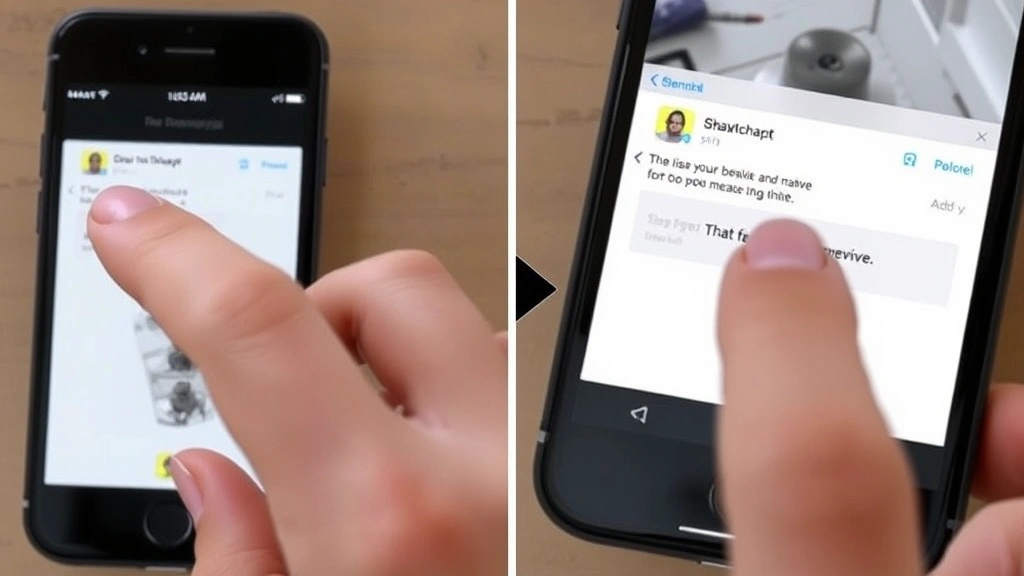
If you’re accessing Snapchat through the web version or desktop application, the half swipe technique translates into a different type of interaction. On desktop, you’ll use your mouse or trackpad to simulate the swiping motion that mobile users perform with their fingers. Move your cursor to the right edge of a message and click-drag leftward to approximately the midpoint of the message container. Release the mouse button to complete the half-swipe action.
Desktop users should note that the precision available with a mouse or trackpad may actually make half swiping easier than on mobile devices. You have more control over the exact distance traveled and can practice with greater consistency. However, the visual feedback may be less intuitive than on mobile, so pay careful attention to how the interface responds as you move your cursor across the message.
For trackpad users specifically, the gesture works similarly to mobile but requires you to maintain consistent pressure while dragging. Some users find that using a traditional mouse provides better feedback and more reliable results than trackpad gestures. Experiment with both input methods to determine which works best for your workflow and the specific device you’re using.
The desktop version of Snapchat may have slightly different functionality compared to mobile, and certain features available on phones might not be accessible through the web interface. Check Snapchat’s official support documentation to confirm which half-swipe features are available on desktop platforms, as this can vary depending on your location and account settings.
Advanced Half Swipe Strategies
Once you’ve mastered the basic half swipe technique, you can explore advanced strategies that leverage this skill for enhanced productivity and communication management. One sophisticated approach involves using half swipes to quickly scan multiple messages in succession without marking any of them as read. This allows you to prioritize which messages deserve your full attention without alerting senders that you’ve reviewed their content.
Another advanced strategy involves combining half swipes with other Snapchat gestures to access layered menu options. Some users have discovered that performing a half swipe followed by a secondary gesture can reveal additional functionality not available through standard menu navigation. These techniques vary depending on your specific Snapchat version and device, so experimentation is essential for discovering new capabilities.
For users managing multiple conversations simultaneously, mastering half swipes can dramatically improve your efficiency. You can quickly preview incoming messages from important contacts while maintaining your “away” status for others. This selective attention management is particularly valuable for professionals who need to respond promptly to certain individuals while managing their overall availability.
Consider creating a personal ranking system for which messages warrant full-swipe responses versus which ones you can address through half-swipe previews. This organizational approach, similar to implementing a systematic approach to digital organization, helps you manage your communication more effectively and reduces response time to high-priority messages.
Common Mistakes and Troubleshooting
Many users struggle with half swiping because they make common mistakes that prevent the gesture from registering correctly. The most frequent error is moving your finger too far across the screen, which triggers a full swipe instead of a half swipe. To correct this, practice with even shorter movements and gradually increase the distance until you find your device’s optimal threshold. Mark a mental note of the exact stopping point that works best for your specific device.
Another common mistake is applying inconsistent pressure while swiping. Pressing too hard can cause your finger to stick to the screen, while too light pressure may cause the gesture to register incorrectly. Find the middle ground—firm enough to maintain contact but gentle enough to allow smooth movement. This is particularly important on devices with sensitive touch screens that respond to pressure variations.
If your half swipes aren’t registering at all, verify that you’re using the latest version of Snapchat and that your device’s operating system is fully updated. Outdated software can cause gesture recognition issues that disappear after updating. Additionally, ensure that you’re not accidentally interfering with the gesture through accidental button presses or conflicting touch inputs from other fingers.
Some users report that their half swipes work intermittently, functioning correctly sometimes but failing at other times. This inconsistency often stems from varying swipe speeds or starting positions. Record yourself performing successful half swipes and compare them with unsuccessful attempts to identify patterns. You may discover that you need to adjust your technique based on factors like screen temperature, hand moisture, or the specific message you’re interacting with.
If you’re experiencing persistent difficulties, try restarting the Snapchat application completely. Force-close the app and reopen it fresh, which often resolves gesture recognition issues. You might also consider reinstalling Snapchat if problems continue, as corrupted app files can prevent features from functioning correctly. Before reinstalling, ensure you’ve backed up any important chats or media you want to preserve.
Privacy and Safety Considerations
While half swiping offers the advantage of reading messages without triggering read receipts, it’s important to understand the privacy implications of this practice. Some users may feel uncomfortable if they discover you’ve been viewing their messages without responding or marking them as read. Consider the context of your relationships and communication norms before extensively using half swipes with specific individuals.
Be aware that while half swiping prevents read receipts from appearing, it doesn’t make your activity completely invisible. Snapchat’s backend systems may still record that you’ve interacted with a message, and this information could potentially be accessed through account analytics or other mechanisms. Don’t rely on half swiping as a guaranteed way to maintain complete privacy regarding your activity.
When using half swipes in professional or sensitive contexts, always follow your organization’s communication guidelines and policies. Some workplaces have specific expectations about response times and availability that might conflict with selectively using half swipes to preview messages without responding. Clarify these expectations with your team or manager to avoid misunderstandings.
Additionally, be mindful that using half swipes to avoid read receipts could be perceived as evasive or dismissive by some contacts. While the feature itself is legitimate, your usage patterns might create negative impressions if overused in certain relationships. Maintain balance by responding promptly to important messages even if you initially preview them through half swiping.
For parents or guardians monitoring younger users’ Snapchat activity, understanding half swiping helps you recognize that read receipt absence doesn’t necessarily mean messages haven’t been viewed. This knowledge is valuable for having informed conversations about digital communication habits and online safety practices.
FAQ
Can I use half swipe on all versions of Snapchat?
Half swipe functionality is available on most modern versions of Snapchat for iOS and Android, but availability can vary. Ensure you’re running the latest version of the app, as older versions may not support this feature consistently. Some older devices or operating systems might not have full support for the gesture, so update your device and app to access all functionality.
Does half swiping work on Snapchat Stories as well as messages?
Half swiping works primarily on direct messages and conversations. The functionality may be limited or unavailable when viewing Stories, as Stories have different interaction mechanics. Focus your half-swipe practice on the chat section of Snapchat to develop the most useful application of this skill.
What if half swipe doesn’t work on my device?
First, ensure you’re using the latest version of Snapchat and your device’s operating system. If problems persist, try restarting your device and force-closing the Snapchat app before reopening it. If the issue continues, consider reinstalling Snapchat completely. You might also check whether your device’s touch screen is functioning properly by testing other apps that use gesture controls.
Can Snapchat users tell if I’ve half-swiped their message?
No, half swiping doesn’t trigger any notification on the sender’s end. They won’t receive a read receipt or any indication that you’ve previewed their message. This is the primary advantage of half swiping—it allows you to read messages privately without alerting the sender of your activity.
Is half swiping the same as marking messages as unread?
Half swiping and marking as unread are different features. Half swiping allows you to preview message content without fully opening the message. Marking as unread is a separate feature that lets you flag previously read messages to return to later. Both features serve different purposes in message management.
How long does it take to master half swiping?
Most users can perform basic half swipes after 10-15 minutes of practice. However, achieving consistent, reliable results typically takes several hours of regular practice. The exact timeline depends on your individual device, hand coordination, and how frequently you practice the gesture. Like learning any new skill, regular practice accelerates mastery significantly.

Related Posts

Superscript in Google Docs: Expert Tips

Strikethrough in Excel: Easy Steps for Beginners
