
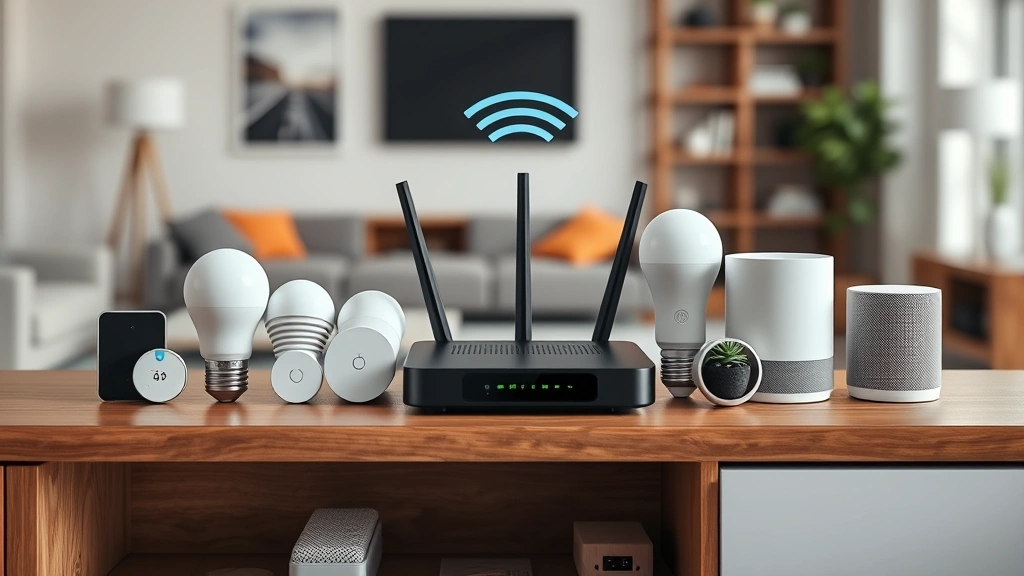
Enable Smart Home Devices? Expert Tips Inside
How to Enable Smart Home Devices: Expert Tips Inside
Smart home technology has revolutionized the way we live, offering convenience, security, and energy efficiency at our fingertips. Whether you’re a tech enthusiast or a homeowner looking to modernize your living space, enabling smart home devices doesn’t have to be complicated. This comprehensive guide walks you through everything you need to know about setting up and activating your smart devices, from initial setup to troubleshooting common issues.
The process of enabling smart home devices involves more than just unboxing and plugging in. You’ll need to understand network requirements, security protocols, compatibility issues, and integration options. By following the expert tips in this guide, you’ll be able to confidently enable your smart devices and create a connected home that works seamlessly with your lifestyle.
Understanding Smart Home Device Requirements
Before you begin enabling smart home devices, it’s essential to understand what each device requires to function properly. Different smart devices have varying needs, and knowing these requirements upfront will save you time and frustration during installation. Most smart home devices need a stable internet connection, a compatible hub or control system, and appropriate power sources.
Smart devices fall into several categories: smart speakers and displays, smart lighting systems, smart thermostats, security cameras, door locks, and connected appliances. Each category has specific requirements and capabilities. For instance, smart speakers typically require a 2.4GHz Wi-Fi connection and Bluetooth capability, while smart thermostats need to be compatible with your existing HVAC system. Understanding these specifications ensures you purchase devices that work together harmoniously in your home ecosystem.
Many smart devices also require a compatible mobile app or cloud account to function. You’ll need to create accounts with manufacturers or use unified platforms like Amazon Alexa, Google Home, or Apple HomeKit. Some devices work across multiple platforms, while others are exclusive to one ecosystem. Before purchasing, verify that your chosen devices are compatible with your preferred control platform.
Preparing Your Home Network
A robust home network is the foundation of any successful smart home setup. Your Wi-Fi router must be capable of handling multiple connected devices without degrading performance. Modern routers support 2.4GHz and 5GHz bands, and most smart devices prefer the 2.4GHz band for better range and wall penetration, though some newer devices benefit from 5GHz for faster speeds.
Start by evaluating your current router’s capabilities. Check if it supports at least Wi-Fi 5 (802.11ac) or preferably Wi-Fi 6 (802.11ax) for future-proofing your setup. Position your router centrally in your home to ensure adequate coverage throughout all rooms. If you have dead zones or weak signal areas, consider adding Wi-Fi extenders or a mesh network system to improve coverage.
Before enabling smart devices, secure your network with a strong password using WPA3 encryption if available, or WPA2 as a minimum standard. Create a separate guest network if your router supports it, though most smart devices should be on your main network for optimal performance. Document your network name (SSID) and password, as you’ll need these details repeatedly during device setup.
Check your router’s maximum device capacity. Most modern routers can handle 50-100+ connected devices, but performance may degrade with excessive connections. If you plan a large smart home system, you might need to upgrade to a more powerful router or implement a dedicated smart home network.
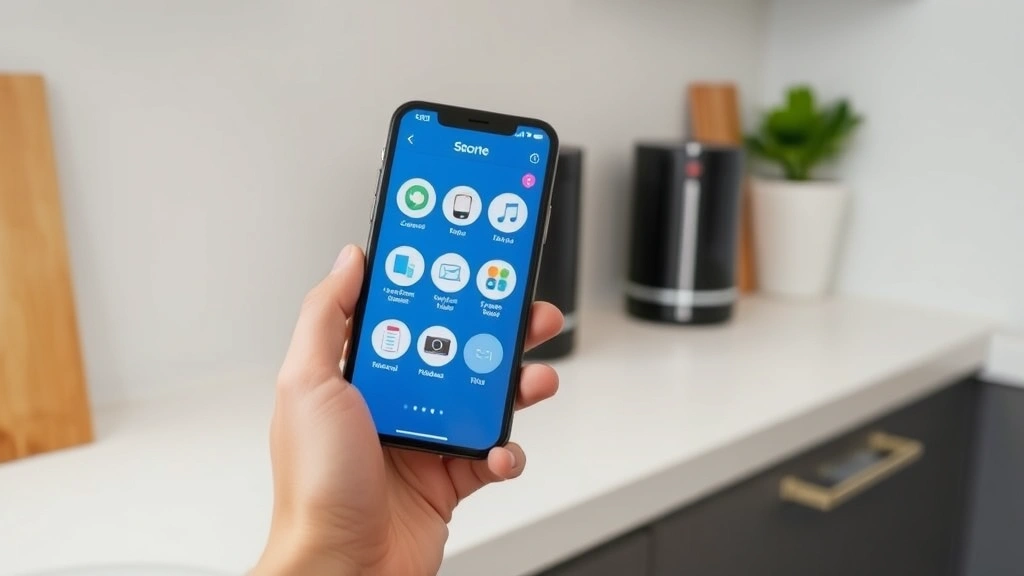
” alt=”Smart home hub setup with WiFi router and smart devices”>
Step-by-Step Activation Process
The activation process for smart devices typically follows a standard sequence, though specific steps vary by manufacturer and device type. Start by reading the manufacturer’s instructions completely before beginning setup. Unbox your device carefully and inspect all components, including power adapters, cables, and documentation.
Power on your device and look for initial setup indicators, such as LED lights or audible cues. Most smart devices enter pairing mode automatically when first powered on. Open the manufacturer’s mobile app on your smartphone or tablet—you can find links to popular apps on the FixWiseHub Blog for additional how-to guides. Create an account or sign in with existing credentials.
Select your device from the app’s available devices list. The app will guide you through connecting the device to your home Wi-Fi network. Enter your network credentials when prompted. This step is crucial—ensure you’ve entered your password correctly, as connection failures often result from typos. Wait for the device to connect and authenticate with your network, which typically takes 30 seconds to 2 minutes.
Once connected, the app will prompt you to name your device and assign it to a room or zone in your home. Use descriptive names like “Living Room Light” or “Front Door Lock” rather than generic names. This naming convention becomes essential when controlling multiple devices through voice commands or automation routines.
Some devices require additional setup steps, such as calibration or initial configuration. For example, smart thermostats need to learn your HVAC system’s capabilities, and security cameras require video quality and notification settings. Complete all recommended setup steps to ensure optimal device performance.
Enabling Device Connectivity
Device connectivity extends beyond initial Wi-Fi connection. To fully enable your smart devices, you need to establish connections between devices and control hubs or platforms. Many smart home ecosystems use hub devices as central command centers that communicate with individual devices, improving reliability and response times.
Popular hub options include Amazon Echo devices for Alexa, Google Nest Hub for Google Home, and Apple HomePod for HomeKit. These hubs serve as bridges between your internet connection and your smart devices, allowing remote access and automation even when you’re away from home. If you’re building a multi-brand smart home, consider using a platform-agnostic hub that supports multiple ecosystems.
To enable hub connectivity, place your hub centrally in your home and connect it to power and your home network. Most hubs connect to Wi-Fi like any other device. Once connected, add your smart devices to the hub through the respective app. This process usually involves selecting the hub as the connection point and confirming that devices appear in the hub’s interface.
For devices that use Bluetooth instead of Wi-Fi, ensure your hub or control device has strong Bluetooth capability and is within range. Bluetooth devices typically have a 30-50 foot range, though walls and interference can reduce this distance. If you experience connectivity issues, try repositioning your hub or removing sources of interference like microwave ovens or cordless phones.
Test connectivity by controlling each device through its app and through your hub or voice assistant. Confirm that commands execute immediately and that devices respond reliably. Inconsistent responses often indicate network congestion or weak signal strength, requiring troubleshooting steps covered in later sections.
Setting Up Voice Assistants
Voice control represents one of the most convenient features of smart home systems. Enable voice assistant integration by linking your smart devices to your chosen platform. If you’re using Alexa, download the Amazon Alexa app, sign in with your Amazon account, and navigate to the Devices section to add your smart devices.
For Google Home integration, use the Google Home app available on iOS and Android devices. Sign in with your Google account and follow the app’s prompts to add devices. Apple HomeKit users should use the Home app on their iPhone, iPad, or Mac. Each platform has different requirements for device compatibility and setup procedures.
Once devices are linked to your voice assistant, you can control them through voice commands. Test basic commands like “Alexa, turn on the living room light” or “Hey Google, set the bedroom thermostat to 72 degrees.” Voice assistants learn from your home setup and device names, so accurate naming during initial setup significantly improves voice control functionality.
Enable additional voice assistant features like routines and skills. Routines allow you to trigger multiple actions with a single command, such as “Good morning” activating lights, adjusting the thermostat, and reading the news. Skills are third-party applications that extend voice assistant capabilities, though you should carefully review permissions and privacy implications before enabling them.
Configure voice assistant settings to match your preferences. Disable features you don’t need, adjust microphone sensitivity, and review privacy settings. Most voice assistants offer options to delete voice recordings and limit data collection. Taking time to configure these settings ensures you maintain privacy while enjoying voice control convenience.
” alt=”Smart home voice assistant speaker on kitchen counter”>
Automating Your Smart Home
Automation represents the true power of smart home systems, allowing devices to respond to conditions, schedules, or triggers without manual intervention. Enable automation through your chosen platform’s app by creating routines, scenes, or automations based on your daily lifestyle.
Start with simple automations: scheduled lighting that turns on at sunset and off at bedtime, thermostats that adjust temperature based on the time of day, or security systems that arm automatically when everyone leaves home. Most platforms allow you to set time-based automations, location-based triggers, and condition-based actions.
Advanced automation uses sensor data to trigger complex routines. For example, motion sensors can trigger lights in hallways only when movement is detected, saving energy. Door sensors can send notifications when doors open unexpectedly or trigger lights when you arrive home. Temperature and humidity sensors can automate HVAC adjustments to maintain comfort while minimizing energy use.
Create automation groups or zones to control multiple devices simultaneously. A “Movie Time” scene might dim lights, close blinds, and adjust the temperature. A “Leaving Home” routine could lock doors, arm security systems, turn off lights, and adjust the thermostat to an away-mode setting. These grouped automations save time and ensure consistent execution of complex tasks.
Test automations thoroughly before relying on them completely. Run through each automation manually to confirm all devices respond correctly. Monitor automation performance over several days to identify timing issues or unexpected interactions between devices. Adjust automation settings based on real-world performance and seasonal changes.
Security and Privacy Considerations
Enabling smart home devices introduces new security considerations that shouldn’t be overlooked. Each connected device represents a potential entry point for unauthorized access, making robust security practices essential. Start by using strong, unique passwords for all smart home accounts and enable two-factor authentication wherever available.
Regularly update device firmware and app software to patch security vulnerabilities. Most manufacturers release periodic updates addressing discovered security issues. Enable automatic updates when possible, or check for updates manually at least monthly. Outdated devices become increasingly vulnerable to exploitation as new threats emerge.
Review privacy policies and data collection practices for all devices and platforms you use. Some manufacturers collect extensive usage data, location information, or voice recordings. While this data often improves service quality, you should understand what’s being collected and have the option to limit collection. Disable cloud storage of voice recordings if privacy is a concern.
Implement network-level security by enabling your router’s firewall and disabling unnecessary services. Consider creating a separate network specifically for smart devices, isolated from computers and personal devices containing sensitive information. This segmentation limits damage if a smart device is compromised.
Be cautious with third-party integrations and skills. Only enable integrations from trusted developers, and regularly review which apps have access to your smart home system. Remove integrations you no longer use, as they represent unnecessary security risks. Be especially careful with voice assistant skills that request account access or payment information.
Protect physical access to your smart devices. Security cameras and door locks should be positioned securely, and smart hub devices shouldn’t be accessible to unauthorized individuals. Consider using biometric or PIN authentication on devices that control security systems or door locks.
Troubleshooting Common Issues
Even with careful setup, smart home devices occasionally experience connectivity or functionality issues. The most common problem is devices becoming unresponsive or disconnecting from the network. When this occurs, first check your Wi-Fi connection by testing other devices. If your entire network is down, restart your router by unplugging it for 30 seconds, then plugging it back in.
If only specific devices are unresponsive, try restarting them individually by powering off and back on. Most smart devices reconnect automatically after restarting. If a device fails to reconnect, remove it from your app and re-add it following the initial setup procedure. Before removing a device, note its settings and automations so you can restore them after re-adding.
Weak Wi-Fi signal is another frequent culprit. Use a Wi-Fi analyzer app to identify signal strength in different areas of your home. If signal is weak where devices are located, move your router closer, add Wi-Fi extenders, or upgrade to a mesh network system. Ensure devices aren’t blocked by metal objects, and keep them away from microwave ovens and cordless phones that cause interference.
Some devices fail to appear in your app’s device list during initial setup. Confirm that your device is in pairing mode—most devices indicate this with a flashing LED or audible beep. Verify that your phone is connected to the same Wi-Fi network as the device. If problems persist, restart your phone and try again. Check the manufacturer’s support documentation for device-specific troubleshooting steps.
Voice commands may fail to execute if devices aren’t properly linked to your voice assistant. Open your voice assistant app and confirm that devices appear in the Devices section. Rename devices using clear, distinctive names without special characters. Test voice control with exact device names to confirm functionality. For more detailed setup guidance, visit This Old House’s smart home section for professional recommendations.
If automations don’t trigger as expected, verify that all devices involved in the automation are connected and responsive. Check automation conditions carefully—time-based automations require correct time zone settings, and location-based automations need location services enabled on your phone. Review automation history in your app to see if triggers are firing but devices aren’t responding.
Performance issues like slow response times often indicate network congestion. Check how many devices are connected to your network and consider whether you need to upgrade your router. Reduce the number of active connections by disabling devices you’re not using. For extensive smart home systems, Family Handyman offers smart home integration advice for managing large installations.
FAQ
What internet speed do I need for smart home devices?
Most smart home devices require minimal bandwidth—typically less than 1 Mbps per device. A standard broadband connection of 25 Mbps or higher easily supports dozens of smart devices. The key requirement is stable, reliable connectivity rather than high speeds. However, devices streaming video like security cameras or smart displays may benefit from faster speeds.
Can I enable smart devices from different manufacturers together?
Yes, most smart devices work across platforms, though some are exclusive to specific ecosystems. Check device compatibility before purchasing. Many devices support multiple platforms like Alexa, Google Home, and HomeKit simultaneously. Using devices from different manufacturers is common, though unified platforms simplify control and automation.
Do I need a smart hub to enable smart devices?
Not always. Many smart devices connect directly to your Wi-Fi network and work without a hub. However, hubs improve reliability, enable remote access, and allow automation when you’re away from home. For small installations, Wi-Fi-connected devices may suffice, but larger systems benefit significantly from dedicated hubs.
How long does it take to enable a smart device?
Most devices take 5-15 minutes to unbox, power on, and connect to your network. Additional setup like naming, assigning to rooms, and configuring preferences may add another 5-10 minutes. Complex devices like smart thermostats might require 20-30 minutes for complete setup, including HVAC system integration.
What should I do if a device won’t connect to Wi-Fi?
First, ensure the device is in pairing mode and your phone is on the same Wi-Fi network. Restart both the device and your router. Check that your Wi-Fi password is correct—typos are the most common cause of connection failures. If problems persist, try connecting to a 2.4GHz band specifically, as some devices don’t support 5GHz. Consult the manufacturer’s troubleshooting guide or contact customer support if connection issues continue.
Are smart home devices secure?
Smart devices can be secure if properly configured and maintained. Use strong passwords, enable two-factor authentication, keep firmware updated, and review privacy settings. However, no system is completely risk-free. Implement network security practices like firewalls and separate networks for smart devices to minimize risk. Choose reputable manufacturers with good security track records.
Can I control smart devices when away from home?
Yes, if you’ve enabled remote access through your hub or cloud service. Most platforms automatically enable remote access once devices are connected to your account. However, remote access requires that your hub or devices maintain internet connectivity. Confirm remote access is working by controlling a device from outside your home network.
What’s the difference between Wi-Fi and Bluetooth smart devices?
Wi-Fi devices connect directly to your home network and work at longer ranges (100+ feet). Bluetooth devices connect to a hub or control device and have shorter range (30-50 feet). Wi-Fi devices are more independent but use more power, while Bluetooth devices are more power-efficient but require a hub for extended functionality.

Related Posts

Superscript in Google Docs: Expert Tips

Strikethrough in Excel: Easy Steps for Beginners
