
Change Voicemail? Expert Tips & Tricks
How to Change Your Voicemail: Expert Tips & Tricks
Your voicemail greeting is often the first impression callers have of you, whether you’re managing a business line or personal phone. A clear, professional, or personalized voicemail message can make all the difference in how people perceive your availability and professionalism. Yet many people leave their default carrier voicemail intact or struggle with the process of recording a new greeting.
Changing your voicemail might seem intimidating if you’ve never done it before, but the process is straightforward once you understand the steps. Different phone carriers and devices have slightly different procedures, but the fundamental principles remain the same across most modern smartphones and phone systems. This comprehensive guide will walk you through everything you need to know about updating your voicemail greeting, customizing your settings, and troubleshooting common issues.
Understanding Your Voicemail System
Before you begin changing your voicemail greeting, it’s helpful to understand how voicemail works on your specific device and carrier. Most modern phones use either carrier-based voicemail (managed through your wireless provider) or visual voicemail (which displays transcriptions of messages). Some users prefer third-party voicemail apps that offer additional features and customization options.
Your voicemail system typically stores a default greeting until you record a personal one. This default message usually says something generic like “The person you’re trying to reach is not available.” Replacing this with your own greeting takes just a few minutes and dramatically improves the caller experience. If you’re looking to understand more about customizing device settings in general, our guide on how to change settings on various devices provides useful foundational knowledge.
The key difference between carrier voicemail and visual voicemail is that visual voicemail allows you to see a list of messages and choose which ones to listen to in any order, while traditional voicemail requires you to listen sequentially. Both systems allow you to record custom greetings, though the process differs slightly.

Changing Voicemail on iPhone
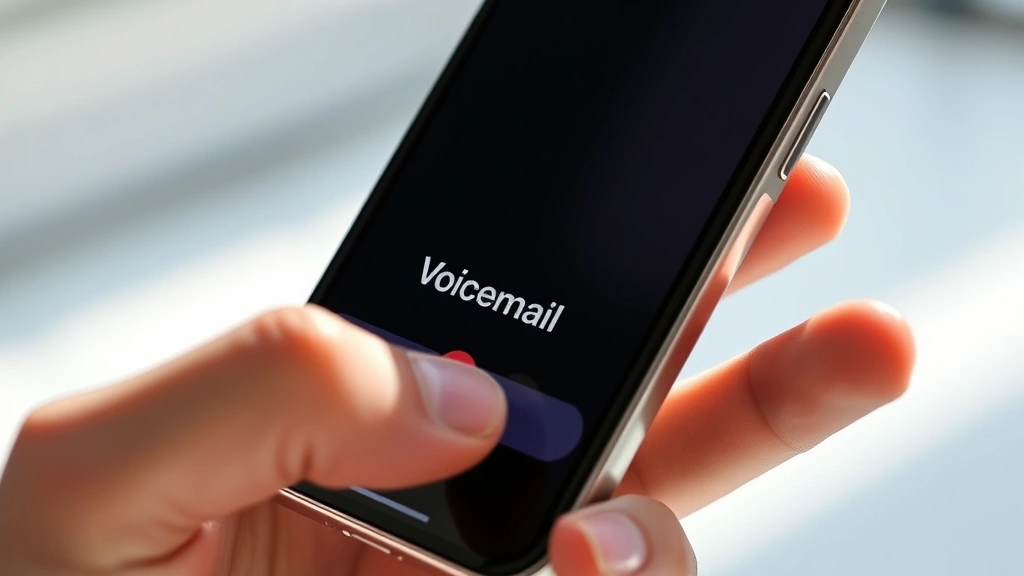
For iPhone users, the process of updating your voicemail is remarkably simple and can be completed directly from the Phone app. Apple’s intuitive design makes this one of the easiest voicemail systems to customize.
Step-by-step iPhone voicemail change:
- Open the Phone app on your iPhone
- Tap the Voicemail tab located at the bottom right of the screen
- Look for the Greeting option in the upper left corner
- Select “Custom” to record your own greeting (rather than using the default)
- Tap the Record button to begin recording your message
- Speak your greeting clearly and concisely
- When finished, tap Stop to end the recording
- Tap Save to confirm your new greeting
- You’ll hear a playback of your recording to verify it sounds correct
If you’re not satisfied with your recording, you can always re-record by following the same steps. Most experts recommend keeping your greeting between 15-30 seconds to respect callers’ time. If you need help with other device customizations, check out our tutorial on changing device settings for additional guidance.
One important note: if you have visual voicemail enabled through your carrier, you may also need to access your carrier’s voicemail settings separately. Some carriers like AT&T, Verizon, and T-Mobile offer their own visual voicemail apps that have additional customization options beyond what’s available in the native Phone app.
Changing Voicemail on Android Devices
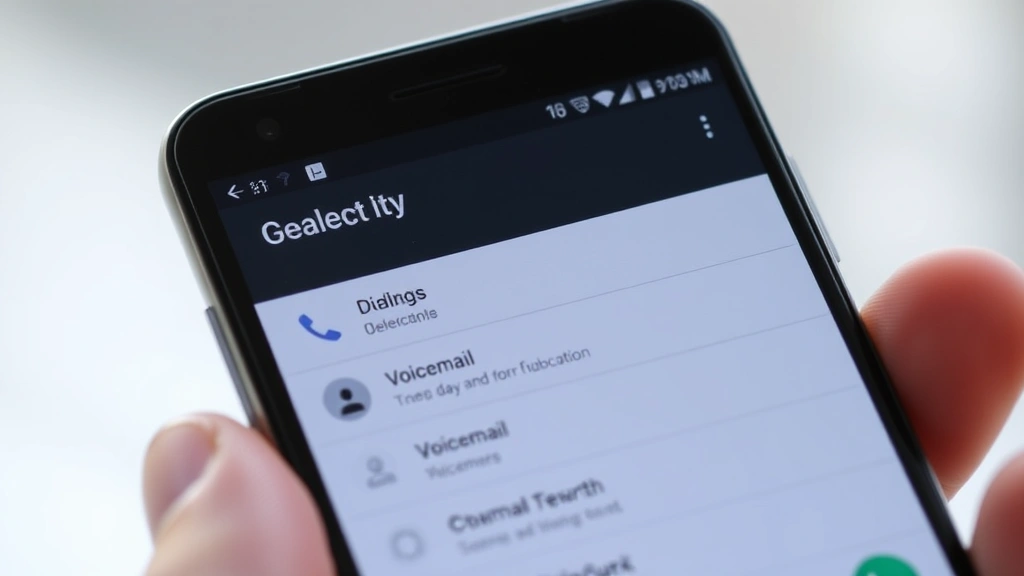
Android users have more variety in their voicemail options since different manufacturers and carriers implement voicemail differently. However, the basic process is similar across most Android phones.
Standard Android voicemail change process:
- Open the Phone app (usually called “Dialer” or “Phone”)
- Look for a menu icon (three dots or lines) and tap it
- Select “Settings” or “Call Settings”
- Find the “Voicemail” option
- Select “Voicemail Settings” or “Advanced Settings”
- Choose “Greeting” or “Custom Greeting”
- Select “Record” to create your new message
- Speak your greeting into the microphone
- Tap the Stop or Save button when finished
- Review your recording and confirm the save
The exact menu names and locations vary depending on your Android device manufacturer (Samsung, Google Pixel, OnePlus, etc.) and your carrier. If you can’t find the voicemail settings in your Phone app, check if your carrier has a dedicated voicemail app installed on your device.
Google Pixel phones, for example, use Google Voice for voicemail by default, which has its own interface and settings. Samsung phones may use their carrier’s voicemail system or offer Samsung’s native solution. Don’t hesitate to contact your carrier’s customer service if you can’t locate the voicemail settings on your specific device.
Carrier-Specific Instructions
While device-level voicemail changes work for many users, some carriers require you to access voicemail through their own systems. Here are instructions for major U.S. carriers:
Verizon Voicemail Setup: Call 611 from your Verizon phone or visit the My Verizon app. Navigate to Voicemail Settings and follow the prompts to record your greeting. You can also access this through the Verizon Messages app if you have visual voicemail enabled.
AT&T Voicemail Setup: Dial 611 or access the AT&T Mobile app. Go to Voicemail Settings and select “Manage Greeting.” Follow the automated prompts to record your custom message. AT&T’s system is particularly user-friendly with clear audio quality.
T-Mobile Voicemail Setup: Open the T-Mobile app or dial 611. Access Voicemail Settings from your account menu. T-Mobile allows you to record greetings directly through the app interface, making the process very straightforward.
If you’re considering changes to your service provider, our guide on how to manage telecom services provides helpful information about service transitions.
For those with business phone systems or VoIP services like Google Voice, Skype, or Vonage, the process may differ significantly. These services typically offer web-based interfaces where you can upload audio files or record greetings directly through your account dashboard.
Recording a Professional Greeting
The content of your voicemail greeting matters just as much as the technical process of recording it. A well-crafted message sets expectations and reflects positively on you or your business. Here are expert tips for recording an effective voicemail greeting:
Key elements of a professional greeting:
- Your name: Start by clearly stating who the caller has reached. “You’ve reached John Smith” is a simple, effective opening.
- Availability status: Let callers know if you’re temporarily unavailable or out of the office. “I’m currently away from my desk” or “I’m out of the office until Monday” sets proper expectations.
- Call-to-action: Provide instructions for what the caller should do. Examples include “Please leave your name, number, and the best time to reach you” or “For immediate assistance, press 0 to reach our receptionist.”
- Callback timeframe: If possible, mention when you’ll return calls. “I’ll get back to you within 24 business hours” gives callers realistic expectations.
- Alternative contact method: For business voicemails, consider providing an email address or alternative phone number for urgent matters.
When recording, speak slowly and clearly, using a calm, professional tone. Avoid background noise by recording in a quiet room. Many people make the mistake of speaking too quickly or mumbling, which makes it difficult for callers to understand your message. Test your recording by playing it back before saving it permanently.
If you have a business line, consider having a colleague listen to your greeting to ensure clarity and professionalism. For personal voicemails, you can be more casual while still maintaining clarity and courtesy.
Advanced Voicemail Settings
Beyond simply recording a greeting, modern voicemail systems offer several advanced customization options that can enhance your communication experience:
Multiple Greetings: Many carriers and third-party apps allow you to set different greetings for different situations. You might have a standard greeting, a “busy” greeting for when you’re actively in meetings, and an “away” greeting for when you’re on vacation. Some systems let you schedule these greetings to change automatically at specific times.
Voicemail Transcription: Visual voicemail services like those offered by major carriers often include transcription features. These convert voicemail messages to text, allowing you to read messages instead of listening to them. The accuracy varies, but this feature can be incredibly useful when you’re in situations where you can’t listen to audio.
Voicemail-to-Email: Some carriers and third-party services will automatically send voicemail messages to your email as audio files. This allows you to access your voicemails from any device and keep them organized alongside your other messages.
Call Screening: Modern smartphones allow you to see who’s calling and even filter calls based on your preferences. This integrates with your voicemail system to ensure important calls don’t get missed.
Voicemail Forwarding: Some business phone systems allow you to forward voicemail messages to other numbers or email addresses, ensuring you never miss an important message.
For additional insights on managing various communication and device settings, our how-to guides and tutorials cover numerous customization topics that can help you optimize your devices and services.
Troubleshooting Common Issues
Even with straightforward instructions, you might encounter problems when trying to change your voicemail. Here are solutions to the most common issues:
“Cannot Record Voicemail” Error: This often means your voicemail hasn’t been activated on your account. Contact your carrier to ensure voicemail is enabled. You may need to set up a voicemail password before you can record a custom greeting.
Audio Quality Issues: If your recording sounds muffled or unclear, try re-recording in a quieter location. Make sure the microphone isn’t blocked and that you’re speaking directly into your phone. Background noise, wind, or other interference can significantly impact audio quality.
Greeting Not Saving: Ensure you have enough storage space on your device and a stable internet connection. Some voicemail systems require confirmation after recording. Check if you need to press a specific button or select a confirmation option to finalize your greeting.
Can’t Access Voicemail Settings: Different devices and carriers store these settings in different locations. If you can’t find the voicemail section in your Phone app, try calling your voicemail number directly. You can typically access voicemail settings through the automated system by pressing specific numbers (often 4 or 5 for settings).
Default Greeting Still Playing: If your custom greeting isn’t playing for callers, you may not have fully completed the save process. Return to voicemail settings and verify that “Custom” is selected rather than “Default.” Some carriers require you to activate your greeting after recording it.
Voicemail Not Receiving Messages: This is a separate issue from changing your greeting. If callers report that they can’t leave messages, your voicemail may not be set up properly. Contact your carrier’s customer service for assistance with voicemail activation and setup.
If you continue to experience technical difficulties, don’t hesitate to contact your carrier’s support team. They can walk you through the process specific to your account and device configuration. Most carriers offer 24/7 customer support through phone, chat, or their mobile apps.
FAQ
How long should my voicemail greeting be?
Most experts recommend keeping your voicemail greeting between 15-30 seconds. This is long enough to include essential information (your name, availability status, and call-to-action) without making callers wait too long. Anything longer than 45 seconds may cause impatient callers to hang up without leaving a message.
Can I use music or sound effects in my voicemail greeting?
This depends on your carrier and voicemail system. Most standard voicemail systems only allow voice recordings. However, some third-party voicemail apps and business phone systems do allow background music or sound effects. Check your specific voicemail system’s features, but be aware that adding music or effects can make your greeting less professional in business contexts.
Why can’t I hear my voicemail greeting when I call my own number?
Most phone systems don’t play your custom greeting when you call your own number—you typically hear the default greeting instead. This is by design to prevent feedback loops. To verify your greeting is working, ask a friend to call your number and confirm they hear your custom message.
What’s the difference between a greeting and a busy signal voicemail?
A greeting is the message callers hear when they reach your voicemail. A busy signal voicemail is a separate message that plays when your line is actively in use. Some carriers allow you to set different messages for these scenarios, while others use the same greeting for both situations.
Can I delete my voicemail greeting and return to the default?
Yes, most voicemail systems allow you to switch back to the default greeting by selecting “Default” or “Standard” in your voicemail settings instead of “Custom.” This will immediately stop playing your custom greeting and revert to your carrier’s default message.
How often should I update my voicemail greeting?
Update your voicemail greeting whenever your availability or contact information changes. If you’re going on vacation, update it to reflect your absence. If your office relocates or you get a new email address, update it accordingly. For personal voicemails, there’s no strict timeline, but refreshing it occasionally keeps callers from thinking they’ve reached an abandoned number.
What should I do if my voicemail greeting sounds robotic or has poor audio quality?
Re-record your greeting in a quiet environment, speaking clearly and at a moderate pace. Avoid echoing rooms like bathrooms or empty offices. If the audio quality is still poor, your phone’s microphone may have an issue. Try testing the microphone with voice recording apps to diagnose if the problem is with your device or the voicemail system.

Related Posts

Superscript in Google Docs: Expert Tips

Strikethrough in Excel: Easy Steps for Beginners
