
Change Fitbit Time? Simple Steps & Expert Tips
How to Change Time on Fitbit: Simple Steps & Expert Tips
Your Fitbit is a powerful fitness companion that tracks your daily activities, monitors your heart rate, and keeps you motivated toward your health goals. However, if you’ve recently traveled across time zones, experienced a daylight saving time change, or simply noticed your device is displaying the wrong time, you’ll want to know how to adjust it quickly. The good news is that changing the time on your Fitbit is a straightforward process that takes just a few minutes, whether you’re using a Fitbit smartwatch, fitness tracker, or any other model in the Fitbit family.
In this comprehensive guide, we’ll walk you through multiple methods to change your Fitbit’s time, troubleshoot common issues, and provide expert tips to ensure your device stays synchronized. Whether you’re a tech-savvy user or someone who prefers simple step-by-step instructions, you’ll find everything you need to get your Fitbit displaying the correct time in no time.
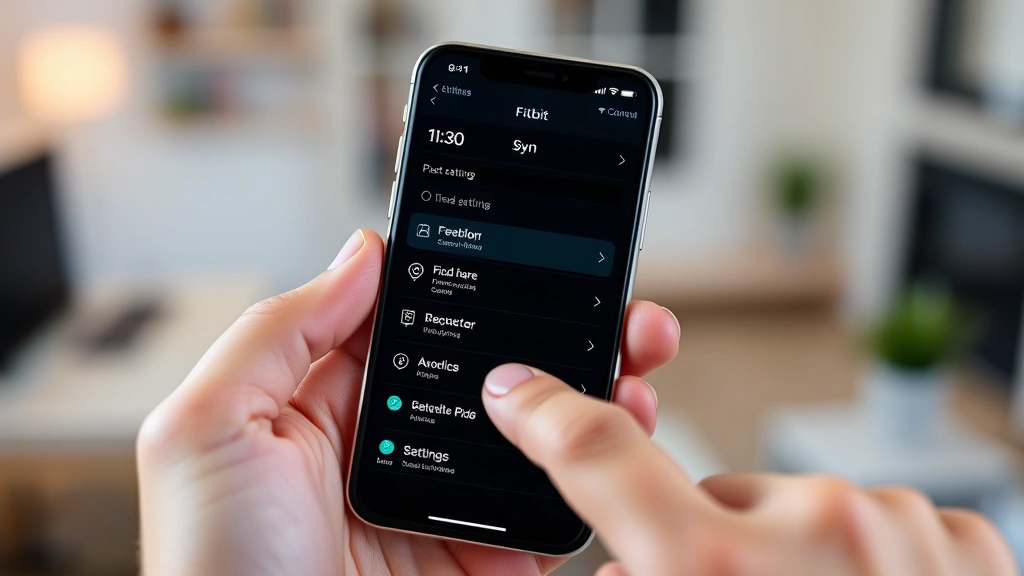
Why Your Fitbit Time Might Be Wrong
Before diving into the solutions, it’s helpful to understand why your Fitbit’s time might be displaying incorrectly. Your Fitbit relies on synchronization with your smartphone or connected device to maintain accurate time. If this connection is disrupted or outdated, your tracker may show the wrong time. Common reasons include:
- Time zone changes: Traveling to a different time zone without updating your settings will cause your Fitbit to display incorrect time
- Daylight saving time: When clocks spring forward or fall back, your Fitbit may not automatically adjust if automatic time sync is disabled
- Syncing issues: If your Fitbit hasn’t synced with your phone recently, it may retain an outdated time
- App updates: Sometimes app updates can affect time synchronization settings
- Battery drain: Extremely low battery can occasionally cause timekeeping issues on certain models
- Bluetooth connectivity: Poor Bluetooth connection between your device and phone prevents proper time synchronization
Understanding these causes helps you prevent future time discrepancies and troubleshoot more effectively when issues arise. The solution often depends on which cause is affecting your device, so identifying the root problem is your first step toward resolution.
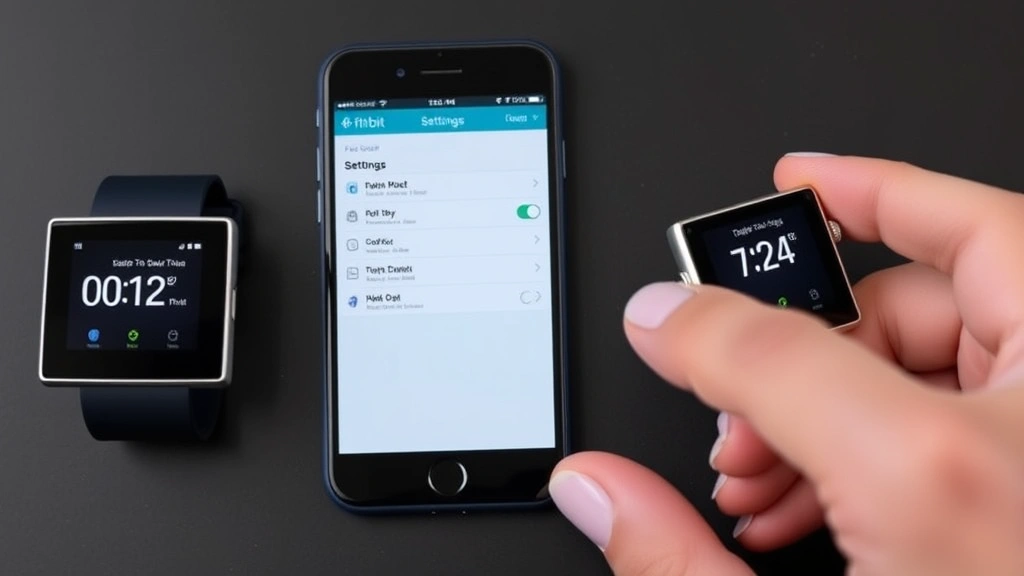
Method 1: Automatic Time Sync Through the Fitbit App
The easiest and most reliable way to ensure your Fitbit displays the correct time is through automatic synchronization using the official Fitbit app. This method works across all Fitbit devices and is the recommended approach by Fitbit itself. Here’s how to set it up:
- Open the Fitbit app on your smartphone or tablet. Make sure you’re using the latest version available in your device’s app store
- Ensure Bluetooth is enabled on your phone. Your device won’t sync without an active Bluetooth connection between your phone and your Fitbit
- Navigate to your device settings by tapping your profile icon in the top-left corner of the app
- Select your Fitbit device from the list of connected devices
- Look for “Clock” or “Time” settings within your device options. The exact location may vary depending on your Fitbit model
- Enable “Automatic time zone” or “Set automatically” option. This ensures your Fitbit pulls the correct time from your phone
- Tap “Sync Now” to force an immediate synchronization. You should see a notification confirming successful sync
Once automatic time sync is enabled, your Fitbit will update its time whenever it syncs with your phone. This typically happens in the background multiple times daily, so you’ll rarely need to manually adjust the time again. The automatic feature is particularly useful for frequent travelers or those who live in regions that observe daylight saving time.
Method 2: Manual Time Adjustment on Your Device
If automatic synchronization isn’t working or you prefer direct control, you can manually adjust the time directly on your Fitbit device. While this method requires a few more steps, it’s useful when you need an immediate fix. The process varies slightly depending on your Fitbit model, but the general approach is similar:
For Fitbit Smartwatches (Versa, Sense, Ionic):
- Swipe down from the top of your device’s screen to access the quick settings menu
- Locate and tap “Settings” (usually represented by a gear icon)
- Navigate to “Clock” or “Time” option
- Select “Set Time” or similar option
- Use the directional buttons to adjust hours and minutes. Some models allow you to scroll through numbers
- Confirm your changes by pressing the back button or checkmark
For Fitbit Fitness Trackers (Charge, Inspire, Flex):
- Open the Fitbit app on your connected smartphone
- Navigate to your device settings as described in Method 1
- Find the “Clock” section and disable automatic time sync temporarily
- Select “Set Time Manually”
- Adjust the hours and minutes using the plus and minus buttons in the app interface
- Save your changes and re-enable automatic sync if desired
Manual adjustment is particularly useful when traveling or when you need to temporarily set a different time. However, remember that manual settings won’t update automatically when daylight saving time occurs, so you’ll need to repeat this process twice yearly if you don’t re-enable automatic sync.
Method 3: Adjusting Time Zone Settings
Sometimes the issue isn’t with the time itself but with the time zone setting on your device. Your Fitbit uses the time zone setting from your connected phone, but occasionally these settings can become misaligned. Here’s how to ensure your time zone is correctly configured:
On Your Smartphone:
- iOS: Go to Settings > General > Date & Time and ensure “Set Automatically” is toggled on. This allows your phone to detect your current time zone based on location
- Android: Navigate to Settings > System > Date & Time and enable “Automatic Date and Time” and “Automatic Time Zone” options
In the Fitbit App:
- Open the Fitbit app and access your profile menu
- Select your Fitbit device from the connected devices list
- Look for “Clock” or “Date & Time” settings
- Verify the time zone displays correctly for your current location
- If incorrect, manually select your time zone from the available options
- Tap “Sync Now” to apply the changes across all devices
If you travel frequently, understanding how to adjust your time zone is essential. Many users find that enabling automatic time zone detection on their smartphone solves most Fitbit time issues automatically, as the app will sync whatever time zone your phone detects.
For those who use tech guides and tutorials, you’ll recognize that proper time synchronization follows the same principles as syncing other devices. Just as you might need to restart your computer for settings to take effect, sometimes your Fitbit needs a fresh sync to apply time zone changes.
Troubleshooting Common Time Issues
Even with the methods above, you might encounter persistent time problems. Here are solutions to the most common issues:
Fitbit Time Keeps Resetting or Changing Unexpectedly
If your Fitbit’s time keeps changing on its own, the automatic time sync feature might be enabled and conflicting with your manual settings. Solution: Keep automatic sync enabled and let your device sync with your phone regularly. If you prefer manual control, disable automatic sync completely and update the time manually when needed.
Fitbit Not Syncing With Phone
Poor Bluetooth connection is the most common cause. Ensure your Fitbit and phone are within 10 feet of each other, restart your Bluetooth connection by toggling it off and on, and close and reopen the Fitbit app. You might also try unpairing and re-pairing your device if the connection remains unstable. This process is similar to connecting devices to wireless networks in that a fresh connection often resolves synchronization issues.
Fitbit Shows Time Zone Different From Your Location
This typically occurs when your smartphone’s location services are disabled or your Fitbit app hasn’t updated your location. Ensure location services are enabled in your phone’s settings, and grant the Fitbit app permission to access your location. Then force a sync in the Fitbit app.
Time Displays Correctly on Phone But Wrong on Fitbit
This indicates a sync failure. Try these steps in order: First, restart your Fitbit device by holding the side button or removing and reinserting the battery (depending on your model). Second, force close and reopen the Fitbit app. Third, toggle Bluetooth off and back on. Finally, if these don’t work, unpair your Fitbit and set it up again as a new device.
Fitbit Time Is 12 Hours Off
Your device might be displaying time in 24-hour format when you prefer 12-hour format, or vice versa. Check your device settings and Fitbit app for a “Time Format” option and adjust it to your preference. Some models also have an AM/PM indicator setting separate from the time format.
Tips for Keeping Your Fitbit Time Accurate
Prevention is better than correction. These expert tips will help you maintain accurate time on your Fitbit:
Enable Automatic Time Sync
This is the single most important step. Automatic time sync ensures your Fitbit always displays the correct time without any manual intervention. It updates when daylight saving time changes occur and automatically adjusts when you travel to different time zones.
Keep Your Fitbit Updated
Regular firmware updates often include improvements to time synchronization. Check the Fitbit app weekly for available updates and install them promptly. These updates also address bugs that might affect timekeeping.
Maintain Strong Bluetooth Connection
Keep your Fitbit close to your phone during the day to ensure consistent Bluetooth connection. A strong connection ensures regular syncing, which keeps your time accurate. If you notice frequent disconnections, try clearing your phone’s Bluetooth cache or updating your Fitbit and phone software.
Use Consistent Smartphone Settings
Enable automatic date, time, and time zone settings on your smartphone. Since your Fitbit relies on your phone for accurate time information, your phone must have correct settings. This approach mirrors best practices for maintaining accurate time across all connected devices and tech systems.
Sync Regularly During Travel
When traveling across time zones, manually sync your Fitbit within a few hours of arrival at your destination. Open the Fitbit app and tap “Sync Now” to ensure your device updates to the new time zone immediately rather than waiting for automatic sync.
Check Settings After Major Updates
After significant app updates or iOS/Android updates, verify your Fitbit’s time settings. Sometimes updates reset preferences, and you may need to re-enable automatic time sync or adjust time zone settings.
Monitor Battery Health
A Fitbit with critically low battery may have trouble maintaining accurate time. Keep your device charged above 20% battery regularly. If you notice time issues coinciding with low battery, charge your device and see if the problem resolves.
Restart Your Fitbit Periodically
Just as you might need to restart your computer occasionally for optimal performance, restarting your Fitbit every few weeks can prevent time-related glitches. Simply hold the side button until the device powers off, wait a few seconds, and power it back on.
FAQ
Can I change my Fitbit time without the app?
Yes, most Fitbit devices allow manual time adjustment directly on the device through the settings menu. However, changing the time zone typically requires the Fitbit app. For best results and to ensure automatic updates, using the app is recommended.
Why does my Fitbit time change when I sync?
If automatic time sync is enabled, your Fitbit updates to match your phone’s current time when syncing. If your phone’s time is incorrect, your Fitbit will reflect that error. Check your phone’s time settings first before troubleshooting your Fitbit.
Does Fitbit automatically adjust for daylight saving time?
Yes, if you have automatic time sync enabled and your phone automatically adjusts for daylight saving time, your Fitbit will update accordingly. However, if automatic sync is disabled, you must manually adjust your Fitbit’s time twice yearly during daylight saving transitions.
How often should I sync my Fitbit?
With automatic sync enabled, your Fitbit syncs multiple times daily automatically. You don’t need to manually sync unless you’re troubleshooting issues. However, after traveling or making significant changes, manually syncing through the app ensures immediate updates.
What should I do if my Fitbit still shows the wrong time after syncing?
First, verify your phone displays the correct time and time zone. Then, try unpairing and re-pairing your Fitbit in the app. If the issue persists, contact Fitbit support or consider a factory reset of your device as a last resort.
Can weather apps affect my Fitbit time?
No, weather apps don’t directly affect Fitbit timekeeping. However, if a weather app or other service is interfering with your phone’s location services, it might prevent automatic time zone updates. Ensure your Fitbit app has proper location permissions.
Is there a way to set a custom time on my Fitbit?
While you can manually set the time to any value you choose, Fitbit doesn’t support custom time zones beyond those in the standard time zone database. If you need a non-standard offset, you would need to manually adjust the time periodically.

Related Posts

Superscript in Google Docs: Expert Tips

Strikethrough in Excel: Easy Steps for Beginners
