

Unpin on Snapchat? Quick User Guide
How to Unpin Someone on Snapchat: Complete User Guide
Snapchat’s pinning feature allows you to keep your most important conversations at the top of your chat list for quick access. However, as your friendships evolve and communication priorities shift, you may need to unpin contacts to reorganize your messaging interface. Whether you’re decluttering your chat list or simply want to manage which conversations stay front and center, understanding how to unpin someone on Snapchat is essential for maintaining an organized social media experience.
This comprehensive guide walks you through every method of unpinning contacts on Snapchat, covering both iOS and Android devices, explaining why you might want to unpin conversations, and addressing common questions users encounter. By the end, you’ll have complete mastery over your Snapchat chat organization and be able to customize your messaging interface exactly how you prefer it.

What Does Pinning Mean on Snapchat
Pinning on Snapchat is a feature that allows users to lock specific conversations at the top of their chat list, regardless of recent activity. When you pin someone, their chat remains in a fixed position above all other conversations, making them instantly accessible without scrolling. This feature proves particularly useful for maintaining contact with your closest friends, family members, or important work contacts.
The pinned section appears at the very top of your chat feed, separated visually from unpinned conversations. You can pin multiple contacts, and they’ll stack in the order you pinned them. This organizational tool helps prioritize your communication and ensures you never miss important messages from people who matter most to you. Understanding this fundamental feature is the first step toward effectively managing your Snapchat experience.
Pinning differs from muting or blocking conversations. When you mute a chat, you simply silence notifications, but the conversation remains in its normal position. Pinning, however, elevates the conversation’s position permanently until you choose to unpin it. This distinction is crucial for users who want to maintain accessibility while managing notification preferences.
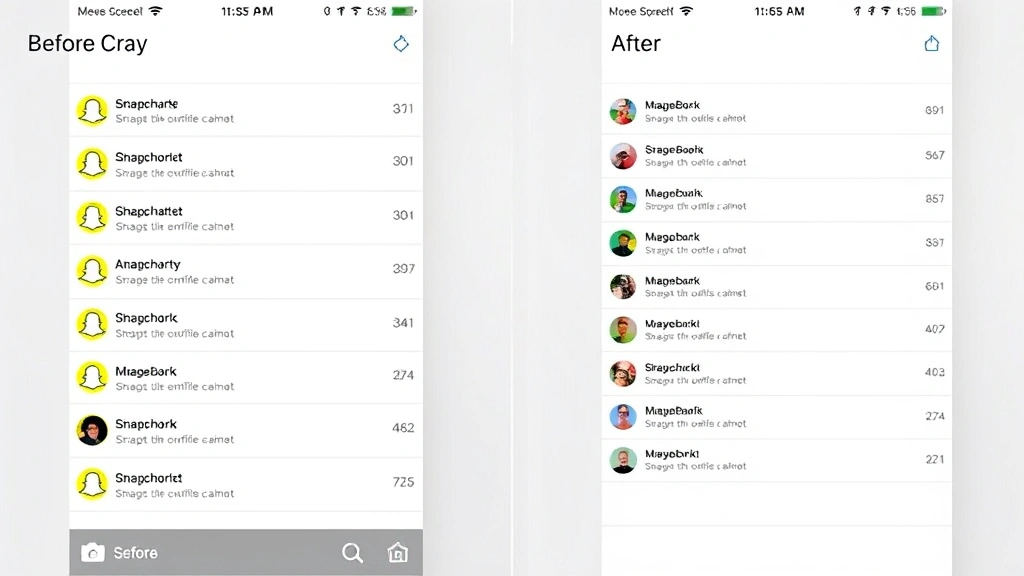
Step-by-Step Instructions to Unpin Someone
Unpinning someone on Snapchat is a straightforward process that takes just a few seconds. The method remains consistent across most Snapchat versions, though interface details may vary slightly depending on your device type. Here’s the detailed process:
- Open Snapchat and navigate to your main chat screen where you see all your conversations listed
- Locate the pinned contact you wish to unpin—these appear at the top of your chat list in a dedicated pinned section
- Long-press on the pinned conversation until a menu appears with several options
- Look for the unpin option in the popup menu that appears—this typically displays as “Unpin” or shows a pin icon with a minus symbol
- Tap the unpin option to confirm your action
- Verify the change by checking that the contact has moved to your regular chat list below the pinned section
The entire process typically takes less than five seconds once you’ve located the pinned conversation. If you’re having trouble finding the unpin option, ensure you’re pressing and holding long enough for the menu to fully appear—a brief tap won’t trigger the context menu.
Unpinning on iOS vs Android Devices
While the fundamental unpinning process remains similar across platforms, iOS and Android devices display slightly different interfaces and menu layouts. Understanding these platform-specific differences helps ensure you’re navigating your device correctly.
iOS Instructions: On Apple devices running Snapchat, open your chat list and locate the pinned conversation. Press and hold the conversation until a gray menu appears with multiple options. Scroll through the menu if necessary and select “Unpin Chat” or the unpin icon. The conversation will immediately move to your regular chat list. If you’re using newer iOS versions, you might also swipe left on the conversation and tap the unpin button that appears.
Android Instructions: Android users should open Snapchat and navigate to the chat screen. Long-press on the pinned conversation until a context menu appears with white text on a darker background. Select the “Unpin” option from the available choices. Android’s interface typically displays the unpin option prominently in the menu without requiring additional scrolling.
Some users prefer to use Snapchat’s swipe gestures instead of long-pressing. On both platforms, you can sometimes swipe on a conversation to reveal quick action buttons, though this feature availability depends on your Snapchat version. Keeping your app updated to the latest version ensures you have access to all current features and interface improvements.
The differences between platforms are primarily visual rather than functional. Whether using iOS or Android, the result is identical: your pinned conversation moves to the regular chat list. If you encounter persistent differences or features not appearing as described, check that you’re running the most current Snapchat version for your platform.
Managing Multiple Pinned Conversations
Power users often maintain several pinned conversations simultaneously, keeping their closest contacts easily accessible. Snapchat allows you to pin multiple people, and understanding how to manage these relationships helps you maintain an organized chat interface.
Snapchat typically allows you to pin up to three conversations, though this limit may vary depending on your app version. When you pin multiple contacts, they appear stacked at the top of your chat list in the order you pinned them. The first person you pinned appears at the very top, followed by subsequent pins in chronological order. This ordering helps you quickly identify your priority contacts.
If you need to reorganize your pinned conversations, you can unpin and re-pin contacts in your preferred order. Simply unpin the conversation using the method described earlier, then pin it again by long-pressing and selecting the pin option. This allows you to shuffle your priority contacts as your communication needs change. Many users find this organizational flexibility invaluable for managing work, family, and close friend groups separately.
When you unpin a conversation that you previously pinned, Snapchat doesn’t delete the chat or affect your conversation history. The messages remain intact, and you can still access the conversation by scrolling through your regular chat list. Unpinning simply changes where the conversation appears in your interface, not the content or availability of your messages.
Troubleshooting Unpin Issues
Most users successfully unpin conversations without complications, but occasional technical issues or confusion about the interface can arise. Here are common problems and their solutions:
Unpin Option Not Appearing: If the context menu doesn’t show an unpin option, ensure you’re pressing and holding long enough. A quick tap won’t trigger the menu—maintain pressure for at least one second until the menu appears. If this doesn’t work, try closing and reopening Snapchat, as temporary glitches sometimes prevent menus from displaying correctly.
Conversation Still Pinned After Unpinning: If a conversation remains at the top after you’ve attempted to unpin it, the action may not have registered. Try the process again, ensuring you fully tap the unpin option before releasing. Sometimes network delays prevent immediate updates; wait a few seconds and refresh your chat list by pulling down to reload.
Missing Pinned Section: If your pinned conversations have disappeared entirely, you may have accidentally hidden them or encountered a display glitch. Check your Snapchat settings to ensure no filters are hiding pinned conversations. You can also try logging out and back into your account to refresh the interface.
App Version Issues: Older Snapchat versions sometimes have bugs or display inconsistencies. Ensure you’ve updated Snapchat to the latest version available in your device’s app store. Updates frequently fix interface issues and improve feature functionality. If problems persist after updating, consider clearing your app cache without deleting your account data.
Best Practices for Chat Organization
Beyond simply unpinning conversations, adopting strategic chat organization practices helps you maintain a clean, functional Snapchat interface. These best practices apply whether you’re managing personal friendships, family relationships, or professional connections.
Pin Your Priority Contacts: Reserve your pinned slots for people you communicate with most frequently or who require immediate response. This typically includes best friends, romantic partners, family members, or work contacts. Rotating your pins as your priorities shift keeps your chat list relevant to your current life circumstances.
Use Mute for Secondary Contacts: If you want to maintain contact with someone without keeping their conversation pinned, consider muting their notifications instead. This prevents chat notifications from interrupting you while keeping the conversation accessible in your regular chat list. When you’re ready to check their messages, you can do so at your convenience.
Archive Old Conversations: Snapchat’s archive feature helps you declutter your main chat list while preserving conversation history. Archive conversations you no longer actively use but want to keep for reference. This is particularly useful for seasonal contacts or people you’ve drifted apart from but want to maintain a record of communication with.
Regular Cleanup Schedule: Set a monthly reminder to review your pinned conversations and unpin anyone who no longer requires priority status. As relationships evolve, your communication priorities naturally shift. Regular maintenance ensures your pinned list accurately reflects your current social structure.
Group Similar Contacts: While Snapchat doesn’t support conversation folders like some messaging apps, you can mentally organize your chats by category. Keep your pinned section for immediate family and best friends, use your regular chat list for acquaintances, and archive conversations with people you rarely contact. This mental organization helps you navigate your chats more efficiently.
For additional guidance on managing your digital interfaces, explore our comprehensive guide on navigating laptop features effectively, which covers many interface management principles applicable across platforms.
FAQ
Can I unpin someone without them knowing?
Yes, unpinning someone is completely private. Snapchat doesn’t notify users when you unpin their conversation. They won’t receive any notification or indication that they’ve been unpinned, and there’s no way for them to discover this change unless they ask you directly. Unpinning is a purely personal organizational choice that doesn’t affect your relationship or communication with that person.
What happens to my messages when I unpin someone?
All your messages remain completely intact when you unpin a conversation. Unpinning only changes where the conversation appears in your chat list—it doesn’t delete any messages, photos, or other content. You can still access all previous messages by finding the conversation in your regular chat list and opening it. The entire conversation history remains available indefinitely unless you manually delete individual messages or clear the entire chat.
How many conversations can I pin simultaneously?
Snapchat typically allows you to pin up to three conversations at once, though this limit may vary slightly depending on your app version and when Snapchat updates its features. If you attempt to pin a fourth conversation, you’ll need to unpin one of your existing pins first. This limitation encourages users to be intentional about which conversations they prioritize.
Can I pin group conversations?
Yes, you can pin group conversations just as easily as you can pin one-on-one chats. The pinning process works identically for group chats—simply long-press the group conversation and select the pin option. Group conversations appear in your pinned section alongside individual chats, making it easy to keep important group discussions at the top of your chat list.
Why would I want to unpin someone?
You might unpin someone for several reasons: your communication frequency has decreased, you want to make room for someone else in your pinned slots, you’re organizing your contacts by priority, or you simply want to declutter your pinned section. Unpinning is a normal part of managing your chat organization as your relationships and communication patterns naturally evolve over time.
Does unpinning affect my Snapchat score?
No, unpinning conversations has no impact on your Snapchat score. Your score is determined solely by the number of snaps you send and receive, not by how you organize your conversations. Pinning, unpinning, muting, or archiving conversations are purely organizational features that don’t influence any of Snapchat’s scoring or ranking systems.

Related Posts

Superscript in Google Docs: Expert Tips

Strikethrough in Excel: Easy Steps for Beginners
