
Disable Siri on iPhone? Expert Tips Inside
How to Disable Siri on iPhone: Expert Tips Inside
Apple’s Siri voice assistant can be incredibly helpful, but not everyone wants this feature enabled on their iPhone. Whether you’re concerned about accidental activations, privacy issues, or simply prefer manual control over your device, disabling Siri is straightforward and takes just a few minutes. This comprehensive guide walks you through multiple methods to turn off Siri completely or customize its functionality to suit your preferences.
Siri can be activated through various methods—voice commands, the home button, lock screen, or search functionality—which means there are several ways to disable it depending on your needs. Some users want to turn it off entirely, while others prefer to keep it available but disable specific features. We’ll cover all these scenarios so you can choose the approach that works best for your iPhone.
Disable Siri Through Settings
The most direct way to disable Siri on your iPhone is through the Settings app. This method completely turns off Siri’s functionality across your device. Start by opening the Settings application on your home screen, then navigate to the Siri & Search option. You’ll find a toggle switch labeled “Listen for ‘Hey Siri'”—tap this to turn it off. This immediately disables voice activation for Siri throughout your device.
Next, look for the “Press Side Button for Siri” or “Press Home for Siri” option, depending on your iPhone model. Toggle this off as well to prevent Siri from activating when you press your device’s physical buttons. If you have an older iPhone model, you might see “Press Home for Siri” instead of the side button option. Disabling both of these settings ensures Siri won’t activate accidentally during normal phone use.
For users who want an additional layer of control, scroll down in the Siri & Search settings to find “Suggestions” options. You can disable “Suggestions in Search,” “Suggestions on Lock Screen,” and “Suggestions in App Library” to prevent Siri-related suggestions from appearing throughout your device. This creates a more streamlined experience if you prefer minimal Siri integration.
Turn Off Siri on Lock Screen
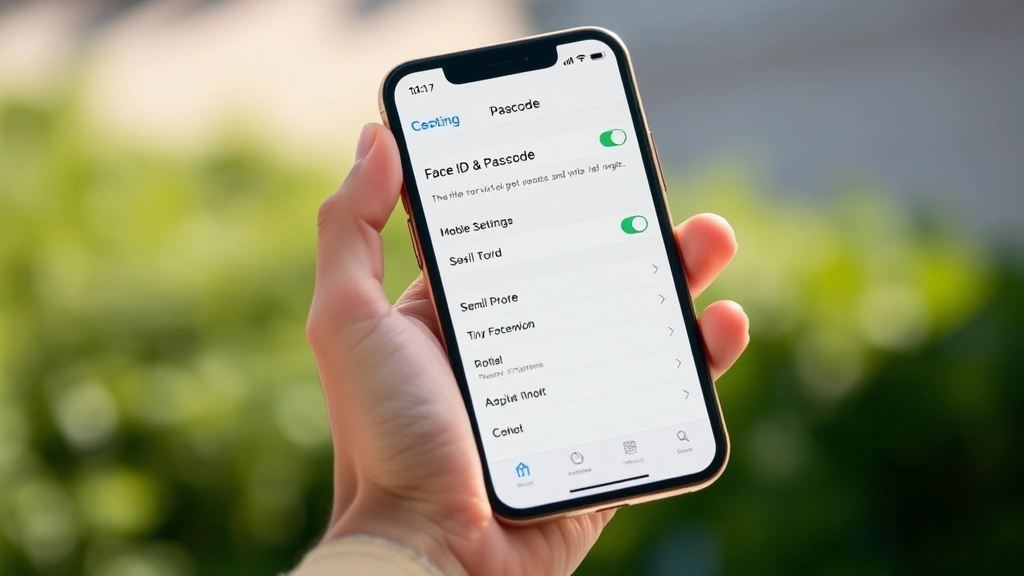
One of the most common reasons users want to disable Siri features is to prevent unauthorized voice commands when their phone is locked. Fortunately, Apple provides a specific setting for this. Open Settings, then go to Face ID & Passcode (or Touch ID & Passcode on older models). You’ll need to enter your passcode to access these security settings.
Scroll down to find the section labeled “Allow Access When Locked.” Within this section, locate the toggle for “Siri” and turn it off. This prevents anyone from using voice commands to access your iPhone’s features while it’s locked. Even if someone knows your phone’s passcode, they won’t be able to activate Siri through voice commands on the lock screen.
This setting is particularly important for privacy-conscious users who don’t want others to use Siri to check their messages, make calls, or access Siri Shortcuts. By disabling Siri on the lock screen, you maintain full control over who can interact with your device’s voice assistant functionality.
Important note: Even with Siri disabled on the lock screen, users can still access Siri from the home screen or app switcher if you haven’t disabled it system-wide through the Siri & Search settings.
Disable Voice Activation
Voice activation—the ability to summon Siri by saying “Hey Siri”—is one of the most convenient but also most intrusive Siri features. To disable this specific functionality, open Settings and navigate to Siri & Search. The very first toggle you’ll see is “Listen for ‘Hey Siri’.” Tap this switch to turn it off.
When you disable this setting, your iPhone will no longer respond to the “Hey Siri” voice command. This is the primary way most users accidentally activate Siri, so turning this off alone can significantly reduce unwanted Siri interactions. Your device will still recognize Siri if you press the home button or side button, but the voice activation method will be completely disabled.
Keep in mind that disabling “Hey Siri” might affect certain automation features and Siri Shortcuts that rely on voice activation. If you use any voice-activated routines or shortcuts, you may need to adjust these after disabling this setting. You can still access these features through button presses or manual activation methods.
For families with young children, disabling voice activation prevents kids from accidentally triggering Siri and potentially calling emergency services or making unwanted purchases through voice commands.
Remove Siri from Search
Siri is deeply integrated with iPhone’s search functionality, and you can customize how much Siri appears in search results. In Settings, go to Siri & Search and scroll down to the “Suggestions” section. You’ll find several options here that control where Siri suggestions appear.
Toggle off “Suggestions in Search” to prevent Siri from offering suggestions when you open the search interface. Disable “Suggestions on Lock Screen” to keep Siri suggestions from appearing on your locked home screen. You can also turn off “Suggestions in App Library” if you don’t want Siri recommendations in your App Library.
This approach is ideal if you want to keep some Siri functionality but reduce its visibility and integration throughout your device. You’re essentially telling your iPhone not to surface Siri suggestions in various contexts, which creates a cleaner, less cluttered interface.
Disable Siri from Home Button
On iPhone models with a physical home button (iPhone 8 and earlier), you can disable Siri activation through this button. Open Settings and go to Siri & Search, then look for the “Press Home for Siri” option. Toggle this off to prevent Siri from activating when you press your home button.
If you want to keep the home button functional for other purposes but prevent accidental Siri activation, consider using “Press and Hold” instead of a simple press. However, the easiest solution is to disable this option entirely through the Settings toggle.
This setting is particularly useful for users who frequently press their home button and keep accidentally triggering Siri. By disabling this feature, you can use your home button for its primary functions without worrying about unwanted voice assistant activation.
Disable Siri from Side Button
On newer iPhone models (iPhone X and later), the side button (also called the power button) can activate Siri when pressed and held. To disable this, open Settings and navigate to Siri & Search. Look for “Press Side Button for Siri” and toggle it off.
By disabling this setting, you can still use the side button for its primary functions—powering your device on/off and accessing the power-off menu—without accidentally triggering Siri. This is one of the most common accidental Siri activations on modern iPhones, so disabling it can significantly improve your user experience.
If you prefer to keep the side button available for Siri but want to prevent accidental activation, consider using longer press durations or combining this setting with other restrictions through your device’s accessibility settings.
Privacy and Security Considerations
Many users want to disable Siri due to legitimate privacy concerns. Siri processes voice commands through Apple’s servers, which means your audio data is transmitted to external systems. While Apple claims this data is encrypted and not used for advertising, some users prefer to minimize this data transmission.
Disabling Siri completely prevents your voice data from being sent to Apple’s servers through voice commands. This is particularly important if you’re concerned about voice privacy or live in regions with strict data protection regulations.
Additionally, disabling Siri on your lock screen prevents unauthorized users from accessing your personal information through voice commands. Someone could potentially use “Hey Siri” to check your calendar, read messages, or make calls without knowing your passcode. By disabling lock screen Siri access, you maintain full security over your device.
For users who want to balance convenience with privacy, consider keeping Siri enabled but disabling it on the lock screen and voice activation. This allows you to use Siri when you consciously choose to activate it through button presses, while preventing accidental or unauthorized activation.
Troubleshooting Tips
If you’ve disabled Siri but it’s still appearing or activating unexpectedly, try these troubleshooting steps. First, restart your iPhone completely by powering it off and back on. This refreshes your device’s settings and often resolves unexpected behavior.
Check your accessibility settings, as some accessibility features might override Siri settings. Go to Settings > Accessibility and review all options, particularly voice control settings that might interact with Siri functionality.
If Siri still appears in search results even after disabling suggestions, try clearing your search history. Open Settings > Siri & Search, scroll down, and look for an option to reset Siri data or clear search history.
For users experiencing Siri re-enabling itself after updates, this sometimes happens when iOS updates reset certain settings. After updating your iPhone, immediately revisit your Siri settings to ensure they remain as you configured them.
If you’re having trouble with Siri Shortcuts continuing to function after disabling Siri, remember that shortcuts and automations might have their own settings separate from the main Siri settings. Visit the Shortcuts app to manage these individually.
FAQ
Will disabling Siri affect my iPhone’s performance?
No, disabling Siri will not negatively impact your iPhone’s performance. In fact, some users report slightly improved battery life and responsiveness after disabling Siri, since your device no longer needs to listen for voice commands or process Siri-related tasks in the background.
Can I re-enable Siri if I change my mind?
Absolutely. You can re-enable Siri at any time by returning to Settings > Siri & Search and toggling the switches back on. All your previous Siri settings and preferences will remain intact.
Does disabling Siri turn off voice control?
Disabling Siri specifically turns off Apple’s Siri voice assistant, but it doesn’t necessarily disable all voice control features. Voice Control is a separate accessibility feature that can be enabled independently. If you want to disable all voice features, you’ll need to manage both Siri and Voice Control settings separately.
Will Siri Shortcuts still work if I disable Siri?
This depends on how you’ve disabled Siri. If you’ve disabled voice activation only, your shortcuts will still work when triggered manually or through automations. However, voice-activated shortcuts won’t work. If you’ve completely disabled Siri through Settings, shortcuts might not function properly unless they’re triggered through other methods.
Can I disable Siri for specific apps only?
iOS doesn’t provide app-specific Siri controls, but you can manage what data individual apps share with Siri. Go to Settings > Privacy > Siri & Search and adjust permissions for each app individually. This allows you to prevent certain apps from appearing in Siri suggestions without completely disabling Siri.
Is it possible to use Siri without voice commands?
Yes. You can disable “Hey Siri” voice activation while keeping the side button or home button Siri access enabled. This allows you to use Siri only when you consciously activate it through physical button presses, preventing accidental voice-activated interactions.
For additional guidance on managing your device’s settings and features, visit Apple’s official support page. If you’re interested in learning about other iPhone customization options, check out MacRumors for comprehensive Apple device guides. For step-by-step technology tutorials, How-To Geek offers detailed instructions for various tech tasks. You might also find iPhone in Canada helpful for iPhone-specific advice and tips.
Remember that your preferences might change over time. Revisit these settings periodically to ensure your iPhone is configured exactly how you want it. Whether you choose to completely disable Siri or just customize its functionality, you now have the knowledge to control this feature precisely as you prefer.

Related Posts

Superscript in Google Docs: Expert Tips

Strikethrough in Excel: Easy Steps for Beginners
