

Combine Excel Columns? Beginner’s Tutorial
How to Combine 2 Columns in Excel: Beginner’s Tutorial
Excel is one of the most powerful tools for organizing and managing data, but many beginners struggle with basic operations like combining columns. Whether you’re consolidating names, addresses, or any other data types, knowing how to merge columns efficiently can save you hours of manual work. This comprehensive guide will walk you through multiple methods to combine columns in Excel, from the simplest formulas to advanced techniques that professionals use daily.
Combining columns in Excel is a fundamental skill that applies to countless real-world scenarios. You might need to merge a first name and last name into a single column, combine address components, or consolidate data from multiple sources. The good news is that Excel provides several straightforward methods to accomplish this task, and once you master the basics, you’ll be able to handle even complex data consolidation projects with confidence.
Understanding Column Combining Basics
Before diving into specific methods, it’s essential to understand what happens when you combine columns in Excel. When you combine two columns, you’re essentially taking data from multiple cells and merging them into a single cell. This process doesn’t delete the original columns—it creates new content in a separate location, which you can then use to replace or supplement your existing data.
Think of combining columns as similar to other data organization tutorials you might follow. Just as you’d carefully plan how to arrange items in your home, you need to plan how your combined data will appear. Will you include spaces between values? Special characters? Understanding these details upfront makes the process much smoother.
There are several key reasons why you might want to combine columns in Excel. Creating a full name from first and last names is the most common use case. Other scenarios include combining city, state, and zip codes into a single address field, merging product codes with descriptions, or consolidating data from multiple worksheets into one comprehensive column.
Method 1: Using the CONCATENATE Function
The CONCATENATE function is one of the oldest and most reliable methods for combining columns in Excel. This function literally strings together text from multiple cells into one cell. It’s perfect for beginners because the syntax is straightforward and intuitive.
Step-by-step process:
- Open your Excel spreadsheet with the data you want to combine
- Click on an empty cell where you want the combined data to appear (typically in a new column)
- Type the formula: =CONCATENATE(A1,” “,B1) (replace A1 and B1 with your actual cell references)
- Press Enter to execute the formula
- Copy the formula down to all rows containing data by selecting the cell and dragging the fill handle (small square at the bottom-right corner)
- Repeat for all rows that need combining
In this example, the formula combines cell A1, adds a space (represented by ” “), and then adds cell B1. The space ensures your combined data doesn’t look like one continuous word. If you’re combining a first name and last name, this formula produces a properly formatted full name.
You can add multiple cells and separators to the CONCATENATE function. For example, =CONCATENATE(A1,” “,B1,” “,C1) would combine three cells with spaces between them. This flexibility makes CONCATENATE incredibly useful for complex data merging scenarios.
Method 2: Using the Ampersand (&) Operator
The ampersand operator is a more modern and often preferred alternative to CONCATENATE. Many Excel professionals favor this method because it’s faster to type and produces identical results. The ampersand essentially tells Excel to join text strings together.
Using the ampersand method:
- Click on an empty cell where your combined data should appear
- Type the formula: =A1&” “&B1
- Press Enter to confirm the formula
- Copy this formula down to all rows with data
- Verify that all data has combined correctly
The ampersand operator works identically to CONCATENATE but with cleaner syntax. =A1&” “&B1&” “&C1 combines three cells with spaces, just like the CONCATENATE example. The “&” symbol acts as a connector, telling Excel to join whatever is on either side of it.
This method is particularly useful when you need to include special characters or formatting. For instance, =A1&”-“&B1&”-“&C1 would create hyphen-separated values, perfect for creating formatted IDs or codes. You can also combine text with numbers using this operator without any conversion issues.
Method 3: Using the TEXTJOIN Function
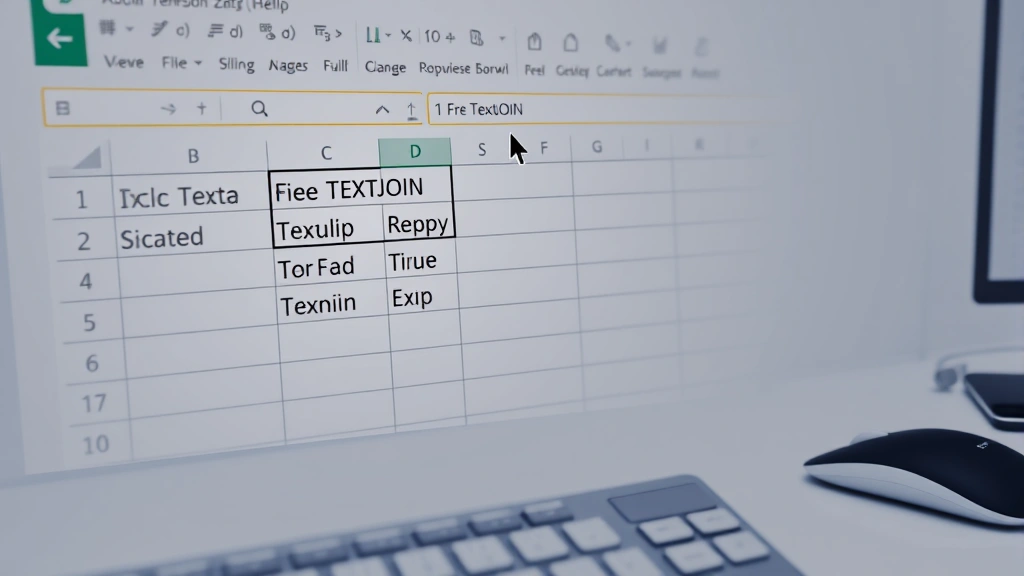
The TEXTJOIN function is the newest and most powerful method for combining columns in Excel (available in Excel 2016 and later). It’s particularly useful when working with large datasets or when you want more control over separators and empty cell handling.
TEXTJOIN syntax and usage:
- Click on an empty cell for your combined data
- Type: =TEXTJOIN(” “,TRUE,A1:C1)
- Press Enter to execute
- Copy the formula down to all necessary rows
The TEXTJOIN function uses three main parameters. The first parameter (” “) is the separator—what appears between combined values. The second parameter (TRUE or FALSE) determines whether to ignore empty cells. When set to TRUE, empty cells are skipped; when FALSE, empty cells create blank spaces. The third parameter specifies the range of cells to combine.
One major advantage of TEXTJOIN over other methods is its ability to handle ranges directly. Instead of writing =A1&” “&B1&” “&C1&” “&D1, you can simply write =TEXTJOIN(” “,TRUE,A1:D1). This becomes especially valuable when combining many columns or when working with large datasets where typing individual cell references would be impractical.
TEXTJOIN also excels at handling inconsistent data. If some rows have empty cells and others don’t, the TRUE parameter automatically adjusts the output to avoid awkward spacing or formatting issues. This intelligent handling makes TEXTJOIN the preferred choice for real-world, messy data.
Method 4: Using Paste Special for Direct Merging
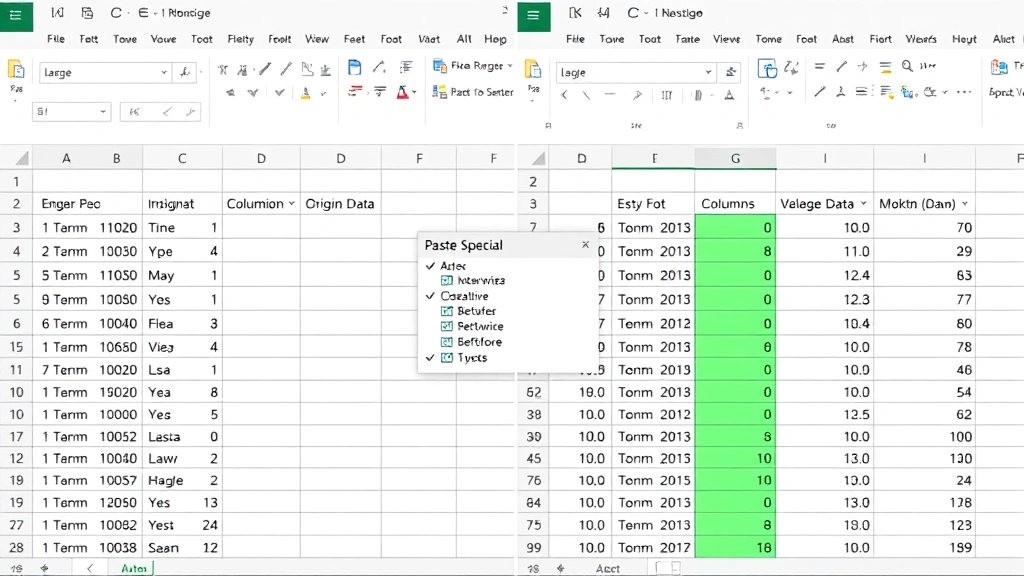
While the previous methods create formulas, the Paste Special method allows you to combine columns more directly. This approach is particularly useful when you want to merge data without creating complex formulas or when you prefer working with values rather than functions.
Steps for Paste Special combining:
- Select the column you want to combine with another column (for example, Column B)
- Copy this selection using Ctrl+C
- Click on the first cell of the column you want to merge into (for example, cell A1)
- Right-click and select “Paste Special” or use Ctrl+Shift+V
- In the Paste Special dialog, click the “Add” operation button
- Click OK to combine the columns
This method literally adds the values together if they’re numbers, or concatenates them if they’re text. The advantage is that you’re working directly with your data rather than creating intermediate formulas. However, this method is less flexible regarding separators and formatting.
The Paste Special method works best when you want to combine numeric data or when you’re comfortable with the default formatting. For more complex scenarios involving text formatting or specific separators, the formula-based methods are more appropriate.
Adding Separators and Formatting
One of the most important aspects of combining columns is ensuring your combined data looks professional and is easy to read. Separators—spaces, commas, hyphens, or other characters—make a significant difference in readability and usability.
Common separator examples:
- Space: “John Smith” using =A1&” “&B1
- Comma and space: “Smith, John” using =B1&”, “&A1
- Hyphen: “123-45-6789” using =A1&”-“&B1&”-“&C1
- Slash: “01/15/2024” using =A1&”/”&B1&”/”&C1
- No separator: “JohnSmith” using =A1&B1
The separator you choose depends on your data type and purpose. Names typically use spaces or commas, phone numbers use hyphens, dates use slashes, and IDs might use no separator at all. Think carefully about how the combined data will be used—will someone read it, or will a system process it?
You can also combine separators with other text. For example, =A1&” lives in “&B1&”, “&C1 creates sentences from your data. While this is less common in business contexts, it demonstrates the flexibility of Excel’s combining functions.
Formatting becomes even more important when combining data from different sources. If one column contains numbers and another contains text, ensure your combined result appears as intended. Excel typically defaults to text format when combining, which is usually appropriate but worth verifying.
Converting Formulas to Values
After successfully combining your columns using any of the formula methods, you’ll likely want to convert those formulas to static values. This is important because formulas reference the original cells, and if those cells change, your combined data changes too. Converting to values creates permanent data that won’t shift if you modify the source.
Converting formulas to values:
- Select all cells containing your combined formulas
- Copy them using Ctrl+C
- Right-click and select “Paste Special” or use Ctrl+Shift+V
- In the Paste Special dialog, select “Values” option
- Click OK to replace formulas with their results
- Delete the original columns if they’re no longer needed
This process is crucial for data integrity. Once converted to values, your combined data becomes independent of the source columns. You can safely delete or modify the original data without affecting your combined results. This is especially important when sharing spreadsheets with others or when performing subsequent data analysis.
Many professionals follow a standard workflow: create formulas to combine data, verify results are correct, convert to values, then delete source columns. This ensures clean, maintainable spreadsheets free of unnecessary dependencies.
Troubleshooting Common Issues
Even experienced Excel users encounter issues when combining columns. Understanding common problems and their solutions will save you time and frustration.
Problem: Numbers appear as text after combining
When combining numeric columns, the result might display as text rather than numbers. This typically occurs because Excel defaults to text format when using concatenation functions. If you need numeric results, wrap your formula in the VALUE function: =VALUE(A1&B1). However, if you’re simply combining for display purposes (like creating formatted IDs), text format is perfectly acceptable.
Problem: Extra spaces or missing separators
If your combined data has unexpected spacing, review your formula carefully. Each space in your formula creates a space in the result. =A1&B1 produces no space, while =A1&” “&B1 adds one space. Count your quotation marks and spaces to ensure they match your desired output.
Problem: Formulas don’t copy down correctly
When copying formulas down a column, cell references should automatically adjust (A1 becomes A2, A3, etc.). If this isn’t happening, ensure you’re using relative references (like A1) rather than absolute references (like $A$1). Absolute references don’t change when copied, which can cause issues.
Problem: Combining columns with different data types
Excel handles mixing text and numbers gracefully in concatenation functions. Numbers are automatically converted to text, and the combination proceeds normally. However, if you’re using formulas that expect numeric values, you might need to explicitly convert: =A1&” “&TEXT(B1,”0.00”) formats the number B1 before combining.
Problem: Blank cells creating unwanted gaps
If some cells in your source columns are empty, your combined result might have awkward spacing. The TEXTJOIN function handles this elegantly with its TRUE parameter, which ignores empty cells. For other methods, you might need to use IF statements: =IF(B1=””,A1,A1&” “&B1) combines only if B1 contains data.
For more detailed guidance on data organization and related tasks, check out our comprehensive how-to guides and detailed tutorials that cover systematic approaches to various projects.
FAQ
What’s the difference between CONCATENATE and the ampersand operator?
CONCATENATE and the ampersand operator produce identical results. The ampersand operator is newer, faster to type, and generally preferred by modern Excel users. CONCATENATE exists mainly for backward compatibility with older Excel versions.
Can I combine more than two columns at once?
Absolutely. All methods support combining unlimited columns. For example: =A1&” “&B1&” “&C1&” “&D1 combines four columns. TEXTJOIN is particularly efficient for combining many columns: =TEXTJOIN(” “,TRUE,A1:Z1).
Will combining columns delete my original data?
No. Combining columns creates new data in a separate location (typically a new column). Your original data remains intact. You can delete it only after converting formulas to values and verifying the combined data is correct.
What Excel versions support TEXTJOIN?
TEXTJOIN is available in Excel 2016 and later, including Excel Online. If you’re using Excel 2013 or earlier, stick with CONCATENATE or the ampersand operator.
How do I handle special characters in combined data?
Include special characters directly in your formula within quotation marks. For example, =A1&”-“&B1&”-“&C1 adds hyphens, while =A1&”(“&B1&”)”&C1 adds parentheses. This approach works for any keyboard character.
Can I combine columns from different worksheets?
Yes. Reference cells from other sheets using the syntax: =Sheet1!A1&” “&Sheet2!B1. This combines cell A1 from Sheet1 with cell B1 from Sheet2. This technique is valuable when consolidating data from multiple sources.
What’s the best method for beginners?
Start with the ampersand operator (=A1&” “&B1) because it’s intuitive and fast. Once comfortable, explore TEXTJOIN for more complex scenarios. CONCATENATE works identically to the ampersand operator, so learning one means you understand both.

Related Posts

Superscript in Google Docs: Expert Tips

Strikethrough in Excel: Easy Steps for Beginners
