

How to Make a Degree Symbol: Easy Guide
How to Make a Degree Symbol: Easy Guide for Every Device and Application
Whether you’re typing up a weather report, writing scientific measurements, or documenting temperature readings for a home improvement project, the degree symbol (°) is one of those small characters that pops up surprisingly often. Yet many people find themselves stumped when they need to insert it, resorting to awkward workarounds like typing “deg” or just leaving it out entirely. The good news? Creating a degree symbol is far simpler than you might think, and we’ve got multiple methods that work across virtually every device and application you’ll encounter.
The frustration of not knowing how to make a degree symbol is entirely relatable. You’re in the middle of typing something important—maybe you’re documenting home renovation measurements or writing instructions for a DIY project—and suddenly you hit a wall. Rather than interrupt your flow by hunting through menus or searching online, you’ll have a toolkit of quick, reliable methods at your fingertips by the end of this guide. From keyboard shortcuts to copy-paste techniques, we’ll cover everything you need to know.
Windows Keyboard Shortcuts
If you’re working on a Windows computer, you have a couple of straightforward options for inserting the degree symbol. The most common method involves using the numeric keypad on the right side of your keyboard, which gives you quick access to special characters through Alt codes.
The Alt Code Method: Hold down the Alt key and type 0176 using your numeric keypad. Release the Alt key, and the degree symbol will appear instantly. This works in most Windows applications, including web browsers, text editors, and office software. The key here is making sure you’re using the numeric keypad on the right side of your keyboard—the numbers at the top row won’t work for this shortcut.
If you find the Alt code method cumbersome or your keyboard doesn’t have a numeric keypad (common on laptops), there’s another approach. Many Windows users find success by holding Shift and pressing the semicolon key while in certain applications, though this varies depending on your keyboard layout and the software you’re using.
For those who work frequently with measurements and specifications, consider bookmarking this method or creating a quick reference note. When you’re adding a line in Word to create a professional document with measurements, you’ll want the degree symbol readily available for consistency and polish.

Mac Keyboard Shortcuts
Mac users have their own elegant shortcut that’s arguably even easier to remember than the Windows version. On any Mac keyboard, simply hold Shift and Option (Alt) together, then press the 8 key. The degree symbol appears instantly without any number codes to memorize.
The Mac Shortcut Breakdown: Shift + Option + 8 = °. This works across nearly all Mac applications, from Pages and Numbers to web browsers and email clients. The beauty of this shortcut is its consistency—it works the same way whether you’re typing in a document, a spreadsheet, or a web form.
If you’re using a Mac keyboard without the traditional number pad, don’t worry. This keyboard combination works on all Mac keyboards, including those on MacBooks and wireless keyboards. It’s one of the most reliable special character shortcuts in the Mac ecosystem.
Mac users working with data in spreadsheets will appreciate how quickly this method works. When you need to wrap text in Excel alongside degree symbols for temperature or angle measurements, having this shortcut memorized saves valuable time during your workflow.
Using Microsoft Word and Excel
Microsoft Office applications provide built-in tools specifically designed for inserting special characters, making them excellent options if you’re already working within these programs. Both Word and Excel offer intuitive methods that don’t require memorizing keyboard codes.
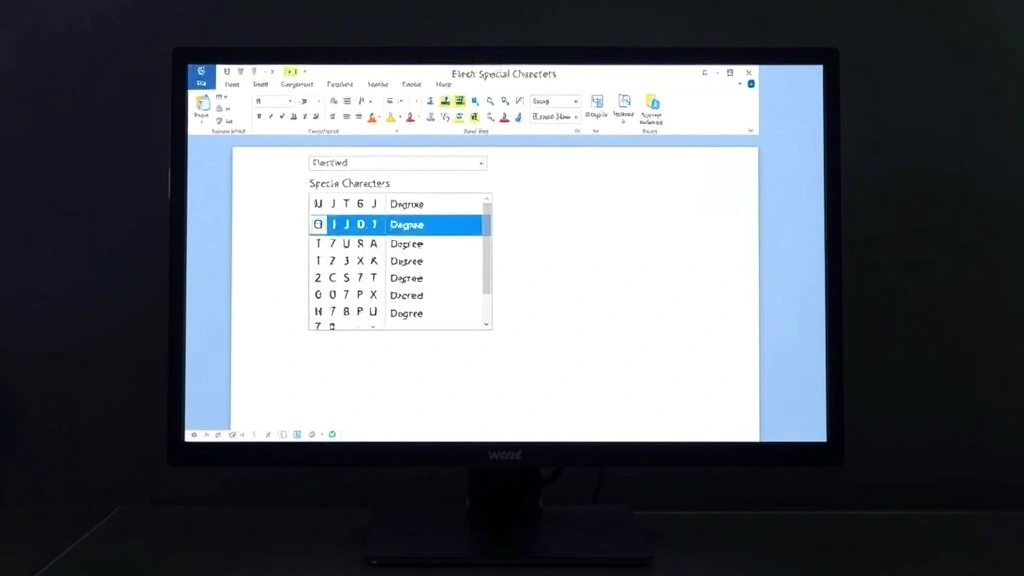
Word Method: Navigate to the Insert tab in the ribbon menu, then click on “Symbol.” A dialog box will open showing various special characters. You can either scroll through to find the degree symbol or type “00B0” (the Unicode for the degree symbol) in the Character Code field. Select the degree symbol and click Insert. This method is particularly useful if you’re new to special characters or prefer a visual approach.
Excel Method: The process in Excel is nearly identical. Go to the Insert tab, select Symbol, find the degree symbol in the dialog box, and click Insert. One advantage of using Excel’s Symbol dialog is that it remembers recently used special characters, so after inserting the degree symbol once, it becomes even faster to access on subsequent uses.
For those frequently working with data entry and formatting in spreadsheets, mastering this method alongside knowing how to alphabetize in Excel will streamline your workflow considerably. You’ll be able to create professional, consistently formatted documents with proper symbols.
Mobile Device Methods
Using a smartphone or tablet? Mobile devices handle special characters differently, but accessing the degree symbol is still straightforward once you know where to look.
iPhone and iPad: On Apple’s mobile devices, open your keyboard and look for the “123” key to switch to the numbers and symbols view. From there, tap and hold the “0” (zero) key. A small menu will pop up showing the degree symbol as one of the options. Tap it to insert it into your text. This method works in messages, emails, notes, and most other applications that accept text input.
Android Devices: The exact method varies depending on which keyboard app you’re using (Google Keyboard, Samsung keyboard, etc.), but most follow a similar pattern. Switch to the symbols view by tapping the symbols key (often labeled with “?123” or similar), then look for the degree symbol. On many Android keyboards, you can find it by tapping and holding the “0” key, similar to iPhone. If not immediately visible, you may need to access additional symbol pages by swiping or tapping arrow buttons.
Mobile users who frequently need special characters should explore their keyboard settings to see if any symbols can be added to the main keyboard view for faster access. Some keyboard apps allow customization that makes frequently-used special characters more accessible.
Copy and Paste Technique
Sometimes the simplest method is the most practical: copy and paste. If you already have a degree symbol somewhere—perhaps from a previous document or from this very article—you can simply copy it and paste it wherever you need it.
This method is particularly useful if you’re not comfortable with keyboard shortcuts or if you’re working on a device where special character input is complicated. Simply find an existing degree symbol, highlight it, copy it (using Ctrl+C on Windows or Command+C on Mac), then paste it wherever you need it (Ctrl+V or Command+V).
If you’re not sure where to find a degree symbol to copy, you can always search online for “degree symbol” and copy it from a search result or reference page. This ties into the broader concept of how to copy and paste on laptop, a fundamental computer skill that becomes incredibly useful when dealing with special characters and formatting.
The copy-paste method might seem less elegant than memorizing a keyboard shortcut, but it’s remarkably efficient for one-off uses or when you’re already in a rhythm of copying and pasting other content. For documents where you need multiple degree symbols, consider copying it once, then pasting it repeatedly throughout your work.
Special Characters Menu
Beyond the application-specific methods, most operating systems offer a universal special characters menu that you can access from virtually anywhere.
Windows Special Characters Menu: Right-click on any text field and look for options like “Insert” or “Special Characters.” Some applications include this directly, while others require you to open a separate character map utility. The Character Map application (search for it in your Start menu) provides a comprehensive view of all available special characters, including the degree symbol. Simply find it, click it, then click “Copy” to add it to your clipboard.
Mac Special Characters Menu: On Mac, you can access the character viewer from most applications by pressing Control + Command + Space. This opens a floating panel showing special characters organized by category. Search for “degree” and you’ll immediately see the symbol. Click it to insert it directly into your document.
These universal methods are particularly valuable when working across multiple applications or when you’re on an unfamiliar computer. They provide a consistent approach regardless of what software you’re using.
Frequently Asked Questions
What is the Unicode for the degree symbol?
The Unicode for the degree symbol is U+00B0. This code can be used in various applications and programming contexts. In Microsoft Office, you can type this code directly into the Character Code field when accessing the Symbol dialog.
Can I create a degree symbol using HTML?
Yes. In HTML, you can insert a degree symbol using the entity code ° or the numeric code °. This is particularly useful if you’re building websites or creating web content. Both methods will render as the ° symbol in web browsers.
Why doesn’t my Alt code work?
The most common reason Alt codes don’t work on Windows is because you’re using the number row at the top of the keyboard instead of the numeric keypad on the right. Make sure your Num Lock is enabled and you’re using the dedicated numeric keypad. Additionally, some applications (particularly web-based ones) may not support Alt codes.
Is there a keyboard shortcut for degree symbol on Chromebook?
Chromebooks don’t support traditional Alt codes. Instead, use the copy-paste method or access special characters through the on-screen keyboard. You can also use the Unicode input method: press Ctrl+Shift+U, type “00b0,” then press Space to insert the degree symbol.
How do I type a degree symbol in Google Docs?
In Google Docs, go to Insert > Special Characters, then search for “degree” in the search box. Click on the degree symbol to insert it. Alternatively, use your operating system’s keyboard shortcut (Shift+Option+8 on Mac, Alt+0176 on Windows with numeric keypad).
Can I add degree symbol to my phone’s keyboard?
Most smartphone keyboards don’t allow adding custom characters to the main keyboard view, but you can access the degree symbol through the symbols menu (as described in the mobile section above). Some third-party keyboard apps may offer customization options.
What if I’m typing in a web form and the symbol won’t insert?
Web forms sometimes have restrictions on special characters. If direct insertion doesn’t work, try the copy-paste method. If that also fails, you might need to use an alternative notation like “deg” or “degrees” instead. Contact the website administrator if you believe the degree symbol should be supported.
Is there a difference between the degree symbol and the ring above character?
Yes. The degree symbol (°) is U+00B0, while the ring above character (˚) is U+02DA. They look similar but are technically different Unicode characters. The degree symbol is what you want for temperature and angle measurements.
For those managing complex documents with multiple special characters and formatting needs, understanding these distinctions becomes important. Whether you’re creating professional reports or DIY project documentation, having the right symbol in place adds polish and clarity to your work. The methods outlined here cover virtually every scenario you’ll encounter, from quick keyboard shortcuts to more deliberate menu-based approaches. Pick the method that works best for your workflow, and you’ll never be stuck trying to figure out how to make a degree symbol again.

Related Posts

How Long to Boil Lobster Tails: Cooking Guide

How Long to Fly from New York to London? Travel Times
