
Recall Outlook Email? Expert Tips Revealed
How to Recall Outlook Email: Expert Tips Revealed
Sending an email and immediately realizing you made a mistake is one of the most frustrating experiences in modern communication. Whether you included the wrong recipient, forgot an attachment, or sent sensitive information to the wrong person, the panic that follows is very real. Fortunately, Microsoft Outlook includes a recall feature that can help you unsend emails before recipients read them. However, this feature comes with significant limitations and conditions that you need to understand to use it effectively.
The recall feature in Outlook has been available for years, but many users don’t fully understand how it works or when it actually succeeds. In this comprehensive guide, we’ll walk you through everything you need to know about recalling Outlook emails, including step-by-step instructions, important limitations, and alternative solutions when recall isn’t possible.

Understanding Outlook Email Recall
The recall feature in Outlook is designed to retrieve or replace emails you’ve sent to other people within your organization or Exchange server. When you recall an email, Outlook attempts to delete the message from the recipient’s inbox before they read it. If successful, you have the option to replace it with a new message or simply delete it entirely.
It’s crucial to understand that email recall is not a guaranteed feature. Unlike deleting a message from your own sent folder, recalling an email depends on several technical factors and the configuration of your email system. The feature works best in corporate environments where everyone uses Microsoft Exchange servers, but it becomes increasingly unreliable when sending emails outside your organization or to recipients using different email systems.
The underlying mechanism of recall involves Outlook sending a special command to the Exchange server, which then attempts to locate and remove the original message from the recipient’s mailbox. This process happens behind the scenes and can take a few moments to complete. You’ll receive a notification about whether the recall was successful or failed, though this notification itself is just another email message.
Step-by-Step Guide to Recalling Emails
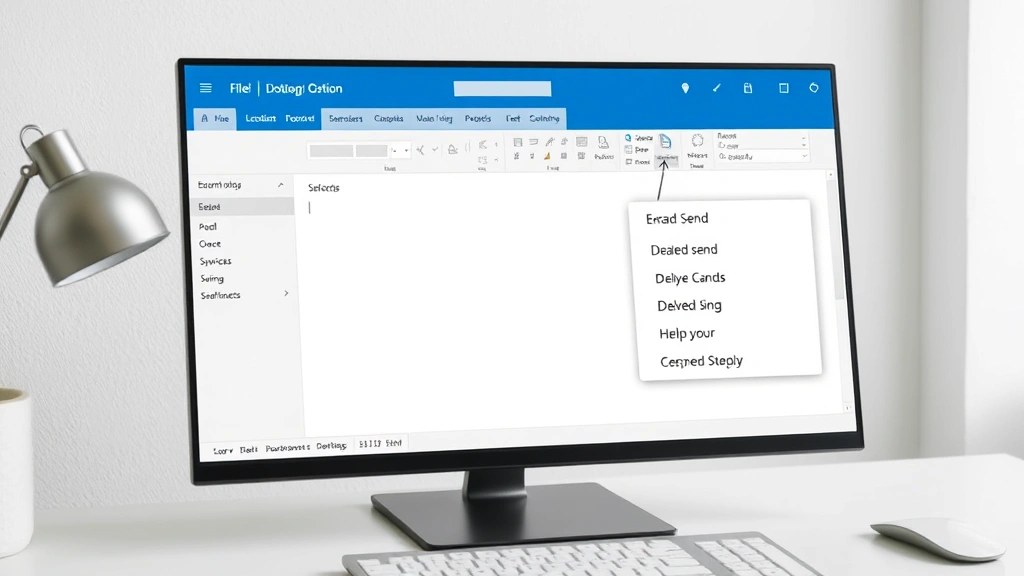
Recalling an email in Outlook is a straightforward process, though the exact steps vary slightly depending on which version of Outlook you’re using. Here’s how to recall an email in the most common Outlook versions:
For Outlook Desktop (Windows and Mac)
- Open your Sent folder by clicking on it in your folder list on the left side of the screen
- Find the email you want to recall by scrolling through your sent items or using the search function
- Double-click the email to open it in a new window
- Click the File menu at the top of the email window
- Select “Info” from the dropdown menu
- Look for the “Actions” button or similar option (this may appear as a dropdown menu)
- Click “Recall This Message” from the available options
- Choose your action – you can either delete unread copies of the message or delete unread copies and replace with a new message
- Click “OK” to proceed with the recall
If you choose to replace the message, Outlook will open a new compose window where you can type your replacement message. This new message will be sent to all original recipients.
For Outlook Web Access (OWA)
The process is slightly different if you’re using Outlook through a web browser:
- Navigate to your Sent folder in Outlook Web Access
- Right-click on the email you want to recall
- Select “Recall this message” from the context menu
- Choose your recall option and confirm your action
The web version of Outlook has a more streamlined interface, making the recall process quicker and more intuitive than the desktop version.
Important Limitations and Conditions
Before you rely on the recall feature, you absolutely must understand its significant limitations. These limitations are the reason why many email professionals recommend other preventative measures instead of relying on recall.
Exchange Server Requirements: The recall feature only works when both you and the recipient are using Microsoft Exchange servers. If your recipient uses Gmail, Yahoo Mail, Outlook.com without an Exchange account, or any other email provider, recall will fail. This is perhaps the most critical limitation to understand.
Timing is Critical: The recipient must not have read the email for recall to work. Once an email is opened and read, the recall feature cannot retrieve it. Additionally, the recipient’s email client must be configured to honor recall requests. Many email clients simply ignore recall commands or display them as regular deletion requests.
Recipient Notification: Even if your recall is successful, the recipient may receive a notification that you attempted to recall the message. This can draw attention to your mistake rather than quietly fixing it, potentially creating more awkwardness than if you’d simply sent a follow-up correction email.
No Guarantee of Success: Microsoft itself does not guarantee that recall will work. The feature is provided as-is, and you should never assume that a recall will be successful. Outlook will send you a message indicating whether the recall succeeded or failed, but this information is not always accurate.
Deleted Items Folder: If the recipient has already moved your email to their deleted items folder, recall may not work. Some email systems automatically purge deleted items after a certain period, making recall impossible.
When Recall Actually Works
Despite the limitations, there are specific scenarios where email recall is likely to succeed. Understanding these situations will help you know when you can reasonably rely on the feature.
Internal Corporate Emails: If you’re sending emails to colleagues within your organization who all use the same Exchange server, recall has the highest success rate. This is the intended use case for the feature, and it works best in this environment.
Immediate Sends: Recall works best when the recipient hasn’t had time to read the email yet. If you realize your mistake within seconds or minutes of sending, you have a much better chance of successfully recalling the message. The longer you wait, the more likely the recipient has already opened and read the email.
Recipient Email Client Settings: If the recipient is using Outlook with default settings that honor recall requests, your recall is more likely to succeed. Recipients using other email clients or those with custom settings may not receive or honor the recall request.
Single Recipients: Recalling an email sent to one person has a higher success rate than recalling emails sent to distribution lists or multiple recipients. The more people you sent the email to, the less likely all of them will have the message recalled before reading it.
In general, you should only count on recall working when you’re sending to a single colleague within your organization using the same Exchange server, and you attempt the recall within a few minutes of sending.
Alternative Solutions to Email Recall
Given the unreliability of the recall feature, many email professionals recommend using alternative approaches to handle sent email mistakes. These solutions are often more effective and give you better control over the situation.
Delayed Send Feature: The best preventative measure is to use Outlook’s delayed send feature, which allows you to schedule emails to send after a brief delay. This gives you a window of time to review the message and cancel it if needed. To use this feature, compose your email normally, then click “Send” and immediately look for an option to delay the send. In Outlook Web Access, you can typically delay send by clicking the dropdown arrow next to the send button and selecting a delay option.
Follow-Up Correction Email: Often the most professional approach is to simply send a follow-up email acknowledging the error and providing the correct information. This is transparent, honest, and leaves a clear record of the correction. Most recipients will appreciate the quick follow-up and will understand that mistakes happen.
Direct Contact: For truly sensitive or urgent situations, pick up the phone and call the recipient directly. This allows you to explain the situation in real-time and ensure they understand the error before they read the original email. This personal touch can turn a potential disaster into a minor inconvenience.
Outlook Rules and Alerts: You can set up rules in Outlook to flag emails that meet certain criteria before they’re sent, giving you a chance to review them. You can also set up alerts for emails being sent to specific recipients or containing certain keywords.
Draft Review Process: Before sending any important email, take an extra moment to review it completely. Check the recipient line, verify all attachments are included, review the content for errors, and ensure the tone is appropriate. This simple habit prevents most email mistakes before they happen.
Best Practices to Prevent Accidental Sends
The most effective strategy is prevention. By implementing best practices in your email workflow, you can avoid most situations where you’d need to recall an email in the first place.
Use Templates for Routine Messages: Create email templates for messages you send frequently. Templates reduce the likelihood of errors because you’re not retyping the same information repeatedly. You can customize templates for different scenarios and recipients.
Enable Read Receipts: For important emails, request read receipts so you know when the recipient has opened your message. This helps you gauge how quickly you need to act if you realize there’s an error.
Double-Check Recipients: The most common email mistake is sending to the wrong person. Before hitting send, verify that the recipient line contains the correct email address. Be especially careful when your email client has autocomplete features that might suggest similar names.
Verify Attachments: Review your attachments before sending. Verify that you’ve attached the correct files and that they’re the right versions. Check that file names are appropriate and that you haven’t accidentally attached confidential documents.
Review Content Before Sending: Read through your entire message one final time before clicking send. Check for spelling and grammar errors, verify that all information is accurate, and ensure that the tone is appropriate for your audience.
Be Cautious with Reply-All: One of the most common email disasters is using reply-all when you meant to use reply. Many email clients now include warnings when you use reply-all to a large group, giving you a chance to reconsider.
Use Outlook’s Undo Send Feature: In newer versions of Outlook, you can use the undo send feature immediately after sending. This feature gives you a few seconds to cancel the send before the email actually leaves your outbox. Look for an “undo” option that appears briefly after you click send.
For additional tips on email management and productivity, check out our FixWiseHub Blog for comprehensive how-to guides that cover many aspects of digital organization and communication.
FAQ
Can I recall an email sent to Gmail or Yahoo Mail?
No. The recall feature only works when both sender and recipient are on Microsoft Exchange servers. Gmail, Yahoo Mail, and most other consumer email providers do not support Outlook’s recall feature. If you accidentally sent an email to someone using these services, you’ll need to follow up with a correction email instead.
What happens if my recall is unsuccessful?
If the recall fails, Outlook will send you a notification message indicating that the recall was unsuccessful. This might happen because the recipient has already read the email, they’re not using an Exchange server, or their email client doesn’t support recall requests. When recall fails, your best option is to send a follow-up correction email.
How long do I have to recall an email?
Technically, you can attempt to recall an email at any time after sending it. However, the longer you wait, the less likely the recall will succeed. Most successful recalls happen within the first few minutes after sending, before the recipient has had time to read the message. After several hours, successful recall becomes increasingly unlikely.
Does the recipient know if I recall an email?
If the recall is successful and you choose to delete the message, the recipient may not know you attempted a recall. However, some email systems notify recipients when a recall is attempted, even if successful. If the recall is unsuccessful, the recipient will typically see a notification that you tried to recall the message, which can actually draw more attention to your mistake.
Can I recall an email I sent yesterday?
While you can technically attempt to recall an email sent yesterday, the success rate is extremely low. The recipient has likely already read the email by that point, and most email clients will not honor a recall request for messages that have already been opened. For emails sent more than a few hours ago, a follow-up correction email is your best option.
Is there a way to prevent emails from being sent accidentally?
Yes. Use Outlook’s delayed send feature to add a delay before emails are actually sent. This gives you a window of time to review and cancel the send if needed. Additionally, implement a personal review process where you check every email before sending, and use autocorrect and spell-check features to catch errors automatically.
What’s the difference between recalling and deleting an email?
Deleting an email from your sent folder only removes it from your own mailbox—the recipient still has the email. Recalling an email attempts to remove it from the recipient’s mailbox before they read it. If recall fails, the recipient still has the original email. These are two completely different actions with very different outcomes.

Related Posts

Superscript in Google Docs: Expert Tips

Strikethrough in Excel: Easy Steps for Beginners
