
Effortlessly Powerwash Your Chromebook for Peak Performance
If your Chromebook has been running sluggishly, experiencing frequent crashes, or showing persistent error messages, it might be time for a fresh start. Powerwashing your Chromebook is Chrome OS’s equivalent of a factory reset, providing a clean slate that can resolve many performance issues and restore your device to its original speedy state.
Unlike traditional computers that require complex reinstallation processes, Chromebooks make starting over remarkably simple. A powerwash removes all local data, settings, and downloaded files while keeping your Google account information safely stored in the cloud. This comprehensive guide will walk you through everything you need to know about powerwashing your Chromebook safely and effectively.
What is Powerwashing and When Do You Need It?
Powerwashing is Chrome OS’s built-in factory reset feature that completely wipes your Chromebook’s local storage and returns it to its original state. This process removes all downloaded files, installed apps, browser data, and system settings while preserving the core Chrome OS installation. Think of it as giving your Chromebook a complete fresh start without needing to reinstall the operating system.
The term “powerwash” comes from the thorough cleaning nature of the process, similar to how a pressure washer removes all dirt and grime from surfaces. When you powerwash your Chromebook, you’re essentially removing all traces of your previous usage while maintaining the device’s ability to quickly restore your Google account settings and cloud-based data.
Several scenarios warrant considering a powerwash for your Chromebook. Performance issues like slow startup times, frequent application crashes, or system freezes often indicate corrupted system files or conflicting software installations. If your Chromebook takes significantly longer to boot up or respond to commands than when it was new, a powerwash can restore optimal performance levels.
Security concerns also make powerwashing necessary. If you suspect malware infection, have downloaded suspicious files, or need to prepare your device for transfer to another user, a complete system wipe ensures no potentially harmful data remains. Additionally, persistent browser issues, corrupted user profiles, or problems with system updates that won’t install properly can often be resolved through powerwashing.
Essential Backup and Preparation Steps
Before initiating a powerwash, proper preparation ensures you won’t lose important data or face complications during the reset process. Since powerwashing removes all local files, backing up essential data is crucial for a smooth transition back to full productivity.
Start by identifying and backing up any local files stored directly on your Chromebook. While Chrome OS encourages cloud storage, some users save documents, images, or downloads locally. Check your Downloads folder, any locally stored documents, and screenshots saved to your device. Upload these files to Google Drive or another cloud storage service before proceeding.
Review your installed Chrome extensions and apps, noting which ones you’ll want to reinstall after powerwashing. While Chrome extensions typically sync automatically when you sign back into your Google account, some specialized apps or settings might require manual reinstallation. Create a list of essential applications and their settings to streamline the post-powerwash setup process.
Verify your Google account credentials and ensure you have access to your recovery information. You’ll need to sign back into your Google account after powerwashing, so confirm you remember your password or have access to two-factor authentication methods. If you use enterprise or education accounts, contact your administrator to ensure account access won’t be restricted after the reset.
Check for any pending system updates before powerwashing. Installing available updates ensures your Chromebook starts with the latest security patches and features after the reset. Navigate to Settings > About Chrome OS > Check for updates and install any available updates before proceeding with the powerwash.
Step-by-Step Powerwashing Methods
Chrome OS offers multiple methods to initiate a powerwash, each designed for different situations and user preferences. The standard method through system settings provides the most straightforward approach for functioning Chromebooks, while alternative methods help when normal system access isn’t available.
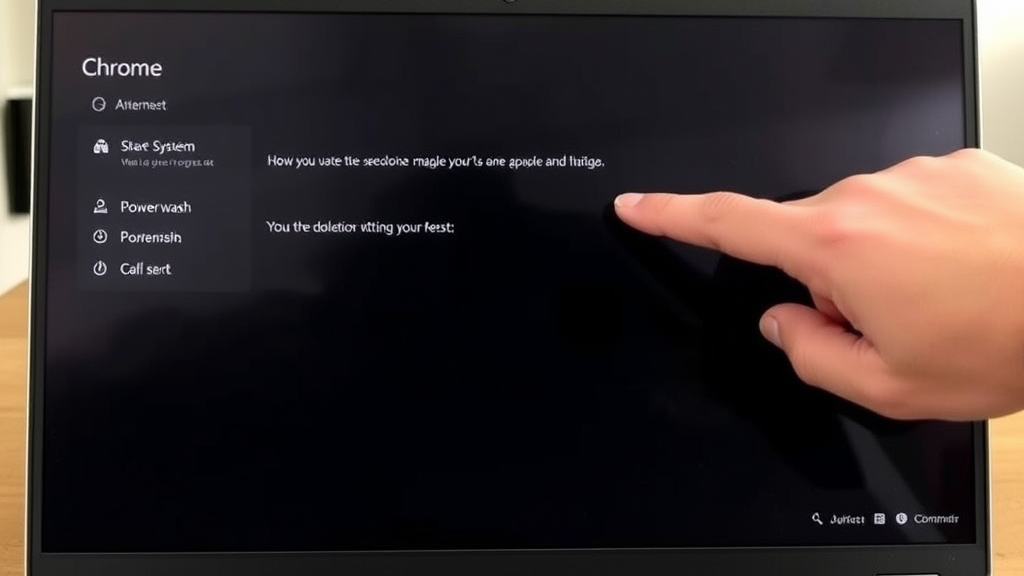
The primary powerwash method uses the Chrome OS settings interface. Open your Chromebook’s settings by clicking the status area in the bottom-right corner and selecting the gear icon, or type “chrome://settings” in your browser’s address bar. Navigate to the “Advanced” section in the left sidebar and select “Reset and clean up.” Click “Powerwash” and then “Restart” to begin the process.
During the powerwash confirmation screen, Chrome OS displays important information about what will be removed and what will be preserved. Local user accounts, downloaded files, and system settings will be deleted, while data stored in Google Drive and other cloud services remains accessible after signing back in. Click “Powerwash” again to confirm and initiate the reset process.
For Chromebooks that won’t start normally or have corrupted system files preventing access to settings, the recovery mode powerwash provides an alternative solution. Turn off your Chromebook completely, then press and hold Esc + Refresh + Power buttons simultaneously. When the recovery screen appears, press Ctrl + D to enter developer mode, then follow the prompts to powerwash the device.
Enterprise and education Chromebooks may have additional security restrictions that affect the powerwash process. Some managed devices require administrator approval or specific enrollment procedures after powerwashing. Contact your IT department before attempting to powerwash a managed device to understand any special requirements or restrictions.
Post-Powerwash Setup and Optimization
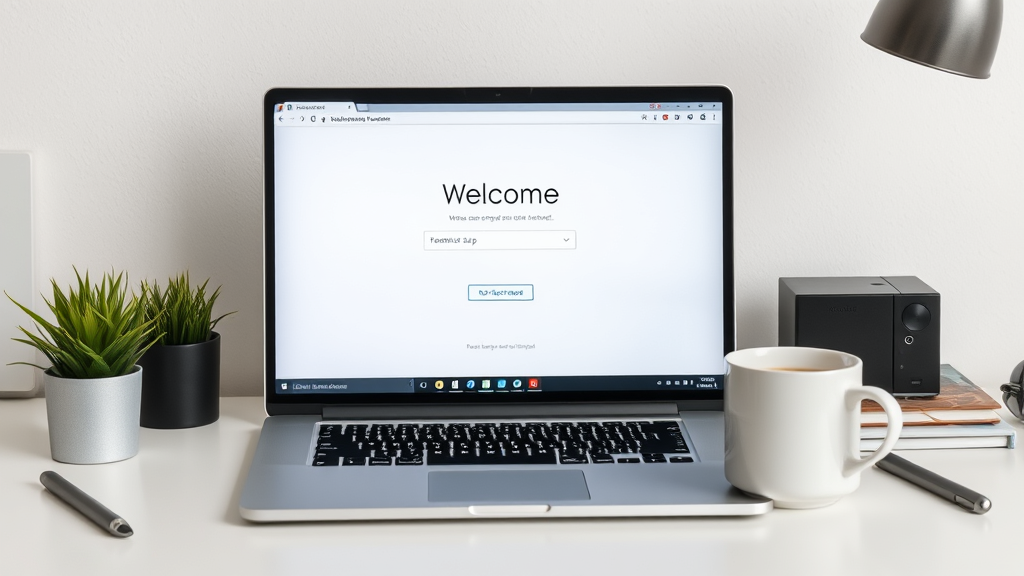
After your Chromebook completes the powerwash process, the initial setup experience guides you through restoring your personalized environment. The first boot after powerwashing presents the Chrome OS welcome screen, similar to setting up a new device, but with the advantage of your existing Google account data ready for synchronization.
Sign in with your Google account credentials to begin restoring your Chrome browser settings, bookmarks, and extensions. Chrome OS automatically syncs most of your browser data, including saved passwords, browsing history, and installed extensions. This synchronization process typically takes a few minutes, depending on your internet connection speed and the amount of data being restored.
Customize your desktop environment and system settings to match your preferences. Reset your wallpaper, adjust display brightness and resolution, configure touchpad settings, and set up any accessibility features you previously used. These settings don’t automatically sync, so you’ll need to reconfigure them manually based on your preferences.
Reinstall any Chrome apps or Android apps you regularly use. While Chrome extensions typically restore automatically, some applications require manual reinstallation from the Chrome Web Store or Google Play Store. Prioritize essential productivity applications and gradually add other apps as needed to avoid cluttering your fresh installation.
Take advantage of the clean slate to optimize your Chromebook’s performance and organization. Create a logical folder structure in your file manager, organize bookmarks efficiently, and consider which extensions and apps you truly need. This selective approach helps maintain the improved performance you’ve gained from powerwashing.
Troubleshooting Common Issues
While powerwashing typically resolves most Chromebook performance issues, some users may encounter complications during or after the reset process. Understanding common problems and their solutions helps ensure a successful powerwash experience and optimal post-reset performance.
If your Chromebook becomes unresponsive during the powerwash process, avoid forcibly shutting down the device unless absolutely necessary. The powerwash process can take 10-30 minutes depending on your device’s storage capacity and processing power. Allow sufficient time for completion before considering intervention. If the process appears genuinely stuck after an hour, perform a hard reset by holding the power button for 10 seconds, then attempt the powerwash process again.
Login issues after powerwashing often stem from forgotten credentials or account restrictions. If you can’t remember your Google account password, use the password recovery process before attempting to sign in. Enterprise or education accounts may require re-enrollment after powerwashing, so contact your administrator if you encounter access restrictions or enrollment errors.
Some users experience slower-than-expected performance immediately after powerwashing, which is typically temporary. Chrome OS continues background processes like extension installation, data synchronization, and system updates during initial use. Allow your Chromebook to complete these processes before evaluating performance improvements. Restart your device after the initial setup to ensure all background tasks have completed.
Hardware-specific issues that persist after powerwashing indicate potential hardware problems rather than software corruption. If your Chromebook continues experiencing overheating, battery drain, connectivity issues, or physical problems after a clean installation, contact the manufacturer’s support team for hardware diagnosis and potential repair options.
Alternative Solutions Before Powerwashing
Before committing to a complete powerwash, several alternative troubleshooting methods can resolve common Chromebook issues without losing local data or requiring extensive setup time. These solutions target specific problems while preserving your existing configuration and files.
Browser-related issues often respond well to targeted cleaning rather than full system resets. Clear your browsing data by pressing Ctrl + Shift + Delete and selecting all data types for removal. This process eliminates corrupted cache files, problematic cookies, and browsing history that might cause performance issues or display problems. Additionally, disable extensions temporarily to identify if specific add-ons are causing conflicts.
System file corruption sometimes resolves through Chrome OS’s built-in recovery tools without requiring a full powerwash. Access the Chrome OS recovery utility by typing “chrome://system” in your browser address bar and looking for file system errors or corruption indicators. Some issues can be repaired using the “Check disk” function or by updating to the latest Chrome OS version.
Guest mode testing helps identify whether issues stem from your user profile or system-wide problems. Sign out of your account and use Guest mode to test problematic applications or websites. If issues don’t occur in Guest mode, the problem likely relates to your user profile settings, extensions, or cached data rather than core system problems requiring powerwashing.
Performance optimization techniques can restore speed without data loss. Close unnecessary browser tabs, uninstall unused extensions and applications, and clear the Downloads folder of large files. Enable Chrome OS’s built-in storage management tools to identify and remove space-consuming files. Sometimes, simply restarting your Chromebook and allowing system updates to install resolves performance degradation.
Just as you might learn how to copy and paste on macbook for basic productivity tasks, understanding these alternative solutions helps you make informed decisions about when powerwashing is truly necessary versus when simpler fixes might suffice.
Frequently Asked Questions
How long does it take to powerwash a Chromebook?
The powerwash process typically takes 15-30 minutes for most Chromebooks, though the exact time depends on your device’s storage capacity and processing speed. Older Chromebooks with mechanical hard drives may take longer than newer models with solid-state storage. The process includes wiping local data, resetting system settings, and preparing the device for initial setup. Allow up to an hour for the complete process, including the post-powerwash setup and data synchronization.
Will powerwashing delete my Google Drive files?
No, powerwashing will not delete files stored in Google Drive or other cloud services. The process only removes locally stored data on your Chromebook’s internal storage. Your Google Drive files, Gmail messages, Google Photos, and other cloud-based data remain accessible after signing back into your Google account. However, any files saved locally to your Downloads folder or directly to the Chromebook’s storage will be permanently deleted during powerwashing.
Can I cancel a powerwash once it has started?
Once the powerwash process begins, it cannot be safely canceled without risking system corruption or data loss. The process involves low-level formatting and system file replacement that, if interrupted, could leave your Chromebook in an unusable state. If you accidentally initiated a powerwash, allow it to complete fully rather than attempting to force-stop the process. The only safe intervention is if the process appears completely frozen for over an hour, in which case a hard reset and restart of the powerwash may be necessary.
Do I need internet connection to powerwash my Chromebook?
You don’t need an internet connection to initiate and complete the powerwash process itself, as it only involves wiping local storage and resetting system files. However, you will need internet connectivity for the post-powerwash setup to sign into your Google account, sync your data, and download system updates. Without internet access, your Chromebook will have limited functionality after powerwashing until you can establish a connection and complete the initial setup process.
Will my Chrome extensions be restored after powerwashing?
Most Chrome extensions will automatically reinstall when you sign back into your Google account after powerwashing, provided you had Chrome sync enabled before the reset. Extensions installed from the Chrome Web Store typically restore with their basic settings, though some may require reconfiguration of specific preferences or login credentials. Extensions installed from external sources or developer mode extensions will need manual reinstallation.
What should I do if my Chromebook won’t start after powerwashing?
If your Chromebook fails to start properly after powerwashing, first attempt a hard reset by holding the power button for 10 seconds, then pressing it again to restart. If this doesn’t resolve the issue, try booting into recovery mode by holding Esc + Refresh + Power buttons simultaneously. From recovery mode, you can attempt another powerwash or restore Chrome OS from a recovery USB drive. Persistent startup issues after powerwashing may indicate hardware problems requiring professional repair or manufacturer support.
How often should I powerwash my Chromebook?
Most users don’t need to powerwash their Chromebooks regularly, as Chrome OS is designed to maintain performance without frequent resets. Consider powerwashing only when experiencing persistent performance issues, security concerns, or system corruption that simpler troubleshooting methods cannot resolve. Many Chromebook users never need to powerwash their devices throughout their entire ownership period. Focus on regular maintenance like clearing browser data, managing storage space, and keeping Chrome OS updated rather than scheduling routine powerwashes.

Related Posts

How Long to Boil Lobster Tails: Cooking Guide

How Long to Fly from New York to London? Travel Times
