
Merge Cells in Excel: Beginner’s Quick Tutorial
Merge Cells in Excel: Beginner’s Quick Tutorial
Merging cells in Excel is one of the most useful formatting techniques for creating professional-looking spreadsheets. Whether you’re building a budget tracker, organizing data, or designing a report template, knowing how to merge 2 cells in Excel can save you time and make your data presentation clearer. This comprehensive guide walks you through every method—from the simplest ribbon approach to advanced keyboard shortcuts—so you can confidently merge cells regardless of your Excel experience level.
Cell merging combines two or more adjacent cells into a single larger cell, perfect for creating headers, titles, or organizing complex data layouts. The process is straightforward in modern Excel versions (2016 and later), but understanding the nuances helps you avoid common pitfalls like losing data or creating formatting inconsistencies. By the end of this tutorial, you’ll master multiple merging techniques and know when to use each one for optimal results.

What Does Merging Cells Mean?
Merging cells combines multiple adjacent cells into one larger cell. When you merge cells, Excel treats the merged area as a single unit. This technique is particularly valuable for combining cells in Excel to create centered headers, titles, or labels that span multiple columns or rows. The merged cell retains the formatting and content of the upper-left cell in the selection, while data from other selected cells is typically lost unless you take precautions.
Understanding the difference between merging and concatenating is crucial. Merging is purely a formatting operation that combines cell boundaries, while concatenating joins text content from multiple cells into one. Many users confuse these concepts, but they serve different purposes in spreadsheet design. Merging is ideal for visual organization, while concatenating is better when you need to preserve all data from multiple cells.
Excel offers several merge options: merge and center (centers content across merged cells), merge across (merges cells horizontally), merge down (merges cells vertically), and unmerge (separates previously merged cells). Each option serves specific formatting needs, and choosing the right one depends on your spreadsheet layout and goals.

Method 1: Using the Ribbon Menu
The ribbon menu method is the most beginner-friendly approach to merging cells. This visual method requires no keyboard shortcuts and works consistently across all Excel versions from 2016 onward. Here’s the step-by-step process:
- Select the cells you want to merge: Click on the first cell and drag to the last cell you want to merge together. For example, to merge cells A1 and B1, click A1 and drag to B1. The selected cells will highlight in blue.
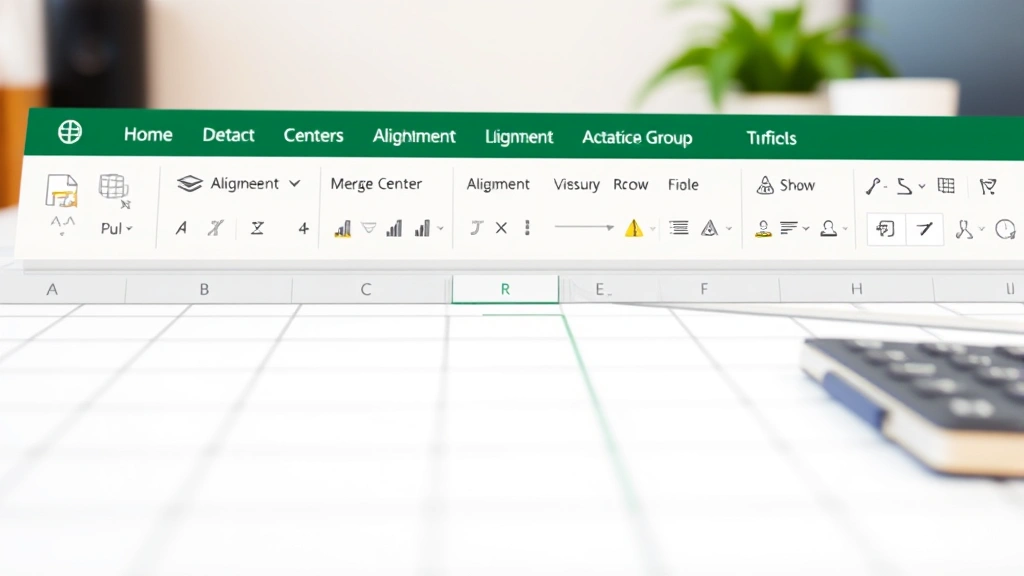
- Locate the Merge & Center button: Go to the Home tab on the ribbon (it’s the default tab when you open Excel). Look for the Merge & Center button, typically located in the Alignment group on the right side of the ribbon.
- Click the dropdown arrow: Next to Merge & Center, you’ll see a small dropdown arrow. Click this arrow to reveal merge options including “Merge & Center,” “Merge Across,” “Merge Down,” and “Unmerge Cells.”
- Select your preferred merge option: Choose the option that matches your needs. Merge & Center is the most common choice for headers and titles.
- Confirm the merge: Excel will immediately merge your selected cells. If you had data in multiple cells, a dialog box may appear warning that only the upper-left cell content will be retained.
The Merge & Center option automatically centers your content both horizontally and vertically within the merged cell, creating a polished, professional appearance. This is why it’s the go-to choice for spreadsheet headers and title rows. If you prefer left-aligned merged cells, use the “Merge Across” option instead.
Method 2: Keyboard Shortcuts
For users who prefer keyboard navigation, Excel provides efficient shortcuts to merge cells without touching the mouse. While there’s no single universal “merge cells” shortcut, you can use the following approach:
- Select your cells: Use arrow keys or click to select the range of cells you want to merge. For example, select A1:B1 for merging two cells.
- Open the Format Cells dialog: Press Ctrl+1 on Windows or Cmd+1 on Mac. This keyboard shortcut opens the Format Cells dialog box instantly.
- Navigate to the Alignment tab: Once the dialog opens, click the “Alignment” tab (it’s usually the second tab).
- Check the Merge Cells option: In the Alignment tab, you’ll find a checkbox labeled “Merge cells.” Click this checkbox to enable merging.
- Click OK: Press Enter or click the OK button to apply the merge.
This keyboard-based method is faster once you memorize the steps, making it ideal for power users who handle multiple merges regularly. The Ctrl+1 shortcut is one of Excel’s most useful keyboard combinations, as it opens the Format Cells dialog for any formatting need.
Method 3: Format Cells Dialog
The Format Cells dialog provides the most comprehensive merging options and control. This method works across all Excel versions and platforms:
- Right-click your selected cells: After selecting the cells you want to merge, right-click to open the context menu.
- Choose “Format Cells”: From the context menu, select “Format Cells” (typically near the bottom of the menu).
- Select the Alignment tab: In the Format Cells dialog, click the “Alignment” tab.
- Locate merge options: In the lower portion of the Alignment tab, you’ll see a “Merge cells” checkbox and a dropdown for “Horizontal alignment” options.
- Enable merging and set alignment: Check the “Merge cells” checkbox. Optionally, select your preferred horizontal alignment (Left, Center, Right, Justify).
- Apply changes: Click “OK” to merge the cells with your chosen formatting.
This method gives you granular control over both the merge operation and the cell alignment in a single action. You can set text alignment, vertical alignment, and wrapping simultaneously, making it efficient for complex formatting tasks.
Merging Cells Without Losing Data
One of the biggest concerns when merging cells is losing data from all cells except the upper-left one. Fortunately, several workarounds preserve your information:
Method 1: Concatenate Before Merging – Before merging, use a formula to combine the cell contents. In an empty cell, type =A1&" "&B1 to join the content with a space. Copy this result, paste it as values into cell A1, then delete the original B1 content. Now you can safely merge A1 and B1 without losing any data.
Method 2: Use CONCATENATE Function – For more complex combinations, use the CONCATENATE function or the ampersand (&) operator to join multiple cells. This is particularly useful when merging cells containing important data that you want to preserve in a single location.
Method 3: Copy Data to Separate Location – Before merging, copy the data from secondary cells to a different location in your spreadsheet. This creates a backup of all information before the merge operation eliminates it from the merged cell.
Many spreadsheet professionals recommend combining cells in Excel using formulas rather than merging, as this preserves all data and maintains spreadsheet functionality. However, for purely visual formatting purposes, the merging techniques described above work perfectly.
Unmerging Cells
If you’ve merged cells and later need to separate them, Excel makes unmerging simple:
- Select the merged cell: Click on the merged cell you want to unmerge.
- Open the Merge & Center dropdown: In the Home tab, click the Merge & Center dropdown arrow.
- Select “Unmerge Cells”: Click this option to immediately separate the merged cell back into individual cells.
- Confirm the change: The cells are now unmerged and function as separate cells again.
Alternatively, you can unmerge using the Format Cells dialog: Select the merged cell, press Ctrl+1, go to the Alignment tab, uncheck “Merge cells,” and click OK. The content of the merged cell remains in the upper-left cell after unmerging, while other cells in the range become empty.
Best Practices for Cell Merging
To create professional, functional spreadsheets, follow these best practices when merging cells:
Use Merging Sparingly – Merge cells only for visual purposes like headers and titles. Excessive merging can make data entry difficult and create navigation challenges. Reserve merging for formatting, not for data organization.
Merge Horizontally for Headers – When creating titles that span multiple columns, merge cells horizontally using “Merge Across” or “Merge & Center.” This creates clear visual separation between header rows and data rows.
Center Content in Merged Cells – Always use “Merge & Center” for headers and titles to create a polished, professional appearance. Centered content looks intentional and organized, while off-center merged cells appear accidental.
Avoid Merging in Data Ranges – Don’t merge cells within your actual data. Merged cells in data ranges interfere with sorting, filtering, and formulas. Keep your data area clean and merge-free for maximum functionality.
Maintain Consistency – If you merge cells for headers in one section, merge similarly-sized ranges throughout your spreadsheet. Consistent formatting creates a cohesive, professional appearance.
Document Merged Areas – In complex spreadsheets, keep notes about merged cell locations. This helps when you or others need to edit the spreadsheet later and need to understand the formatting structure.
Common Mistakes to Avoid
Learning what NOT to do is just as important as learning proper techniques. Here are common merging mistakes:
Merging Cells with Data Loss – The most frequent error is merging cells without preserving data from non-upper-left cells. Always backup or consolidate data before merging cells containing important information.
Merging in Filtered or Sorted Data – Merged cells can cause unexpected behavior when you apply filters or sorts to your spreadsheet. Excel may skip merged cells or display unexpected results. Avoid merging within active data ranges.
Creating Irregular Merge Patterns – Merging cells inconsistently (different sizes, different orientations) creates visual confusion. Maintain regular merge patterns for professional appearance.
Merging Cells with Formulas – If cells contain formulas, merging will delete the formulas from non-upper-left cells. Convert formulas to values before merging, or consolidate formulas first.
Forgetting Alignment Settings – Merged cells without proper alignment look unprofessional. Always set appropriate horizontal and vertical alignment when merging.
Merging Across Different Data Types – Avoid merging cells containing numbers, text, and dates together without consolidating first. Mixed data types in merged cells create confusion.
For related formatting tasks, learn how to split cells in Excel for situations where you need to separate previously merged cells or divide content. Additionally, understanding how to freeze rows in Excel helps you maintain visible headers while scrolling through data, which works well with merged header cells.
FAQ
Can I merge cells diagonally in Excel?
No, Excel doesn’t support diagonal merging. You can only merge cells in rectangular patterns (horizontally, vertically, or in rectangular blocks). Diagonal merging isn’t possible due to the grid structure of spreadsheets.
What happens to formulas when I merge cells?
When you merge cells containing formulas, all formulas except the one in the upper-left cell are deleted. To preserve formulas, convert them to values first, or consolidate them into a single formula before merging.
Can I merge cells in Excel Online?
Yes, Excel Online supports cell merging through the Home tab menu. The process is identical to desktop Excel, though some advanced formatting options may be limited in the web version.
How do I merge cells and keep all data?
Use the CONCATENATE function or ampersand (&) operator to combine cell contents into one cell before merging. For example, type =A1&" "&B1 in a new cell, copy the result as values, paste into the target cell, then merge. This preserves all original data.
Is there a keyboard shortcut to merge cells?
There’s no single merge shortcut, but you can use Ctrl+1 to open Format Cells, then navigate to Alignment and check “Merge cells.” Alternatively, use the ribbon menu with Alt+H for Home tab access.
Why can’t I merge cells in my spreadsheet?
Common reasons include: cells are protected (unprotect the sheet first), cells contain array formulas (convert to values first), or you’re trying to merge non-rectangular ranges. Ensure your selection forms a proper rectangle and check sheet protection settings.
How do I unmerge multiple cells at once?
Select all merged cells you want to unmerge (you can select multiple merged cells simultaneously), then click Merge & Center dropdown and choose “Unmerge Cells.” All selected merged cells will unmerge at once.
Can merged cells be sorted or filtered?
Merged cells can interfere with sorting and filtering. Excel may skip merged cells or produce unexpected results. For data you need to sort or filter, avoid merging and use formatting alternatives instead.
What’s the difference between merging and centering?
Merging combines cells into one larger cell, while centering aligns content within a cell. “Merge & Center” does both operations simultaneously—it merges the cells and centers the content within the merged area.
Can I merge cells with different formatting?
When you merge cells with different formatting, the formatting from the upper-left cell is retained. Other formatting is lost. To preserve specific formatting, note it before merging, then reapply after merging if needed.

Related Posts

Superscript in Google Docs: Expert Tips

Strikethrough in Excel: Easy Steps for Beginners
