
How to Forward Calls on iPhone: Easy Steps
How to Forward Calls on iPhone: Easy Steps
Your iPhone is ringing, but you’re nowhere near it—or maybe you’re juggling multiple devices and need calls to follow you around like a loyal friend. Call forwarding is one of those underrated features that can genuinely simplify your life, whether you’re managing work calls during a vacation, transitioning between phones, or just want redundancy for important calls. The beauty of it? It takes about two minutes to set up, and you’ll wonder why you didn’t do it sooner.
Call forwarding on iPhone isn’t just about redirecting incoming calls to another number. It’s about taking control of your communication flow and ensuring you never miss what matters. Whether you’re switching to a new device, working remotely, or simply prefer taking calls on a different line, understanding how to forward calls on iPhone gives you flexibility and peace of mind. Let’s walk through exactly how to make this happen.
What is Call Forwarding and Why You Need It
Call forwarding is a telecommunications feature that automatically redirects incoming calls from your iPhone to another phone number of your choosing. Think of it as a digital secretary that intercepts your calls and sends them somewhere else. When someone dials your iPhone number, instead of ringing your device, that call gets rerouted to whichever number you’ve designated.
The practical applications are extensive. If you’re away from your primary phone, you can forward calls to your office line or a family member’s device. Business owners often forward their main line to their mobile when they’re out of the office. Remote workers use it to ensure they’re reachable on their preferred device. The feature is especially valuable when you’re managing multiple numbers or transitioning between devices, and it works seamlessly whether you’re using the latest iPhone model or an older version still running recent iOS updates.
Beyond convenience, call forwarding provides a safety net. You won’t accidentally miss critical calls from family, clients, or emergency contacts. It’s particularly useful if you’re someone who regularly switches between devices or if your primary iPhone battery dies unexpectedly—your calls can still reach you through the forwarded number.
How to Enable Call Forwarding on iPhone
The process of enabling call forwarding on your iPhone is refreshingly straightforward. Apple has made this feature easily accessible without burying it in obscure settings menus. The feature works with any carrier-supported number, making it flexible for various scenarios.
Before diving in, you’ll want to ensure a few things are in place. Your iPhone must have an active cellular connection—this can be WiFi calling or cellular data, but you need at least one form of connectivity. Your carrier must support call forwarding (virtually all major carriers do, but it’s worth confirming). And you’ll need the phone number where you want calls forwarded—have that number ready before you start.
It’s worth noting that when you enable call forwarding, your iPhone still receives the incoming call signal, which means you’ll use cellular minutes or data. The feature is carrier-dependent, so availability and any associated costs depend on your specific carrier plan. Most carriers include basic call forwarding at no extra charge, but it’s smart to check with your provider beforehand.
Setting Up Call Forwarding Step-by-Step
Here’s the exact process to get call forwarding up and running on your iPhone:
- Open the Phone app: Tap the Phone icon on your home screen or in your app library. This is your starting point for all call-related settings.
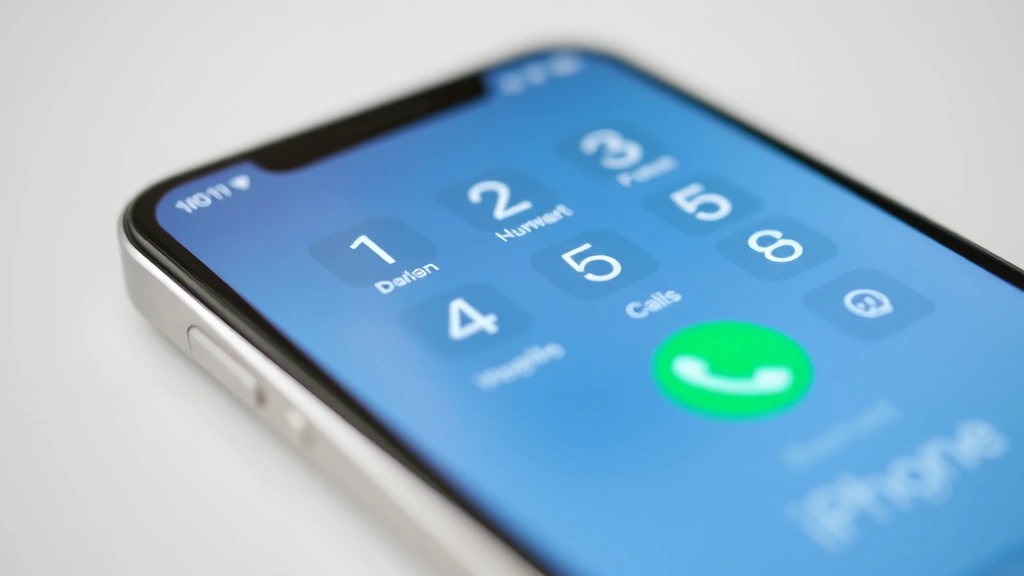
- Tap the Keypad tab: You’ll see several tabs at the bottom of the screen. Select “Keypad,” which shows you the traditional phone dial pad.
- Enter the activation code: This is where it gets a bit old-school. Type *21* followed by the phone number where you want calls forwarded. For example, if you want to forward to 555-123-4567, you’d type: *21*5551234567
- Press the call button: Tap the green call icon to execute the code. Your iPhone will briefly show “Forwarding” on screen.
- Confirm the activation: You’ll receive a confirmation message indicating that call forwarding is now active. Save this for your records, as it contains important information about your setup.
That’s genuinely it. You’re done. Any calls to your iPhone number will now ring through to the number you specified. If you ever want to verify that call forwarding is active, you can dial *#21# and press call—this displays your current forwarding settings without changing anything.
To disable call forwarding when you no longer need it, simply dial #21# and press call. This deactivates all active forwarding with a single command. It’s equally simple to turn off, which is why there’s no reason to leave it running if you’ve moved past the situation that prompted you to set it up.
Understanding Different Call Forwarding Options
While the basic call forwarding setup handles most scenarios, your carrier might offer additional options that provide more granular control. Understanding these variations helps you choose the right setup for your specific situation.
Unconditional Call Forwarding (*21*): This is the standard option we covered above. Every call to your iPhone gets forwarded to your designated number. Use this when you want all calls redirected without exception.
Call Forwarding When Busy (*67*): This option only forwards calls when your iPhone line is already in use. If you’re on another call and someone tries to reach you, that incoming call gets forwarded to your chosen number instead of going to voicemail. This is particularly useful for business scenarios where you don’t want callers to hit voicemail during active conversations.
Call Forwarding on No Answer (*61*): This forwards calls if you don’t answer within a specific timeframe (usually 15-30 seconds, depending on your carrier). It’s ideal if you want to stay reachable but prefer calls to go to an alternative number when you’re unavailable or unable to answer immediately.
Call Forwarding on Unreachable (*62*): This forwards calls when your iPhone is powered off or outside coverage areas. It ensures you’re reachable even when your primary device isn’t available, making it invaluable for people who travel or work in areas with spotty coverage.
To set up these variations, you’ll use the same process as basic call forwarding, just with different activation codes. For example, to set up call forwarding when busy to 555-123-4567, you’d dial *67*5551234567 followed by the call button.
When you’re considering which option best suits your situation, think about your typical usage patterns. Are you always available, or do you frequently miss calls? Do you want all calls forwarded, or only certain scenarios? Matching the right forwarding type to your needs ensures you don’t accidentally route calls somewhere unintended.
If you’re managing multiple communication channels, you might also want to explore how to remove yourself from a group text on your primary device while still staying connected through a forwarded line. This gives you control over which communications follow you and which ones don’t.
Troubleshooting Common Call Forwarding Issues
Most of the time, call forwarding works flawlessly. But occasionally, you might encounter situations where it’s not behaving as expected. Here are the most common issues and how to fix them:
Calls aren’t forwarding: First, verify that call forwarding is actually enabled by dialing *#21# and checking the status. If it shows inactive, re-enter your activation code and try again. Confirm that you entered the correct phone number—even a single digit error will cause forwarding to fail. Restart your iPhone by powering it off and back on, as this sometimes resolves connectivity issues with carrier services.
Forwarding stops working intermittently: This often indicates a carrier issue rather than an iPhone problem. Contact your carrier to confirm their call forwarding service is functioning properly. Ask if there are any outages or maintenance windows affecting your account. Sometimes your carrier’s systems need a reset on their end.
You’re getting duplicate calls: If calls are ringing both your iPhone and your forwarded number simultaneously, check that you haven’t accidentally set up multiple forwarding rules. Disable all forwarding with #21# and start fresh with a single rule.
Voicemail isn’t capturing calls: When call forwarding is enabled, voicemail behavior changes. If calls go unanswered at your forwarded number, they typically don’t route back to your iPhone voicemail. Set up voicemail on your forwarded line or adjust your call forwarding settings to use the “no answer” option instead of unconditional forwarding.
For additional security considerations, you might want to block no caller ID on iPhone to prevent anonymous calls from being forwarded to your secondary number, which adds an extra layer of control over your communication flow.
If problems persist after trying these solutions, contact your carrier’s technical support. Sometimes the issue exists on their backend, and they’ll need to manually investigate your account or reset the service on their systems.
Tips for Managing Forwarded Calls Effectively
Simply enabling call forwarding is just the beginning. To truly maximize this feature, consider these best practices:
Communicate your setup to important contacts: If you’re forwarding calls to a different device, make sure people who need to reach you know about it. There’s nothing worse than someone thinking you’re ignoring them when calls are actually going somewhere else. A quick message to key contacts prevents confusion and ensures they understand the temporary or permanent change.
Set clear expectations for response times: When calls forward to a secondary number, you might not respond as quickly as usual. If you’re forwarding to a work line or shared device, let callers know to expect a slightly longer wait. This manages expectations and prevents frustration.
Monitor your usage patterns: After a week or two of using call forwarding, review which calls actually come through to your forwarded number. This helps you understand if your forwarding strategy is working or if you need to adjust it. Maybe you realize you only need forwarding during certain hours, which would make selective forwarding a better option.
Combine with other iPhone features: Call forwarding works beautifully alongside other iPhone communication tools. If you’re also managing scheduling a text on iPhone, you can create a comprehensive communication strategy where calls route to one place and messages go to another, giving you complete control over your communication channels.
Keep forwarding details secure: Don’t share your forwarding setup details with people you don’t trust. While call forwarding isn’t inherently a security risk, knowing where your calls are being routed gives someone information they could potentially exploit.
Review regularly and disable when not needed: If you set up call forwarding for a temporary situation—like a vacation or a specific project—disable it when you’re done. Leaving it running indefinitely means you’re always routing calls elsewhere, which defeats the purpose of having a primary iPhone number in the first place.
For users managing multiple devices and communication methods, understanding how to turn off Find My iPhone alongside managing call forwarding gives you complete control over your device accessibility and communication routing.
If you’re concerned about device compatibility or transitioning between phones, you might also want to understand how to check if iPhone is unlocked to ensure your device supports carrier-specific features like call forwarding with your new provider.
Frequently Asked Questions
Does call forwarding work internationally?
Call forwarding generally works the same way internationally as it does domestically, but there are important caveats. Your carrier must support international call forwarding, and you’ll need to include the country code when entering the forwarded number. International calls through forwarding incur charges according to your carrier’s international calling rates, which can be expensive. Contact your carrier before setting up international forwarding to understand costs.
Will I be charged for forwarded calls?
Most carriers include basic call forwarding at no additional charge. However, you typically pay for the call itself—either through your regular plan minutes or international rates if the forwarded call crosses country borders. Check with your specific carrier about their call forwarding charges, as policies vary.
Can I forward calls to multiple numbers?
Standard iPhone call forwarding only supports one forwarded number at a time. However, some carriers offer advanced features that allow multiple forwarding rules or conditional forwarding. Contact your carrier to ask about more advanced options if you need calls to route to different numbers based on specific conditions.
What happens to my voicemail when call forwarding is enabled?
When unconditional call forwarding is active, voicemail behavior changes. If the forwarded number doesn’t answer, the call typically doesn’t return to your iPhone voicemail—it goes to voicemail associated with the forwarded number. If you want calls to reach your iPhone voicemail when unanswered, use conditional forwarding (no answer) instead of unconditional forwarding.
Can I forward calls while traveling?
Yes, call forwarding works while traveling, both domestically and internationally. However, ensure you understand international roaming charges before setting up cross-border forwarding. WiFi calling must be enabled on your iPhone for call forwarding to work if you don’t have local cellular service.
How do I know if someone is calling me or the forwarded number?
From the caller’s perspective, they’re always calling your iPhone number—that never changes. They won’t know the call is being forwarded. On your end, if you’re receiving the call on the forwarded number, you’ll see it coming in on that device with the original caller’s information.
What if the forwarded number is busy?
If the number you’re forwarding to is busy or doesn’t answer, the call behavior depends on your forwarding type. With unconditional forwarding, the call will go to the voicemail of the forwarded number. With conditional forwarding options, it might ring back to your iPhone or go to your voicemail depending on your settings.
Can I temporarily disable call forwarding?
Absolutely. You can disable it anytime by dialing #21# and pressing call. This takes seconds and doesn’t require going through any menus. You can re-enable it just as quickly if needed.

Related Posts

How Long to Boil Lobster Tails: Cooking Guide

How Long to Fly from New York to London? Travel Times
